StarTech.com 2 Port Dual Monitor HDMI KVM Switch
Model: SV231DHU34K6
1. Įvadas
This instruction manual provides detailed information on the installation, operation, and maintenance of your StarTech.com 2 Port Dual Monitor HDMI KVM Switch. This device allows you to control two computers from a single set of peripherals, including two HDMI monitors, a keyboard, a mouse, and other USB devices, supporting resolutions up to 4K at 60Hz.
2. Saugos informacija
Prieš naudodami šį gaminį, perskaitykite ir supraskite visas instrukcijas. Nesilaikant šių instrukcijų, gali kilti elektros smūgis, gaisras arba sunkūs sužalojimai.
- Elektros pavojai: Do not use damaged or frayed cables. Exposed wires can lead to electric shocks. Ensure all cables are properly connected and secured to prevent accidental disconnection.
- Šilumos kaupimasis: Overloaded or tightly bundled cables can overheat and pose a fire hazard. Ensure adequate ventilation and avoid bundling power cables.
- Žala: Visada atjunkite adapterius laikydami už kištuko, o ne už laido. Traukdami už laido galite atidengti įtampą turinčius laidus, o tai gali sukelti elektros smūgį ar nudegimus.
3. Produktas baigtasview
The StarTech.com SV231DHU34K6 KVM switch is designed to streamline your workspace by enabling control of two computers with dual 4K HDMI displays and shared USB peripherals. Its robust steel housing ensures durability.
3.1. Pagrindinės savybės
- Supports dual 4K (3840 x 2160) resolution at 60Hz per monitor.
- HDMI 2.0, HDCP 2.2, and HDR10 support.
- Integrated 2-port USB 3.0 Hub (5Gbps) for sharing peripherals.
- Four USB 2.0 HID ports for keyboard and mouse.
- Hotkey and front-panel push-button switching.
- EDID and HDCP signal emulation for fast, seamless switching.
- Supports stereo analog and 7.1 digital audio.
- OS Independent compatibility (Windows, Mac, Linux).
3.2. Priekinis skydelis

1 pav. Priekinio skydelio išdėstymas
- HID USB Port: For connecting a keyboard or mouse.
- 5G USB Port: Skirta didelės spartos USB 3.0 įrenginiams prijungti.
- Computer Selection Buttons (1, 2): Press to switch to the corresponding computer.
- SELECT mygtukas: Used for various functions, including auto-scan activation.
3.3. Galinis skydelis
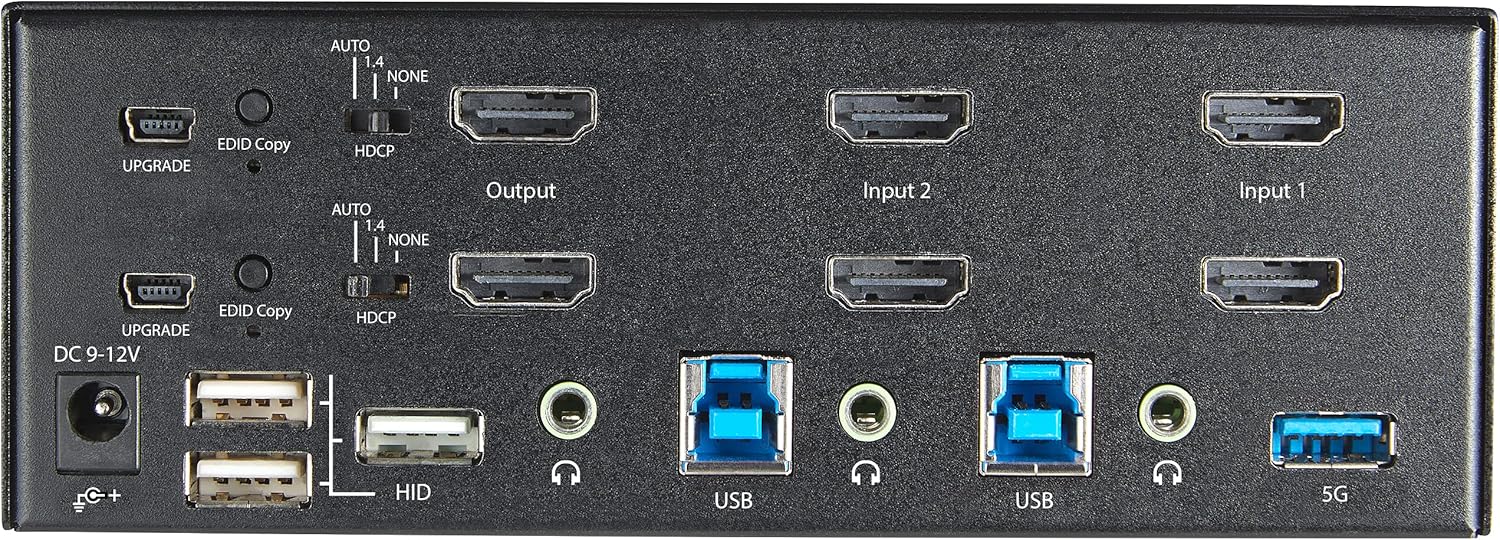
2 pav. Galinio skydelio išdėstymas
- 9–12 V nuolatinės srovės maitinimo įvestis: Prijunkite pridedamą maitinimo adapterį.
- UPGRADE Port: Dėl programinės įrangos atnaujinimų.
- EDID Copy Button/Switch: Manages Extended Display Identification Data.
- HDCP jungiklis: Manages High-bandwidth Digital Content Protection.
- Output (HDMI): Connect to your monitors.
- Input 1/Input 2 (HDMI): Connect to the HDMI outputs of your computers.
- USB (B tipas): Connect to the USB 3.0 ports of your computers.
- HID USB Ports (Type-A): For additional keyboard/mouse connections or other low-power USB devices.
- Audio Jacks (3.5mm): For connecting speakers/headphones and microphones.
- 5G USB Port (Type-A): Skirta didelės spartos USB 3.0 įrenginiams prijungti.
4. Sąranka
4.1. Kas yra dėžutėje
- 1 x KVM Switch (SV231DHU34K6)
- 1 x universalus maitinimo adapteris (NA / JP, EU, UK, ANZ)
- 4 x guminės kojos
- 1 x greito pradžios vadovas
Note: HDMI cables, USB 3.0 Type-A to Type-B cables, and audio cables are not included and must be purchased separately.
4.2. Prijungimo instrukcijos
Norėdami prijungti KVM jungiklį, atlikite šiuos veiksmus:
- Monitorių prijungimas: Connect your two HDMI monitors to the 'Output' HDMI ports on the rear panel of the KVM switch.
- Kompiuterių prijungimas (HDMI): Connect the HDMI outputs from Computer 1 to the 'Input 1' HDMI ports on the KVM switch. Repeat for Computer 2 and 'Input 2'. Ensure both HDMI outputs from each computer are connected for dual monitor support.
- Prijunkite kompiuterius (USB): Connect the USB 3.0 Type-B ports on the KVM switch to the USB 3.0 Type-A ports on Computer 1 and Computer 2 using appropriate USB 3.0 cables. These connections enable keyboard, mouse, and USB hub functionality.
- Prijunkite išorinius įrenginius:
- Connect your keyboard and mouse to the 'HID' USB ports on the front or rear panel.
- Connect other USB devices (e.g., printer, scanner, webcam) to the '5G' USB 3.0 ports on the front or rear panel.
- Prijunkite garsą (pasirinktinai): If desired, connect your speakers/headphones and microphone to the 3.5mm audio jacks on the rear panel.
- Prijunkite maitinimą: Connect the included universal power adapter to the 'DC 9-12V' power input on the rear panel, then plug it into a power outlet. The KVM switch will power on automatically.

Figure 3: KVM Switch with Ports for Connection
5. KVM jungiklio valdymas
5.1. Perjungimas tarp kompiuterių
You can switch between connected computers using either the front-panel push buttons or hotkey commands.
- Front-Panel Buttons: Press the '1' or '2' button on the front panel to directly switch to Computer 1 or Computer 2, respectively.
- Karštųjų klavišų perjungimas: Use keyboard hotkey combinations to switch computers. The default hotkey sequence is typically Scroll Lock, Scroll Lock, [1 or 2]. Refer to the Quick-Start Guide for a complete list of hotkey commands and customization options. A buzzer sound confirms the switch.
5.2. EDID and HDCP Emulation
The KVM switch includes EDID (Extended Display Identification Data) and HDCP (High-bandwidth Digital Content Protection) signal emulation. This feature ensures that your monitors remain synced and desktop settings are maintained when switching between computers, preventing display resolution changes or window rearrangement.
5.3. USB šakotuvo funkcionalumas
The integrated USB 3.0 hub allows you to share two USB 3.0 peripherals (connected to the 5G ports) and four USB 2.0 HID peripherals (connected to the HID ports) between the connected computers. Devices connected to these ports will function as if directly connected to the currently selected host computer.
5.4. Garso palaikymas
The KVM switch supports both digital audio (via HDMI, 7.1 Channel Audio) and separate 3.5mm stereo analog audio (2 Channel Audio). Ensure your displays and sources support the desired audio format for full compatibility.
6. Priežiūra
Norėdami užtikrinti KVM komutatoriaus ilgaamžiškumą ir optimalų veikimą, laikykitės šių priežiūros gairių:
- Valymas: Įrenginio išorę valykite minkšta, sausa šluoste. Nenaudokite skystų ar aerozolinių valiklių.
- Vėdinimas: Ensure the KVM switch is placed in a well-ventilated area. Do not block any ventilation openings.
- Kabelių valdymas: Keep cables organized and untangled to prevent damage and ensure proper airflow. Avoid excessive bending or crimping of cables.
- Saugykla: Kai ilgesnį laiką nenaudojate prietaiso, laikykite jį vėsioje, sausoje vietoje, apsaugotoje nuo tiesioginių saulės spindulių ir ekstremalių temperatūrų.
7. Problemų sprendimas
Jei kyla problemų dėl KVM jungiklio, žr. šias dažniausiai pasitaikančias problemas ir sprendimus:
- No Display or Incorrect Resolution:
- Ensure all HDMI cables are securely connected to both the KVM switch and your computers/monitors.
- Verify that your HDMI cables are rated for 4K 60Hz if you are using 4K displays. Longer cables (e.g., over 3m/10ft) may require higher quality or active cables.
- Check the display settings on your computers to ensure they are configured for the correct resolution and refresh rate.
- Try power cycling the KVM switch and monitors.
- Klaviatūra / pelė nereaguoja:
- Ensure the USB Type-B cables are securely connected from the KVM switch to your computers.
- Verify that your keyboard and mouse are connected to the designated HID USB ports.
- Pabandykite prijungti klaviatūrą / pelę tiesiai prie kompiuterio, kad įsitikintumėte, jog jie veikia.
- Some specialized keyboards/mice with advanced features may require direct connection or specific drivers.
- Neaptikti USB įrenginiai:
- Ensure the USB Type-B cables are connected from the KVM switch to your computers.
- Verify that the USB device is connected to the appropriate 5G USB 3.0 port.
- Some high-power USB devices may require an external power source or a powered USB hub connected to the KVM's 5G port.
- Garso problemos:
- Check all 3.5mm audio cable connections.
- Verify audio output settings on your computers.
- Ensure your monitors or audio devices support the HDMI audio format being sent.
- Lėtas perjungimo laikas:
- The KVM switch is designed for fast switching. If experiencing delays, ensure EDID and HDCP emulation are functioning correctly.
- Įsitikinkite, kad visi kabeliai yra geros kokybės ir tinkamai pritvirtinti.
If the problem persists after attempting these solutions, please contact StarTech.com technical support.
8. Specifikacijos
| Kategorija | Specifikacija |
|---|---|
| Modelio numeris | SV231DHU34K6 |
| KVM prievadai | 2 |
| Monitors Supported | 2 |
| Vaizdo įrašo tipas | HDMI 2.0 |
| Palaikomos rezoliucijos | Iki 3840 x 2160 @ 60Hz |
| HDCP palaikymas | HDCP 2.2 |
| HDR palaikymas | HDR10 |
| USB šakotuvas | 2 prievadų USB 3.0 (5 Gbps) |
| USB HID prievadai | 4x USB 2.0 |
| Garso palaikymas | HDMI (7.1 Channel), Analog Stereo (3.5mm) |
| Uosto pasirinkimas | Push Button, Hotkeys |
| Medžiaga | Plienas |
| Spalva | Juoda |
| Gaminio matmenys (I x P x A) | 6.3 x 3.9 x 2.3 colio (16.0 x 10.0 x 5.8 cm) |
| Produkto svoris | 1.8 svarai (0.8 kg) |
| Maitinimo šaltinis | Kintamosios srovės adapteris (pridedamas) |
| Įvesties tomastage | 100 - 240 AC |
| Energijos suvartojimas | 36W |
| Darbinė temperatūra | nuo 0 ℃ iki 40 ℃ (32 ℉ iki 104 ℉) |
| Laikymo temperatūra | -10 ℃ iki 60 ℃ (14 ℉ iki 140 ℉) |
| Drėgmė | Nuo 0% iki 80% RH (nekondensuojantis) |
9. Garantija ir palaikymas
This StarTech.com KVM Switch (Model: SV231DHU34K6) is backed by a 2 metų garantija. StarTech.com also provides nemokama visą gyvenimą trunkanti techninė pagalbaDėl techninės pagalbos ar garantinių pretenzijų apsilankykite oficialioje svetainėje StarTech.com. websvetainėje arba susisiekite su klientų aptarnavimo komanda.
Norėdami gauti daugiau informacijos, apsilankykite: www.startech.com


