Įvadas
This manual provides detailed instructions for the installation, operation, and maintenance of your AXAGON ADSA-ST USB 3.0 Docking Station. This device is designed to connect 2.5" and 3.5" SATA SSDs and HDDs to your computer via a USB 3.0 interface, offering fast data transfer speeds.
Prieš naudodami gaminį, atidžiai perskaitykite šį vadovą, kad užtikrintumėte tinkamą veikimą ir išvengtumėte pažeidimų.
Pakuotės turinys
Patikrinkite, ar pakuotėje yra visi komponentai:
- AXAGON ADSA-ST Docking Station
- USB 3.0 Type-A to Micro-B cable
- Maitinimo adapteris
- Vartotojo vadovas (šis dokumentas)

Image: The AXAGON ADSA-ST Docking Station shown alongside its retail packaging, illustrating the product and its box.
Pagrindinės savybės
- Supports 2.5" and 3.5" SATA I/II/III SSDs and HDDs.
- USB 3.0 (USB 3.2 Gen 1) interface with up to 5 Gbps transfer speed.
- SATA 6G (SATA III) support.
- UASP (USB Attached SCSI Protocol) support for enhanced performance.
- TRIM support for SSDs.
- HDD Auto Spindown function.
- LED indication for power and activity.
- Compact design with aluminum body.

Vaizdas: A view of the AXAGON ADSA-ST Docking Station highlighting its 5 Gbps USB 3.2 Gen 1 speed and compact size.
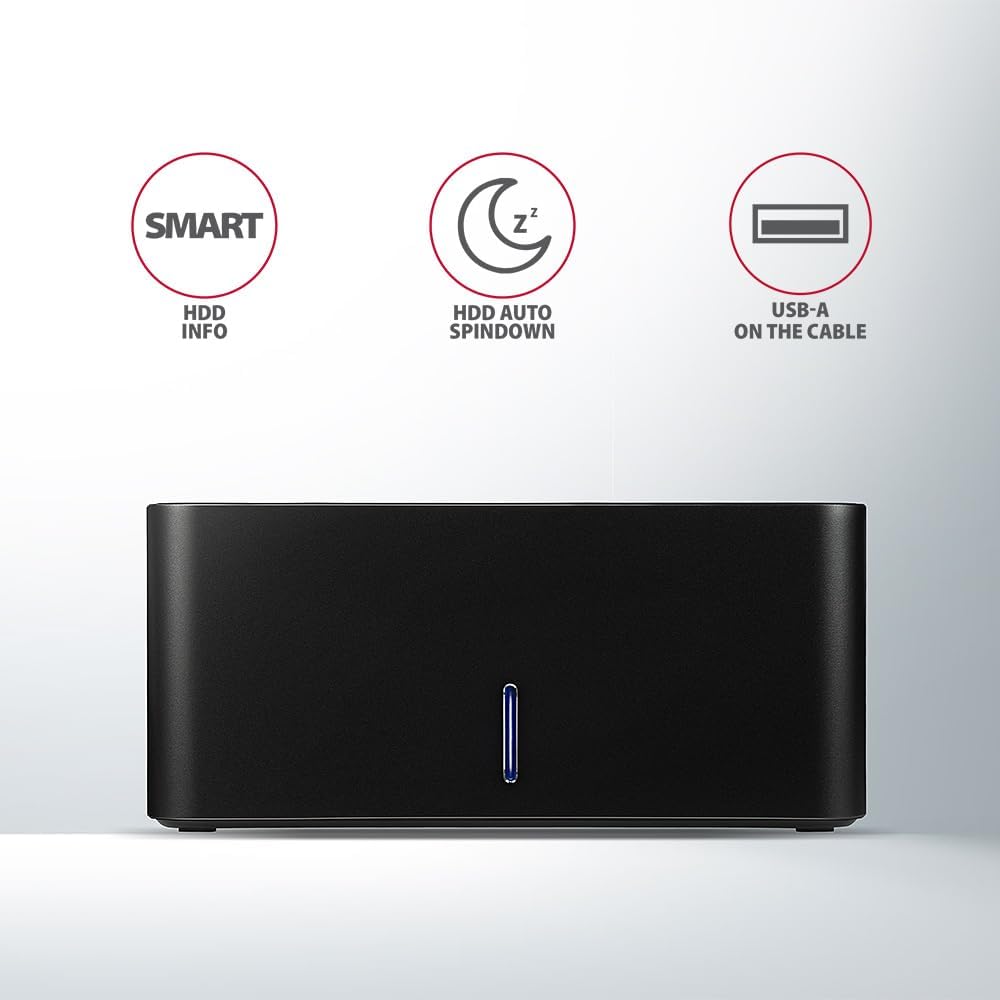
Image: The docking station from the front, indicating features like SMART HDD info, automatic HDD spindown, and USB-A connectivity.
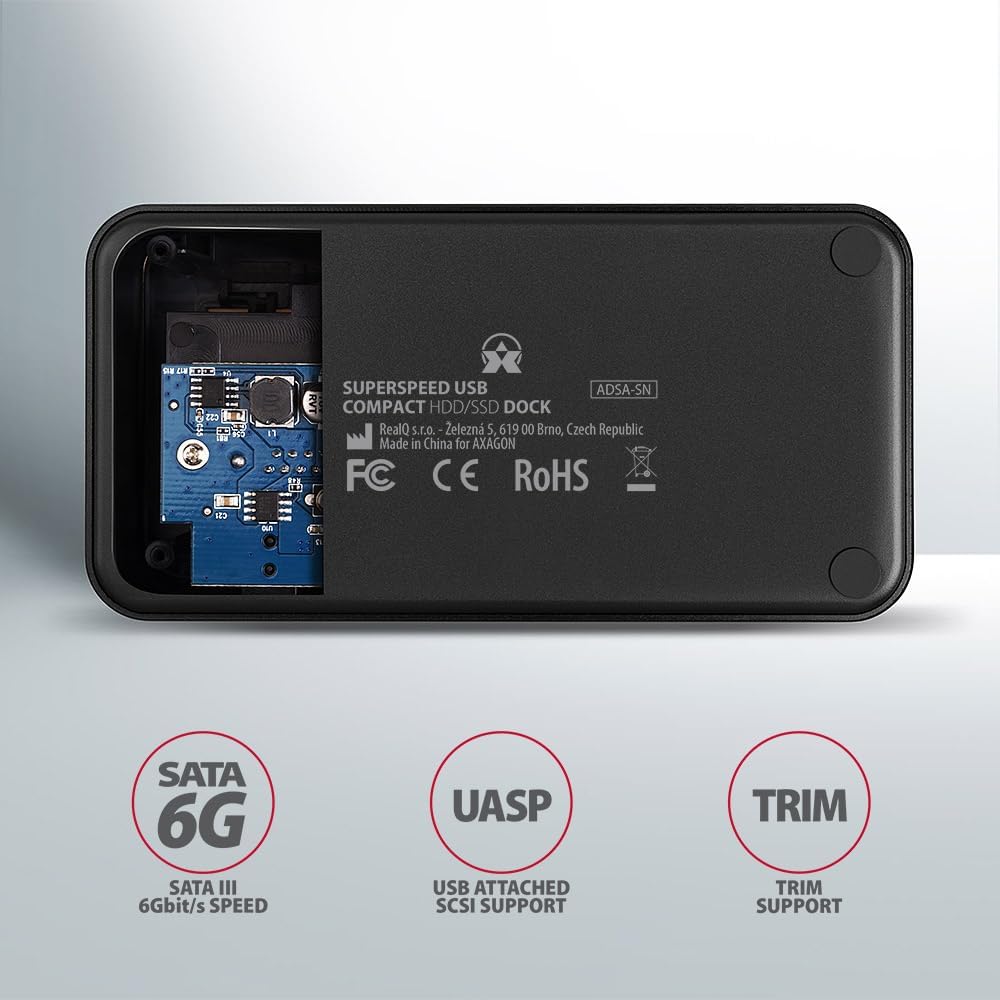
Image: The underside of the docking station, showing internal components and highlighting SATA 6G, UASP, and TRIM support.
Sąrankos instrukcijos
- Prijunkite maitinimo adapterį: Plug the included power adapter into the DC IN port on the back of the docking station and then into a power outlet.
- Prisijunkite prie kompiuterio: Connect the USB 3.0 cable from the docking station's Micro-B port to an available USB 3.0 (or higher) port on your computer.
- Įdėkite HDD/SSD:
- For 2.5" SSD/HDD: Gently slide the 2.5" drive into the slot until it connects firmly with the SATA connector.
- For 3.5" HDD: Gently slide the 3.5" drive into the slot until it connects firmly with the SATA connector.
Ensure the drive is inserted correctly with the SATA connector facing the correct direction. Do not force the drive.

Image: A 2.5-inch SSD being inserted into the docking station, demonstrating compatibility with smaller drives.
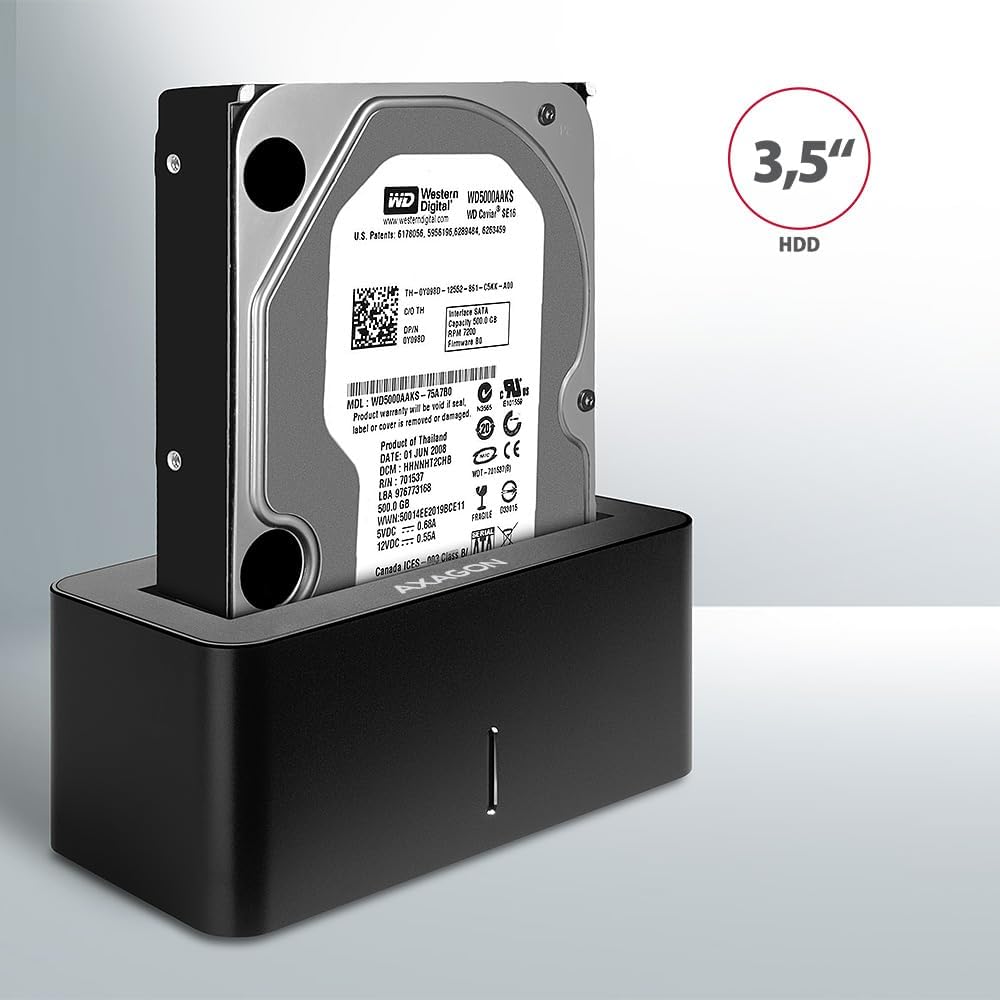
Image: A 3.5-inch HDD being inserted into the docking station, demonstrating compatibility with larger drives.
- Maitinimas: Press the power button located on the back of the docking station. The LED indicator on the front will illuminate.
Image: The rear panel of the docking station, showing the power button, USB Micro-B port, and power input for connection.
Naudojimo instrukcijos
Drive Recognition
Once powered on and connected, your operating system should automatically detect the inserted drive. If it's a new drive, you may need to initialize and format it through Disk Management (Windows) or Disk Utility (macOS) before it appears in File Explorer/Ieškiklis.
LED indikatorius
The LED indicator on the front of the docking station provides status information:
- Visai mėlyna: Power on, drive idle.
- Mirksi mėlynai: Disko veikla (duomenų skaitymas arba rašymas).
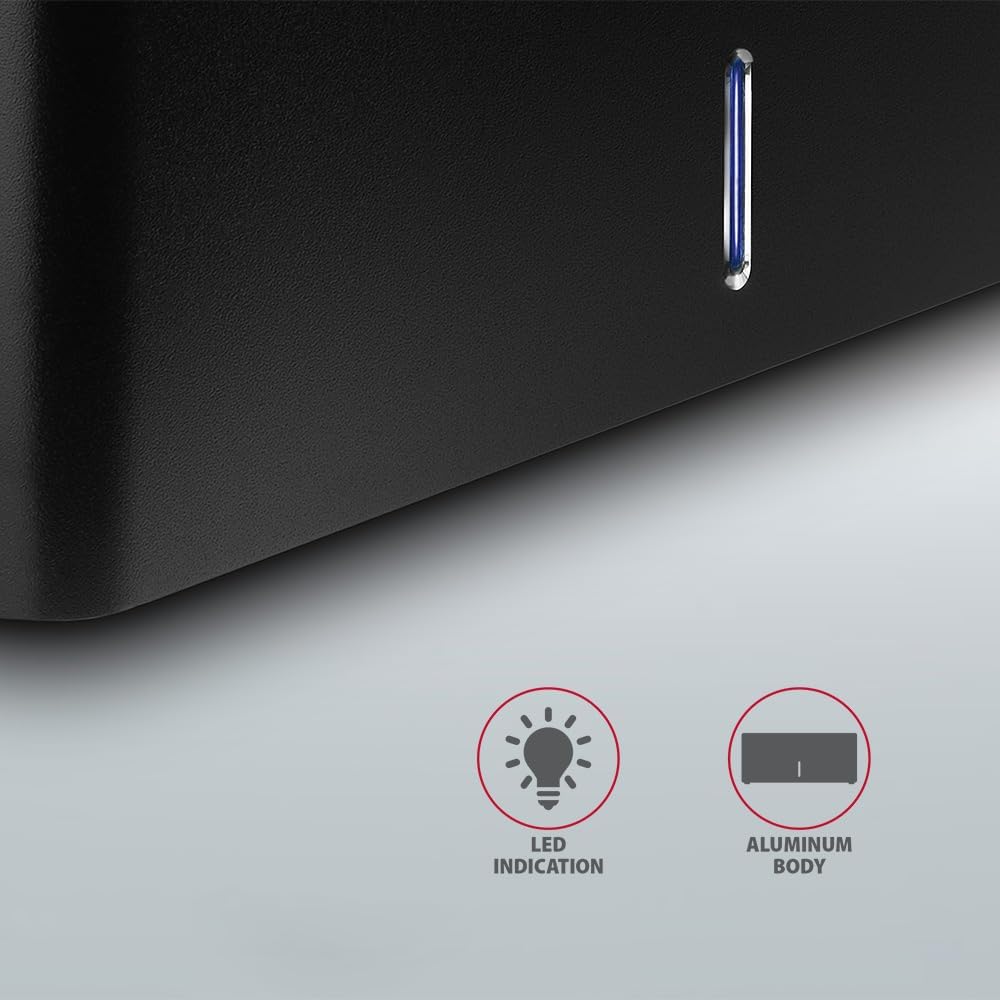
Vaizdas: Stambus planas view of the docking station's front panel, highlighting the LED indicator light.
Removing a Drive
Before removing a drive, always safely eject it from your operating system to prevent data corruption. After ejection, gently pull the drive straight out of the docking station slot.
HDD Auto Spindown
The docking station supports automatic spindown of the HDD when it is idle for a certain period, conserving power and extending drive lifespan. This feature is managed by the operating system or the drive itself.
Priežiūra
- Įkrovimo stotelę laikykite švarią ir be dulkių. Valymui naudokite minkštą, sausą šluostę.
- Saugokite, kad prietaisas nepatektų į ekstremalią temperatūrą, drėgmę ar tiesioginius saulės spindulius.
- Nebandykite patys ardyti ar taisyti įrenginio. Kreipkitės į kvalifikuotus techninės priežiūros darbuotojus.
- Užtikrinkite tinkamą vėdinimą aplink įkrovimo stotelę veikimo metu.
Trikčių šalinimas
- Diskas neaptiktas:
- Įsitikinkite, kad maitinimo adapteris yra tvirtai prijungtas, o įkrovimo stotelė įjungta.
- Verify the USB cable is properly connected to both the docking station and the computer.
- Išbandykite kitą kompiuterio USB prievadą.
- Ensure the HDD/SSD is fully seated in the docking station's slot.
- Check Disk Management (Windows) or Disk Utility (macOS) to see if the drive is recognized but uninitialized/unformatted.
- Test with a different HDD/SSD to rule out a drive issue.
- Mažas perdavimo greitis:
- Ensure the docking station is connected to a USB 3.0 (or higher) port on your computer. USB 2.0 ports will limit speeds.
- Patikrinkite, ar jūsų operacinė sistema ir tvarkyklės yra atnaujintos.
- The actual speed depends on the drive's performance and your computer's USB controller.
- Drive disconnects randomly:
- Patikrinkite visas kabelių jungtis.
- Įsitikinkite, kad maitinimo adapteris tiekia stabilų maitinimą.
- Disable USB power saving features in your computer's operating system settings.
Techninės specifikacijos
| Funkcija | Detalė |
|---|---|
| Prekės ženklas | AXAGONAS |
| Modelio numeris | ADSA-SN |
| Aparatinės įrangos platforma | PC |
| Suderinami įrenginiai | Nešiojamasis kompiuteris, stacionarus kompiuteris |
| Suderinamumas su diskais | 2.5" / 3.5" SATA I/II/III SSD/HDD |
| Sąsaja | USB 3.0 (USB 3.2 Gen 1) |
| Duomenų perdavimo sparta | Up to 5 Gbps (USB 3.0), 6 Gbps (SATA III) |
| Iš viso USB prievadų | 1 (Micro-B) |
| Pavarų skaičius | 1 |
| Spalva | Juoda |
| Prekės svoris | 2.2 svaro (apie 1 kg) |
| Pakuotės matmenys | 3.94 x 0.79 x 0.39 colio (apytiksliai 10 x 2 x 1 cm) |
| Pasiekiama pirmoji data | 30 m. kovo 2021 d |
Garantija ir palaikymas
For warranty information and technical support, please refer to the official AXAGON websvetainėje arba susisiekite su vietiniu platintoju. Išsaugokite pirkimo įrodymą, jei prireiktų pateikti garantinį prašymą.


