1. Įvadas
This manual provides detailed instructions for the installation, operation, and maintenance of your j5create USB-C Dual HDMI Docking Station (Model JCD542). This docking station is designed to expand the connectivity of your USB-C enabled laptop, offering dual display output, multiple USB ports, network connectivity, and power delivery.
Prieš naudodami gaminį, atidžiai perskaitykite šį vadovą, kad užtikrintumėte tinkamą veikimą ir išvengtumėte pažeidimų.
2. Produktas baigtasview
2.1 Pakuotės turinys
- j5create USB-C Dual HDMI Docking Station (JCD542)
- Instrukcijų vadovas
2.2 Įrenginio išdėstymas ir prievadai
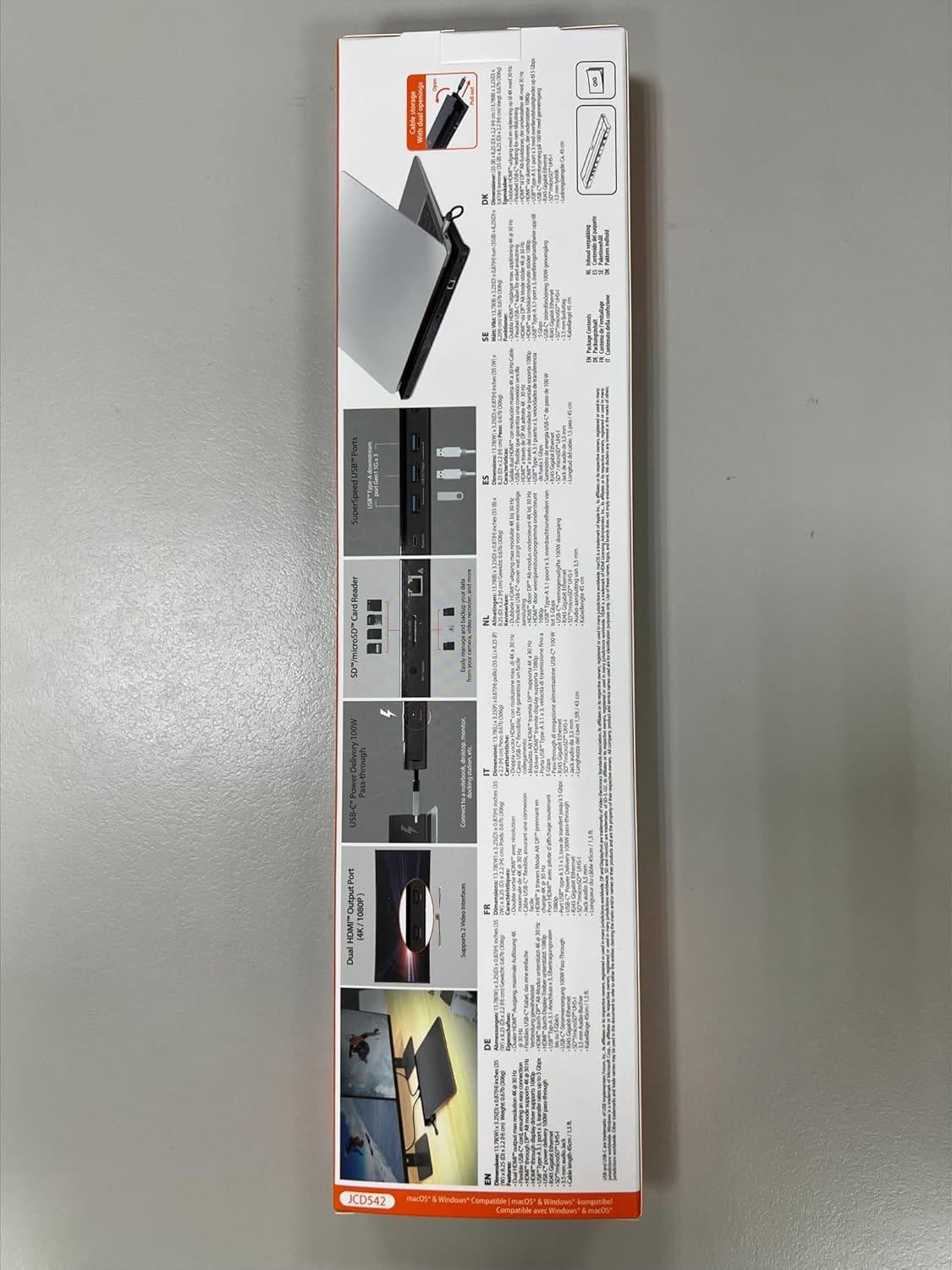
The JCD542 docking station features a comprehensive array of ports to enhance your workstation. Refer to the images below for a visual guide to the port layout.

1 paveikslėlis: Iš viršaus į apačią view of the j5create JCD542 USB-C Dual HDMI Docking Station, showcasing its sleek design and various ports.

Image 2: Diagram illustrating the 10 available ports on the j5create JCD542 docking station, including USB-C Power In, USB 3.0, Mic/Speaker, SD/microSD, Gigabit Ethernet, 4K HDMI, HDMI, and Security Slot.
- USB-C pagrindinio kompiuterio jungtis: Connects to your laptop's USB-C port.
- USB-C Power In (PD 3.0): Supports up to 100W Power Delivery for charging your laptop.
- HDMI 1 (4K): Connects to a display for up to 4K (3840 x 2160) resolution.
- HDMI 2: Connects to a display for up to 2K (2048 x 1152) or 1080p resolution.
- 3 USB 3.0 (5 Gb/s) jungtys: Connects to USB peripherals such as keyboards, mice, or external drives.
- RJ45 Gigabit Ethernet: Užtikrina stabilų laidinį tinklo ryšį.
- SD kortelių skaitytuvas: Skirta standartinėms SD atminties kortelėms skaityti.
- „microSD“ kortelių skaitytuvas: For reading microSD memory cards.
- Combo Audio Jack (Mic/Speaker): Connects to headphones or speakers with a microphone.
- Apsauginio užrakto lizdas: Apsauginiam kabeliui pritvirtinti, siekiant išvengti vagystės.
3. Sąranka
3.1 Sistemos reikalavimai
- Available USB-C port with DisplayPort Alternate Mode (Alt Mode) support.
- Windows 10 / 8.1 / 7 or macOS X 10.8 or later (macOS 11 & 12 supported).
- For Mac users, driver installation is required for display functionality. Please visit the j5create webSvetainė, kurioje rasite naujausias tvarkykles.
- For Power Delivery, your laptop must support USB-C Power Delivery.
3.2 Įkrovimo stotelės prijungimas
- Connect the integrated USB-C host cable from the docking station to an available USB-C port on your laptop.
- If you wish to charge your laptop via the docking station, connect your laptop's USB-C power adapter to the USB-C Power In port on the docking station.
- Prijunkite išorinius monitorius prie doko HDMI prievadų naudodami HDMI kabelius.
- Connect any USB peripherals (keyboard, mouse, external hard drive) to the USB 3.0 ports.
- For a wired network connection, connect an Ethernet cable from your router/modem to the RJ45 Gigabit Ethernet port.
- Insert SD or microSD cards into the respective card reader slots if needed.
- Connect headphones or speakers to the Combo Audio Jack.

Image 3: A laptop connected to the j5create JCD542 docking station via its integrated USB-C cable, demonstrating a typical setup.

Image 4: Illustration showing compatibility with both Windows and Mac operating systems, highlighting the need for driver installation for Mac users.
4. Naudojimo instrukcijos
4.1 Dviejų ekranų konfigūracija
The docking station supports extending your laptop's display to two external monitors. One HDMI port supports up to 4K (3840 x 2160) resolution, and the other supports up to 2K (2048 x 1152) or 1080p. You can also use your laptop screen for a total of three displays.

Image 5: A workstation demonstrating a dual-monitor setup connected via the j5create JCD542 docking station, enhancing productivity.
After connecting your monitors, you may need to configure display settings in your operating system (Windows Display Settings or macOS System Preferences > Displays) to extend or mirror your desktop.
4.2 Maitinimo tiekimas
The USB-C Power In port allows you to charge your laptop while using the docking station, supporting up to 100W Power Delivery. Ensure your laptop's original power adapter is connected to this port for charging.

Image 6: A USB-C power cable connected to the 'Power In' port of the j5create JCD542 docking station, indicating support for up to 100W Power Delivery to the connected laptop.
4.3 Data Transfer and Peripherals
The three USB 3.0 ports provide SuperSpeed 5Gbps data transfer rates for connecting various USB peripherals. The RJ45 Gigabit Ethernet port ensures a reliable and fast wired internet connection, while the SD and microSD card readers allow for convenient access to memory card data.

7 paveikslėlis: Stambus planas view of the three SuperSpeed USB 3.0 ports on the j5create JCD542 docking station, with a USB device connected.

8 paveikslėlis: Stambus planas view of the RJ45 Gigabit Ethernet port on the j5create JCD542 docking station, showing an Ethernet cable connected for a stable network connection.

9 paveikslėlis: Stambus planas view of the SD and microSD card reader slots on the j5create JCD542 docking station, with a memory card being inserted.

10 paveikslėlis: Stambus planas view of the combo audio jack (Mic/Speaker) on the j5create JCD542 docking station, with a 3.5mm audio plug inserted.
11 paveikslėlis: Stambus planas view of the security lock slot on the j5create JCD542 docking station, showing a security cable being attached.
5. Priežiūra
Norėdami užtikrinti įkrovimo stotelės ilgaamžiškumą ir optimalų veikimą, laikykitės šių priežiūros gairių:
- Įrenginį valykite minkštu, sausu skudurėliu. Venkite naudoti skystus valiklius ar tirpiklius.
- Nelaikykite prietaiso nuo ekstremalių temperatūrų, drėgmės ar tiesioginių saulės spindulių.
- Stenkitės, kad prietaisas nenumestų ar nepatirtų stipraus smūgio.
- Užtikrinkite tinkamą vėdinimą aplink įkrovimo stotelę, kad ji neperkaistų.
6. Problemų sprendimas
If you encounter issues with your j5create JCD542 docking station, refer to the following common problems and solutions:
- Nėra ekrano išvesties:
- Įsitikinkite, kad jūsų nešiojamojo kompiuterio USB-C prievadas palaiko „DisplayPort Alt Mode“.
- Verify that all HDMI cables are securely connected to both the docking station and the monitors.
- For Mac users, ensure the necessary display drivers are installed. Visit the j5create support webTinklapis kur galima atsisiųsti tvarkykles.
- Check your operating system's display settings to ensure monitors are detected and configured correctly (extended or mirrored).
- Try disconnecting and reconnecting the docking station from your laptop.
- Nešiojamasis kompiuteris neįkraunamas:
- Confirm that your laptop supports USB-C Power Delivery.
- Ensure your laptop's original USB-C power adapter is connected to the USB-C Power In port on the docking station.
- Verify the power adapter is functioning correctly and connected to a power outlet.
- USB periferiniai įrenginiai neveikia:
- Įsitikinkite, kad prijungimo stotelė tinkamai prijungta prie nešiojamojo kompiuterio.
- Try connecting the peripheral directly to your laptop to confirm it is functional.
- Test the peripheral in a different USB 3.0 port on the docking station.
- Nėra interneto ryšio per Ethernet:
- Patikrinkite, ar eterneto kabelis yra tvirtai prijungtas prie prijungimo stoties ir maršrutizatoriaus / modemo.
- Check your network settings in your operating system.
- Įsitikinkite, kad jūsų maršrutizatorius / modemas veikia tinkamai.
- Įkrovimo stotelė jaučiasi šilta:
- It is normal for the docking station to generate some heat during operation, especially when multiple ports are in use or when charging a laptop. Ensure it has adequate ventilation and is not covered.
7. Specifikacijos
| Modelio numeris | JCD542 |
| Gaminio matmenys | 13.78 x 3.25 x 0.86 colio (350 x 82.5 x 21.8 mm) |
| Prekės svoris | 14.3 uncijos (405 gramų) |
| Priimančiosios sąsaja | USB-C |
| Vaizdo išvestis | 2 x HDMI (1x 4K, 1x 2K/1080p) |
| USB prievadai | 3 x USB 3.0 (5 Gb/s) |
| Ethernet | „RJ45“ gigabito eternetas |
| Kortelių skaitytuvas | SD / microSD |
| Garsas | Combo Audio Jack (Mic/Speaker) |
| Maitinimo tiekimas | Up to 100W via USB-C Power In port |
| Suderinamumas | Windows 10/8.1/7, macOS X 10.8 or later (macOS 11 & 12) |
8. Garantija ir palaikymas
j5create products are designed and manufactured with quality in mind. For warranty information and technical support, please refer to the official j5create websvetainėje arba susisiekite su jų klientų aptarnavimo tarnyba.
Gamintojas: j5kurti
Kontaktinė informacija:
Kaijet Technology International BV
Address: Zomerdroom 20, 3068 MZ Rotterdam, Netherlands
Phone Number: +31 (0)6-2880 2882
El. paštas: service@j5create.com
Išsaugokite pirkimo įrodymą, kad galėtumėte kreiptis dėl garantijos.


