1. Įvadas
This manual provides essential information for the proper setup, operation, and maintenance of your Tibuta 10-inch Android 13 Tablet. Designed for versatility, this tablet features a 10.1-inch IPS display, a Quad-core processor, 4GB RAM, 32GB internal storage (expandable), and dual cameras, making it suitable for various daily activities from entertainment to productivity.

Image: The Tibuta 10-inch Android 13 Tablet, showcasing its sleek design and the included protective case.
2. Sąranka
2.1 Išpakavimas ir pirminė apžiūra
Carefully remove all components from the packaging. Verify that the tablet and its protective case are present and undamaged. The package typically includes the tablet, a protective case, and a charging cable.

Image: The Tibuta tablet with its protective case, ready for use.
2.2 Planšetinio kompiuterio įkrovimas
Before first use, fully charge the tablet. Connect the provided USB-C charging cable to the tablet's USB-C port and the other end to a compatible power adapter (not always included) or a computer's USB port. The battery indicator on the screen will show charging status. A full charge typically takes several hours.
2.3 Įjungimas / išjungimas
- Norėdami įjungti: Press and hold the Power button (located on the side) until the Tibuta logo appears on the screen.
- Norėdami išjungti: Paspauskite ir palaikykite maitinimo mygtuką, kol pasirodys maitinimo parinkčių meniu. Pasirinkite „Išjungti“ ir patvirtinkite.
- Norėdami paleisti iš naujo: From the power options menu, select 'Restart'.
2.4 Pradinė konfigūracija
Upon first power-on, the tablet will guide you through the initial setup process. This includes selecting your language, connecting to a Wi-Fi network, setting up your Google account, and configuring basic security settings. Follow the on-screen prompts.
2.5 Prisijungimas prie „Wi-Fi“.
- Eikite į „Nustatymai“ > „Tinklas ir internetas“ > „Wi-Fi“.
- Įjunkite „Wi-Fi“.
- Iš sąrašo pasirinkite norimą „Wi-Fi“ tinklą.
- Enter the network password if prompted, then tap 'Connect'.
3. Naudojimo instrukcijos
3.1 Pagrindinė navigacija
The Tibuta tablet utilizes a responsive touchscreen for navigation. Common gestures include:
- Bakstelėkite: Norėdami pasirinkti elementą arba atidaryti programėlę.
- Perbraukimas: Norėdami slinkti per puslapius arba sąrašus.
- Žiupsnelis, norint priartinti: Norėdami priartinti arba atitolinti vaizdus arba web puslapių.
- Ilgas paspaudimas: Norėdami pasiekti kontekstinius meniu arba perkelti programų piktogramas.
3.2 Kameros naudojimas
Your tablet is equipped with a 5.0MP front camera and an 8.0MP rear camera for photos and video calls.
- Atidarykite programėlę „Kamera“.
- Tap the camera switch icon to alternate between front and rear cameras.
- Palieskite užrakto mygtuką, kad nufotografuotumėte arba pradėtumėte / sustabdytumėte vaizdo įrašymą.

Image: The tablet highlighting its dual camera capabilities for capturing moments.
Image: The tablet being used for a video call, showcasing its front camera functionality.
3.3 Garso funkcijos
The tablet includes built-in speakers for audio playback and a 3.5mm stereo headphone jack for private listening. Volume can be adjusted using the physical volume buttons on the side of the tablet.
3.4 Saugojimo valdymas
The tablet comes with 32GB of internal storage. You can expand this storage up to 128GB using a microSD card (not included). To insert a microSD card, locate the card slot on the side of the tablet and gently push the card in until it clicks into place.

Image: Illustration of the tablet's 32GB internal storage and expandability up to 128GB, ideal for saving photos and files.
3.5 Applications and Google Mobile Services (GMS)
The tablet runs on Android 13 and is GMS certified, providing full access to the Google Play Store. You can download and install a wide range of applications, including popular social media apps like Facebook, Twitter, YouTube, and TikTok.
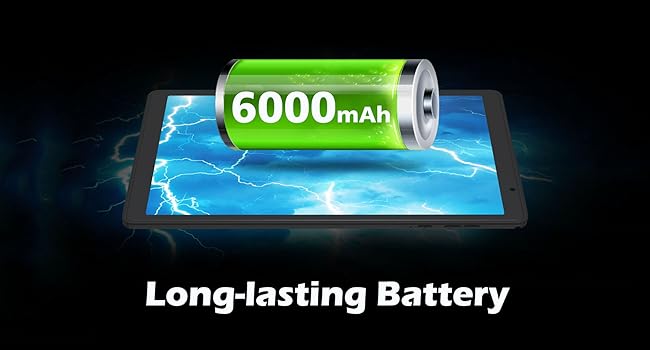
Image: The tablet displaying various GMS-certified applications, indicating broad app compatibility.
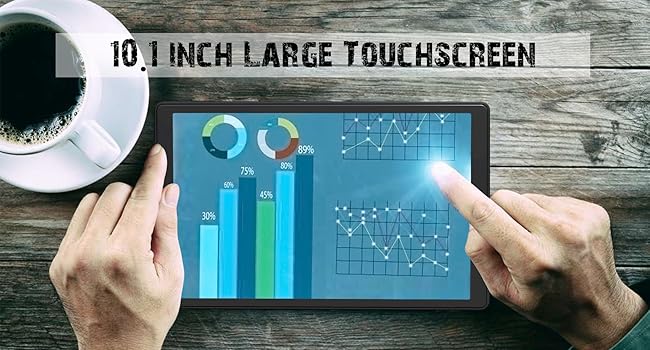
Image: The tablet in use for diverse activities such as studying, shopping, video calls, reading, and watching movies.
3.6 Baterijos veikimo laikas
The 6000mAh battery provides approximately 8 hours for video playback, 9 hours for daily use, and 10 hours for music playback. Actual battery life may vary based on usage patterns and settings.

Image: Visual representation of the tablet's large battery capacity and estimated usage times for various activities.
4. Priežiūra
4.1 Planšetinio kompiuterio valymas
Planšetinio kompiuterio ekraną ir korpusą valykite minkštu, nepūkuotu audiniu. Įsisenėjusias dėmes šiek tiek nuvalykite.ampNuvalykite šluostę vandeniu arba ekrano valymo tirpalu. Venkite naudoti stiprias chemines medžiagas ar abrazyvines medžiagas.
4.2 Programinės įrangos naujiniai
Regularly check for and install system updates to ensure optimal performance, security, and access to new features. Go to 'Settings' > 'System' > 'System update' to check for available updates.
4.3 Akumuliatoriaus priežiūra
Norėdami prailginti baterijos veikimo laiką:
- Venkite tabletės laikymo ekstremaliose temperatūrose (karštyje arba šaltyje).
- Neleiskite baterijai dažnai visiškai išsikrauti.
- Use the original charging cable or a certified equivalent.
4.4 Saugojimo valdymas
To maintain smooth performance, periodically manage your tablet's storage:
- Pašalinkite nenaudojamas programas.
- Clear cache data for apps in 'Settings' > 'Apps' > [App Name] > 'Storage & cache'.
- Didelis perkėlimas file(nuotraukas, vaizdo įrašus) į išorinę saugyklą arba debesijos paslaugas.
5. Problemų sprendimas
Šiame skyriuje aptariamos dažniausiai pasitaikančios problemos, su kuriomis galite susidurti naudodami planšetinį kompiuterį.
5.1 Įrenginys neįsijungia
- Ensure the tablet is sufficiently charged. Connect it to a power source for at least 30 minutes.
- Try a forced restart by holding the Power button for 10-15 seconds.
5.2 Lėtas veikimas
- Uždarykite nenaudojamas fonines programas.
- Clear app cache and temporary files.
- Užtikrinkite pakankamai laisvos vietos saugykloje.
- Periodiškai paleiskite planšetinį kompiuterį iš naujo.
5.3 „Wi-Fi“ ryšio problemos
- Toggle Wi-Fi off and on in settings.
- Paleiskite iš naujo „Wi-Fi“ maršrutizatorių.
- Pamirškite tinklą ir vėl prijunkite.
5.4 Įkrovimo problemos
- Check if the charging cable and adapter are securely connected.
- Išbandykite kitą įkrovimo laidą arba maitinimo adapterį.
- Inspect the charging port for any debris.
5.5 Gamyklinių parametrų atkūrimas
Jei problemos išlieka, gamyklinių parametrų atkūrimas gali išspręsti daugelį su programine įranga susijusių problemų. Įspėjimas: tai ištrins visus jūsų planšetiniame kompiuteryje esančius duomenis. Prieš tęsdami sukurkite svarbių duomenų atsarginę kopiją.
- Go to 'Settings' > 'System' > 'Reset options'.
- Pasirinkite „Ištrinti visus duomenis (atkurti gamyklinius nustatymus)“.
- Patvirtinkite savo sprendimą ir vykdykite ekrane pateikiamus nurodymus.
6. Specifikacijos
Key technical specifications for the Tibuta E100 Tablet:
| Funkcija | Specifikacija |
|---|---|
| Modelio pavadinimas | E100 |
| Operacinė sistema | Android 13 |
| Ekrano dydis | 10.1 colių |
| Ekrano raiška | 1280 x 800 pikselių (IPS) |
| Procesorius | 1.6 GHz keturių branduolių |
| RAM | 4 GB |
| Vidinė saugykla | 32 GB |
| Išplečiama saugykla | Iki 128 GB (microSD) |
| Galinė kamera | 8 MP |
| Priekinė kamera | 5 MP |
| Baterijos talpa | 6000 mAh ličio jonų |
| Belaidis ryšys | 2.4G WiFi (802.11n), Bluetooth 4.2 |
| Gaminio matmenys (IxPxH) | 8.86 x 11.02 x 2.01 colio |

Image: A summary of the tablet's key performance specifications and features.

Image: The tablet's 10.1-inch IPS display, highlighting its high-quality visual output.
7. Garantija ir palaikymas
For warranty information or technical support, please refer to the documentation included with your purchase or visit the official Tibuta website. You may also contact customer service through the platform where you purchased the product.


