1. Įvadas
This manual provides comprehensive instructions for the HP LaserJet MFP M140w, a compact multifunction monochrome laser printer designed for efficient printing, scanning, and copying. It features Wi-Fi, Wi-Fi Direct, and USB 2.0 connectivity, offering a print speed of up to 20 pages per minute (ppm).

1.1 vaizdas: priekis view of the HP LaserJet MFP M140w printer.
2. Saugos informacija
Please read all safety instructions before using the printer to prevent damage or injury. Keep this manual for future reference.
- Padėkite spausdintuvą ant stabilaus, lygaus paviršiaus.
- Užtikrinkite tinkamą ventiliaciją aplink spausdintuvą.
- Naudokite tik prie spausdintuvo pridėtą maitinimo laidą.
- Saugokite spausdintuvą nuo vandens ar per didelės drėgmės.
- Eksploatacijos metu rankas laikykite toliau nuo judančių dalių.
- Only use original HP toner cartridges to ensure optimal performance and avoid potential damage.
3. Pakuotės turinys
Patikrinkite, ar pakuotėje yra visi reikalingi daiktai:
- HP LaserJet MFP M140w Printer
- Original HP Toner Cartridge
- Maitinimo laidas
- Sąrankos vadovas
4. Sąranka
4.1 Išpakavimas ir įdėjimas
- Išimkite spausdintuvą iš pakuotės ir nuimkite visas apsaugines juostas bei pakavimo medžiagas.
- Padėkite spausdintuvą ant lygaus, stabilaus paviršiaus.
4.2 Tonerio kasetės įdėjimas
- Atidarykite dažų prieigos dureles.
- Remove the new toner cartridge from its packaging and gently shake it to distribute the toner.
- Insert the cartridge into the printer until it clicks into place.
- Close the toner access door.
4.3 Popieriaus įdėjimas
- Ištraukite įvesties dėklą.
- Adjust the paper guides to the correct paper size (e.g., A4).
- Load up to 150 sheets of paper into the input tray.
- Push the input tray back into the printer.

Image 4.1: The printer with paper loaded and ready for use.
4.4 Maitinimo jungtis
- Prijunkite maitinimo laidą prie spausdintuvo, o tada – prie sieninio lizdo.
- Paspauskite maitinimo mygtuką, kad įjungtumėte spausdintuvą.
4.5 Programinės įrangos diegimas ir prijungimas
For full functionality, install the HP Smart App on your computer or mobile device. The app guides you through connecting the printer to your network.
- „Wi-Fi“ ryšys: The printer supports dual-band Wi-Fi with automatic reset. Follow the on-screen instructions in the HP Smart App to connect to your wireless network.
- „Wi-Fi Direct“: This feature allows direct connection from your mobile device to the printer without a router. Consult the HP Smart App for setup.
- USB 2.0: Connect the printer directly to your computer using a USB 2.0 cable (not included).
- Bluetooth: The printer supports Bluetooth connectivity for certain functions.
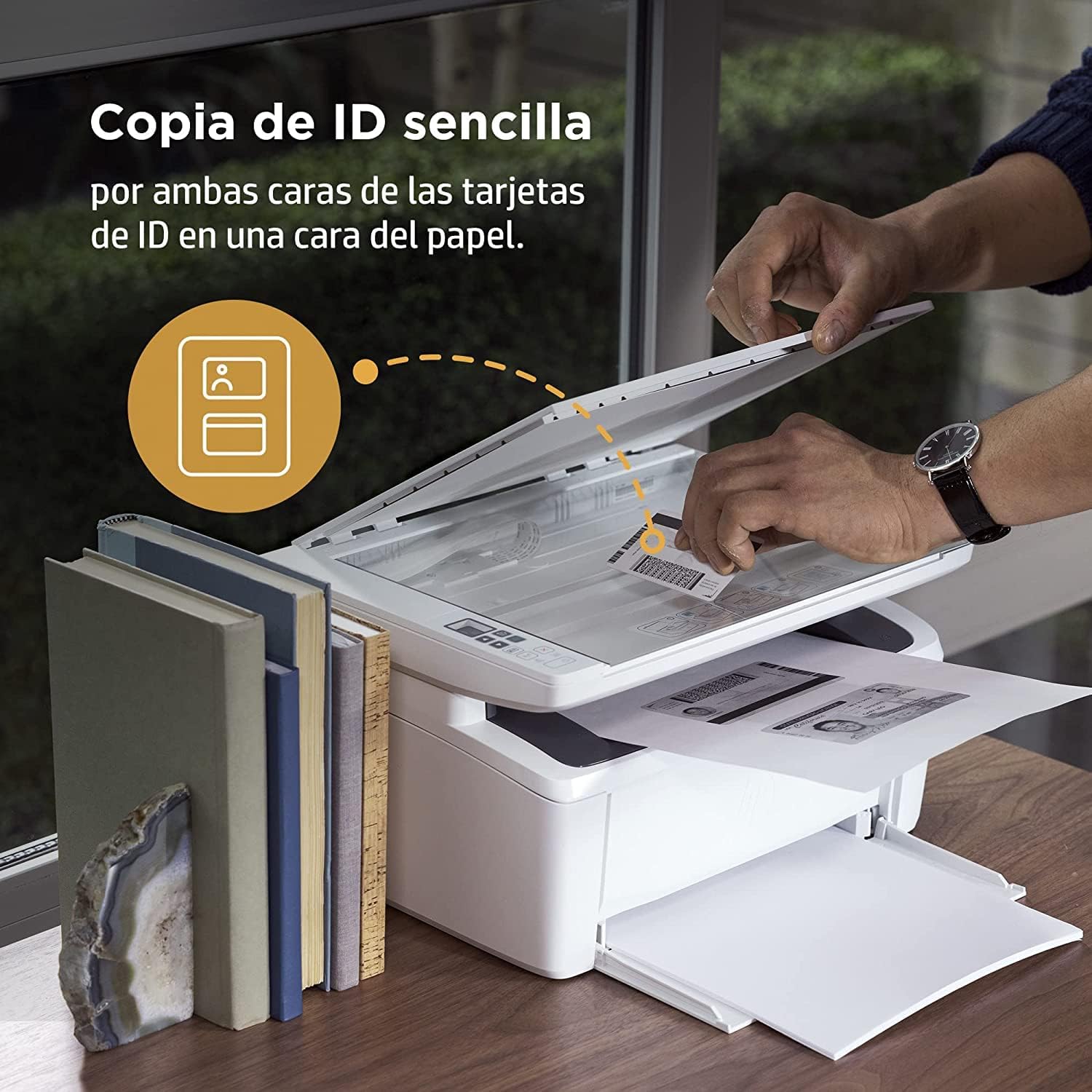
Image 4.2: The compact HP LaserJet MFP M140w printer with a mobile device displaying the HP Smart App interface.
5. Naudojimo instrukcijos
5.1 Spausdinimas
The HP LaserJet MFP M140w prints at speeds up to 20 ppm in monochrome. It supports A4 paper size.
- Iš kompiuterio: Select the HP LaserJet MFP M140w from your printer list in any application. Adjust print settings as needed (e.g., paper size, quality).
- From a Mobile Device (HP Smart App): Use the HP Smart App to easily print documents and photos directly from your smartphone or tablet.
- Rankinis dvipusis spausdinimas: For two-sided printing, the printer supports manual duplex. Follow the prompts on your computer or the HP Smart App to reinsert the paper to print the second side.
5.2 Nuskaitymas
The printer features a flatbed scanner for digitizing documents and images.
- Pakelkite skaitytuvo dangtį.
- Place the document face down on the scanner glass, aligning it with the guides.
- Uždarykite skaitytuvo dangtį.
- Initiate the scan from your computer or the HP Smart App. You can choose scan settings such as resolution and file formatu.
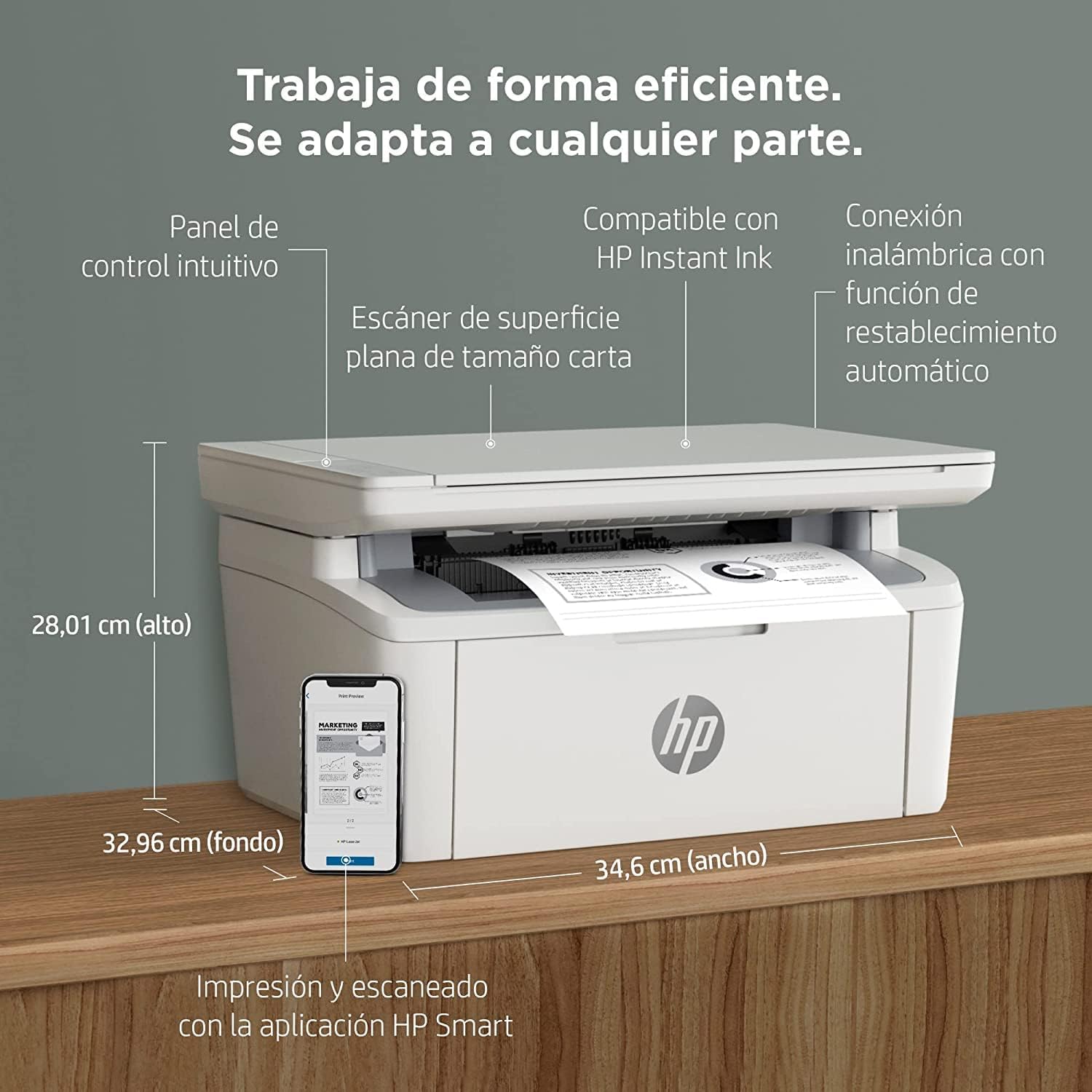
Image 5.1: Using the scanner for ID card copying.
5.3 Kopijavimas
The printer can make up to 150 copies per job.
- Place the original document on the scanner glass.
- Use the control panel on the printer or the HP Smart App to select the number of copies and start the copying process.
- ID Copy Function: This feature allows you to copy both sides of an ID card onto a single side of paper. Follow the instructions on the printer's control panel or the HP Smart App.
6. Priežiūra
6.1 Tonerio kasetės keitimas
When the toner level is low, replace the cartridge with an original HP 142A Black (W1420A) toner cartridge. Using non-HP cartridges may void your warranty and affect print quality.
- Atidarykite dažų prieigos dureles.
- Remove the old toner cartridge.
- Unpack the new HP 142A toner cartridge and gently shake it.
- Insert the new cartridge until it locks into place.
- Close the toner access door.
6.2 Spausdintuvo valymas
Reguliarus valymas padeda išlaikyti spausdinimo kokybę ir pailgina spausdintuvo tarnavimo laiką.
- Spausdintuvo išorę nuvalykite minkštu, nepūkuotu skudurėliu.
- Nuvalykite skaitytuvo stiklą minkštu skudurėliu dampened with glass cleaner (apply cleaner to cloth, not directly to glass).
- Refer to the HP Smart App or HP support website for specific cleaning instructions for internal components.
6.3 Firmware atnaujinimai
HP periodically releases firmware updates to improve printer performance and security. Ensure your printer is connected to the internet and check for updates via the HP Smart App or the printer's embedded web serveris.
7. Problemų sprendimas
This section addresses common issues you might encounter with your HP LaserJet MFP M140w printer.
7.1 Ryšio problemos
- Spausdintuvas nerastas tinkle: Ensure the printer is powered on and connected to the correct Wi-Fi network. Use the HP Smart App's troubleshooting tools or try resetting the Wi-Fi connection on the printer.
- Wi-Fi connection drops: The printer features dual-band Wi-Fi with automatic reset. If issues persist, ensure your router is functioning correctly and the printer is within range.
- USB jungtis neatpažinta: Verify the USB cable is securely connected to both the printer and the computer. Try a different USB port or cable.
7.2 Printing Problems
- Nėra spausdinimo išvesties: Check if the printer is online and there are no error messages. Ensure paper is loaded correctly and the toner cartridge is installed.
- Prasta spausdinimo kokybė: Replace the toner cartridge if it's low. Ensure you are using original HP toner. Clean the printer if necessary.
- Popieriaus strigtys: Follow the instructions on the printer's display or in the HP Smart App to clear any jammed paper. Ensure paper is loaded correctly and not overfilled.
7.3 Scanning/Copying Issues
- Skaitytuvas nereaguoja: Ensure the scanner lid is fully closed and the document is placed correctly. Restart the printer and your computer/mobile device.
- Poor scan/copy quality: Clean the scanner glass. Ensure the original document is clean and flat.
7.4 Toner Cartridge Issues
The printer is designed to work exclusively with original HP toner cartridges. Firmware updates may affect the functionality of non-HP cartridges. If you experience issues with a non-HP cartridge, replace it with an original HP cartridge.
8. Specifikacijos
| Funkcija | Specifikacija |
|---|---|
| Modelio pavadinimas | M140w |
| Produkto modelio numeris | 7MD72F |
| Funkcijos | Spausdinti, nuskaityti, kopijuoti |
| Spaudos technologija | Lazeris |
| Spausdinimo išvestis | Vienspalvis |
| Spausdinimo greitis (vienspalvis) | Iki 20 ppm |
| Maksimali spausdinimo raiška (vienspalvis) | 1200 dpi |
| Dvipusis spausdinimas | vadovas |
| Skaitytuvo tipas | Plokščiasis |
| Maksimali įvesties lapo talpa | 150 XNUMX lapų |
| Max Copies per Run | 150 |
| Ryšys | Wi-Fi (Dual-band, auto-reset), Wi-Fi Direct, USB 2.0, Bluetooth |
| Procesoriaus greitis | 500 MHz |
| Atmintis | 64 MB |
| Suderinamos operacinės sistemos | Mac OS 10.15 Catalina (and later), Android |
| Matmenys (P x G x A) | 34.6 x 32.96 x 28.01 cm (apytiksliai) |
| Svoris | 5.4 kg |
| Energijos suvartojimas | 60 Kilowatts (operating), 3600.0 Watts (peak) |
| Suderinamas toneris | HP 142A Black (W1420A) |
9. Garantija ir palaikymas
9.1 Informacija apie garantiją
The product includes a 2-year availability of spare parts in the EU. For specific warranty terms and conditions, please refer to the documentation provided with your printer or visit the official HP support websvetainę.
9.2 Programinės įrangos naujiniai
Software updates are guaranteed until April 13, 2030. These updates ensure continued functionality and security for your printer.
9.3 Pagalba klientams
For further assistance, technical support, or to access additional resources, please visit the official HP support website or use the HP Smart App. The HP Smart App provides guided troubleshooting and access to support documentation.
Daugiau informacijos ir pagalbos galite rasti adresu HP palaikymas Websvetainę.