Įvadas
This manual provides essential information for setting up, operating, maintaining, and troubleshooting your Dell XPS 8930 Tower Desktop. Please read these instructions carefully to ensure proper use and longevity of your system.
1. Sąranka
1.1 Išpakavimas ir įdėjimas
Carefully remove the Dell XPS 8930 desktop from its packaging. Ensure all components, including the power cable, keyboard, and mouse, are present. Place the desktop on a stable, flat surface with adequate ventilation around all sides to prevent overheating.
1.2 Išorinių įrenginių prijungimas
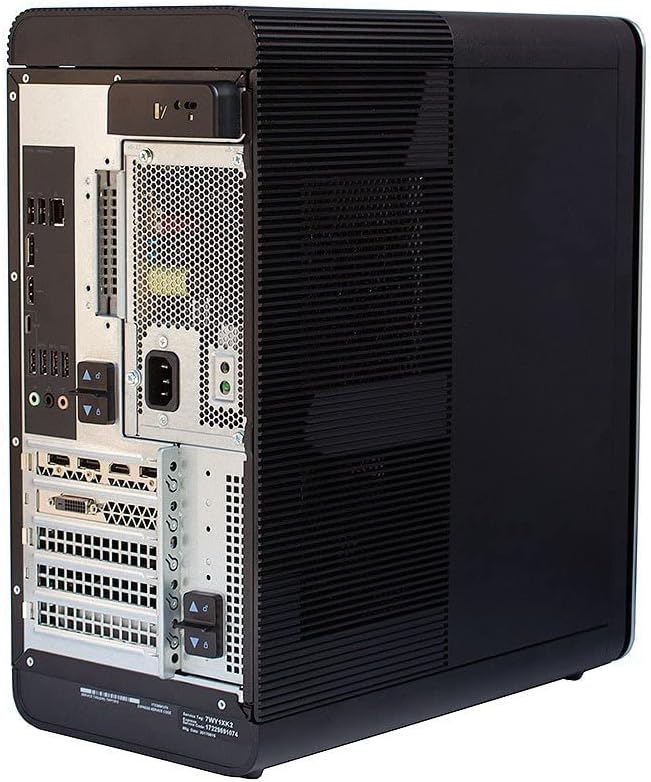
- Prijunkite monitorių: Use an appropriate cable (HDMI, DisplayPort, DVI) to connect your monitor to the graphics card ports on the rear of the desktop.
- Prijunkite klaviatūrą ir pelę: Plug the Dell USB keyboard and mouse into any available USB ports on the desktop.
- Connect Network Cable (Optional): If using a wired network connection, plug an Ethernet cable into the network port on the rear of the desktop.
- Prijunkite maitinimo kabelį: Prijunkite maitinimo laidą prie maitinimo jungties, esančios stalinio kompiuterio gale, tada kitą galą prijunkite prie įžeminto elektros lizdo.
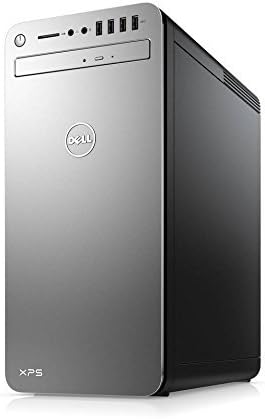
1.1 vaizdas: Priekyje view of the Dell XPS 8930 Tower Desktop. This image shows the front panel with the power button, optical drive, and front USB ports.
1.2 vaizdas: Galinis view of the Dell XPS 8930 Tower Desktop. This image illustrates the various connectivity ports including USB, Ethernet, audio, and video outputs from the graphics card.
1.3 Pirmasis paleidimas
Press the power button located on the front of the desktop. The system will initiate the boot process. Follow any on-screen prompts to complete the initial Windows 10 Pro setup, if applicable.
2. Naudojimo instrukcijos
2.1 Maitinimo įjungimas/išjungimas
- Maitinimas: Paspauskite maitinimo mygtuką priekiniame skydelyje.
- Išjungti: In Windows, click the Start button, then Power > Shut down.
- Paleisti iš naujo: In Windows, click the Start button, then Power > Restart.
- Miegas: In Windows, click the Start button, then Power > Sleep.
2.2 Sistema baigtaview
Your Dell XPS 8930 is equipped with an 8th Generation Intel Core i7-8700 processor, 32GB DDR4 RAM, a 256GB SSD for fast boot times and application loading, and a 2TB HDD for mass storage. Graphics are handled by an NVIDIA GeForce GTX 1080 with 8GB GDDR5X memory, suitable for demanding applications and gaming. The system runs on Windows 10 Pro.
2.3 Ryšys
The desktop offers a range of connectivity options:
- USB prievadai: Multiple USB 3.0 and USB 2.0 ports are available on both the front and rear panels for connecting peripherals.
- Garso prievadai: Front and rear audio jacks for headphones, microphones, and speakers.
- Tinklas: Gigabit Ethernet port for wired internet, and Dell Wireless 802.11a/c with Bluetooth v4.1 for wireless connectivity.
- Optinis įrenginys: A DVD-RW drive is included for reading and writing optical media.
3. Priežiūra
3.1 Valymas
Regularly clean the exterior of your desktop with a soft, dry cloth. Use compressed air to clear dust from ventilation grilles and ports. Ensure the system is powered off and unplugged before cleaning.
3.2 Programinės įrangos naujiniai
Keep your Windows 10 Pro operating system and device drivers updated. Windows Update can manage most system updates. For graphics drivers, visit the NVIDIA websvetainę arba naudokite „GeForce Experience“ programą.
3.3 Duomenų atsarginė kopija
Reguliariai kurkite svarbių duomenų atsargines kopijas išoriniame diske arba debesies saugykloje, kad išvengtumėte duomenų praradimo.
3.4 Internal Access (Advanced Users)
For internal component upgrades or maintenance, the side panel can be removed. The power supply unit can also swing out for easier access to internal components.

3.1 vaizdas: Vidinis view of the Dell XPS 8930 Tower Desktop with the side panel removed, showing the motherboard, CPU cooler, and graphics card.
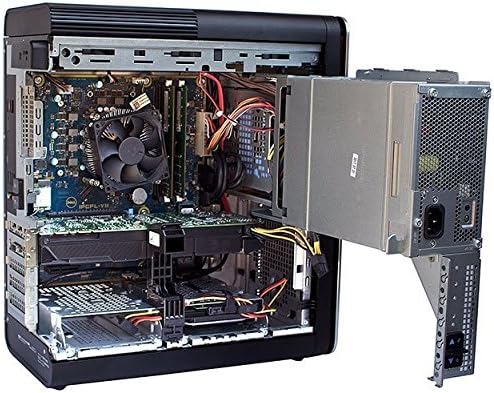
3.2 vaizdas: Vidinis view of the Dell XPS 8930 Tower Desktop with the power supply unit swung out, providing better access to the internal components for maintenance or upgrades.
Caution: Opening the desktop may void your warranty or cause damage if not performed correctly. Consult professional assistance if unsure.
4. Problemų sprendimas
4.1 Nėra galios
- Įsitikinkite, kad maitinimo laidas yra tvirtai prijungtas tiek prie stalinio kompiuterio, tiek prie elektros lizdo.
- Patikrinkite, ar elektros lizdas veikia, prijungdami prie jo kitą įrenginį.
- Patikrinkite maitinimo bloko (PSU) jungiklį, esantį darbalaukio gale, jei toks yra, ir įsitikinkite, kad jis yra įjungtas.
4.2 Nėra ekrano
- Confirm the monitor is powered on and its video cable is securely connected to the graphics card output on the desktop.
- Įsitikinkite, kad monitoriaus įvesties šaltinis yra tinkamai pasirinktas (pvz., HDMI 1, DisplayPort).
- Try connecting the monitor to a different video output port on the graphics card, or to the integrated graphics port if available (though the dedicated GPU should be used for optimal performance).
4.3 System Slow Performance
- Patikrinkite užduočių tvarkytuvę (Ctrl+Shift+Esc), ar nėra programų, kurios naudoja per daug procesoriaus, RAM ar disko išteklių.
- Įsitikinkite, kad „Windows“ ir tvarkyklės yra atnaujintos.
- Paleiskite disko valymo ir defragmentavimo (HDD) arba TRIM (SSD) programą.
- Nuskaitykite, ar nėra kenkėjiškų programų ar virusų.
5. Specifikacijos
| Funkcija | Detalė |
|---|---|
| Prekės ženklas | Dell |
| Modelio pavadinimas | XPS |
| Procesorius | 8th Gen. Intel Core i7-8700 (6-Core, up to 4.60 GHz) |
| RAM | 32GB DDR4 2666MHz |
| Sandėliavimas | 256GB SSD + 2TB 7200 RPM SATA HDD |
| Vaizdo plokštė | NVIDIA GeForce GTX 1080 with 8GB GDDR5X |
| Operacinė sistema | „Windows 10 Pro“ (64 bitų) |
| Optinis diskas | DVD-RW Drive |
| Belaidis ryšys | Dell Wireless 802.11a/c + Bluetooth v4.1 |
| Garsas | Integrated 5.1 Channel Audio with Waves MaxxAudio Pro |
| Įtraukti periferiniai įrenginiai | Dell USB Laser Mouse, Dell Wired Keyboard |
| Prekės svoris | Maždaug 22 svaro |
| Spalva | Juoda |
6. Garantija ir palaikymas
6.1 Ribota garantija
This Dell XPS 8930 Tower Desktop comes with a 1 Year Limited Warranty. Please refer to the warranty documentation provided with your purchase for full terms and conditions.
6.2 Techninė pagalba
Dėl techninės pagalbos, tvarkyklių atsisiuntimų ar papildomos pagalbos apsilankykite oficialioje „Dell“ palaikymo svetainėje website or contact Dell customer service. Have your system's service tag ready for quicker assistance.


