1. Įvadas
The Rongta RP422 Thermal Label Printer is designed for efficient printing of shipping labels, postage, and barcodes. Its compact design makes it suitable for various environments, including offices, warehouses, and small businesses. This printer utilizes direct thermal technology, eliminating the need for ink or other consumables. It is compatible with Windows and Linux operating systems.
2. Kas yra dėžutėje
Išpakuodami įsitikinkite, kad yra visi šie daiktai:
- 1 x Rongta RP422 Label Printer
- 1x maitinimo adapteris
- 1x maitinimo laidas
- 1x USB laidas
- 1 x Naudotojo vadovas (šis dokumentas)
- 1 x USB Flash Drive (containing printer driver, installation guide, setup guide, and user manual)

Image: Rongta RP422 printer and its accessories, including power adapter, cables, and USB drive.
3. Sąranka
3.1 Fizinis ryšys
- Prijunkite maitinimo adapterį prie spausdintuvo, o tada – prie maitinimo lizdo.
- Prijunkite USB laidą nuo spausdintuvo prie kompiuterio.
- Turn on the printer using the power switch located at the back.
Video: Demonstrates connecting the power and USB cables to the Rongta RP422 printer.
3.2 Etikečių įkėlimas
- Press the orange button on the side of the printer to open the top cover.
- Adjust the orange label guides to match the width of your labels.
- Insert the stack of thermal labels into the printer, ensuring the print side is facing up.
- Close the top cover until it clicks securely. The printer will automatically detect the label size.
Video: Shows the process of opening the printer, adjusting guides, and loading thermal labels.

Image: The Rongta RP422 printer demonstrating its compatibility with various label sizes, including 4x6 inches.
3.3 Driver Installation (Windows)
The printer requires a driver for proper operation with your computer. The driver is provided on the included USB flash drive.
- Įdėkite USB atmintinę į kompiuterį.
- Locate and run the RP422 label printer driver installer (e.g.,
RP422LabelPrinterDriverInstall_V1.00.exe). - Follow the on-screen prompts to complete the installation. You may need to confirm installation from an unknown publisher.
- Ensure the printer is connected and powered on during installation.
- After installation, navigate to Settings > Devices > Printers & Scanners to verify the RP422 printer is listed.
Video: Step-by-step guide for installing the Rongta RP422 printer driver on a Windows operating system.
3.4 Tvarkyklės diegimas („Mac OS“)
For Mac OS users, follow these steps to install the printer driver:
- Įdėkite USB atmintinę į „Mac“ kompiuterį.
- Locate and run the Mac driver installer (e.g.,
RP422LabelPrinterDriverInstaller_V1.0.pkg). - Follow the installation wizard, providing your password when prompted to allow software installation.
- Once installed, go to Sistemos nuostatos > Spausdintuvai ir skaitytuvai.
- Click the '+' button to add a new printer. Select 'RP422' from the list of detected printers and click 'Add'.
Video: Demonstrates the installation process for the Rongta RP422 printer driver on Mac OS.
4. Naudojimo instrukcijos
4.1 Bandomojo puslapio spausdinimas
After driver installation, it is recommended to print a test page to confirm proper setup:
- For Windows: Go to Settings > Devices > Printers & Scanners. Right-click on 'RP422' and select Spausdintuvo savybės. Click 'Print Test Page'.
- For Mac OS: Go to Sistemos nuostatos > Spausdintuvai ir skaitytuvai. Select 'RP422', then click 'Options & Supplies...' and look for a 'Print Test Page' option or similar.
4.2 Printing Labels from an Application
To print a label from an application (e.g., a PDF document):
- Open the document you wish to print (e.g., a 4x6 shipping label PDF).
- Programoje pasirinkite spausdinimo parinktį.
- Choose 'RP422' as your printer.
- In the print settings, ensure the paper size is set to '4.00" x 6.00"' (or your specific label size).
- Set the orientation to 'Portrait'.
- Adjust the scale to 'Fit to page' or 'Actual size' as needed to prevent cropping.
- Spustelėkite „Spausdinti“.
Video: Demonstrates printing a 4x6 shipping label from a PDF document on Windows using the RP422 printer.
Video: Shows printing a 4x6 shipping label from a PDF document on Mac OS using the RP422 printer.
The Rongta RP422 printer supports various popular shipping and selling platforms such as Amazon, eBay, Shopify, PayPal, FedEx, Endicia, Ordoro, ShippingEasy, Etsy, and UPS.
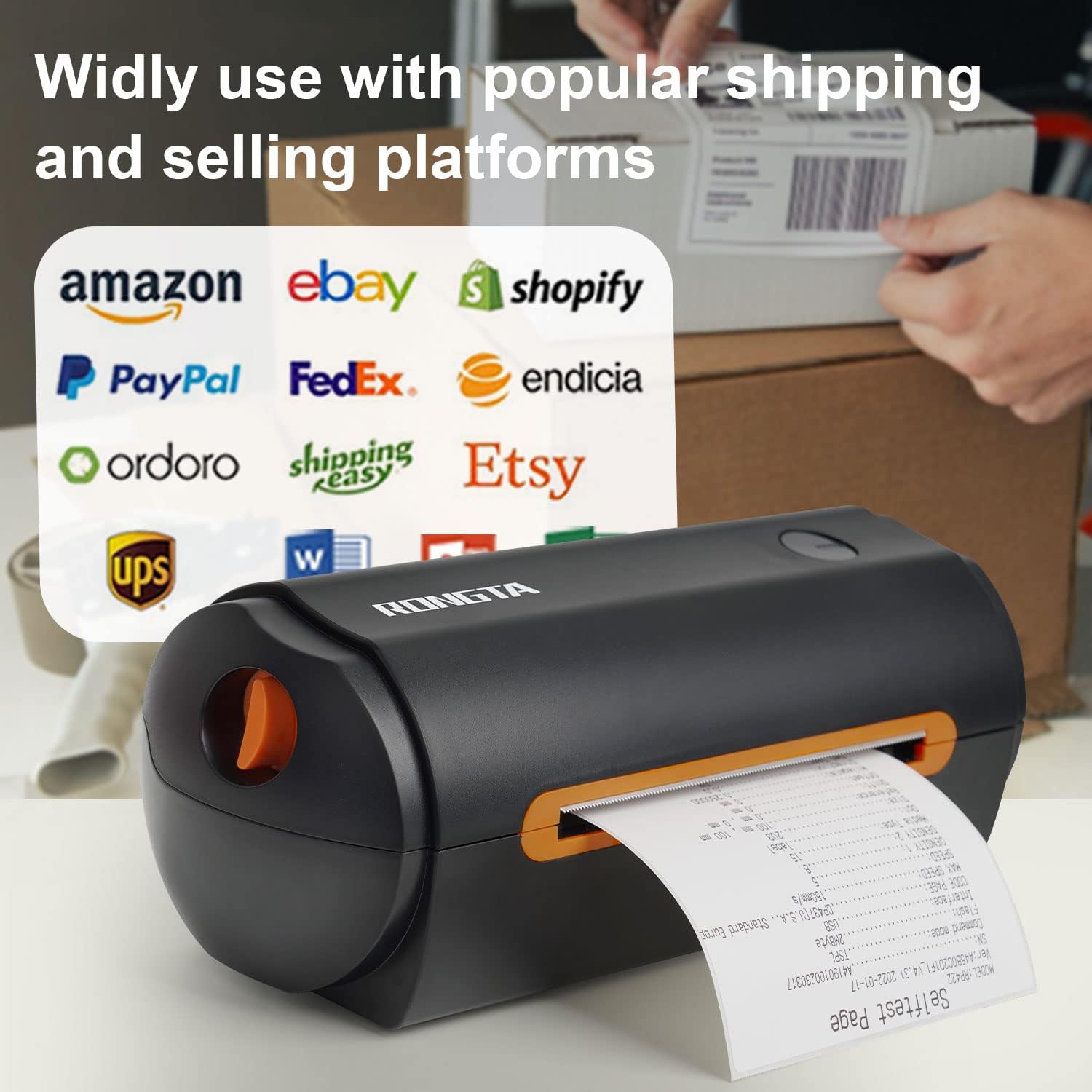
Image: The Rongta RP422 printer shown with logos of compatible shipping and selling platforms.
5. Priežiūra
To ensure optimal performance and longevity of your Rongta RP422 printer, regular maintenance is recommended:
- Spausdinimo galvutės valymas: Periodically clean the print head with an alcohol swab to remove dust or adhesive residue. Ensure the printer is off and cooled down before cleaning.
- Veleno volelio valymas: Clean the rubber platen roller with an alcohol swab to maintain proper label feeding.
- Dulkių šalinimas: Saugokite spausdintuvą nuo dulkių ir šiukšlių. Išorę valykite minkšta, sausa šluoste.
- Etiketės kokybė: Use high-quality direct thermal labels to prevent damage to the print head and ensure clear prints.
6. Problemų sprendimas
If you encounter issues with your Rongta RP422 printer, refer to the following common solutions:
- Printer Prints Blank or Small:
- Įsitikinkite, kad naudojate direct thermal labels and they are installed correctly (print side up).
- Atkurti gamyklinius nustatymus: Power off the printer, open the cover, hold down the paper key, then power on. Wait approximately 15 seconds until the power light restarts, then release the paper key.
- Use Printer Tool: Open the label printer tool (available on the USB flash drive or for download), connect the printer, and perform label calibration, missing paper learning, or automatic label learning.
- Labels Not Feeding:
- Verify labels are direct thermal and loaded correctly.
- Perform the "Restore Factory Settings" or "Use Printer Tool" steps as described above.
- Tvarkyklės diegimo problemos:
- Some antivirus software may flag the USB flash drive. Temporarily disable your antivirus or choose to trust the installer to proceed.
- Ensure the printer is connected and powered on before running the driver installer.
- No Bluetooth/Wi-Fi Connectivity:
- This model (RP422) does ne support Bluetooth or Wi-Fi connectivity. It connects via USB only.
- It is compatible only with Windows computers and Windows laptops. It does not support phones, iPads, Chromebooks, Square, Macbooks, or Mac computers for direct printing.
If problems persist after trying these solutions, please contact Rongta customer support for further assistance.
7. Specifikacijos
| Funkcija | Specifikacija |
|---|---|
| Gaminio matmenys | 18.8G x 26P x 13.5A centimetrų |
| Maksimalus laikmenos dydis | 4.72 colių |
| Spausdinimo greitis | 127 mm/s (iki 60 etikečių per minutę) |
| Spausdinimo plotis | 1.49–4.72 colio |
| Spausdinimo aukštis | 1.18 colio – 9.84 colio |
| Spausdinimo technologija | Thermal (Direct Thermal) |
| Ryšio technologija | USB |
| Suderinama OS | Windows, Linux |
| Atminties talpa | 64 MB |
| Prekės svoris | 1.43 kilogramo |
8. Garantija ir palaikymas
For warranty information or technical support, please refer to the contact details provided in the packaging or visit the official Rongta websvetainę. Išsaugokite pirkimo čekį garantiniams reikalavimams.


