1. Įvadas
The Logitech Brio 300 is a Full HD webcam designed to enhance your video meeting experience. It features 1080p resolution for natural image quality, RightLight 2 auto light correction to adapt to various lighting conditions, and a noise-reducing microphone for clear audio. The integrated privacy shutter provides instant control over your camera's visibility. This webcam is certified for popular video conferencing platforms such as Zoom, Microsoft Teams, and Google Meet, ensuring seamless integration and hassle-free meetings.
2. Kas yra dėžutėje
- „Logitech Brio 300“ Webcam (Off-White)
- Integrated USB-C Cable (5 ft / 1.5 m)
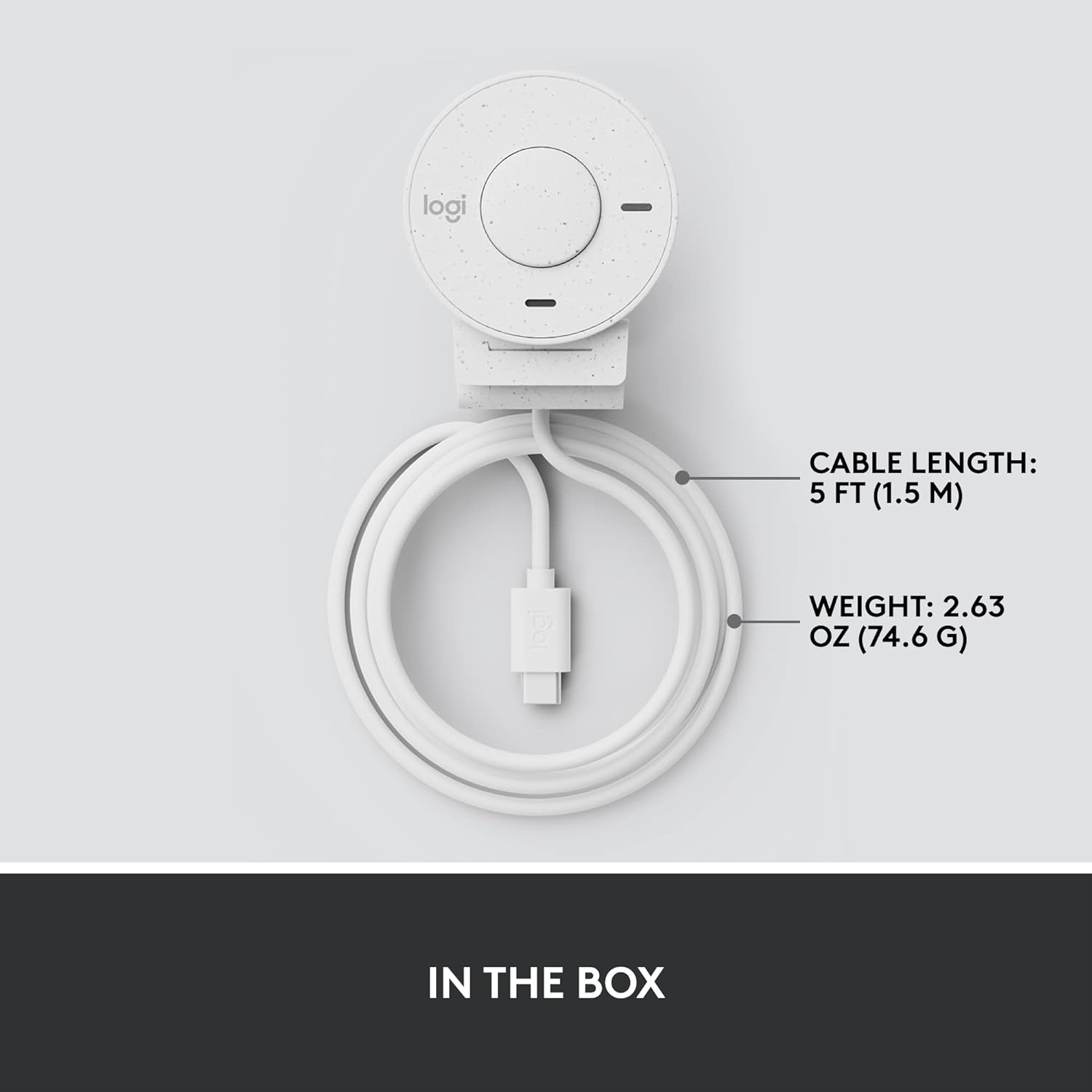
Figure 2.1: Logitech Brio 300 webcam with its integrated USB-C cable, showing the compact design and cable length.
3. Sąranka
3.1. Įdėjimas
Position the Logitech Brio 300 webcam on your monitor or laptop screen. The integrated mounting clip is designed to securely fit various screen thicknesses without scratching, thanks to its rubberized pads.

3.1 pav.: „Logitech Brio 300“ webcam, showing its design and how it sits on a monitor.
3.2. Ryšys
Prijunkite integruotą USB-C laidą nuo webcam directly to an available USB-C port on your computer. The webcam is plug-and-play, meaning it should be automatically recognized by your operating system (Windows, macOS, Chrome OS).
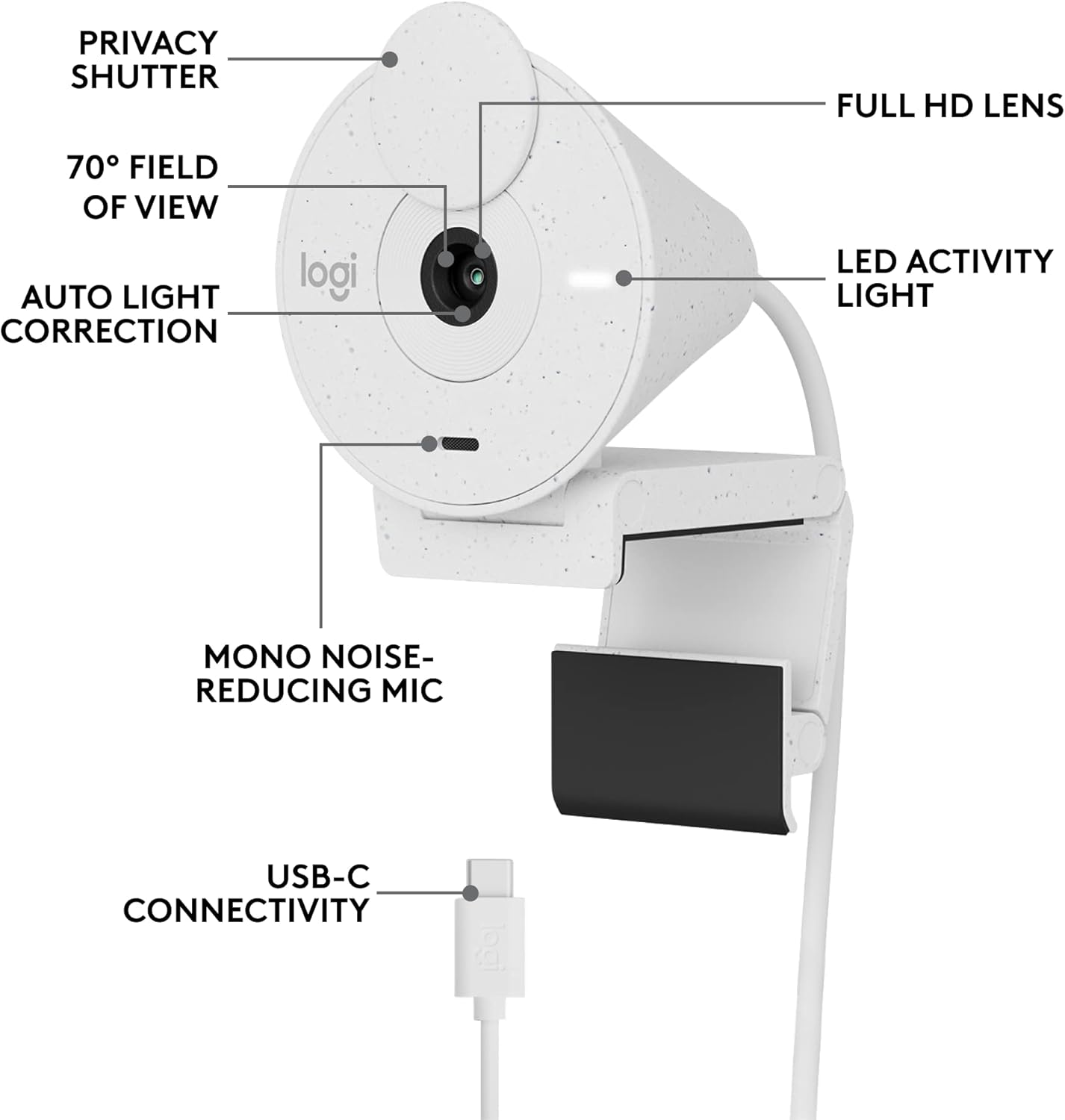
3.2 pav. Išsamus view of the Logitech Brio 300, highlighting its USB-C connectivity and other key components.
3.3. Programinės įrangos diegimas (neprivaloma, bet rekomenduojama)
For advanced customization and optimal performance, download and install the free Logi Tune application from the official Logitech website. Logi Tune allows you to adjust color, image quality, and other settings for your webkumštelis.
Apsilankykite Logitech Logi Tune norėdami atsisiųsti programinę įrangą.
4. Valdymas Webkumštelis
4.1. Privatumo užraktas
The Brio 300 features an integrated privacy shutter. To cover the lens and ensure privacy, simply spin the circular cover over the lens. Spin it back to uncover the lens when you are ready to use the camera.
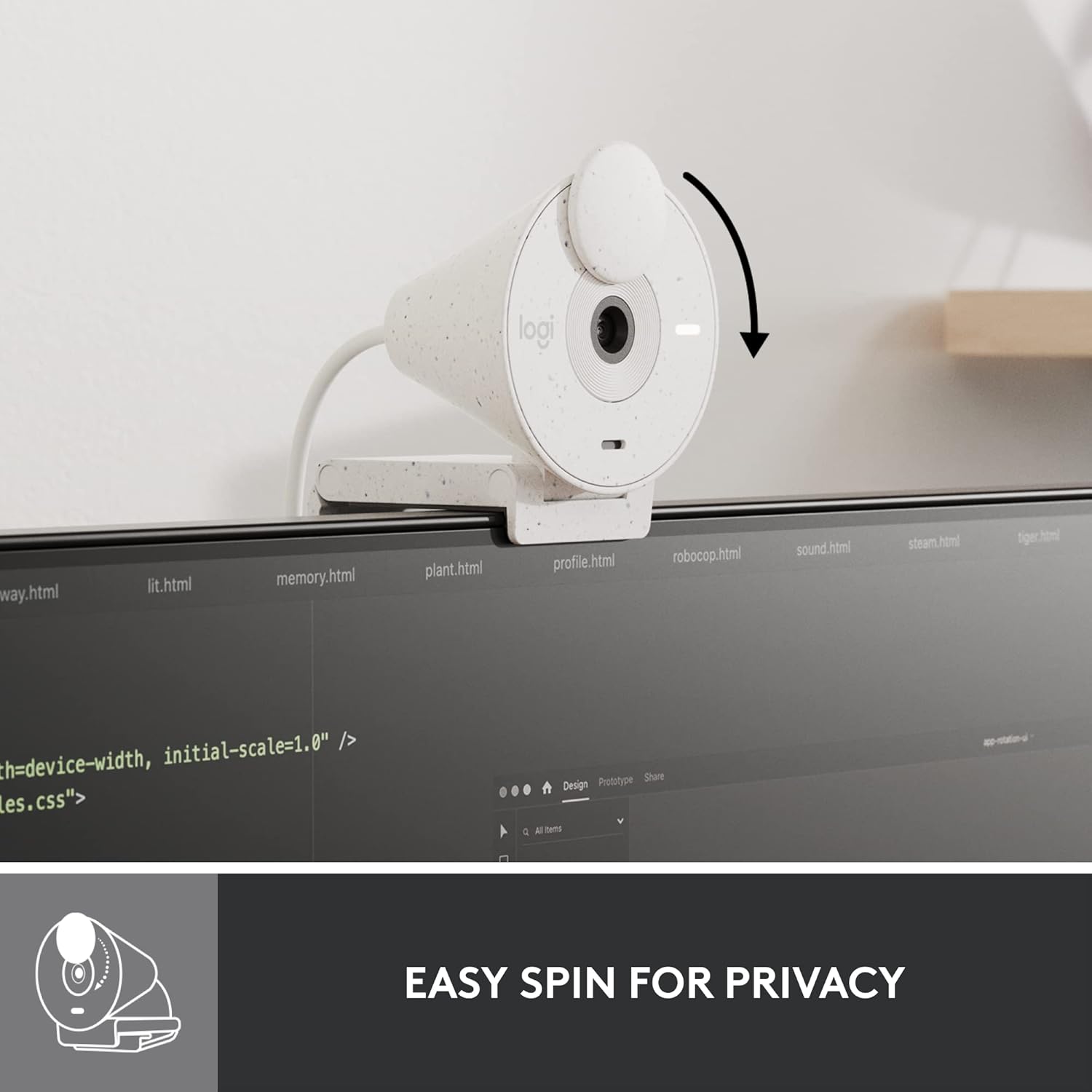
Figure 4.1: Demonstrating the easy-to-use spin privacy shutter on the Brio 300.
4.2. Auto Light Correction (RightLight 2)
The webcam is equipped with RightLight 2 technology, which automatically adjusts to poor lighting conditions. This ensures you appear clear and well-lit, even in dim environments.

Figure 4.2: Visual representation of the Brio 300's auto light correction feature improving image quality in low light.
4.3. Triukšmo mažinimo mikrofonas
The integrated mono microphone features noise reduction, suppressing background sounds to ensure your voice is heard clearly during calls.
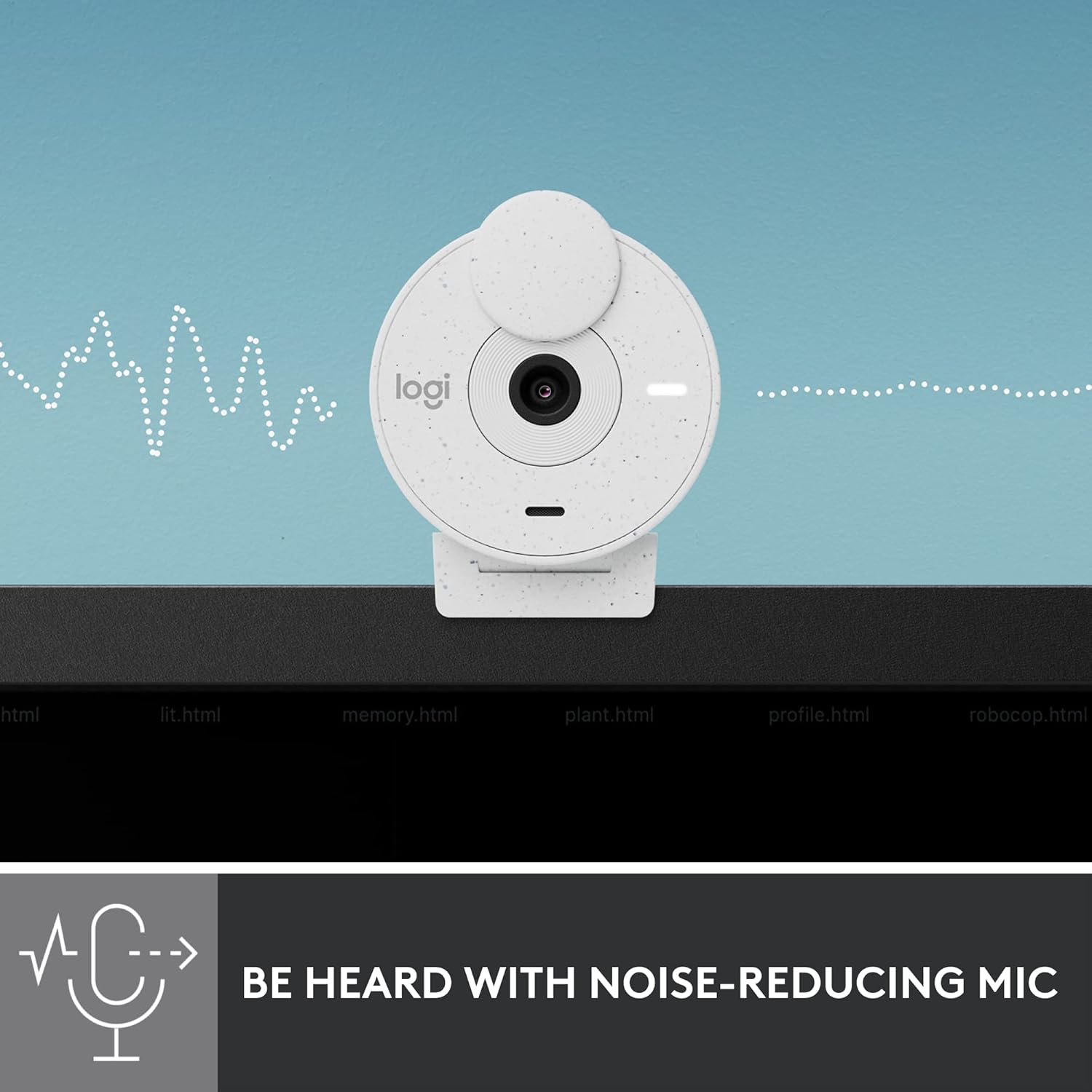
Figure 4.3: Illustration of the Brio 300's noise-reducing microphone capturing clear audio.
4.4. Suderinamumas
The Brio 300 is certified for Zoom, Microsoft Teams, and Google Meet, ensuring broad compatibility with most video conferencing platforms.

Figure 4.4: The Brio 300 is certified for major meeting platforms, including Zoom, Microsoft Teams, and Google Meet.
5. Priežiūra
Siekiant užtikrinti „Logitech Brio 300“ ilgaamžiškumą ir optimalų veikimą webkamera, laikykitės šių paprastų priežiūros nurodymų:
- Objektyvo valymas: Švelniai nuvalykite fotoaparato objektyvą minkštu, nepūkuotu audiniu. Jei dėmės sunkiai įveikiamos, šiek tiek nuvalykite.ampNuvalykite šluostę lęšių valymo tirpalu. Venkite abrazyvinių medžiagų ar stiprių cheminių medžiagų.
- Kūno valymas: Korpusą valykite minkštu, sausu skudurėliu webcam. Do not use liquid cleaners directly on the device.
- Saugykla: When not in use, especially during travel, ensure the privacy shutter is closed to protect the lens. Store the webkamerą laikykite švarioje, sausoje vietoje, toliau nuo ekstremalių temperatūrų.
6. Problemų sprendimas
If you encounter issues with your Logitech Brio 300, try the following troubleshooting steps:
- Nėra vaizdo / garso:
- Įsitikinkite, kad USB-C laidas yra tvirtai prijungtas prie abiejų webkamera ir jūsų kompiuteris.
- Patikrinkite, ar atidarytas privatumo užraktas.
- Patikrinkite, ar webcam is selected as the primary video and audio device in your video conferencing application settings (e.g., Zoom, Microsoft Teams, Google Meet).
- Pabandykite prijungti webcam to a different USB-C port or a different computer to rule out port or system issues.
- Prasta vaizdo kokybė:
- Ensure adequate lighting in your environment. While RightLight 2 helps, sufficient ambient light is crucial for optimal image quality.
- Nuvalykite fotoaparato objektyvą, kaip aprašyta skyriuje „Priežiūra“.
- Atnaujinkite savo webcam drivers and the Logi Tune software to the latest version.
- Check your internet connection speed, as a slow connection can affect video streaming quality.
- Prasta garso kokybė:
- Įsitikinkite, kad mikrofonas nėra uždengtas.
- Sumažinkite foninį triukšmą savo aplinkoje.
- Adjust microphone levels in your computer's sound settings or Logi Tune.
7. Specifikacijos
| Funkcija | Detalė |
|---|---|
| Maksimali ekrano skiriamoji geba | Full HD (1080p) raiška |
| Vaizdo įrašymo raiška | 1080p |
| Nuotraukų jutiklių technologija | CMOS |
| Ryšio technologija | USB-C |
| Ypatinga funkcija | Low Light Correction (RightLight 2) |
| Mikrofonas | Mono, Noise Reduction |
| Privatumo funkcija | Integruotas privatumo užraktas |
| Prekės svoris | 3.99 uncijos |
| Gaminio matmenys | 4.6 x 3.5 x 2.7 colio |
| Medžiaga | Minimum 48% Post-Consumer Recycled Plastic |
8. Garantija ir palaikymas
The Logitech Brio 300 webcam comes with a limited hardware warranty. For detailed warranty information, technical support, and frequently asked questions, please visit the official Logitech support websvetainėje arba žr. visą naudotojo vadovą PDF formatu.
Oficialus naudotojo vadovas (PDF): Atsisiųskite čia
For software support and customization, download the Logi Tune application.


