1. Įvadas ir pabaigaview
The Wemo Smart Video Doorbell is designed for seamless integration with Apple HomeKit Secure Video, providing a convenient and secure method to monitor your home and communicate with visitors. This device offers a wide field of view and high-definition video quality, ensuring comprehensive coverage of your doorstep. It leverages your existing iCloud subscription for secure storage of motion-based recordings within the Apple Home App.
Key features include face recognition, dual-band Wi-Fi connectivity for reliable performance, and infrared technology for clear night vision. This doorbell is compatible exclusively with wired 16-24V AC doorbell systems.
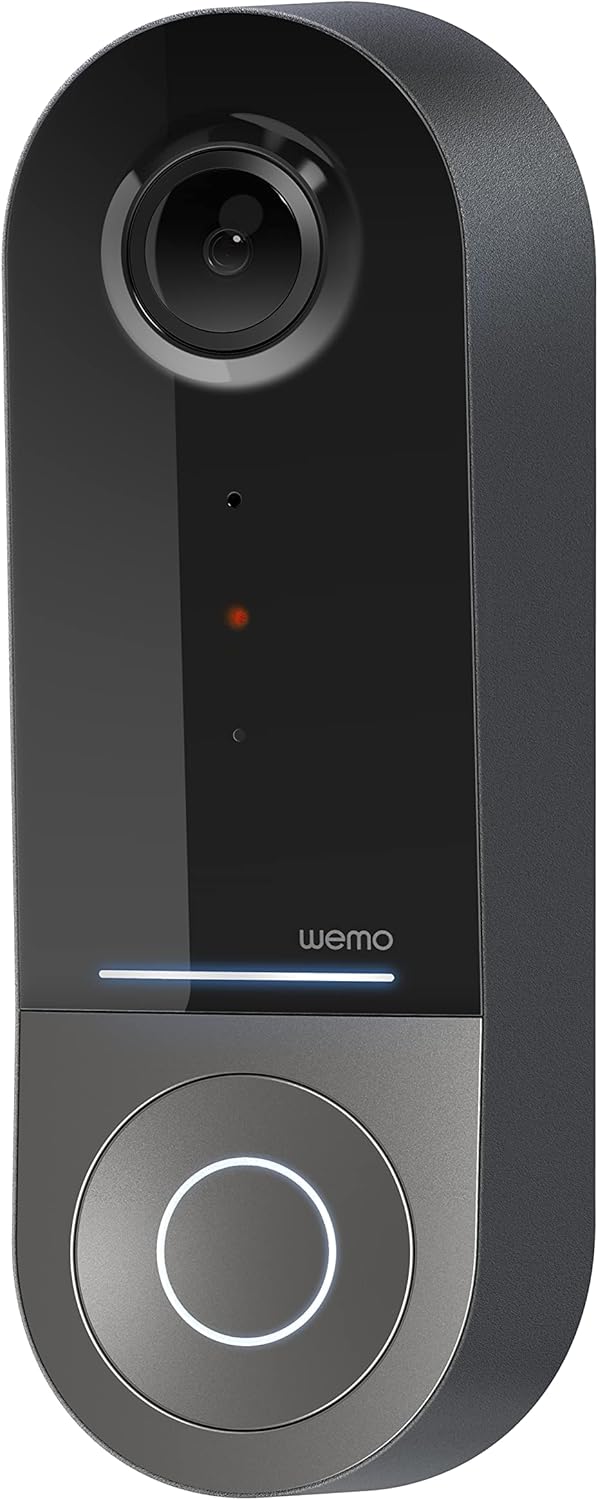
Figure 1: Wemo Smart Video Doorbell
2. Sąranka ir diegimas
2.1 Kontrolinis sąrašas prieš diegimą
- Ensure you have a wired doorbell system with 16-24V AC power.
- Download the Apple Home App on your iOS device.
- Confirm strong 2.4GHz and 5GHz Wi-Fi signal at your doorbell location.
2.2 Fizinis įrengimas
- Išjunkite maitinimą: Before beginning installation, turn off power to your existing doorbell system at the circuit breaker.
- Nuimkite seną durų skambutį: Carefully remove your existing doorbell button.
- Install mounting bracket: Use the provided screws and screwdriver to securely attach the mounting bracket to your wall. If needed, use the left/right wedges to adjust the viewing kampas.
- Connect power kit: Follow the instructions in the included Setup Guide to properly install the Power Kit with Connectors into your existing chime box. This is crucial for correct operation.
- Wire the Wemo Doorbell: Connect the existing doorbell wires to the terminals on the back of the Wemo Smart Video Doorbell.
- Pritvirtinkite durų skambutį: Secure the Wemo Smart Video Doorbell onto the mounting bracket.
- Atkurti galią: Prie grandinės pertraukiklio vėl įjunkite maitinimą.
2.3 Programėlės sąranka
- Open the Apple Home App on your iOS device.
- Tap the '+' icon to add a new accessory.
- Scan the HomeKit setup code provided with your Wemo Smart Video Doorbell.
- Follow the on-screen prompts to name your doorbell, assign it to a room, and configure HomeKit Secure Video settings, including motion detection and face recognition preferences.
3. Naudojimo instrukcijos
3.1 Tiesiogiai View ir Pranešimai
- Access live video feed directly from the Apple Home App on your iPhone, iPad, or HomePod.
- Receive instant notifications on your iOS device when motion is detected or the doorbell is pressed.
- Utilize face recognition to receive specific alerts for known individuals.

Figure 2: Face Recognition with HomeKit Secure Video
3.2 Vaizdo įrašymas ir saugojimas
- HomeKit Secure Video stores 10 days of motion-based recording history in your iCloud account.
- Review recorded events directly within the Apple Home App.

Figure 3: iCloud Recording via Apple Home App
3.3 Dvipusis garsas
- Engage in real-time two-way conversations with visitors through the Apple Home App.
3.4 Advanced Video Features
- Platus laukas View: The camera offers a 178° vertical, 140° horizontal, and 223° diagonal field of view dėl plataus aprėpties.
- HD Resolution with HDR: Enjoy crystal clear 1200x1600 resolution video with HDR for optimal image quality in varying light conditions.
- Patobulintas naktinis matymas: Infrared technology provides clear video even in low-light conditions.

4 pav.: Patobulintas naktinis matymas
3.5 Dviejų dažnių „Wi-Fi“ ryšys
- The doorbell utilizes both 2.4GHz and 5GHz Wi-Fi bands.
- The 2.4GHz band offers a longer range and better penetration through walls.
- The 5GHz band provides higher speeds for closer proximity connections.

Figure 5: Dual-Band Wi-Fi Connectivity
4. Techninė priežiūra ir trikčių šalinimas
4.1 Bendroji priežiūra
- Reguliariai valykite fotoaparato objektyvą minkšta,amp audiniu, kad būtų užtikrinta aiški vaizdo kokybė.
- Ensure the doorbell is free from obstructions that might block its field of view or microphone.
4.2 trikčių šalinimas
- Ryšio problemos: If the doorbell frequently disconnects, ensure your Wi-Fi signal is strong at the installation location. Consider adjusting your router's band (2.4GHz for range, 5GHz for speed) or adding a Wi-Fi extender.
- Maitinimo problemos: Verify that your wired doorbell system provides the required 16-24V AC. Insufficient voltage can lead to intermittent operation or device resets. Consult a qualified electrician if you suspect voltage klausimus.
- App Responsiveness: If the Apple Home App is slow to connect or display the live feed, ensure your iOS device and HomeKit hub (e.g., Apple TV, HomePod) are updated and have a stable internet connection. Restarting the doorbell or your HomeKit hub may resolve temporary glitches.
5. Specifikacijos
| Naudojimas viduje / lauke | Lauke |
| Suderinami įrenginiai | HomePod, iPad, iPhone |
| Maitinimo šaltinis | Laidinis elektrinis (16–24 V kintamoji srovė) |
| Ryšio protokolas | „Wi-Fi“ (2.4 GHz ir 5 GHz) |
| Valdiklio tipas | Apple HomeKit |
| Montavimo tipas | Sieninis laikiklis |
| Vaizdo įrašymo raiška | 1200x1600 (HD, HDR-enabled) |
| Spalva | Juoda |
| Prekės matmenys P x P x A | 2.1 x 1.8 x 5 colio |
| Prekės svoris | 13.7 uncijos |
| Ypatingos savybės | HD Resolution, Image Sensor, Night Vision, HDR |
6. Kas yra dėžutėje
- Išmanusis vaizdo skambutis
- Sąrankos vadovas
- Mounting Bracket
- Left/Right Wedge
- Varžtai ir atsuktuvas
- Power Kit with Connectors
7. Oficialus produkto vaizdo įrašas
Video 1: Official Wemo Video Doorbell overview, šouasing savybės ir dizainas.
8. Garantija ir palaikymas
For warranty information and technical support, please refer to the official WeMo websvetainėje arba susisiekite tiesiogiai su jų klientų aptarnavimo tarnyba. Išsaugokite pirkimo kvitą garantiniams reikalavimams.


