1. Įvadas
This manual provides comprehensive instructions for the setup, operation, and maintenance of your Tera 9200-Wired Omnidirectional Desktop Barcode Scanner. This device is designed for efficient and hands-free scanning of 1D, 2D, and QR barcodes in various environments such as retail stores, warehouses, and offices.
2. Produktas baigtasview
The Tera 9200-Wired scanner is a high-performance, plug-and-play device engineered for reliability and ease of use. Its omnidirectional scanning capability allows for quick and accurate barcode reading from various angles.
2.1 Pagrindinės savybės
- Plug and Play: No driver or software installation required. Simply connect the USB cable to your computer, POS system, or cash register.
- Hands-Free Scanning: Designed as a desktop platform scanner, it allows for convenient, hands-free operation, improving efficiency for both cashiers and customers.
- Stabilus dizainas: Equipped with four small non-slip pads on the bottom and an internal iron slab, ensuring stability during operation.
- Platus suderinamumas: Compatible with various operating systems including Windows XP, Windows 7, Windows 8, Windows 10, Android, and Linux. Works with PCs, laptops, iPads, and smartphones.
- Multi-Language Keyboard Support: Supports keyboard layouts for US, UK, German, French, Italian, Spanish, Japanese, and more.
- Powerful Decoding Ability: Capable of reading a wide range of 1D and 2D barcodes, including those that are reflective, smudged, damaged, or fuzzy.
2.2 Pakuotės turinys
- Tera 9200-Wired Desktop Barcode Scanner
- USB 2.0 Data Cable (integrated)
- Instrukcijų vadovas (šis dokumentas)
2.3 Gaminio schema

2.3.1 pav.: priekis view of the Tera 9200-Wired Desktop Barcode Scanner, showing its compact, black and white design with the scanning window.
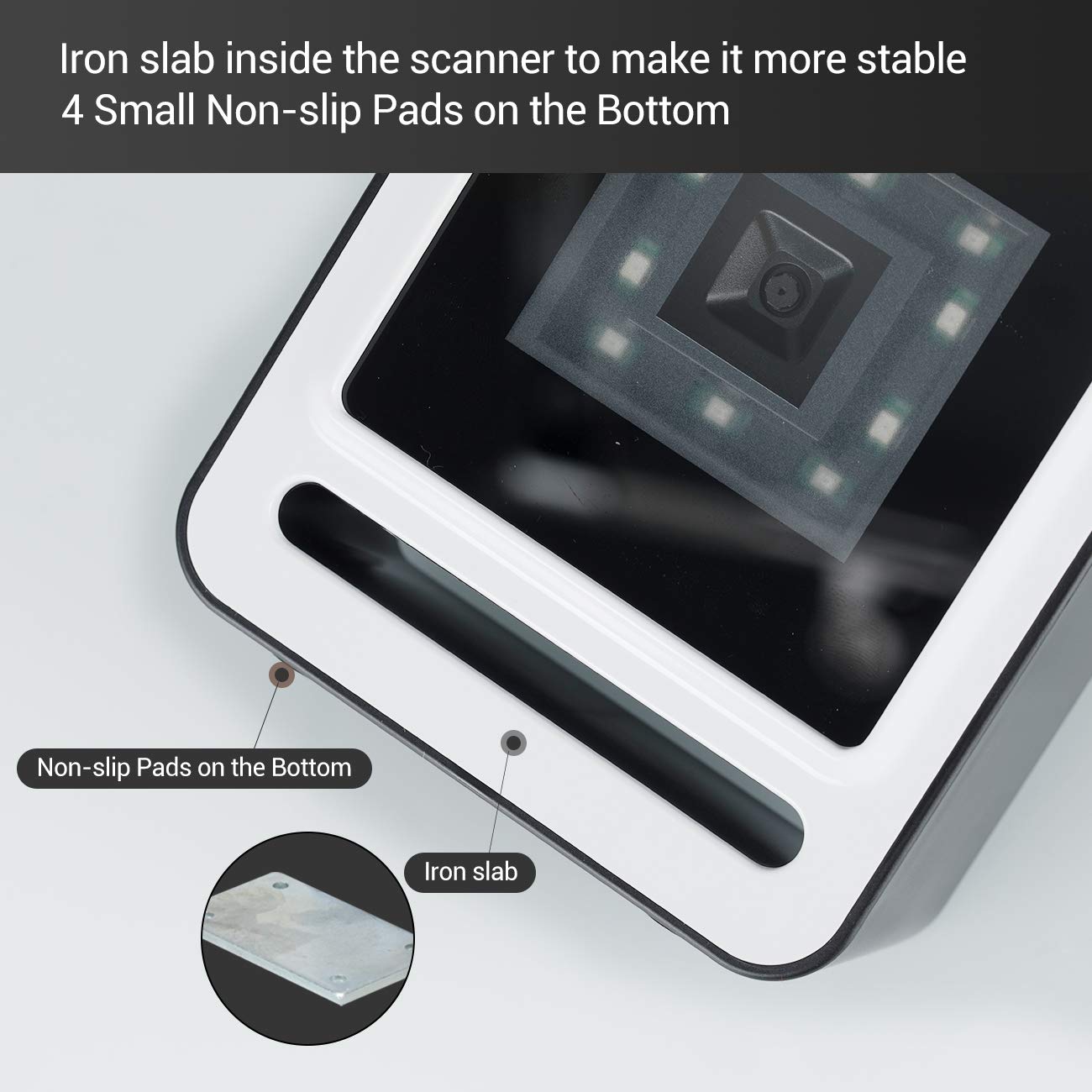
2.3.2 pav. Iš arti view of the scanner's base, highlighting the four non-slip pads and the internal iron slab designed for enhanced stability.
3. Sąranka
The Tera 9200-Wired barcode scanner is designed for quick and easy setup, requiring no special drivers or software installation.
- Išpakuokite skaitytuvą: Atsargiai išimkite skaitytuvą iš pakuotės.
- Prijunkite USB kabelį: Insert the integrated USB 2.0 data cable into an available USB port on your computer, POS system, or cash register.
- Sistemos atpažinimas: The operating system will automatically detect and configure the scanner. This process typically takes a few seconds.
- Paruošta naudoti: Once recognized, the scanner is ready for immediate use.

Figure 3.1: The scanner connected via USB to a laptop, demonstrating its plug-and-play functionality and compatibility with Windows, Android, and Linux systems, as well as PCs, laptops, iPads, and phones.
4. Naudojimo instrukcijos
The Tera 9200-Wired scanner offers hands-free operation for efficient barcode reading.
4.1 Pagrindinis nuskaitymas
- Position the Item: Place the barcode of the item directly in front of the scanner's window.
- Automatinis nuskaitymas: The scanner will automatically detect the barcode and emit a successful scan indication (e.g., a beep or light change).
- Duomenų perdavimas: The scanned data will be transmitted to your connected device (computer, POS system) as if typed via a keyboard.

Figure 4.1: A smartphone displaying a QR code being scanned by the Tera 9200-Wired scanner, illustrating its hands-free capability for digital barcodes.
4.2 Palaikomi brūkšninių kodų tipai
The scanner supports a wide array of 1D and 2D barcode symbologies:
- 1D dekodavimo galimybė: Codabar, Code 11, Code93, MSI, Code 128, UCC/EAN-128, Code 39, EAN-8, EAN-13, UPC-A, ISBN, Industrial 25, Interleaved 25, Standard 25, 2/5 Matrix.
- 2D dekodavimo galimybė: QR Code, PDF417, Data Matrix, Aztec code, Maxi Code.

Figure 4.2: Visual representation of the scanner's advanced decoding capabilities, showing its ability to read challenging barcodes such as reflective, smudged, damaged, and fuzzy ones.
4.3 Advanced Settings (via Configuration Codes)
The scanner can be configured for various settings by scanning specific configuration barcodes (not provided in this manual, refer to a separate programming guide if available from manufacturer). These settings may include:
- Klaviatūros kalba: Adjust the output keyboard language to match your system (e.g., US, UK, German, French, Italian, Spanish, Japanese).
- Virtualus COM prievadas: Enable virtual COM port mode for specific software applications.
- Priešdėlis / priesaga: Pridėkite pasirinktinius simbolius prieš nuskaitytus duomenis arba po jų.
- Slėpti simbolius: Configure the scanner to hide certain characters from the output.
- Garsumo nustatymas: Adjust the volume of the scan confirmation beep.

Figure 4.3: The scanner illustrating its support for multiple keyboard languages, including English, Spanish, German, Japanese, French, and Italian, allowing for versatile international use.
5. Priežiūra
Tinkama priežiūra užtikrina brūkšninių kodų skaitytuvo ilgaamžiškumą ir optimalų veikimą.
- Skenavimo lango valymas: Reguliariai valykite nuskaitymo langą minkštu, nepūkuotu audiniu. Jei dėmės sunkiai pašalinamos, šiek tiek nuvalykite.ampNuvalykite šluostę vandeniu arba švelniu, neabrazyviniu valikliu. Nenaudokite stiprių cheminių medžiagų ar abrazyvinių medžiagų.
- Bendras valymas: Nuvalykite skaitytuvo išorę sausa arba šiek tiek drėgna šluoste.amp šluoste dulkėms ir nešvarumams pašalinti.
- Venkite ekstremalių sąlygų: Do not expose the scanner to extreme temperatures, humidity, or direct sunlight for prolonged periods.
- Elkitės atsargiai: Venkite skaitytuvo numetimo ir stiprių smūgių.
6. Problemų sprendimas
If you encounter issues with your Tera 9200-Wired scanner, refer to the following common problems and solutions:
| Problema | Galima priežastis | Sprendimas |
|---|---|---|
| Skaitytuvas neįsijungia. | Netinkamai prijungtas USB kabelis arba sugedęs USB prievadas. | Įsitikinkite, kad USB laidas tvirtai prijungtas ir prie skaitytuvo, ir prie kompiuterio. Išbandykite kitą USB prievadą. |
| Skaitytuvas neskaito brūkšninių kodų. | Barcode is damaged, smudged, or poorly printed. Scanner window is dirty. Įjungta neteisinga brūkšninio kodo simbolika. | Try scanning a different, known-good barcode. Clean the scanning window. Ensure the barcode type is supported and enabled (if configurable). |
| Nuskaityti duomenys yra neteisingi arba nepilni. | Keyboard language mismatch. Data format settings incorrect. | Verify your computer's keyboard language matches the scanner's setting. Check for any prefix/suffix settings. |
| Skaitytuvas pypsi, bet duomenys neperduodami. | Application not in focus or not accepting input. | Ensure the cursor is in the correct input field of your application (e.g., notepad, word processor, POS software). |
7. Specifikacijos
| Funkcija | Detalė |
|---|---|
| Prekės ženklas | Tera |
| Modelis | 9200 laidų |
| Tipas | 1D 2D QR Omnidirectional Desktop Barcode Scanner |
| Ryšys | Laidinis USB 2.0 |
| Decode Capability (1D) | Codabar, Code 11, Code93, MSI, Code 128, UCC/EAN-128, Code 39, EAN-8, EAN-13, UPC-A, ISBN, Industrial 25, Interleaved 25, Standard 25, 2/5 Matrix |
| Decode Capability (2D) | QR Code, PDF417, Data Matrix, Aztec code, Maxi Code |
| Suderinamumas | Windows XP/7/8/10, Android, Linux (PC, Laptops, iPad, Phone) |
| Klaviatūros kalbos | US, UK, German, French, Italian, Spanish, Japanese, etc. |
| Pakuotės matmenys | 18.21 x 12.29 x 8.61 cm |
| Prekės svoris | 449 g |
| Reikalingos baterijos | Nr |
8. Garantija ir palaikymas
For warranty information and technical support, please refer to the documentation provided with your purchase or contact Tera customer service directly. Keep your purchase receipt as proof of purchase for warranty claims.
For the most up-to-date support resources, visit the official Tera websvetainę.


