Įvadas
This manual provides detailed instructions for the setup, operation, and maintenance of your j5create USB-C 4K Triple Display Hub (JCD397). Please read this manual thoroughly to ensure proper usage and to maximize the performance of your device. The JCD397 is designed to expand the connectivity of compatible USB-C laptops, offering multiple display outputs, high-speed USB ports, a card reader, and Ethernet connectivity.

Image: The j5create USB-C 4K Triple Display Hub (JCD397) in Space Gray, featuring its compact design and integrated USB-C cable.
Produkto savybės
The j5create JCD397 offers a comprehensive set of features to enhance your workstation:
- Trigubas ekrano išėjimas: Supports dual or triple 4K display configurations via two HDMI ports and one DisplayPort, compatible with USB-C laptops featuring DisplayPort 1.4 and Multi-Stream Transport (MST).
- High Refresh Rate Support: Extend one display up to 3840 x 2160 @ 60Hz, or achieve higher refresh rates like 2560 x 1440 @ 144Hz via HDMI or 1920 x 1080 @ 240Hz via DisplayPort on Windows OS.
- USB SuperSpeed 10 Gbps Ports: Includes two USB-C and one USB Type-A port for connecting peripherals or downstream charging, offering data transfer speeds up to 10 Gbps.
- SD & microSD 4.0 Card Reader: Integrated memory card reader/writer for managing media files with UHS-II support, providing data transfer speeds up to 312 MB/s.
- „Gigabit Ethernet“: Užtikrina stabilų laidinį tinklo ryšį.
- Maitinimo tiekimas 3.0: Supports up to 100W pass-through charging to power the connected peripherals and charge your host laptop using a USB-C power adapter.

Paveikslėlis: Viršutinė dalis view of the j5create JCD397 hub connected to a laptop, illustrating all available ports in use, including USB-A, USB-C, HDMI, DisplayPort, SD/microSD, and Gigabit Ethernet.
Sąrankos instrukcijos
- Prijungti prie pagrindinio įrenginio: Plug the integrated USB-C cable of the JCD397 into a compatible USB-C port on your laptop. Ensure your laptop's USB-C port supports DisplayPort 1.4 and Multi-Stream Transport (MST) for full functionality.
- Maitinimo jungtis (nebūtina, bet rekomenduojama): For optimal performance and to charge your laptop, connect your laptop's USB-C power adapter (up to 100W) to the USB-C Power Delivery port on the JCD397.
- Prijungti ekranus:
- For HDMI displays, connect HDMI cables from your monitors to the two HDMI ports on the JCD397.
- For DisplayPort displays, connect a DisplayPort cable from your monitor to the DisplayPort on the JCD397.
Pastaba: Display configurations and extended desktop functionality vary by operating system. Refer to the 'Operating' section for details.
- Prijunkite USB periferinius įrenginius: Plug your USB-A and USB-C devices (e.g., mouse, keyboard, external hard drive) into the respective USB 10Gbps ports on the JCD397.
- Prisijunkite prie tinklo: For a wired internet connection, connect an Ethernet cable from your router or modem to the Gigabit Ethernet port on the JCD397.
- Įdėkite atminties korteles: Insert SD or microSD cards into the designated slots for data access.

Image: A diagram illustrating triple display configurations for both Windows (extended mode) and Mac (mirrored mode) using the j5create JCD397 hub.
Naudojimo instrukcijos
Ekrano konfigūracija
- „Windows“ OS: The JCD397 supports Multi-Stream Transport (MST) on Windows, allowing for an extended desktop across up to three external 4K displays. Adjust display settings in your operating system to configure extended or mirrored modes.
- macOS: When using extended mode on macOS, all connected external displays will show the same content (mirroring). macOS does not support MST for extended displays across multiple external monitors via a single USB-C port.
USB duomenų perdavimas
The USB-A and USB-C 10Gbps ports provide high-speed data transfer for compatible devices. Ensure your connected devices and cables support USB 3.2 Gen 2 for optimal performance.
Card Reader Usage
Insert your SD or microSD card into the appropriate slot. The card will appear as a removable drive on your computer, allowing you to access and transfer files. The card reader supports UHS-II for fast data access.
Maitinimo tiekimas
When a USB-C power adapter is connected to the PD port, the JCD397 will pass through up to 100W of power to charge your host laptop and power connected peripherals. Ensure your power adapter meets the required wattage jūsų nešiojamam kompiuteriui.
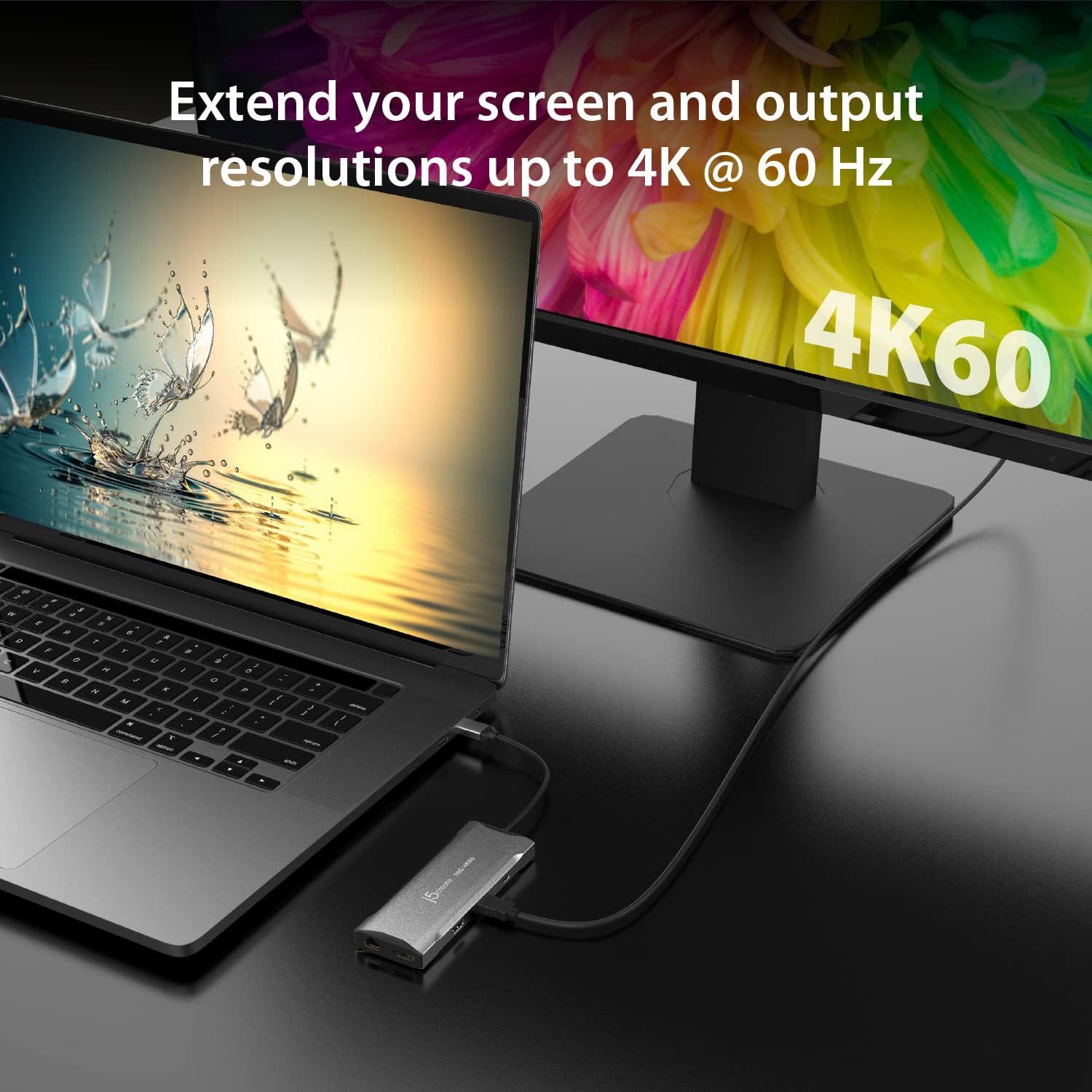
Image: A laptop connected to an external monitor displaying 4K resolution at 60Hz, demonstrating the video output capability of the JCD397 hub.
Priežiūra
To ensure the longevity and optimal performance of your j5create JCD397, follow these maintenance guidelines:
- Valymas: Use a soft, dry cloth to clean the exterior of the hub. Avoid using liquid cleaners or solvents, as they may damage the device.
- Saugykla: Laikykite stebulę vėsioje, sausoje vietoje, apsaugotoje nuo tiesioginių saulės spindulių ir ekstremalių temperatūrų.
- Tvarkymas: Avoid dropping or subjecting the device to strong impacts. Do not attempt to disassemble the hub, as this will void the warranty.
- Kabelio priežiūra: Do not bend or crimp the integrated USB-C cable excessively.
Trikčių šalinimas
If you encounter issues with your JCD397, please refer to the following common problems and solutions:
- Nėra ekrano išvesties:
- Ensure the USB-C cable from the hub is securely connected to your laptop.
- Verify that your laptop's USB-C port supports DisplayPort Alternate Mode (Alt Mode) and Multi-Stream Transport (MST).
- Check that display cables (HDMI/DP) are firmly connected to both the hub and the monitors.
- Confirm that your monitors are powered on and set to the correct input source.
- For macOS users, remember that external displays will mirror each other in extended mode.
- Slow USB Data Transfer:
- Ensure your connected USB devices and cables are USB 3.2 Gen 2 compatible for 10Gbps speeds.
- Avoid connecting high-power devices to multiple USB ports simultaneously without external power to the hub.
- Laptop Not Charging via PD:
- Verify that your USB-C power adapter is connected to the PD port on the hub.
- Įsitikinkite, kad jūsų maitinimo adapteris tiekia pakankamai srovėstage for your laptop (up to 100W supported by the hub).
- Confirm your laptop's USB-C port supports Power Delivery input.
- Ethernet ryšio problemos:
- Patikrinkite Ethernet kabelio jungtį tiek su šakotuvu, tiek su maršrutizatoriumi / modemu.
- Patikrinkite tinklo nustatymus savo kompiuteryje.
- Stebulė jaučiasi šiltai:
- It is normal for the hub to become warm during operation, especially when multiple ports are in use or when charging. Ensure adequate ventilation around the device. If it becomes excessively hot, disconnect it and contact support.
Specifikacijos
| Funkcija | Specifikacija |
|---|---|
| Modelis | JCD397 |
| Gaminio matmenys | 2.17 x 5.83 x 0.67 colio |
| Prekės svoris | 0.32 uncijos |
| Prekės ženklas | j5kurti |
| Spalva | Erdvė pilka |
| Techninės įrangos sąsaja | USB |
| Ekrano išėjimai | 2x HDMI, 1x DisplayPort (4K @ 60Hz max) |
| USB duomenų prievadai | 2x USB-C 10Gbps, 1x USB Type-A 10Gbps |
| Maitinimo tiekimas | Up to 100W Pass-Through |
| Ethernet | Gigabit Ethernet |
| Kortelių skaitytuvas | SD & microSD 4.0 (UHS-II, up to 312 MB/s) |
| Suderinami įrenginiai | Laptops with USB-C (DisplayPort 1.4 & MST support recommended) |
Garantija ir palaikymas
j5create products are designed for reliability and performance. For information regarding warranty coverage, please refer to the warranty card included with your product or visit the official j5create website. If you require technical assistance or have questions not covered in this manual, please contact j5create customer support.
Kontaktinė informacija:
Please refer to the j5create official website for the most current support contact details, including phone numbers and email addresses.


