1. Įvadas
Thank you for choosing the Logitech G435 Lightspeed and Bluetooth Wireless Gaming Headset. This lightweight headset is designed to provide high-fidelity audio and clear communication across multiple gaming platforms and devices. This manual will guide you through the setup, operation, maintenance, and troubleshooting of your new headset.
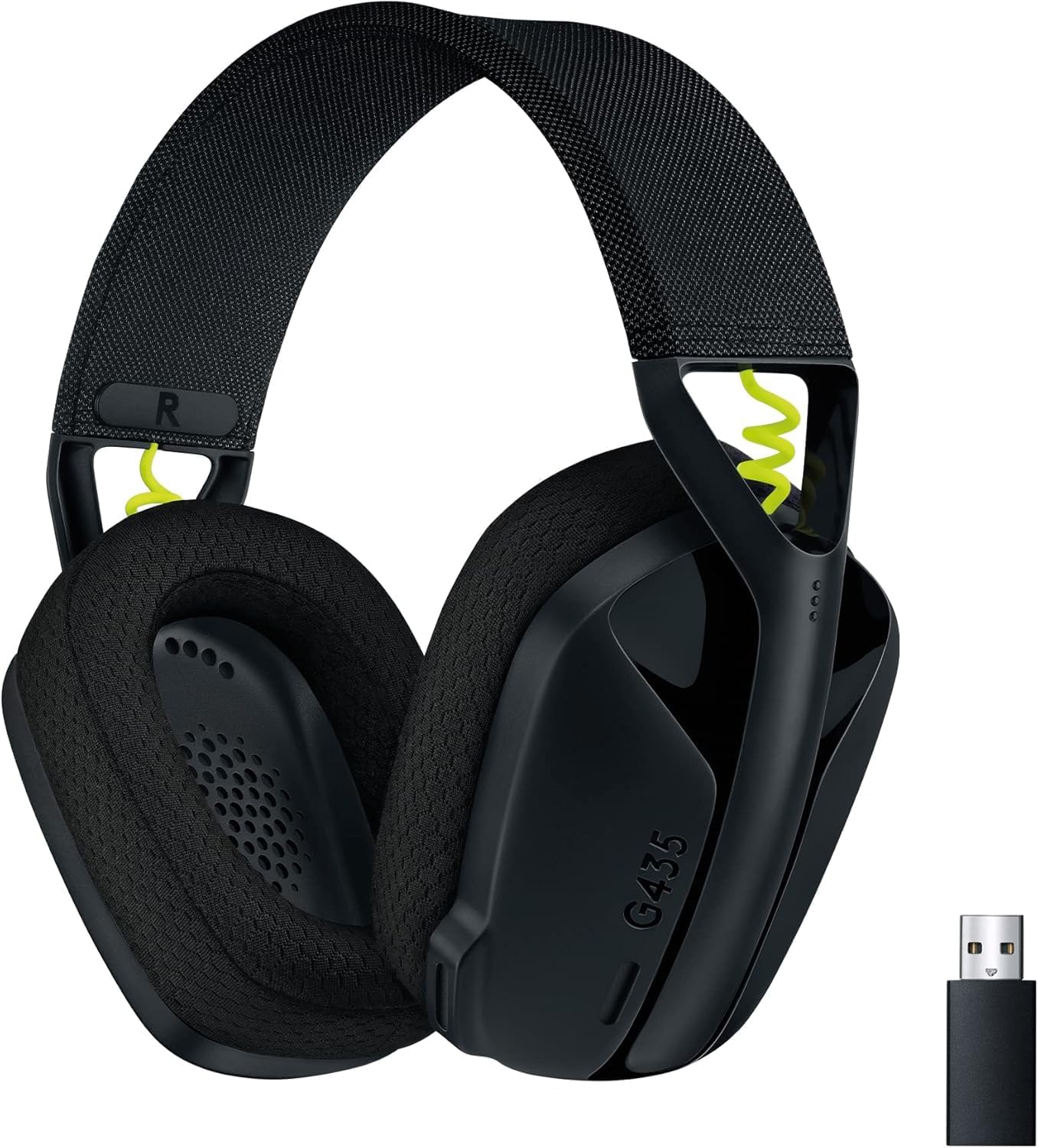
Figure 1: Logitech G435 Headset and USB Lightspeed Receiver
2. Pagrindinės savybės
- Dvigubas belaidis ryšys: Connects via Lightspeed USB-A receiver for low-latency gaming or Bluetooth for mobile devices.
- Aukšta garso kokybė: Features 40 mm audio drivers for balanced, immersive sound. Compatible with Dolby Atmos, Tempest 3D AudioTech, and Windows Sonic for surround sound experiences.
- Clear Voice Communication: Integrated dual beamforming microphones eliminate the need for a mic arm, reducing background noise for clear communication.
- Lengvas dizainas: Weighs only 165 grams (5.8 oz) for extended comfort during long gaming sessions.
- Ilgas baterijos veikimo laikas: Vienu įkrovimu mėgaukitės nepertraukiamu naudojimu iki 18 valandų.
- Comfortable Ear Cushions: Designed with memory foam ear cushions for total comfort.
3. Sąranka
3.1 Lightspeed Wireless Connection (PC, PlayStation)
- Insert the Lightspeed USB-A receiver into a USB port on your PC or PlayStation console.
- Power on your G435 headset by pressing and holding the Power button for 3 seconds.
- The headset will automatically connect to the Lightspeed receiver. The status indicator light on the headset will turn cyan.

Figure 2: Lightspeed Wireless for Pro-Grade Connection
3.2 Bluetooth Connection (Smartphones, Nintendo Switch)
- With the headset powered on, press and hold the Power button and the Mute button simultaneously for 3 seconds to enter Bluetooth pairing mode. The status indicator light will blink blue.
- On your device (smartphone, Nintendo Switch), go to Bluetooth settings and select "G435" from the list of available devices.
- Once connected, the status indicator light on the headset will turn solid blue.
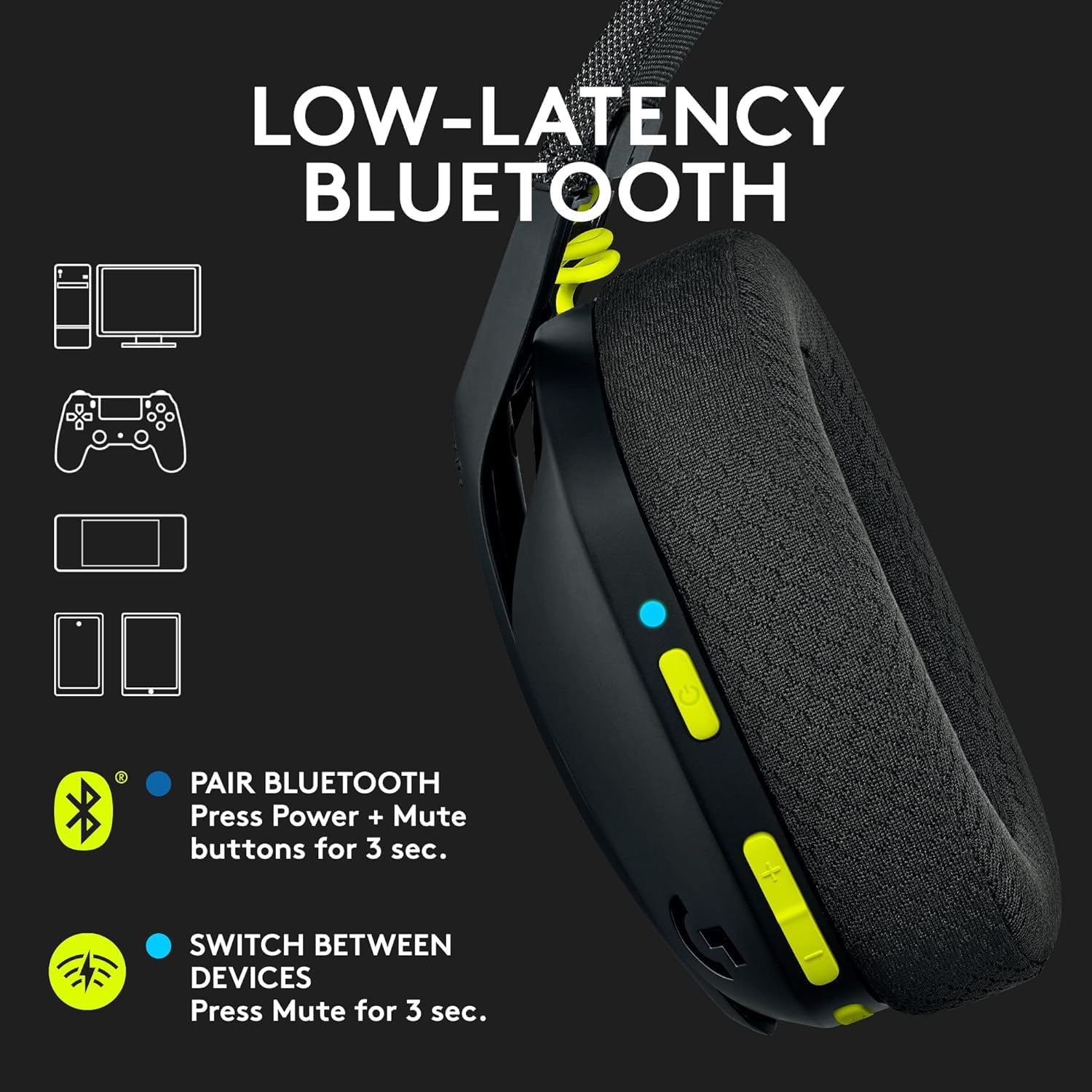
Figure 3: Low-Latency Bluetooth Connectivity
3.3 Switching Between Lightspeed and Bluetooth
To switch between Lightspeed and Bluetooth connections, press and hold the Mute button for 3 seconds. The status indicator light will change to reflect the active connection (cyan for Lightspeed, blue for Bluetooth).
4. Naudojimo instrukcijos
4.1 Maitinimo įjungimas/išjungimas
- Maitinimas: Paspauskite ir 3 sekundes palaikykite maitinimo mygtuką.
- Išjungti: Paspauskite ir 3 sekundes palaikykite maitinimo mygtuką.
4.2 Garsumo valdymas
Use the volume rocker buttons located on the left earcup to adjust the audio output level.
4.3 Mikrofono nutildymas
Press the dedicated Mute button on the left earcup to mute or unmute the microphone. The status indicator light will change to indicate the microphone status.

Figure 4: Dual Beamforming Microphones
5. Priežiūra
5.1 Valymas
- Nuvalykite ausines minkšta, sausa šluoste.
- Nenaudokite skystų valiklių ar abrazyvinių medžiagų.
- The memory foam ear cushions can be gently cleaned with a damp cloth and mild soap, then allowed to air dry completely.
5.2 Akumuliatoriaus įkrovimas
To charge the headset, connect the included USB-C cable to the charging port on the headset and to a USB power source. The status indicator light will show charging status (red while charging, green when fully charged). A full charge provides up to 18 hours of battery life.
6. Problemų sprendimas
6.1 No Audio/Connectivity Issues
- Įsitikinkite, kad ausinės įjungtos ir visiškai įkrautos.
- For Lightspeed connection, verify the USB-A receiver is securely plugged into the device and the headset's status indicator is cyan.
- For Bluetooth connection, ensure Bluetooth is enabled on your device and the headset is paired (status indicator blue). Try re-pairing if necessary.
- Patikrinkite garsumo lygius tiek ausinėse, tiek prijungtame įrenginyje.
- Ensure the headset is selected as the audio output device in your system settings.
6.2 Mikrofonas neveikia
- Ensure the microphone is not muted (check the Mute button and status indicator).
- Verify the headset is selected as the input device in your system's audio settings.
- Check for any software updates for your device or headset drivers.
7. Specifikacijos
| Modelio pavadinimas | Logitech G435 |
| Prekės modelio numeris | 097855168252 |
| Ryšys | Lightspeed Wireless (USB-A), Bluetooth 5.0 |
| belaidis diapazonas | Iki 10 metrų |
| Garso tvarkyklės | 40 mm dinaminės tvarkyklės |
| Dažnio atsakas | 20 Hz–20 kHz |
| Varža | 45 Ohms (passive) |
| Mikrofonas | Dual embedded beamforming microphones |
| Baterijos veikimo laikas | Iki 18 valandų |
| Įkrovimo prievadas | USB-C |
| Svoris | 165 gramų (5.8 uncijos) |
| Matmenys | 6 x 3 x 7 colio |
| Suderinami įrenginiai | PC, Smartphones, PlayStation, Nintendo Switch |
8. Oficialūs produktų vaizdo įrašai
1 vaizdo įrašas: metimas per sekundęview of the Logitech G435 Wireless Gaming Headset, highlighting its features and design.
9. Garantija ir palaikymas
9.1 Grąžinimo politika
This product is eligible for a 90-day refund/replacement return policy. Please refer to your purchase documentation for specific terms and conditions.
9.2 Gamintojo palaikymas
For technical support, warranty claims, or additional product information, please visit the official Logitech support website or contact their customer service. Specific warranty details are typically provided with your product packaging.


