1. Įvadas
This manual provides essential information for the safe and efficient use of your Philips 329P1H 32-inch 4K UHD LCD Monitor. This monitor features a 32-inch 4K UHD (3840 x 2160) display, an integrated USB-C docking station with power delivery, a pop-up webcam with Windows Hello™ facial recognition, and various eye-care technologies. Please read this manual thoroughly before operating the device.
2. Saugos informacija
Observe the following safety precautions to prevent damage to the monitor or injury to yourself:
- Saugokite monitorių nuo lietaus ar drėgmės.
- Neatidarykite monitoriaus c.asing. Visus techninės priežiūros darbus patikėkite kvalifikuotiems darbuotojams.
- Užtikrinkite tinkamą vėdinimą aplink monitorių.
- Naudokite tik prie monitoriaus pridėtą maitinimo adapterį.
- Stenkitės nestatyti monitoriaus tiesioginiuose saulės spinduliuose arba šalia šilumos šaltinių.
- Clean the screen with a soft, lint-free cloth. Do not use liquid cleaners directly on the screen.
3. Pakuotės turinys
Information regarding the exact contents of the product package is not available. Typically, a monitor package includes:
- Philips 329P1H Monitor
- Maitinimo kabelis
- USB-C kabelis
- HDMI kabelis (gali skirtis priklausomai nuo regiono)
- Greitos pradžios vadovas
4. Sąranka
4.1 Fizinė konfigūracija
Carefully remove the monitor and its components from the packaging. Assemble the stand according to the instructions provided in the Quick Start Guide. Place the monitor on a stable, level surface.
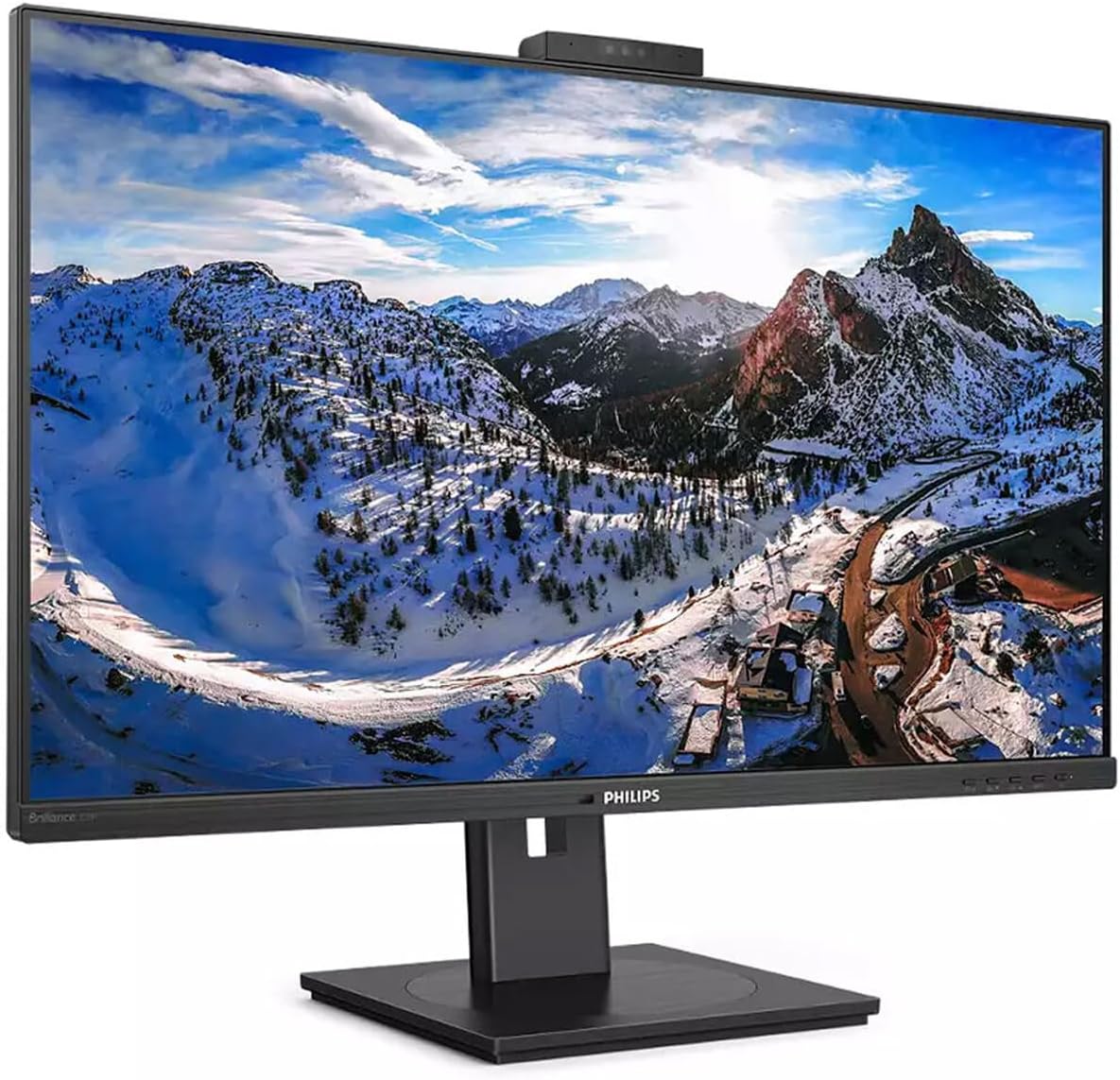
4.1 pav.: priekis view of the Philips 329P1H Monitor.
4.2 Jungiamieji kabeliai
- Maitinimo jungtis: Prijunkite maitinimo laidą prie monitoriaus maitinimo įvesties, o tada – prie maitinimo lizdo.
- Vaizdo jungtis: Connect a video cable (e.g., HDMI, DisplayPort, or USB-C) from your computer to the corresponding input on the monitor. For 4K UHD resolution, ensure your graphics card and cable support the required bandwidth.
- USB-C Docking: If your laptop supports USB-C with power delivery, connect the supplied USB-C cable from your laptop to the monitor's USB-C port. This single cable can provide video, data, and power charging to your laptop.
- USB periferiniai įrenginiai: Connect your keyboard, mouse, or other USB devices to the USB ports on the monitor.
- Ethernet jungtis: Connect an RJ-45 Ethernet cable from your network router/modem to the monitor's RJ-45 port for network access through the USB-C connection.
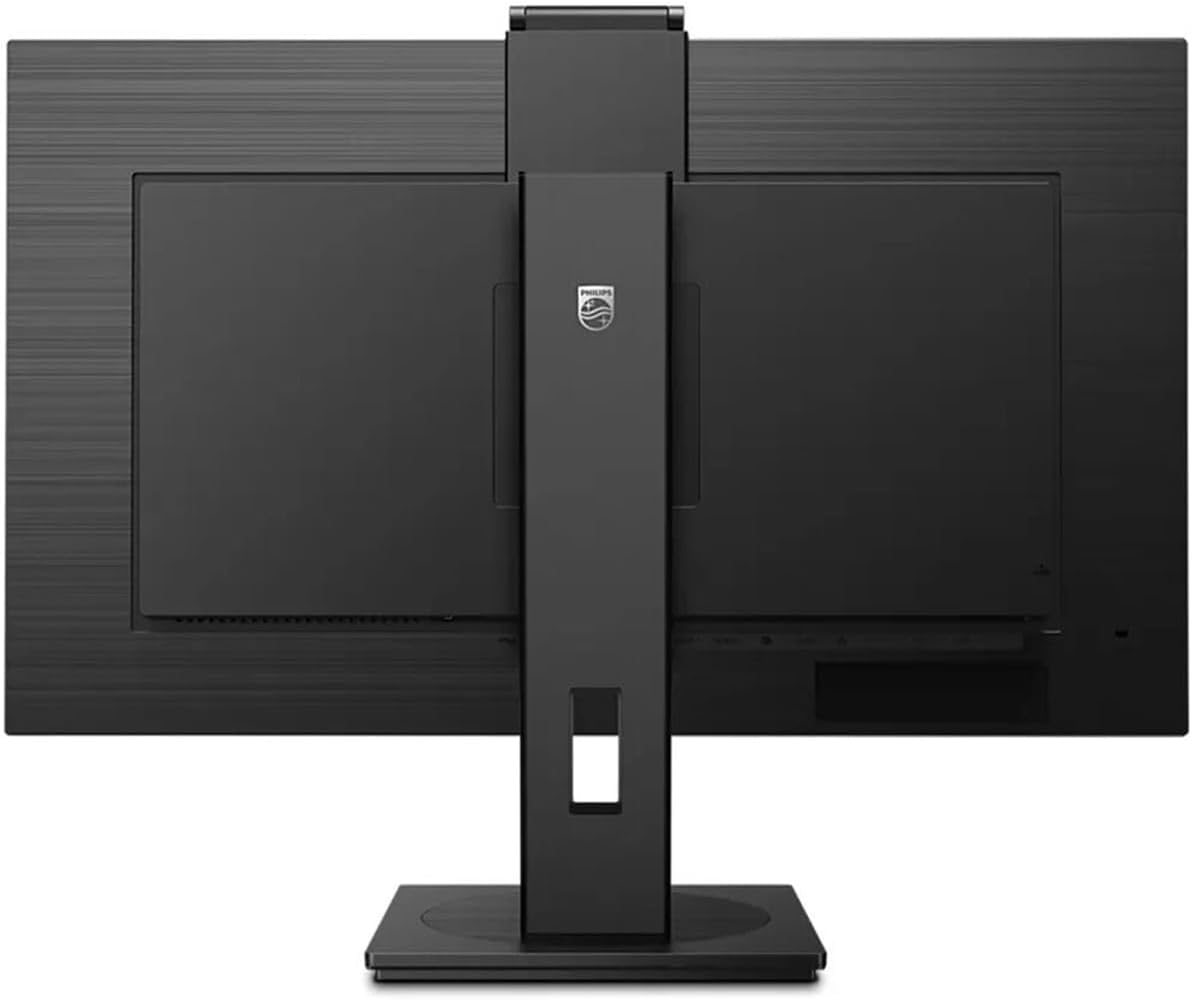
4.2 pav.: galinis view monitoriaus su įvesties prievadais.
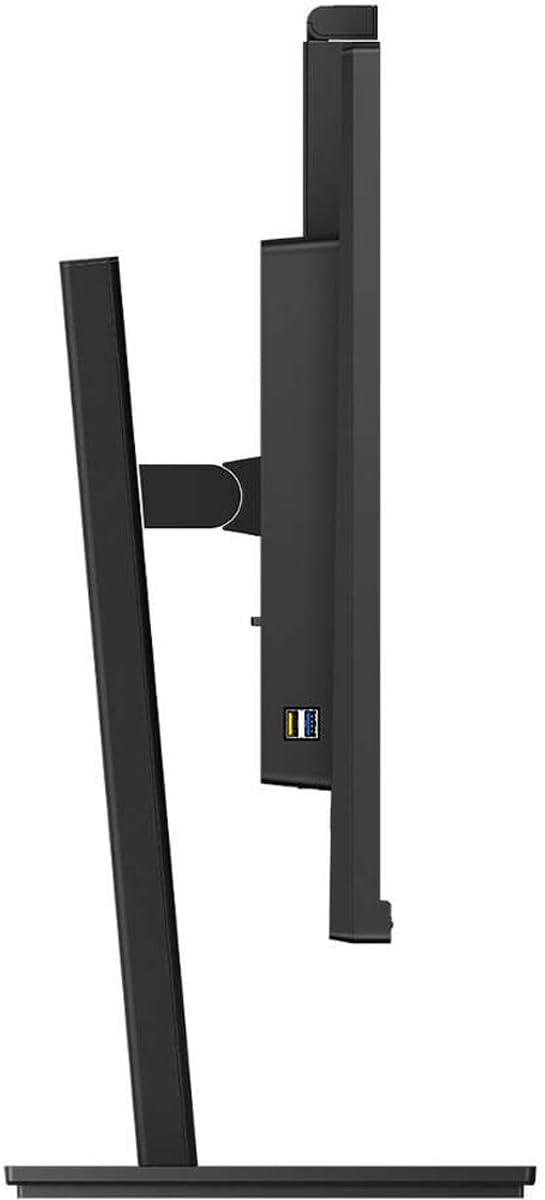
4.3 pav.: šonas view showing USB ports.
4.3 Pradinė konfigūracija
After connecting all necessary cables, power on the monitor and your computer. The monitor should automatically detect the input signal. If not, use the monitor's On-Screen Display (OSD) menu to select the correct input source.
5. Naudojimo instrukcijos
5.1 Maitinimo įjungimas/išjungimas
Norėdami įjungti arba išjungti monitorių, paspauskite ant jo esantį maitinimo mygtuką. Maitinimo indikatoriaus lemputė užsidegs, kai monitorius bus aktyvus.
5.2 USB-C Docking Functionality
The integrated USB-C docking station allows for a single-cable solution for video, data transfer, and laptop power charging (up to 90W). Connect your compatible laptop via the USB-C port on the monitor to utilize this feature. Peripherals connected to the monitor's USB ports and the RJ-45 Ethernet port will also be accessible to your laptop.
5.3 Iššokantis langas Webkamera su „Windows Hello ™“
The monitor features an innovative pop-up webcam. When needed, the webcam extends from the top of the monitor. It is equipped with advanced sensors for Windows Hello™ facial recognition, enabling secure and fast login to Windows devices. When not in use, the webcam can be securely tucked back into the monitor for privacy.
5.4 Ekrano technologijos
- UltraClear 4K UHD (3840 x 2160): Provides highly detailed and crisp images for professional applications.
- IPS technologija: Siūlo platus viewing angles (178/178 degrees) and consistent color accuracy, suitable for graphic design and professional use.
- Technologija be mirgėjimo: Regulates brightness to reduce screen flicker, minimizing eye fatigue during extended use.
- LowBlue režimas: A software solution that reduces harmful shortwave blue light emissions, promoting eye comfort.
- Galios jutiklis: Detects user presence and automatically reduces monitor brightness when the user steps away, saving up to 80% energy.
- LightSensor: Adjusts picture brightness based on ambient room lighting conditions for optimal viewing and minimal power consumption.
6. Priežiūra
6.1 Monitoriaus valymas
Norėdami valyti monitoriaus ekraną, švelniai nuvalykite jį minkštu, nepūkuotu skudurėliu. Jei dėmės sunkiai pašalinamos, švelniai nuvalykiteampen the cloth with water or a mild, non-abrasive screen cleaner. Do not spray liquids directly onto the screen. For the monitor casing, naudokite minkštą, sausą šluostę.
6.2 Saugykla
If storing the monitor for an extended period, ensure it is powered off and disconnected from the power source. Store it in a cool, dry place, ideally in its original packaging to protect it from dust and physical damage.
7. Problemų sprendimas
Jei kyla problemų dėl monitoriaus, žr. šiuos dažniausiai pasitaikančius sprendimus:
| Problema | Galima priežastis | Sprendimas |
|---|---|---|
| Ekrane nėra vaizdo | Atjungtas maitinimo kabelis; atjungtas arba atsilaisvinęs vaizdo kabelis; pasirinktas neteisingas įvesties šaltinis. | Patikrinkite maitinimo ir vaizdo kabelio jungtis. Įsitikinkite, kad per OSD meniu pasirinktas teisingas įvesties šaltinis. |
| Vaizdas neryškus arba iškraipytas | Neteisinga skiriamoji geba; Sugedęs vaizdo kabelis. | Set the display resolution to 3840 x 2160. Try a different video cable. |
| Webkamera neveikia | USB-C cable not connected or faulty; Webcam privacy setting enabled; Operating system driver issue. | Ensure the USB-C cable is securely connected and supports data transfer. Check privacy settings in your operating system. For Mac Mini users, if the camera disconnects after sleep mode, try restarting the monitor or ensuring the USB-C cable is fully functional. Update USB drivers if necessary. |
| Nėra garso iš monitoriaus garsiakalbių | Per mažas garsumas; kompiuteryje pasirinkta neteisinga garso išvestis. | Reguliuokite monitoriaus garsumą per OSD. Kompiuterio garso nustatymuose pasirinkite monitorių kaip numatytąjį garso išvesties įrenginį. |
8. Specifikacijos
The following table outlines the key technical specifications for the Philips 329P1H monitor:
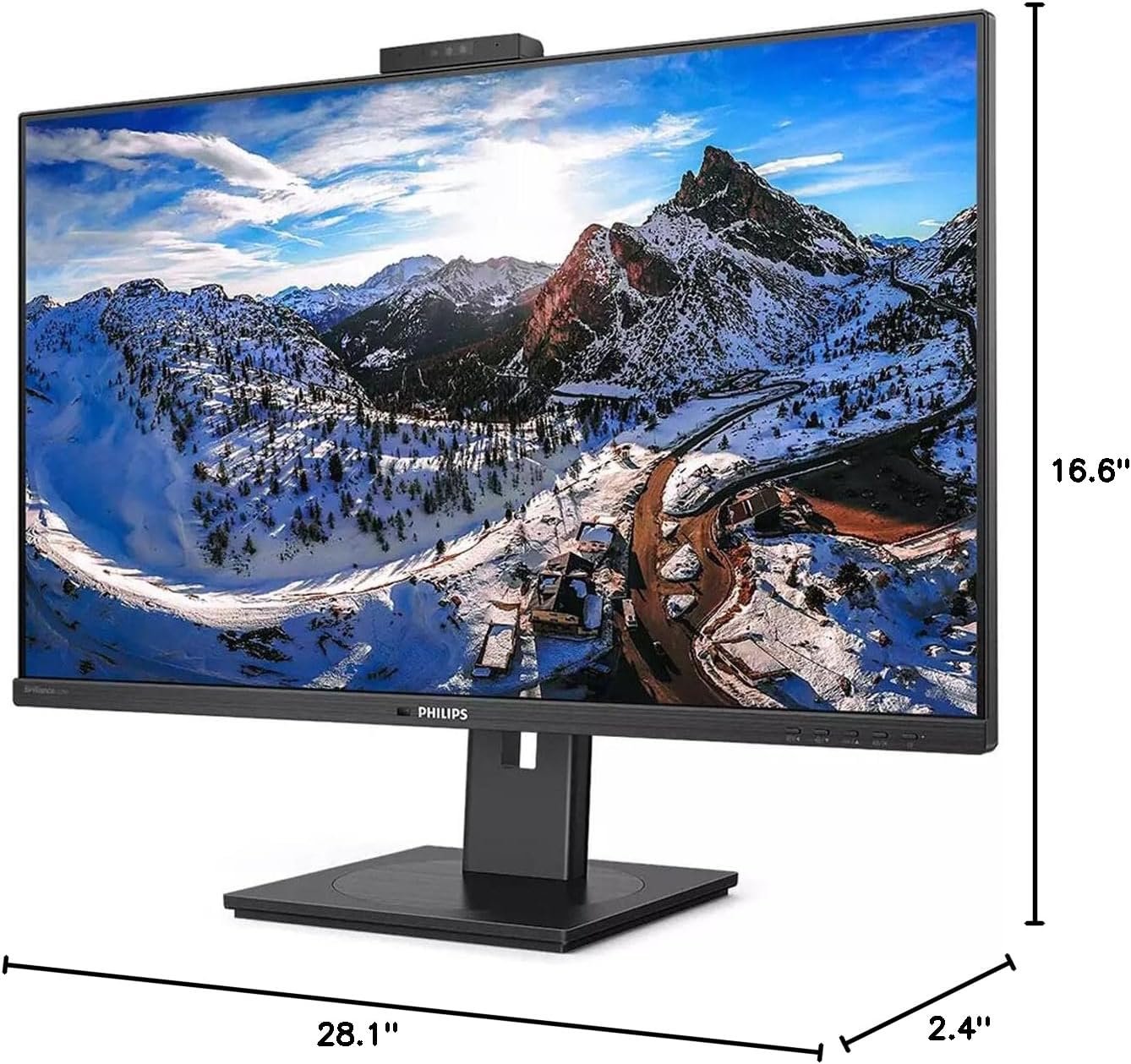
8.1 pav.: Monitoriaus matmenys.
| Funkcija | Specifikacija |
|---|---|
| Modelio numeris | 329P1H |
| Ekrano dydis | 31.5 colio (viewgali) |
| Maksimali ekrano skiriamoji geba | 3840 x 2160 (4K UHD) |
| Krašto santykis | 16:9 |
| Reagavimo laikas | 4 ms GTG |
| Ryškumas | 350 nitų |
| Atnaujinimo dažnis | 75 Hz |
| Skydelio tipas | IPS |
| Foninio apšvietimo technologija | WLED |
| Ryšys | USB Type-C (with Power Delivery), HDMI, DisplayPort, RJ-45 Ethernet |
| Webkumštelis | Pop-up with Windows Hello™ |
| Prekės svoris | 18.06 svaro |
| Gaminio matmenys (IxPxH) | 2.4 x 28.1 x 16.6 colio |
| Spalva | Tekstūra juoda |
9. Garantija ir palaikymas
Dėl garantijos informacijos ir techninės pagalbos žr. prie gaminio pridėtą garantinę kortelę arba apsilankykite oficialioje „Philips“ pagalbos svetainėje. websvetainėje. Išsaugokite pirkimo kvitą kaip pirkimo įrodymą garantiniams reikalavimams.