1. Produktas baigtasview
The AZZA CSAZ-280B Spectra Black is an ATX Mid Tower gaming case designed to house various computer components. It features a tempered glass side panel and a steel right panel. This manual provides instructions for the proper installation and maintenance of your computer components within this case.

1.1 paveikslas: Priekinis kairysis view of the AZZA CSAZ-280B Spectra Black case, showcasing the tempered glass side panel and the front panel design with integrated RGB lighting.
Pagrindinės funkcijos:
- Left Panel: Tempered glass with rubber mounts for secure installation.
- Right Panel: Solid steel panel.
- Motherboard Compatibility: Supports ATX, Micro-ATX, and ITX motherboards.
- Drive Bays: Up to three 2.5" drive bays and up to two 3.5" drive bays.
- Maximum CPU Cooler Height: Up to 170 mm.
- Maximum Video Card Length: Up to 290 mm.
2. Sąranka ir komponentų diegimas
Follow these steps for proper installation of your computer components into the AZZA CSAZ-280B case. Ensure the system is powered off and unplugged before beginning any installation.
2.1 Priekinio įvesties/išvesties skydelio jungtys
The top panel of the case features various input/output ports and controls for convenient access.

2.1 paveikslėlis: Iš viršaus į apačią view of the case's front I/O panel, indicating the Power button, LED control button, Audio jacks (Mic and Headphone), two USB 2.0 ports, and one USB 3.0 port.
- Maitinimo mygtukas: Paspauskite, kad įjungtumėte arba išjungtumėte sistemą.
- LED mygtukas: Controls the RGB lighting effects of the case.
- Garso lizdai: Separate ports for microphone and headphones.
- USB 2.0 prievadai: Two ports for connecting USB 2.0 devices.
- USB 3.0 prievadas: One port for connecting USB 3.0 devices, offering faster data transfer speeds.
2.2 Pavaros įrengimas
The case supports both 3.5" HDDs and 2.5" SSDs. Refer to the images below for drive bay locations.

2.2 pav.: Vidinis view showing the lower drive cage, capable of holding one 3.5" HDD or one 2.5" SSD, and an additional dedicated 3.5" HDD bay.

2.3 pav.: Vidinis view showing two dedicated 2.5" SSD mounting brackets located behind the motherboard tray.
- 3.5 colio standiesiems diskams: Install drives into the designated 3.5" drive cage located at the bottom front of the case. Secure with screws.
- 2.5 colio SSD diskams: Install drives into the dedicated 2.5" mounting brackets behind the motherboard tray or in the lower drive cage. Secure with screws.
2.3 Vaizdo plokštės diegimas
Korpusas palaiko iki 290 mm ilgio vaizdo plokštes.

2.4 pav.: Vidinis view illustrating the maximum supported length for a video card, which is 290mm.
- Nuimkite reikiamus PCI-E lizdų dangtelius nuo korpuso galo.
- Carefully insert the graphics card into the PCI-E slot on your motherboard.
- Pritvirtinkite vaizdo plokštę prie korpuso varžtais.
2.4 Fan Installation and Airflow
Proper fan placement ensures optimal cooling performance. The case supports various fan configurations:
- Priekyje: Supports 3 x 120mm fans or 2 x 140mm fans.
- Į viršų: Palaiko 2 x 120 mm ventiliatorius.
- Galinis: Supports 1 x 120mm fan.
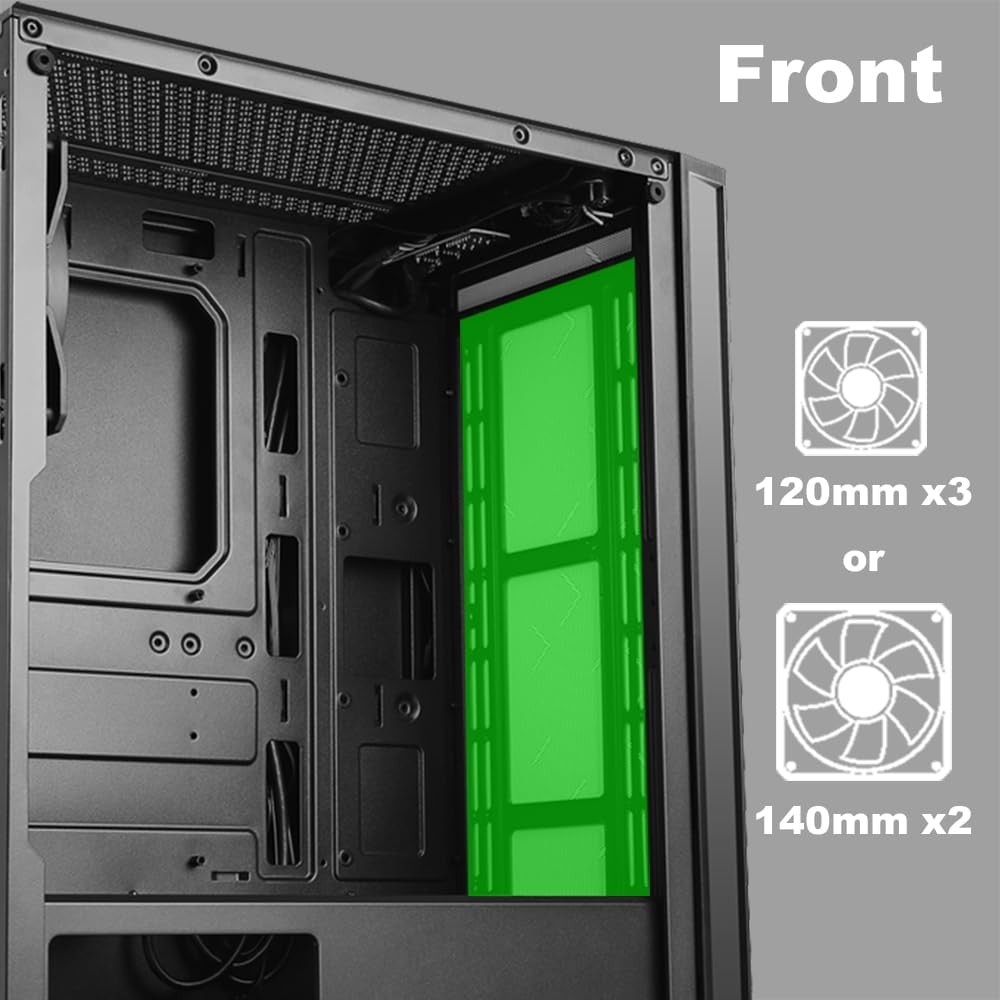
2.5 pav.: Vidinis view of the front panel, highlighting the mounting locations for up to three 120mm fans or two 140mm fans.

2.6 pav.: Vidinis view of the top panel, showing the mounting locations for up to two 120mm fans.

2.7 pav.: Vidinis view of the rear panel, indicating the mounting location for one 120mm fan.
- Identify the desired fan mounting locations (front, top, rear).
- Secure fans to the case using appropriate fan screws.
- Prijunkite ventiliatoriaus maitinimo laidus prie pagrindinės plokštės arba ventiliatoriaus valdiklio.
2.5 Maitinimo šaltinio įrengimas
The power supply unit (PSU) mounts at the bottom of the case.
- Slide the PSU into the designated compartment at the bottom rear of the case.
- Pritvirtinkite maitinimo bloką prie korpuso varžtais iš galinės pusės.
- Route power cables through the cable management cutouts to reach your components.
3. Naudojimo instrukcijos
3.1 Maitinimo įjungimas/išjungimas
To power on your system, press the power button located on the top I/O panel. To power off, either shut down through your operating system or press and hold the power button for several seconds.
3.2 LED valdymas
Use the dedicated LED button on the top I/O panel to cycle through various lighting modes and colors for the integrated RGB elements of the case.
4. Priežiūra
Reguliarus techninis aptarnavimas padeda užtikrinti optimalų kompiuterio komponentų veikimą ir ilgaamžiškumą.
- Dulkių valymas: Reguliariai valykite dulkių filtrus ir vidinius komponentus suslėgtu oru. Prieš valydami įsitikinkite, kad sistema išjungta ir atjungta nuo elektros tinklo.
- Kabelių valdymas: Ensure cables are neatly routed to prevent obstruction of airflow and to maintain a clean interior.
- Panel Care: Clean the tempered glass panel with a soft, lint-free cloth and a mild glass cleaner. Avoid abrasive materials.
5. Problemų sprendimas
Šiame skyriuje aptariamos dažniausiai pasitaikančios problemos, su kuriomis galite susidurti.
- Sistema neįsijungia:
- Patikrinkite, ar visi maitinimo kabeliai (24 kontaktų ATX, 8 kontaktų CPU, GPU maitinimo) yra tvirtai prijungti prie pagrindinės plokštės ir komponentų.
- Įsitikinkite, kad maitinimo jungiklis yra „ĮJUNGTA“ padėtyje.
- Patikrinkite, ar priekinio skydelio maitinimo mygtuko kabelis tinkamai prijungtas prie pagrindinės plokštės priekinio skydelio jungties.
- Ventiliatoriai nesisuka / LED lemputės nešviečia:
- Confirm fan power cables are properly connected to the motherboard or fan controller.
- Ensure LED cables are correctly connected to the motherboard's RGB header or the case's LED controller.
- Press the LED button on the top I/O panel to cycle through modes or turn on the lighting.
- Neveikiantys USB prievadai:
- Check that the USB 2.0 and USB 3.0 headers from the front panel are correctly plugged into the corresponding ports on your motherboard.
- Garso lizdai neveikia:
- Ensure the HD Audio cable from the front panel is securely connected to the HD Audio header on your motherboard.
6. Specifikacijos
Detailed technical specifications for the AZZA CSAZ-280B Spectra Black case.
| Funkcija | Specifikacija |
|---|---|
| Modelio pavadinimas | CSAZ-280B SPECTRA BLACK |
| Atvejo tipas | Mid Tower |
| Pagrindinės plokštės suderinamumas | ATX, Micro-ATX, ITX |
| Medžiaga | Plastikas, Grūdintas stiklas |
| Spalva | Juoda |
| Matmenys (I x P x A) | 19.69 x 17.32 x 9.84 colio |
| Prekės svoris | 11 svaro |
| 2.5 colių diskų lizdai | Iki 3 |
| 3.5 colių diskų lizdai | Iki 2 |
| Maksimalus procesoriaus aušintuvo aukštis | 170 mm |
| Maksimalus vaizdo plokštės ilgis | 290 mm |
| Priekinės įvesties / išvesties prievadai | 2 x USB 2.0, 1 x USB 3.0, Audio, Mic, Power, LED Control |
| Priekinio ventiliatoriaus palaikymas | 3 x 120 mm arba 2 x 140 mm |
| Geriausias gerbėjų palaikymas | 2x120mm |
| Galinio ventiliatoriaus laikiklis | 1x120mm |
| Maitinimo bloko montavimas | Apatinis kalnas |
7. Garantija ir palaikymas
7.1 Grąžinimo politika
Šiam produktui taikoma 30 dienų grąžinimo politika, pagal mažmenininko sąlygas grąžinant pinigus arba pakeičiant prekę.
7.2 Techninė pagalba
For technical assistance or inquiries regarding your AZZA product, please visit the official AZZA website or contact their customer support channels. You can find more information and contact details by visiting the AZZA Store on Amazon.


