1. Įvadas
Thank you for choosing the Vivitar Digital Clip-On Web Camera VWC107-BLK. This high-definition 1080P webcam is designed to enhance your virtual meetings, online classes, and video calls with clear video and audio. It features a built-in microphone, auto white balance, auto-focusing, and a versatile 360-degree rotating clamp for easy placement on laptops, LCD monitors, or desktops. This manual provides essential information for setting up, operating, and maintaining your webkumštelis.
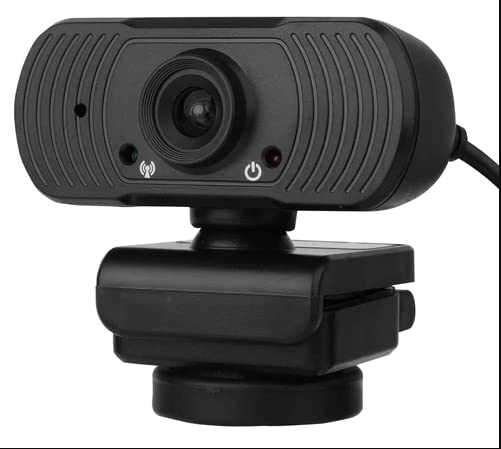
Image: The Vivitar Digital Clip-On Web Camera VWC107-BLK, showcasing its compact design and clip-on base.
2. Pakuotės turinys
Įsitikinkite, kad jūsų siuntinyje yra visi daiktai:
- Vivitar Digital Clip-On Web Camera (VWC107-BLK)
3. Produkto ypatybės
- HD 1080P Video: Delivers clear and sharp video resolution.
- Aukštos kokybės mikrofonas: Integrated microphone with Right Sound Technology for clear audio capture.
- Platus suderinamumas: Works with Windows and Mac operating systems.
- Universalus montavimas: 360-degree rotating clamp design suitable for laptops, LCD monitors, and desktops.
- Automatiniai reguliavimai: Features Auto White Balance and Auto-Focusing for optimal image quality.
- Patvarus objektyvas: Equipped with a 4-layer glass lens.
- Optimizuota komunikacijai: Ideal for Zoom, Microsoft Teams, Skype, and other virtual meeting platforms.
- Privatumo indikatorius: Light indicator shows when the camera is in use.
- Trikojo tvirtinimas: Includes a tripod screw mount for additional placement options.
4. Sąranka
4.1 Prijungimas Webkumštelis
- Unpack the Vivitar Digital Clip-On Web Camera from its packaging.
- Raskite laisvą USB prievadą savo kompiuteryje (staliniame arba nešiojamajame kompiuteryje).
- Prijunkite USB laidą nuo webcam into the USB port on your computer.
- Kompiuteris turėtų automatiškai aptikti ir įdiegti reikiamas tvarkykles. Šis procesas gali užtrukti kelias akimirkas.
- Įdiegus, webcam will be ready for use with your preferred video conferencing software.
4.2 Montavimas Webkumštelis
- For Laptops/LCD Monitors: Open the clip base of the webkumštelį. Padėkite webcam on top of your laptop screen or LCD monitor, ensuring the front lip rests securely on the screen and the back of the clip supports it from behind. Adjust the angle for optimal viewing.
- For Desktops: The clip base can also be folded to sit flat on a desk or other flat surface.
- Trikojo tvirtinimas: Jei norite, pritvirtinkite webcam to a compatible tripod using the integrated tripod screw mount on the bottom of the clip base.
- The webcam features a 360-degree rotating base, allowing you to adjust the camera's direction without repositioning the entire unit.
5. Naudojimo instrukcijos
5.1 Vaizdo konferencijų programinės įrangos naudojimas
- Open your preferred video conferencing application (e.g., Zoom, Microsoft Teams, Skype).
- Navigate to the application's settings or preferences menu, typically found under 'Audio & Video' or 'Devices'.
- Select the Vivitar VWC107-BLK as your primary camera and microphone device.
- Adjust any video or audio settings within the application as needed (e.g., resolution, volume).
- Begin your virtual meeting or video call. The webcam's light indicator will illuminate when the camera is active.
5.2 Šviesos indikatorius
The webcam is equipped with a light indicator. This light will illuminate when the camera is actively in use by an application, providing a visual cue for your privacy and operational status.
6. Priežiūra
- Objektyvo valymas: Gently wipe the camera lens with a soft, lint-free cloth. For stubborn smudges, use a lens cleaning solution specifically designed for optical surfaces. Avoid abrasive materials or harsh chemicals.
- Kūno valymas: Naudokite minkštą, sausą šluostę, kad nuvalytumėte prietaiso išorę webcam. Do not use liquid cleaners directly on the device.
- Saugykla: Kai nenaudojate, laikykite webkamerą švarioje, sausoje vietoje, toliau nuo ekstremalių temperatūrų ir tiesioginių saulės spindulių.
- Kabelio priežiūra: Kad nepažeistumėte USB kabelio, per daug jo nelenkite ir nespauskite.
7. Problemų sprendimas
| Problema | Sprendimas |
|---|---|
| WebKompiuteris neaptiko kameros. |
|
| Programėlėje nėra vaizdo arba rodomas juodas ekranas. |
|
| Nėra garso arba garso kokybė prasta. |
|
| Vaizdas neryškus arba nefokusuotas. |
|
8. Specifikacijos
| Funkcija | Detalė |
|---|---|
| Modelio numeris | VWC107-BLK |
| Vaizdo įrašymo raiška | 1080p |
| Nuotraukų jutiklių technologija | CMOS |
| Mikrofonas | Built-in, High-Quality with Right Sound Technology |
| Fokusavimo tipas | Auto-Focusing |
| Baltos spalvos balansas | Automatinis baltos spalvos balansas |
| Objektyvo tipas | 4 sluoksnių stiklinis lęšis |
| Montavimo tipas | Clip-on (360-degree rotating), Tripod Screw Mount |
| Ryšys | USB (4.5 ft cable) |
| Suderinamumas | Windows, Mac |
| Prekės svoris | 6.1 uncijos |
| Pakuotės matmenys | 7.91 x 6.81 x 2.76 colio |
9. Garantija ir palaikymas
Vivitar products are designed for reliability and performance. For specific warranty information regarding your VWC107-BLK webcam, please refer to the warranty card included in your product packaging or visit the official Vivitar websvetainę.
If you encounter any issues or require technical assistance, please contact Vivitar Customer Support through their official channels. Have your product model number (VWC107-BLK) and purchase information ready when contacting support.


