1. Įvadas
This manual provides detailed instructions for the operation and maintenance of your FLAMMA FX200 Multi Effects Guitar Processor. Please read this manual thoroughly to ensure proper usage and to maximize the potential of your device.
The FLAMMA FX200 is a versatile multi-effects processor designed for guitarists, featuring a 5-inch LCD touch screen, extensive input/output options, and a wide array of effects, amplifier models, and cabinet simulations.
2. Saugos priemonės
- Saugokite įrenginį nuo lietaus, drėgmės ar ekstremalių temperatūrų.
- Venkite įrenginio statyti šalia šilumos šaltinių arba tiesioginiuose saulės spinduliuose.
- Naudokite tik nurodytą maitinimo adapterį.
- Nebandykite ardyti ar modifikuoti įrenginio. Visus techninės priežiūros darbus patikėkite kvalifikuotiems darbuotojams.
- Laikyti vaikams nepasiekiamoje vietoje.
3. Pakuotės turinys
Patikrinkite, ar pakuotėje yra visi reikalingi daiktai:
- FLAMMA FX200 Multi Effects Guitar Processor
- Maitinimo adapteris
- USB-C kabelis
- Vartotojo vadovas (šis dokumentas)

Figure 3.1: Contents of the FLAMMA FX200 package.
4. Įrenginys baigtasview
4.1 Priekinis skydelis
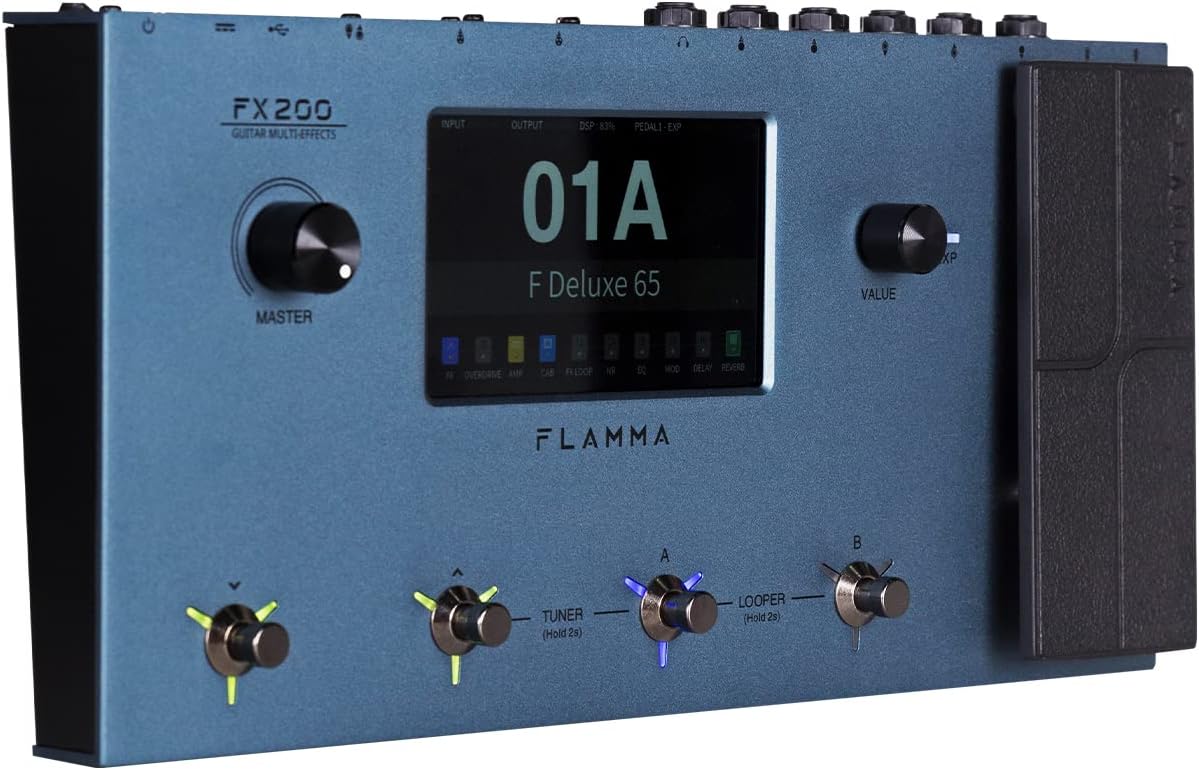
Figure 4.1: Front Panel Layout of the FX200.
- Pagrindinė rankenėlė: Reguliuoja bendrą išvesties garsumą.
- LCD jutiklinis ekranas: 5-inch display for navigation, parameter editing, and preset management.
- Value Knob: Used for data entry and parameter adjustments.
- Kojiniai jungikliai (A, B, C, D): Control presets, effects, looper, and tuner functions.
- Expression pedalas: Assignable for real-time control of various effects parameters.
4.2 Rear Panel (I/O)

Figure 4.2: Rear Panel Input/Output Connections.
- AUX IN: 3.5 mm stereo įvestis išoriniams garso įrenginiams.
- EXP2: External expression pedal input.
- INPUT: 1/4-inch mono input for guitar.
- SIŲSTI/GRĄŽINTI: Stereo FX Loop for integrating external effects pedals.
- IŠĖJIMAS (K/MONO, D): 1/4-inch stereo outputs to ampkeltuvas arba maišytuvas.
- TELEFONAI: 3.5 mm stereo ausinių išvestis.
- GND / LIFT: Ground lift switch to eliminate hum.
- XLR OUT (L, R): Balanced XLR stereo outputs for direct connection to PA systems or audio interfaces.
- MIDI ĮĖJIMAS/IŠĖJIMAS: 5-pin MIDI connectors for external MIDI control.
- USB DC IN: USB-C port for power and connection to a computer.
- Maitinimo jungiklis: Įjungia/išjungia įrenginį.
5. Sąranka
5.1 Pradinis įjungimas
- Connect the provided power adapter to the USB DC IN port on the rear panel.
- Prijunkite maitinimo adapterį į tinkamą kintamosios srovės lizdą.
- Flip the Power Switch to the ON position. The unit will power on and display the startup screen.
5.2 Connecting Your Guitar and Ampgyvybingesnis
- Prijunkite gitarą prie ĮVESTIS lizdą naudodami standartinį 6,35 mm instrumentinį kabelį.
- Prijunkite IŠVESTIS K/MONO lizdas tavo gitarai amplifier's input using a 1/4-inch instrument cable. For stereo output, connect the IŠVESTIS R domkratas į sekundę ampLiferio arba maišytuvo įvestis.
- Alternatively, for direct recording or PA system connection, use XLR cables from the XLR OUT L ir XLR OUT R ports to your audio interface or mixer.
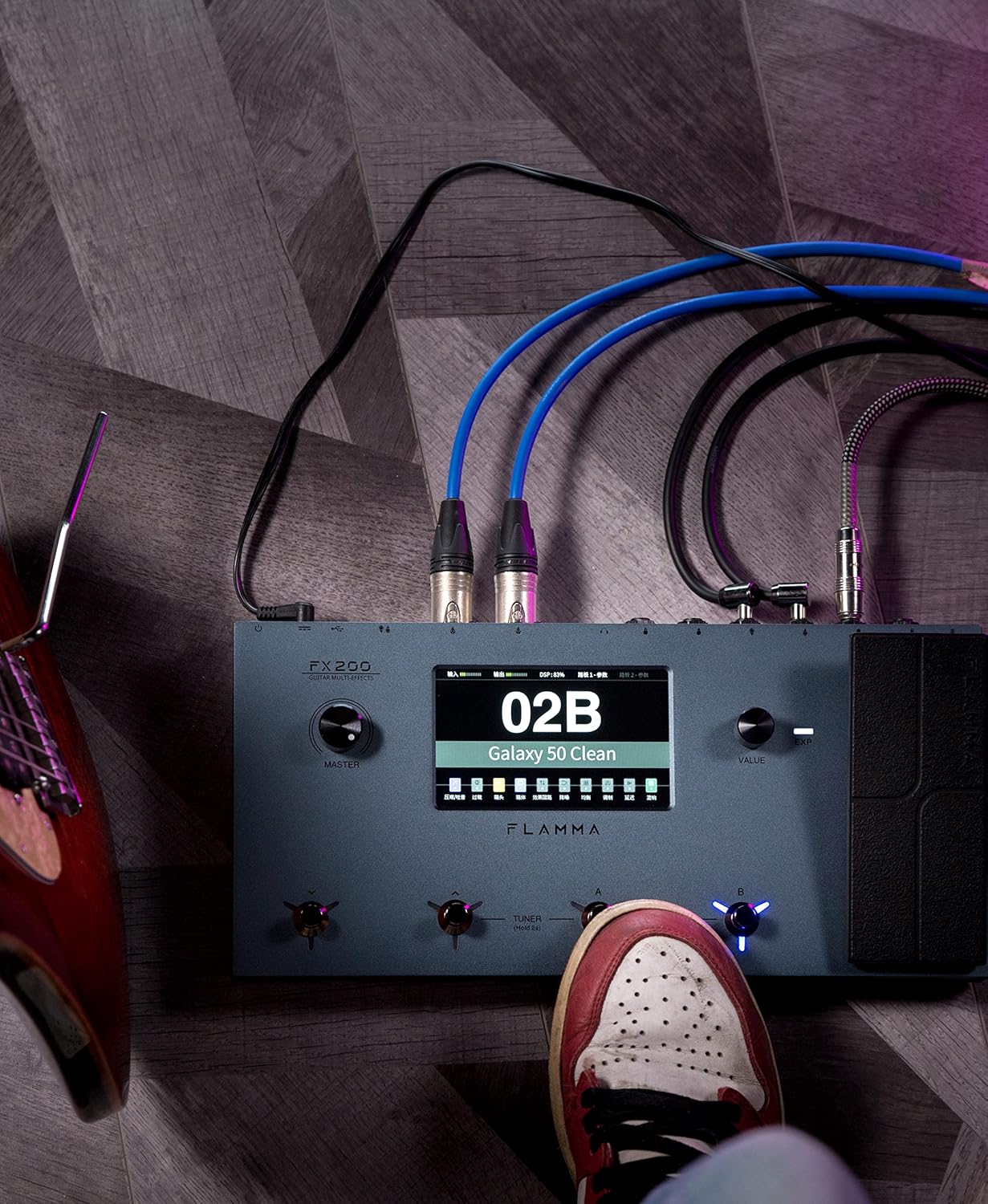
Figure 5.1: Typical connection setup for the FX200.
5.3 Prijungimas prie kompiuterio
The FX200 can be connected to a computer for editing presets, firmware updates, and USB audio recording.
- Download the specialized editing software from the official FLAMMA websvetainę.
- Connect the FX200 to your computer using the provided USB-C cable.
- Launch the editing software. The software will detect the FX200, allowing you to manage presets, effects, and perform firmware updates.

Figure 5.2: FX200 connected to a computer for software editing.
6. Naudojimo instrukcijos
6.1 Jutiklinio ekrano naršymas
The 5-inch LCD touch screen is the primary interface for controlling the FX200. Tap icons and parameters to select them, and use the Value Knob to adjust values.

Figure 6.1: Interacting with the touch screen interface.
6.2 Išankstinių nustatymų valdymas
The FX200 features 200 editable user preset slots. Presets can be selected using the footswitches or by navigating the touch screen.
- Išankstinių nustatymų pasirinkimas: In Play mode, press footswitches A or B to cycle through presets within a bank. Press footswitches C or D to change banks.
- Išankstinių nustatymų redagavimas: Tap on an effect module icon on the touch screen to access its parameters. Adjust settings using the Value Knob.
- Išankstinių nustatymų išsaugojimas: After editing, tap the 'Save' icon on the touch screen and follow the prompts to store your changes to a user preset slot.
6.3 Effect Modules and Chain
The FX200 includes 10 effect modules with over 160 different effect types, 58 preamp models, and 30 cabinet simulations. The effects chain can be customized.
- Module Order: Drag and drop effect module icons on the touch screen to change their order in the signal chain.
- Activating/Deactivating Modules: Tap an effect module icon to toggle it on or off within a preset.
- Third-Party IRs: The unit supports third-party impulse response files (up to 1024 sampling points) with 50 empty slots for custom cabinet simulations. Use the editing software to load IRs.

Figure 6.2: Customizable effects chain on the FX200.
6.4 Kilpinė ir būgno mašina
The FX200 includes an integrated 52-second looper and 80 drum machine variations with 10 metronome styles.
- kilpa: Access the looper function via a dedicated footswitch or the touch screen. Record, overdub, play, and stop loops.
- Būgnų mašina: Select drum patterns and metronome styles from the touch screen interface. Adjust tempo and volume.
6.5 USB Audio Recording
The FX200 supports USB audio recording, allowing you to record directly to your computer.
- Connect the FX200 to your computer via USB-C.
- Select the FX200 as your audio input device in your Digital Audio Workstation (DAW) software.
- Adjust input levels on both the FX200 and your DAW for optimal recording.
7. Priežiūra
- Valymas: Įrenginiui valyti naudokite minkštą, sausą šluostę. Nenaudokite abrazyvinių valiklių ar tirpiklių.
- Saugykla: When not in use for extended periods, store the unit in a dry, cool place away from direct sunlight.
- Firmware atnaujinimai: Regularly check the FLAMMA website for firmware updates to ensure optimal performance and access to new features. Updates are performed via the USB-C connection and editing software.
8. Problemų sprendimas
| Problema | Galima priežastis | Sprendimas |
|---|---|---|
| Nėra galios | Maitinimo adapteris neprijungtas arba sugedęs; Išjungtas maitinimo jungiklis. | Ensure power adapter is securely connected and plugged into a working outlet. Check power switch. |
| Nėra garso išvesties | Incorrect cable connections; Master volume too low; Amplifier off; Effect module bypassed. | Verify all audio cables are correctly connected. Increase Master volume. Check amplifier power. Ensure desired effect modules are active. |
| Humming or noise | Ground loop; Faulty cables; Interference. | Engage the GND/LIFT switch. Try different cables. Ensure power supply is stable and away from other electronics. |
| Jutiklinis ekranas nereaguoja | Laikinas programinės įrangos triktis. | Restart the unit by cycling the power switch. If the issue persists, contact customer support. |
| Nepavyksta prisijungti prie kompiuterio | USB-C cable issue; Driver not installed; Software not running. | Ensure USB-C cable is functional. Install necessary drivers. Launch the FLAMMA editing software. |
9. Specifikacijos
| Funkcija | Detalė |
|---|---|
| Ekranas | 5 colio LCD jutiklinis ekranas |
| Efektų moduliai | 10 modules, 160+ effect types |
| Preamp Modeliai | 58 |
| Spintelių modeliavimas | 30 (IR-based, 1024pts), 50 user IR slots |
| Vartotojo išankstiniai nustatymai | 200 redaguojamų vietų |
| Looper | 52 sekundžių |
| Būgno mašina | 80 variations, 10 metronome styles |
| Ryšys | AUX IN, EXP2, INPUT, SEND/RETURN, OUTPUT (L/MONO, R), PHONES, XLR OUT (L, R), MIDI IN/OUT, USB-C |
| USB Audio Recording | Palaikoma |
| Matmenys (I x P x A) | 13.5 x 6.6 x 2 colio (34.3 x 16.8 x 5.1 cm) |
| Svoris | 3.9 svaro (1.77 kg) |
| Maitinimo šaltinis | 9 V nuolatinė srovė (per USB-C) |
| Korpuso Medžiaga | Metalas |
10. Garantija ir palaikymas
FLAMMA products are covered by a limited warranty. For detailed warranty information, product registration, and technical support, please visit the official FLAMMA websvetainėje arba susisiekite su jų klientų aptarnavimo tarnyba.
Oficiali FLAMMA Websvetainė: www.flamma.com
For any issues not covered in this manual, please refer to the online resources or contact FLAMMA customer support directly.


