1. Įvadas
The AeroCool Blade is an ATX semi-tower PC case designed for optimal airflow and aesthetic appeal. It features an RGB front panel with preset lighting modes, a full tempered glass side window, and ample space for component installation. This manual provides essential information for the proper setup, operation, and maintenance of your PC case.
Saugos informacija: Always disconnect power from your system before performing any installation or maintenance. Handle components with care to avoid damage. Refer to individual component manuals for specific installation instructions.
2. Pakuotės turinys
- AeroCool Blade ATX Semi-Tower PC Case
- 1 x 120mm RGB Rear Fan (pre-installed)
- 3 x 120mm Front Fans (pre-installed)
- Accessory Kit (screws, standoffs, cable ties)
3. Sąranka ir diegimas
3.1 Bylos parengimas
Carefully remove the case from its packaging. Place it on a stable, flat surface. Remove the tempered glass side panel by unscrewing the thumb screws at the rear of the case and gently pulling the panel away.

3.1 pav. Vidinis view of the AeroCool Blade PC case, illustrating the layout for component installation.
3.2 Pagrindinės plokštės montavimas
- Install the necessary motherboard standoffs into the motherboard tray according to your motherboard's form factor (ATX, Micro-ATX, Mini-ITX).
- Įstatykite įvesties/išvesties skydą į galinę korpuso angą.
- Atsargiai uždėkite pagrindinę plokštę ant atramų, sulygiuodami varžtų skyles.
- Pritvirtinkite pagrindinę plokštę pridėtais varžtais.
3.3 Maitinimo bloko (PSU) montavimas
The AeroCool Blade supports bottom-mounted PSUs. Slide your PSU into the dedicated compartment at the bottom rear of the case. Secure it with screws from the rear of the case.
3.4 Atminties disko diegimas
- 3.5 colio kietieji diskai: Install 3.5" hard drives into the drive cage located beneath the PSU shroud.
- 2.5" SSDs/HDDs: Install 2.5" drives onto the dedicated mounting points on the motherboard tray or behind it.

3.2 pav.: Galinis vidinis view, highlighting cable management routes and 2.5-inch drive mounting locations.
3.5 Išplėtimo plokštės (GPU) diegimas
Remove the necessary expansion slot covers from the rear of the case. Insert your graphics card or other expansion cards into the PCIe slots on your motherboard and secure them with screws.
3.6 Ventiliatoriaus ir aušinimo įrengimas
The case comes with one 120mm RGB fan pre-installed at the rear and three 120mm fans pre-installed at the front. Ensure all fan cables are connected to appropriate headers on your motherboard or fan controller.

Figure 3.3: A 120mm RGB fan, similar to those pre-installed in the AeroCool Blade case.
3.7 Priekinio skydelio įvesties/išvesties jungtys
Connect the front panel cables (USB 3.0, USB 2.0, HD Audio, Power Switch, Reset Switch, LED Switch, Power LED, HDD LED) to the corresponding headers on your motherboard. Refer to your motherboard manual for exact pin configurations.
4. Naudojimo instrukcijos
4.1 Įjungimas
Once all components are installed and connected, replace the side panel. Connect your monitor, keyboard, mouse, and power cable to the PSU. Press the Power button located on the top panel of the case to turn on your system.

4.1 pav.: Viršutinė priekinė dalis view of the case, indicating the location of the power button and front I/O ports.
4.2 RGB apšvietimo valdymas
The AeroCool Blade features an RGB front panel. Use the dedicated LED button on the top panel to cycle through various preset lighting modes and effects. Pressing the button will change the lighting pattern or color.

4.2 pav.: priekis view of the AeroCool Blade case with its distinctive RGB lighting.
4.3 Priekinio skydelio prievadai
Viršutinis skydelis suteikia patogią prieigą prie:
- 1 x USB 3.0 prievadas
- 2 x USB 2.0 prievadai
- HD Audio output
- Mikrofono įvestis
Connect your USB devices, headphones, and microphone to these ports as needed.
5. Priežiūra
5.1 Dulkių filtro valymas
Regularly check and clean the dust filters to maintain optimal airflow and prevent dust buildup inside the case. Dust filters are typically located at the top, front, and bottom (under the PSU). Gently remove them and clean with compressed air or rinse with water (ensure they are completely dry before re-installation).
5.2 Išorės valymas
Nuvalykite korpuso išorinius paviršius minkšta,amp audiniu. Venkite naudoti stiprių cheminių medžiagų ar abrazyvinių medžiagų, kurios gali pažeisti apdailą ar grūdintą stiklą.
6. Problemų sprendimas
- Sistema neįsijungia:
Ensure the PSU is switched on and properly connected to the wall outlet. Verify all power cables from the PSU are correctly connected to the motherboard and components. Check the front panel power switch connection to the motherboard. - RGB apšvietimas neveikia:
Ensure the RGB controller (if applicable) and fan RGB cables are securely connected. Press the LED button on the top panel to cycle through modes. If connected to a motherboard header, check motherboard software settings. - Nesisukantys ventiliatoriai:
Verify that all fan power cables are securely connected to the motherboard fan headers or a fan controller. Check BIOS/UEFI settings for fan speed control. - Priekinio skydelio USB/garsas neveikia:
Ensure the USB and HD Audio cables from the front panel are correctly connected to the corresponding headers on your motherboard.
7. Specifikacijos
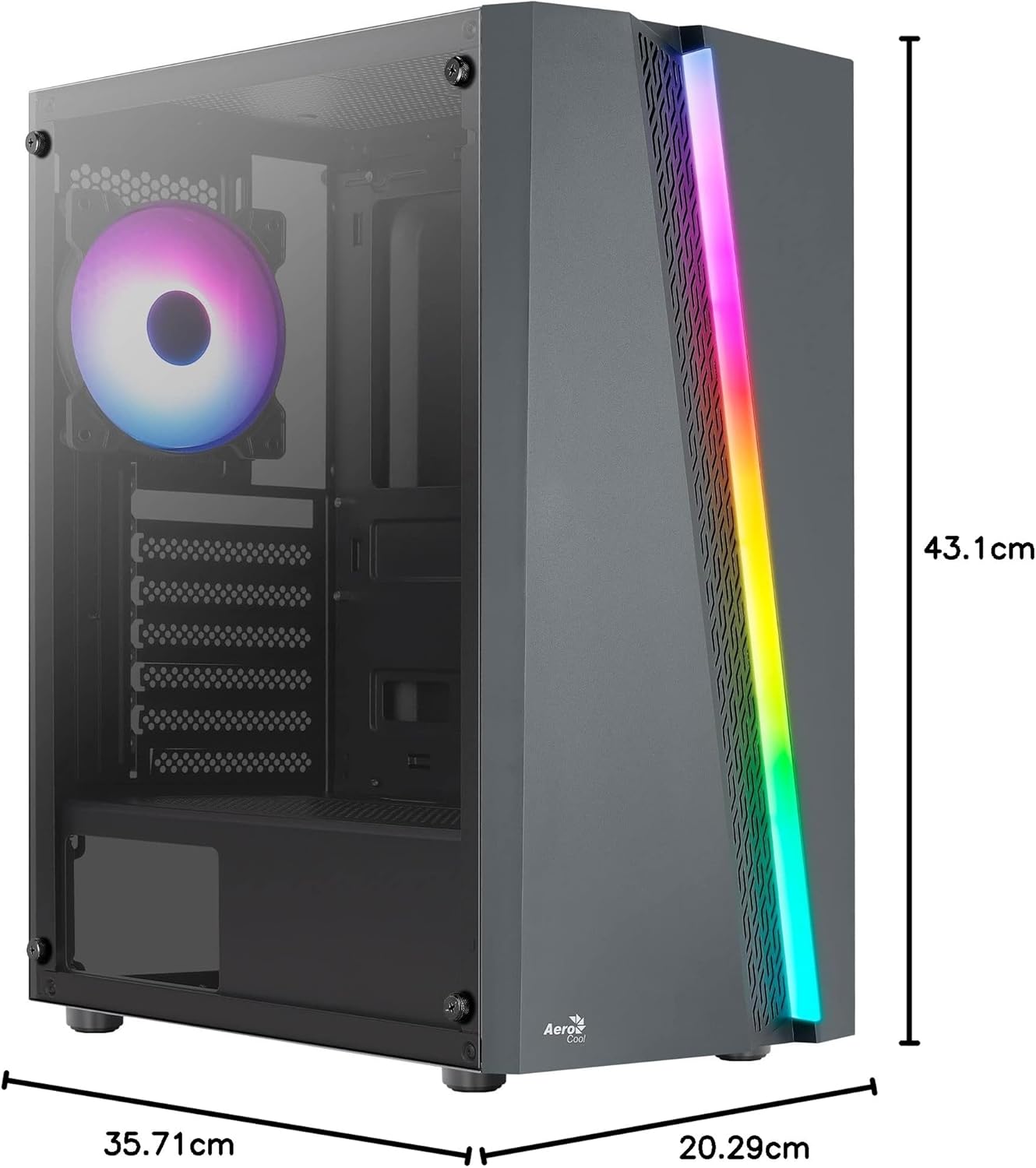
Figure 7.1: Dimensions of the AeroCool Blade PC Case.
| Funkcija | Specifikacija |
|---|---|
| Prekės ženklas | AeroCool |
| Modelio pavadinimas | BLADEBK |
| Atvejo tipas | Semi-Tower |
| Pagrindinės plokštės suderinamumas | ATX, Micro ATX, Mini ITX |
| Medžiaga | Grūdintas stiklas (šoninė panelė) |
| Gaminio matmenys (I x P x A) | 43.1 x 20.3 x 35.7 cm |
| Prekės svoris | 4 kg |
| Drive Bays | 2 x 3.5", 2 x 2.5" |
| GPU klirensas | Iki 307 mm |
| CPU aušintuvo aukštis | Iki 155 mm |
| Priekinės įvesties / išvesties prievadai | 1 x USB 3.0, 2 x USB 2.0, HD Audio, Mic, LED Control, Power |
| Iš anksto įdiegti ventiliatoriai | 1 x 120mm RGB Rear, 3 x 120mm Front |
| Aušinimo būdas | Oras |
8. Garantija ir palaikymas
Dėl garantijos informacijos ir techninės pagalbos kreipkitės į oficialią „AeroCool“ svetainę. websvetainėje arba susisiekite su vietiniu pardavėju. Išsaugokite pirkimo įrodymą, jei prireiktų pateikti garantinį prašymą.
Kontaktinė informacija: Jei reikia daugiau pagalbos, apsilankykite www.aerocool.io.


