1. Produktas baigtasview
The UNV NVR302-16E2 is a high-performance Network Video Recorder (NVR) designed for advanced surveillance systems. It supports 4K resolution recording and playback, offering robust video management capabilities for up to 32 channels. This NVR is compatible with various camera protocols, including ONVIF, and features Ultra H.265 compression for efficient storage.
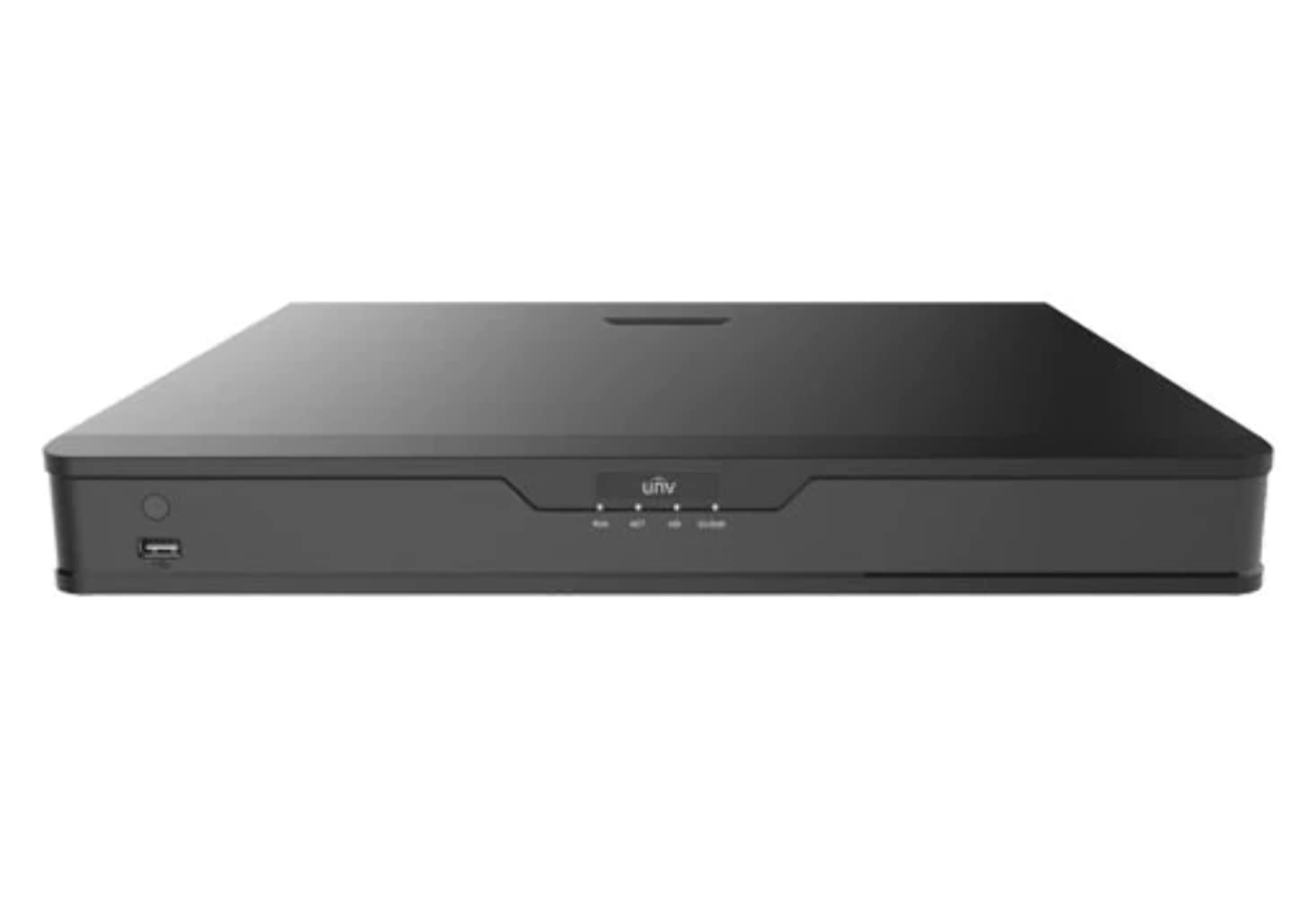
1 pav.: priekis view of the UNV NVR302-16E2 4K NVR. The front panel includes a power button, a USB port, and indicator lights for power, HDD activity, network status, and alarm.
2. Pagrindinės savybės
- Supports Ultra H.265/H.265/H.264 video formats for efficient compression.
- 8/16-channel input with Plug & Play functionality via independent PoE network interfaces.
- Compatibility with mainstream cameras supporting ONVIF conformance (Profile S, Profile G, Profile T) and RTSP protocols.
- Equipped with 1-channel HDMI and 1-channel VGA outputs, with HDMI supporting up to 4K (3840x2160) resolution.
- Independent HDMI and VGA outputs for flexible display options.
- Supports recording resolutions up to 12 Megapixels.
- Accommodates 2 SATA HDDs, with support for up to 10TB per HDD.
- Features various fisheye dewarping modes for live view and playback, accessible via both web interface and GUI.
- Incorporates ANR (Automatic Network Replenishment) technology to enhance storage reliability during network disconnections.
- Supports cloud upgrade for convenient firmware updates.
3. Pakuotės turinys
Išpakuodami patikrinkite pakuotės turinį. Jei trūksta kokių nors daiktų arba jie pažeisti, nedelsdami susisiekite su pardavėju.
- UNV NVR302-16E2 NVR Unit
- Maitinimo adapteris
- USB pelė
- SATA Data Cables (for HDD installation)
- Kietojo disko tvirtinimo varžtai
- Greitos pradžios vadovas
4. Sąranka
4.1 Fizinis įrengimas
- HDD diegimas:
Unscrew and remove the NVR cover. Securely mount the SATA hard disk drives (HDDs) into the designated bays using the provided screws. Connect the SATA data and power cables from the NVR motherboard to the HDDs. Replace the NVR cover and secure it with screws.
- Prijungti ekraną:
Connect a monitor to the NVR's HDMI or VGA output port using a compatible cable.
- Prijungti pelę:
Prijunkite USB pelę prie vieno iš NVR USB prievadų.
- Prijunkite tinklą:
Prijunkite Ethernet kabelį nuo NVR LAN prievado prie tinklo maršrutizatoriaus arba komutatoriaus.
- Prijungti kameras:
For PoE cameras, connect them directly to the NVR's independent PoE ports. For non-PoE cameras, ensure they are connected to the same network as the NVR and powered separately.
- Prijunkite maitinimą:
Prijunkite maitinimo adapterį prie vaizdo įrašymo įrenginio maitinimo įvesties, o tada įjunkite jį į maitinimo lizdą. Vaizdo įrašymo įrenginys įsijungs automatiškai.
4.2 Pradinė konfigūracija
Upon the first boot, the NVR will guide you through an initial setup wizard. Follow the on-screen prompts to configure essential settings.
- Nustatyti administratoriaus slaptažodį: Create a strong password for the 'admin' user. This is crucial for security.
- Tinklo nustatymai: Configure the NVR's IP address (DHCP or Static IP). Ensure it is on the same network as your cameras for proper communication.
- Data ir laikas: Nustatykite teisingą datą, laiką ir laiko juostą.
- Kietojo disko inicijavimas: The NVR will prompt you to initialize (format) the newly installed HDDs. This step is necessary before recording can begin.
- Camera Search and Add: The NVR will automatically search for connected cameras. Select and add the cameras you wish to manage.
5. NVR valdymas
5.1 Tiesiogiai View
After setup, the NVR will display the live view prijungtų kamerų. Galite perjungti tarp vienos kameros view, kelių kamerų tinklelis view, and customize the display layout.
- Kanalo pasirinkimas: Click on a channel window to select it.
- PTZ valdymas: If using PTZ cameras, use the on-screen controls or joystick (if connected) to pan, tilt, and zoom.
- Momentinis atkūrimas: Right-click on a channel and select "Instant Playback" to view naujausi įrašai.
5.2 Įrašų valdymas
The NVR supports various recording modes.
- Suplanuotas įrašymas: Configure recording schedules based on time, day, and event (e.g., motion detection).
- Judesio aptikimo įrašymas: Set up motion detection zones and sensitivity for each camera to trigger recording only when movement is detected.
- Rankinis įrašymas: Start or stop recording manually from the live view sąsaja.
5.3 Atkūrimas
Prieiga įrašyta footage dėl perdirbinioview.
- Navigate to the "Playback" menu.
- Select the camera(s) and date/time range for playback.
- Norėdami naršyti įrašus, naudokite laiko juostą.
- Options include fast forward, rewind, pause, and frame-by-frame playback.
NIEKADA nedaryti atsarginių kopijų
Export recorded video clips to an external USB drive.
- Insert a USB flash drive into the NVR's USB port.
- Go to the "Backup" menu.
- Select the camera, time range, and desired video format for export.
- Start the backup process.
5.5 Nuotolinė prieiga
Access your NVR remotely via a web naršyklėje arba mobiliojoje programėlėje.
- Web Naršyklė: Enter the NVR's IP address into a web browser on a computer connected to the same network. Log in with your credentials.
- Programėlė mobiliesiems: Download the official Uniview mobile application (e.g., EZView). Register an account, add your NVR by scanning the QR code or entering its serial number, and view live feeds or playback remotely.
6. Priežiūra
6.1 Firmware atnaujinimai
Regularly check for and install firmware updates to ensure optimal performance, security, and access to new features. Updates can typically be performed via the NVR's web interface or local GUI, often with cloud upgrade support.
6.2 HDD Management
Monitor the health and status of your hard drives. The NVR provides tools to check HDD status, format drives, and configure overwrite settings when storage is full.
6.3 Sistemos žurnalai
Review system logs for any errors, warnings, or important events. This can assist in troubleshooting and system monitoring.
7. Problemų sprendimas
| Problema | Galima priežastis | Sprendimas |
|---|---|---|
| Monitoriuje nėra vaizdo išvesties. | Loose cable connection; incorrect display resolution; NVR not powered on. | Check HDMI/VGA cable connections. Ensure NVR is powered. Try a different monitor or cable. Adjust NVR output resolution if possible. |
| Kameros nerodomos. | Network issue; incorrect camera IP; camera not powered; camera not added to NVR. | Verify network connectivity. Ensure cameras are powered. Check camera IP addresses and add them to the NVR if not already done. |
| Nepavyksta nuotoliniu būdu pasiekti NVR. | Network configuration issue (port forwarding, DDNS); NVR offline; incorrect credentials. | Verify NVR's network settings. Ensure necessary ports are forwarded on your router. Check internet connection. Confirm login credentials. |
| Nėra įrašo. | HDD not initialized or full; recording schedule not set; camera not recording. | Initialize the HDD. Check recording schedules and ensure they are active. Verify camera status and ensure it's configured to record. |
8. Specifikacijos
| Funkcija | Detalė |
|---|---|
| Modelio numeris | NVR302-16E2 |
| Palaikomi vaizdo formatai | Ultra H.265 / H.265 / H.264 |
| Kanalo įvestis | 8/16-channel (with independent PoE interfaces) |
| HDMI išvestis | 1-channel, up to 4K (3840x2160) resolution |
| VGA išvestis | 1 kanalas |
| Maksimali įrašymo raiška | Iki 12 megapikselių |
| Kietojo disko palaikymas | 2 SATA HDDs, up to 10TB each (20TB total) |
| Ryšio technologija | HDMI, VGA, Ethernet, USB |
| Suderinami įrenginiai | IP Cameras (ONVIF Profile S, G, T; RTSP) |
| Gaminio matmenys | 18 x 14 x 4 colio (45.72 x 35.56 x 10.16 cm) |
| Prekės svoris | 3.97 svaro (1.8 kg) |
| Gamintojas | Uniview |
9. Garantija ir palaikymas
Uniview products typically come with a limited manufacturer's warranty. For specific warranty terms and conditions, please refer to the warranty card included with your product or visit the official Uniview websvetainę.
For technical support, troubleshooting assistance, or service inquiries, please contact Uniview customer support through their official channels. You can usually find contact information, FAQs, and support resources on the Uniview websvetainė (www.uniview.com).
Susiję dokumentai - NVR302-16E2
 |
Trikčių šalinimas Uniview NVR dvipusio garso problemos | Uniview Palaikymas Išsamus vadovas, skirtas dvipusio garso problemoms Uni išspręsti ir šalintiview Vaizdo įrašymo įrenginiai ir kameros. Įtraukti žingsniai, skirti web sąsaja, mobilioji programėlė ir NVR grafinė vartotojo sąsaja. |
 |
Uniview Tinklo vaizdo įrašymo įrenginio trumpasis vadovas Trumpas vadovas uniview Network Video Recorders (NVRs), covering device indicators, interface ports, disk installation for various HDD configurations (1, 2, 4, 8, 9, 16-bay), startup and shutdown procedures, local operations like adding IP devices and playback, UNV-Link mobile app usage, web login, and essential safety warnings, disclaimers, and regulatory compliance information. |
 |
Kaip pakeisti universitetąview NVR laiko nustatymai Žingsnis po žingsnio vadovas, kaip koreguoti laiko ir datos nustatymus universiteteview Tinklo vaizdo įrašymo įrenginiai (NVR), naudojantys įvairius metodus, įskaitant web sąsaja, tiesioginė prieiga prie monitoriaus, „EZTools“ programinė įranga ir mobiliosios programėlės, tokios kaip „EZ“View ir UNV-Link. |
 |
Uniview XVR301-G3 serijos skaitmeninis vaizdo įrašymo įrenginys: NDAA reikalavimus atitinkantis duomenų lapas Išsamus Uni duomenų lapasview XVR301-G3 serijos skaitmeninis vaizdo įrašymo įrenginys, įskaitant modelius XVR301-04G3, XVR301-08G3 ir XVR301-16G3. Išsami informacija apie funkcijas, specifikacijas, jungiamumą ir atitiktį reikalavimams. |
 |
Uniview 2021 m. produktų vadovas: tinklo kameros, vaizdo įrašymo įrenginiai (NVR), vaizdo valdymo sistemos (VMS) ir saugumo sprendimai Atraskite išsamų uniview 2021 Product Guide, detailing a wide array of professional video surveillance solutions. This guide covers Network Cameras, NVRs, VMS, Professional Storage, Display & Control systems, and Accessories, featuring advanced technologies like LightHunter and PixelSense. Find detailed specifications and model information for Easy, Prime, and Pro series products, suitable for various applications from residential security to large-scale enterprise deployments. |
 |
NVR-B3601.33.45.221212 Išleidimo pastabos – Zhejiang Uniview Technologijos Oficialios „Zhejiang Uni“ išleidimo pastabosview „Technologies“ NVR-B3601.33.45.221212 tinklo vaizdo įrašymo programinės įrangos informacija, kurioje pateikiama išsami informacija apie versiją, naujas funkcijas, pakeitimus ir atnaujinimo procedūras. |