1. Įvadas
This manual provides essential information for the proper use and care of your Microsoft Surface Go 2 LTE Tablet. Please read these instructions thoroughly before using your device to ensure optimal performance and longevity.
2. Sąranka
2.1 Išpakavimas ir pirminė apžiūra
Carefully remove the Surface Go 2 LTE Tablet from its packaging. Inspect the device for any signs of damage. Ensure all components are present.
2.2 Įrenginio įkrovimas
Before first use, connect the included power adapter to the charging port on your Surface Go 2 LTE Tablet and then to a power outlet. Allow the device to charge fully. The battery provides up to 9 hours of unplugged power under typical usage conditions.
2.3 Pradinis įjungimas ir „Windows“ sąranka
Press and hold the power button located on the side of the tablet until the Microsoft logo appears. Follow the on-screen prompts to complete the Windows 10 Pro setup process. This includes selecting your language, connecting to a Wi-Fi network (802.11ac supported), and setting up your user account.
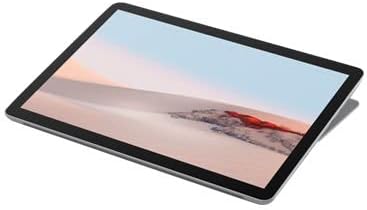
2.3.1 pav.: Kampinis view of the Microsoft Surface Go 2 LTE Tablet.
3. Naudojimo instrukcijos
3.1 Jutiklinio ekrano sąveika
The Surface Go 2 features a 10.5-inch PixelSense 10-Point Touch Display. Use multi-touch gestures for navigation, zooming, and interacting with applications. Refer to Windows 10 documentation for detailed touch gesture information.
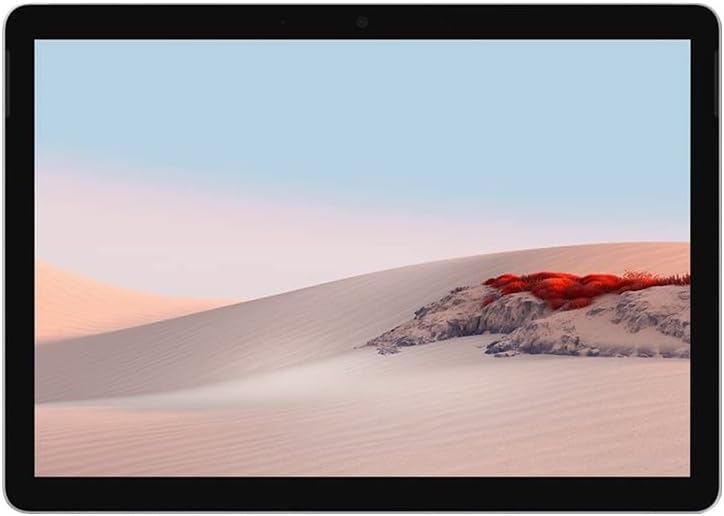
3.1.1 pav.: priekis view of the Microsoft Surface Go 2 LTE Tablet.
3.2 Kameros naudojimas
The tablet is equipped with an 8MP rear camera and a 5MP front camera. Access the Camera application in Windows 10 to capture photos and videos or for video conferencing.
3.3 Ryšys
- „Wi-Fi“: Connect to wireless networks using the integrated Wi-Fi 5 (802.11ac) module.
- Bluetooth: Pair with Bluetooth 4.1 compatible devices such as headphones or keyboards.
- LTE: Insert a compatible SIM card to utilize LTE mobile data connectivity.
3.4 Ports and Expansion
- C tipo USB: For data transfer, charging, and connecting compatible peripherals.
- 3.5 mm ausinių lizdas: Garso išvesčiai į ausines arba išorinius garsiakalbius.
- MicroSD Media Card Reader: Insert a microSD card to expand storage capacity.
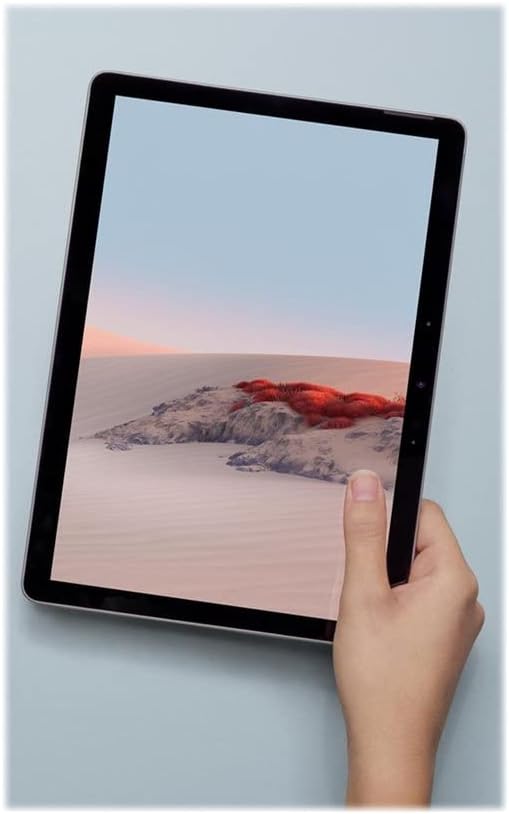
Figure 3.4.1: Microsoft Surface Go 2 LTE Tablet held in hand, demonstrating its portability.
4. Priežiūra
4.1 Prietaiso valymas
To clean your Surface Go 2, use a soft, lint-free cloth slightly dampened with water or an approved screen cleaner. Avoid harsh chemicals, abrasive materials, or excessive moisture. Ensure the device is powered off before cleaning.
4.2 Akumuliatoriaus priežiūra
To maximize battery life, avoid exposing the device to extreme temperatures. For long-term storage, charge the battery to approximately 50% and store in a cool, dry place. Regular software updates can also optimize battery performance.
4.3 Programinės įrangos naujiniai
Regularly check for and install Windows updates to ensure your device has the latest security patches and performance improvements. Go to Nustatymai > Naujinimas ir sauga > „Windows“ naujinimas.
5. Problemų sprendimas
5.1 Įrenginys nereaguoja
If the device becomes unresponsive, press and hold the power button for approximately 30 seconds to perform a force shutdown. Then, press the power button again to restart the device.
5.2 Lėtas veikimas
If the tablet is operating slowly, try the following:
- Uždarykite nereikalingas programas, veikiančias fone.
- Iš naujo paleiskite įrenginį.
- Įsitikinkite, kad „Windows“ yra atnaujinta.
- Patikrinkite, ar yra pakankamai laisvos vietos saugykloje.
5.3 Perkaitimas
It is normal for the device to become warm during extended use or when performing intensive tasks. If the device feels excessively hot, close demanding applications, ensure proper ventilation, and allow it to cool down. Avoid using the device on soft surfaces that may block vents.
5.4 Connectivity Issues (Wi-Fi/Bluetooth/LTE)
If you experience issues with Wi-Fi, Bluetooth, or LTE connectivity:
- Toggle the respective wireless feature off and on.
- Iš naujo paleiskite įrenginį.
- Ensure drivers are up to date via Windows Update or Microsoft's support websvetainę.
- For LTE, verify the SIM card is correctly inserted and activated with your carrier.
6. Specifikacijos
| Funkcija | Specifikacija |
|---|---|
| Ekrano dydis | 10.5 Inches PixelSense |
| Ekrano raiška | 1920 x 1280 Pixels (216 ppi) |
| Procesorius | Intel Core m3 M3-8100Y (1.1 GHz) |
| RAM | 8 GB LPDDR3 |
| Sandėliavimas | 128 GB SSD |
| Grafika | Intel HD Graphics 615 |
| Operacinė sistema | Windows 10 Pro |
| Belaidis ryšys | Wi-Fi 5 (802.11ac), Bluetooth 4.1, LTE |
| Kameros | 8 MP galinis, 5 MP priekis |
| Uostai | USB Type-C, 3.5 mm Headphone Jack, MicroSD Card Reader |
| Baterijos veikimo laikas | Iki 9 valandų (vidutiniškai) |
| Matmenys (IxPxH) | 9.6 x 6.9 x 1.2 colio |
| Svoris | 2 pounds (approx. 1.15 lbs for tablet only) |
| Modelio numeris | SUF-00001 |
7. Informacija apie garantiją
The Microsoft Surface Go 2 LTE Tablet is covered by a limited hardware warranty. For specific details regarding the warranty period, coverage, and terms, please refer to the warranty documentation included with your purchase or visit the official Microsoft support website. Warranty claims typically require proof of purchase.
8. Parama
For further assistance, technical support, or to access additional resources, please visit the official Microsoft Support website. You can find comprehensive guides, FAQs, and contact options there.
„Microsoft“ palaikymas Websvetainė: support.microsoft.com
Taip pat galite apsilankyti „Microsoft Store“. dėl informacijos apie gaminį ir priedus.


