Įvadas
This manual provides detailed instructions for the installation, use, and maintenance of the Subsonic Pro Gamer Pack Accessory Kit for your PlayStation 5 controller. This kit is designed to enhance your gaming experience with improved grip, control, and trigger response.
Pakuotės turinys
Verify that all the following components are included in your Subsonic Pro Gamer Pack:
- 6 x Joystick Grips (2 precision, 2 control, 2 standard)
- 2 x Comfort/Quickfire Triggers
- 2 x L1/R1 Trigger Extensions
- 2 x Precision Aiming Foams (1 medium, 1 hard)

Image 1: The retail packaging of the Subsonic Pro Gamer Pack, illustrating the various components included in the kit.

2 paveikslėlis: Išsamus view of the individual components of the Pro Gamer Pack, including different types of joystick grips, trigger extensions, and precision foams.
Sąranka ir diegimas
Follow these steps to install the accessories onto your PlayStation 5 controller.
1. Joystick Grips Installation
- Select your preferred joystick grips (precision, control, or standard).
- Carefully stretch the grip over the top of the PS5 controller's analog stick.
- Ensure the grip is fully seated and centered on the analog stick for optimal performance.
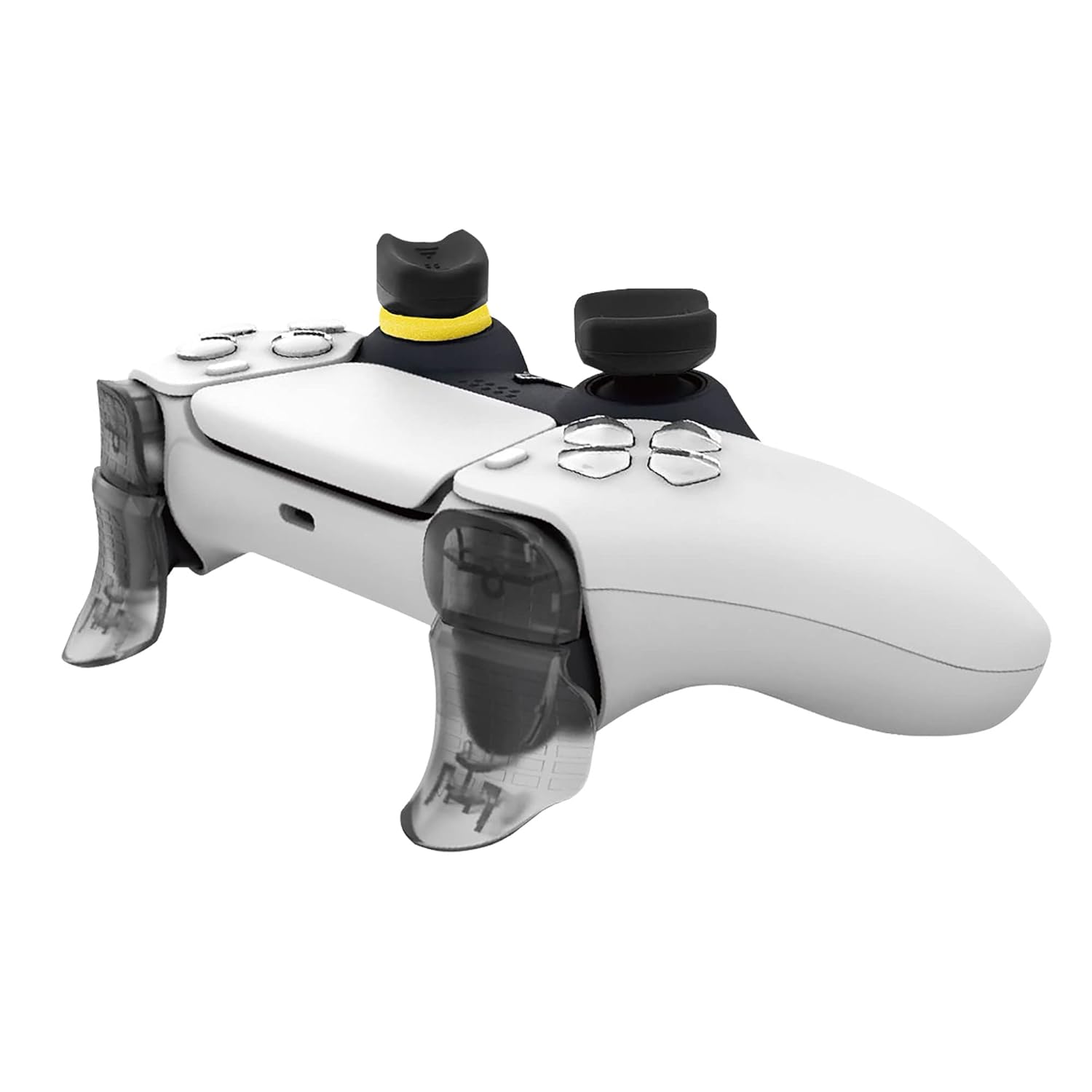
Image 3: A PlayStation 5 controller with the joystick grips and trigger extensions already installed, demonstrating their appearance on the device.
2. Comfort/Quickfire Triggers Installation
- Identify the L2 and R2 triggers on your PS5 controller.
- Align the comfort/quickfire trigger accessory with the corresponding L2 or R2 button.
- Gently press the accessory onto the trigger until it clicks securely into place.
- Ensure the trigger mechanism functions correctly after installation.

4 pav.: Stambus planas view of the comfort and quickfire trigger accessories, showing their design and attachment points.
3. L1/R1 Trigger Extensions Installation
- Locate the L1 and R1 buttons on your PS5 controller.
- Position the L1/R1 trigger extension over the respective button.
- Press down firmly until the extension is securely attached.
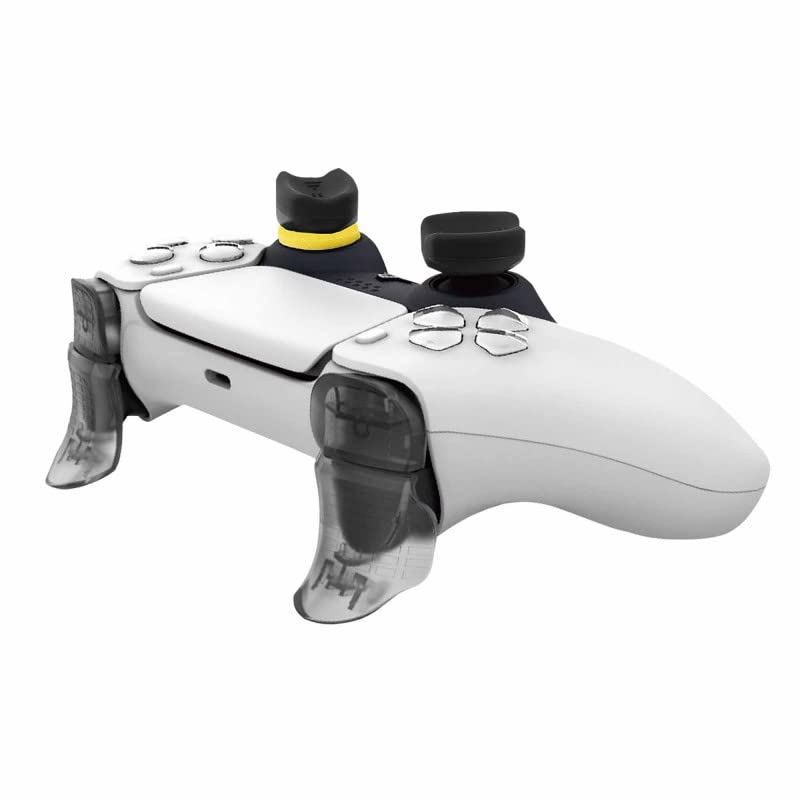
5 pav.: A pusė view of the PlayStation 5 controller with all components of the Pro Gamer Pack installed, highlighting the ergonomic design.
4. Precision Aiming Foams Installation
- Choose between the medium or hard precision foam.
- Carefully place the foam around the base of the analog stick, underneath the joystick grip.
- Ensure the foam does not obstruct the movement of the analog stick.
Naudojimo instrukcijos
Once installed, the Subsonic Pro Gamer Pack accessories are designed to be used seamlessly with your PS5 controller.
- Joystick Grips: Provide enhanced grip and comfort, reducing slippage during intense gameplay. Precision grips offer finer control for aiming, while control grips provide optimal tactile feedback.
- Comfort/Quickfire Triggers: These extensions allow for a more comfortable finger position and can reduce the travel distance of the L2/R2 buttons, potentially increasing response speed in games requiring rapid trigger presses.
- L1/R1 Trigger Extensions: Improve the ergonomics of the L1/R1 buttons, making them easier to reach and press during gameplay.
- Precision Aiming Foams: Increase the resistance of the analog sticks, allowing for more precise and controlled movements, particularly beneficial for aiming in first-person shooter (FPS) games.

Image 6: A user holding a PlayStation 5 controller equipped with the Subsonic Pro Gamer Pack, illustrating the natural hand position and grip during use.
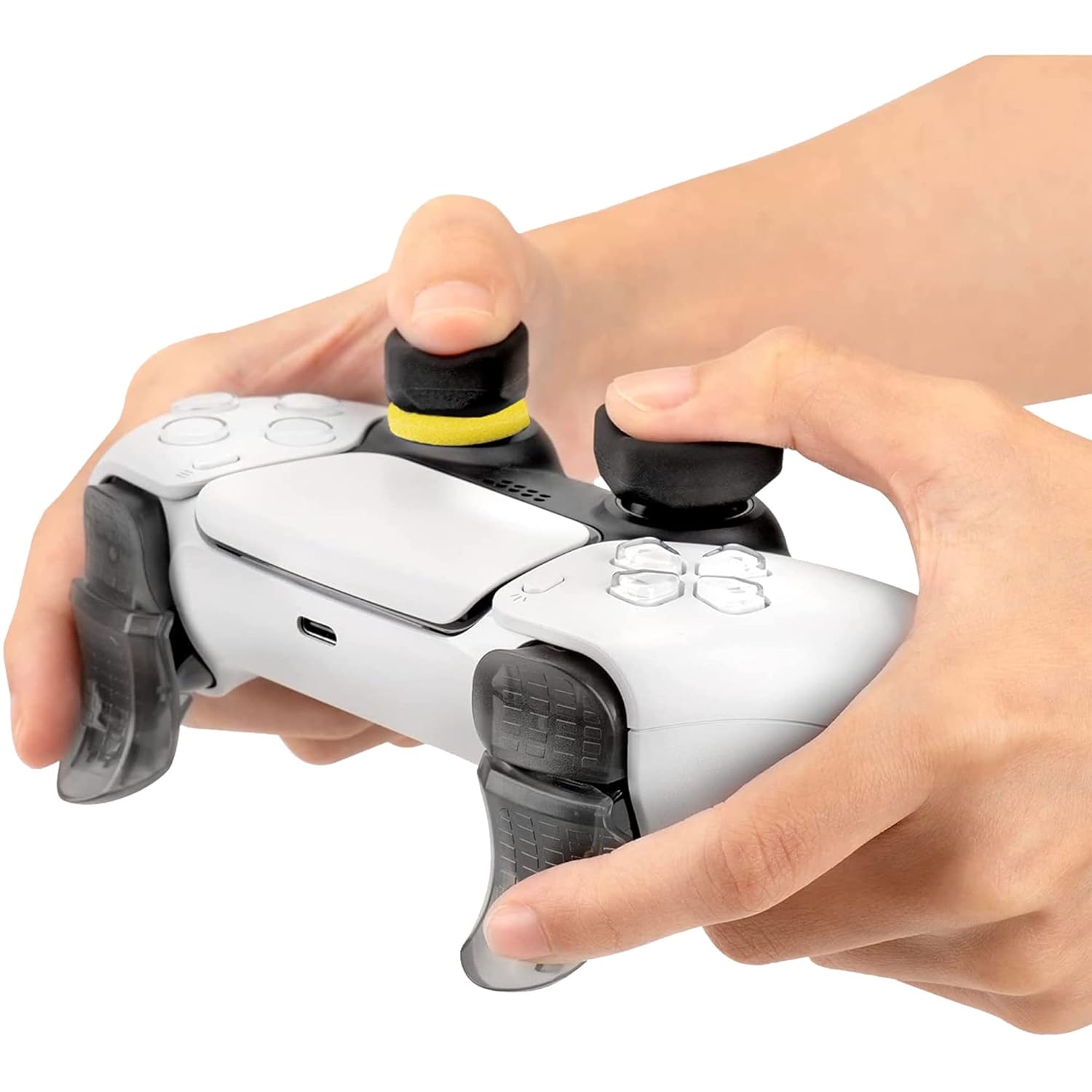
Image 7: A close-up of hands on a PS5 controller, highlighting the ergonomic placement of thumbs on the joystick grips and fingers on the extended triggers.
Priežiūra
To ensure the longevity and performance of your Subsonic Pro Gamer Pack accessories, follow these maintenance guidelines:
- Valymas: Use a soft, dry cloth to wipe down the accessories. For stubborn dirt, a slightly damp Galima naudoti šluostę su švelniu muilu, po to kruopščiai nusausinti. Venkite stiprių cheminių medžiagų ar abrazyvinių valiklių.
- Saugykla: When not in use, store the accessories in a clean, dry place away from direct sunlight and extreme temperatures.
- Patikra: Periodically check the accessories for any signs of wear or damage. Replace any worn-out components to maintain optimal performance.
Trikčių šalinimas
If you encounter any issues with your Subsonic Pro Gamer Pack, refer to the following common solutions:
| Problema | Galima priežastis | Sprendimas |
|---|---|---|
| Joystick grips slide off or rotate easily. | Improper installation or wear. | Ensure grips are fully stretched and seated correctly. If worn, consider replacing them. |
| Quickfire triggers interfere with button press. | Incorrect alignment or incompatibility. | Re-align the trigger extensions carefully. Ensure they are designed for the PS5 controller. If the issue persists, remove the extensions. |
| Analog stick movement feels restricted with aiming foams. | Foam is too thick or improperly placed. | Ensure the foam is correctly positioned around the base of the stick. If still too restrictive, try the lighter resistance foam or remove it. |
Specifikacijos
- Modelio numeris: SA5636
- Gaminio matmenys: 2.95 x 9.06 x 4.33 colio (pakuotė)
- Prekės svoris: 0.95 uncijos
- Suderinamumas: PlayStation 5 DualSense valdiklis
- Gamintojas: Ikigarsinis
- Išleidimo data: 31 m. rugpjūčio 2022 d
Garantija ir palaikymas
Subsonic products are manufactured to high-quality standards. For information regarding warranty coverage or technical support, please refer to the official Subsonic websvetainėje arba susisiekite su jų klientų aptarnavimo skyriumi. Išsaugokite pirkimo įrodymą garantiniams reikalavimams.
Subsonic Official Websvetainė: www.subsonic.com


