1. Įvadas
This manual provides essential information for the safe and efficient use of your AOC U34V5C/BK 34-inch WQHD LED Monitor. Please read this manual thoroughly before operating the device and retain it for future reference. The AOC U34V5C/BK is designed to deliver a high-quality visual experience with its 3440 x 1440 WQHD resolution and 21:9 aspect ratio, suitable for various applications from professional work to entertainment.
2. Saugos informacija
Kad nesugadintumėte monitoriaus ir užtikrintumėte asmeninį saugumą, laikykitės šių saugos priemonių:
- Saugokite monitorių nuo lietaus ar drėgmės, kad išvengtumėte gaisro ar elektros smūgio pavojaus.
- Neatidarykite monitoriaus c.asing. Viduje nėra dalių, kurias galėtų aptarnauti vartotojas. Visus techninės priežiūros darbus patikėkite kvalifikuotiems techninės priežiūros darbuotojams.
- Padėkite monitorių ant stabilaus, lygaus paviršiaus, kad jis nenukristų.
- Užtikrinkite tinkamą vėdinimą aplink monitorių. Neužblokuokite ventiliacijos angų.
- Naudokite tik prie monitoriaus pridėtą maitinimo laidą ir adapterį.
- Atjunkite monitorių nuo maitinimo lizdo žaibuojant arba kai jis ilgą laiką nenaudojamas.
3. Pakuotės turinys
Patikrinkite, ar pakuotėje yra visi reikalingi daiktai:
- AOC U34V5C/BK Monitor
- Monitoriaus stovas (pagrindas ir kaklelis)
- Maitinimo kabelis
- HDMI kabelis
- „DisplayPort“ laidas
- USB-C kabelis
- Vartotojo vadovas (šis dokumentas)
4. Produktas baigtasview
The AOC U34V5C/BK monitor features a 34-inch VA panel with WQHD resolution, USB-C connectivity with 65W Power Delivery, and a 100Hz refresh rate with AMD FreeSync support.
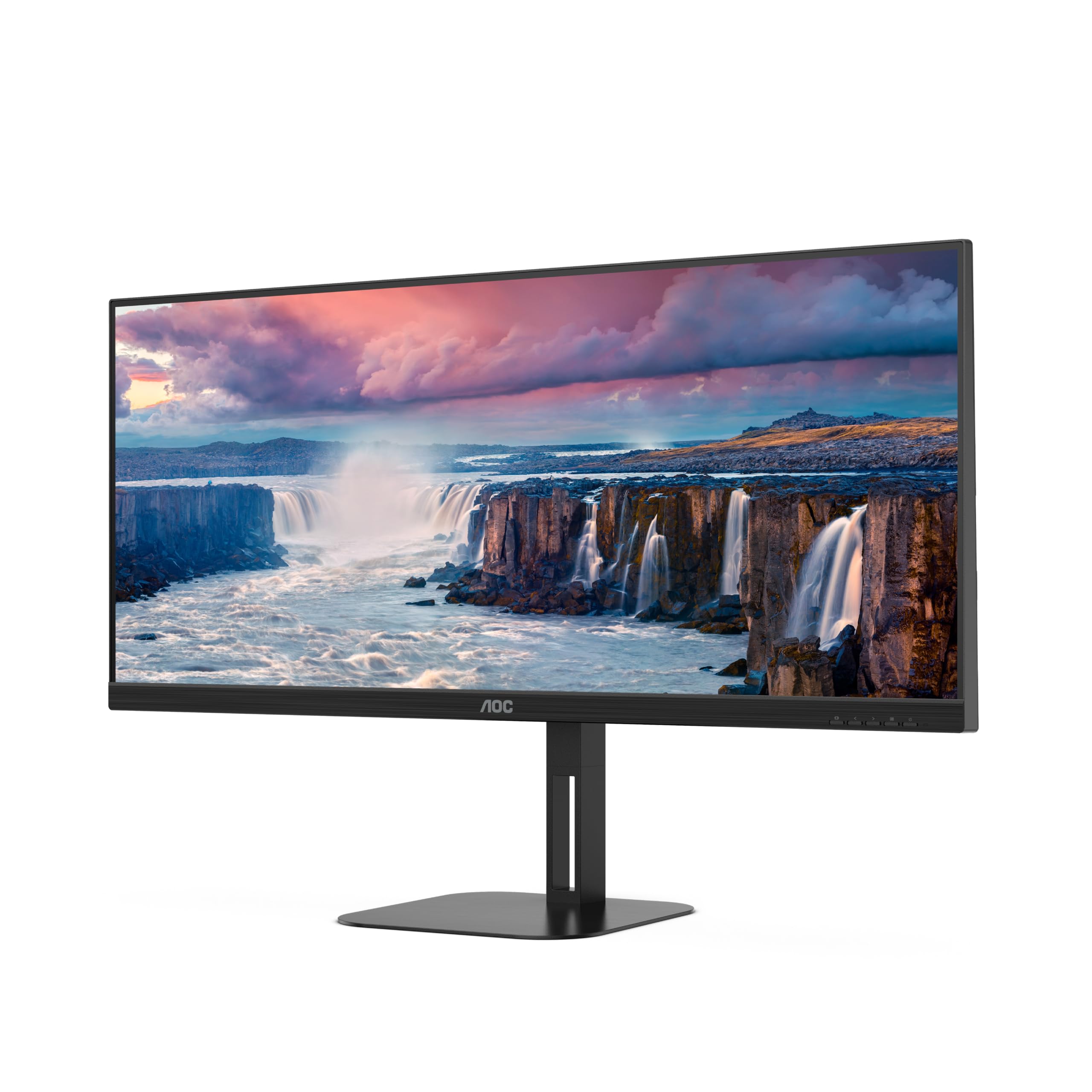
4.1 pav.: priekis view of the AOC U34V5C/BK monitor highlighting its 34-inch VA panel, USB-C port with 65W Power Delivery, 100Hz refresh rate, and AMD FreeSync technology.
4.1 Monitoriaus komponentai
Susipažinkite su įvairiomis monitoriaus dalimis:
- Priekinis skydelis: Display screen, OSD control buttons (usually located on the bottom right bezel).
- Galinis skydas: Power input, video input ports (HDMI, DisplayPort, USB-C), USB hub ports, security lock slot.
- Stovas: Provides stable support and allows for height, tilt, and swivel adjustments.

4.2 pav.: galinis view of the AOC U34V5C/BK monitor, showing the VESA mount compatibility and the stand attachment point.

4.3 pav. Apačia view of the AOC U34V5C/BK monitor, detailing the power input, DisplayPort, HDMI, USB-C, and USB-A hub ports.
5. Sąranka
5.1 Stovo surinkimas
- Atsargiai padėkite monitorių ekranu žemyn ant minkšto, švaraus audinio, kad nesubraižytumėte.
- Attach the stand neck to the back of the monitor until it clicks into place or is secured with screws (if applicable).
- Pritvirtinkite stovo pagrindą prie stovo kaklelio ir priveržkite tvirtinimo varžtą pagrindo apačioje.
- Atsargiai pakelkite monitorių ir padėkite jį ant stabilaus stalo.
5.2 Monitoriaus prijungimas
Prieš jungdami bet kokius įrenginius, įsitikinkite, kad kompiuteris ir monitorius yra išjungti.
- Maitinimo jungtis: Prijunkite maitinimo laidą prie monitoriaus maitinimo įvesties, o tada – prie įžeminto elektros lizdo.
- Vaizdo jungtis: Pasirinkite vieną iš šių parinkčių:
- HDMI: Prijunkite vieną HDMI kabelio galą prie kompiuterio HDMI išvesties, o kitą galą – prie monitoriaus HDMI įvesties.
- DisplayPort: Prijunkite vieną „DisplayPort“ kabelio galą prie kompiuterio „DisplayPort“ išvesties, o kitą – prie monitoriaus „DisplayPort“ įvesties.
- USB-C: Connect one end of the USB-C cable to your computer's USB-C port (which supports video output) and the other end to the USB-C input on the monitor. This connection can also provide power delivery and USB data transfer.
- USB šakotuvo jungtis (neprivaloma): If using the monitor's USB hub, connect a USB upstream cable (USB-C to USB-A or USB-C to USB-C, depending on your computer) from your computer to the monitor's USB upstream port. This enables the monitor's USB-A ports for peripherals.
6. Monitoriaus valdymas
6.1 Maitinimo įjungimas/išjungimas
Press the power button, usually located on the bottom right bezel, to turn the monitor on or off. The power indicator light will illuminate when the monitor is on.
6.2 Ekrano meniu (OSD)
The OSD menu allows you to adjust various monitor settings. Use the control buttons (joystick or individual buttons) on the monitor's bezel to navigate the menu.
- Press the Menu button (or push the joystick) to open the OSD menu.
- Use the navigation buttons (or joystick) to move through the menu options.
- Press the Select button (or push the joystick) to enter a sub-menu or confirm a selection.
- Use the Exit button (or move the joystick left) to go back to the previous menu or exit the OSD.
6.3 Įprasti ekrano meniu nustatymai
- Šviesumas: Reguliuokite ryškumą, kontrastą ir gamą.
- Vaizdo sąranka: Fine-tune image quality, sharpness, and pixel clock.
- Spalvų nustatymas: Select color temperature, sRGB mode, or user-defined color settings.
- Vaizdo pagerinimas: Enhance specific areas of the screen.
- OSD sąranka: Koreguokite OSD kalbą, padėtį ir skaidrumą.
- Žaidimo nustatymas: Enable/disable FreeSync, adjust overdrive, and game modes.
- Papildomai: Select input source, reset settings, view informacija.
7. Priežiūra
7.1 Monitoriaus valymas
- Visada atjunkite monitorių prieš valydami.
- Lengvai naudokite minkštą, nepūkuotą audinį dampnuplaukite vandeniu arba švelniu, neabrazyviniu ekrano valikliu.
- Nenaudokite alkoholio, amoniako ar abrazyvinių valiklių, nes jie gali pažeisti ekraną arbaasing.
- Švelniai valykite ekraną. Nespauskite per stipriai.
7.2 Bendroji priežiūra
- Venkite dėti sunkių daiktų ant monitoriaus ar jo laidų.
- Laikykite monitorių atokiau nuo tiesioginių saulės spindulių, šilumos šaltinių ir ekstremalių temperatūrų.
- Do not expose the monitor to strong vibrations or impacts.
8. Problemų sprendimas
Jei kyla problemų dėl monitoriaus, žr. šias dažniausiai pasitaikančias problemas ir sprendimus:
| Problema | Galima priežastis | Sprendimas |
|---|---|---|
| Ekrane nėra vaizdo | Monitor not powered on; Incorrect input source; Loose video cable | Press power button; Select correct input via OSD; Reconnect video cable securely |
| Vaizdas per tamsus/per šviesus | Brightness/Contrast settings incorrect | Adjust Brightness and Contrast in OSD menu |
| Mirgantis vaizdas | Incorrect refresh rate; Faulty cable | Set refresh rate to 100Hz in display settings; Try a different video cable |
| USB prievadai neveikia | USB įkėlimo kabelis neprijungtas | Connect the USB-C upstream cable from the monitor to your computer |
If the problem persists after trying these solutions, contact AOC customer support.
9. Specifikacijos
Below are the technical specifications for the AOC U34V5C/BK monitor:

Figure 9.1: Product Information Sheet for AOC U34V5C/BK, detailing energy efficiency and technical parameters.
| Parametras | Vertė |
|---|---|
| Prekės ženklas | AOC |
| Modelis | U34V5C/BK |
| Ekrano dydis | 34 colių (86.4 cm) |
| Rezoliucija | 3440 x 1440 WQHD |
| Krašto santykis | 21:9 |
| Reagavimo laikas | 4 milisekundės |
| Atnaujinimo dažnis | 100 Hz (default 60 Hz) |
| Skydų technologija | VA Panel, LED LCD |
| Viewing kampas | 178 Degrees (Horizontal/Vertical) |
| Techninės įrangos sąsaja | DisplayPort, HDMI, USB-C |
| Iš viso USB prievadų | 4 (USB Hub) |
| Maitinimo tiekimas (USB-C) | 65W |
| ttage | 5 Volts (Internal Power Supply) |
| Gaminio matmenys | 50 x 25 x 40 cm; 7 kg |
| Energijos vartojimo efektyvumo klasė (SDR) | G |
| Energijos suvartojimas (SDR) | 34.0 W |
| Energijos vartojimo efektyvumo klasė (HDR) | G |
| Energijos suvartojimas (HDR) | 35.0 W |
| Maitinimas budėjimo režimu | 0.5 W |
| Minimum guaranteed software/firmware updates | 8 metai |
| Minimum guaranteed spare parts availability | 7 metai |
| Minimalus garantuotas produkto palaikymas | 8 metai |
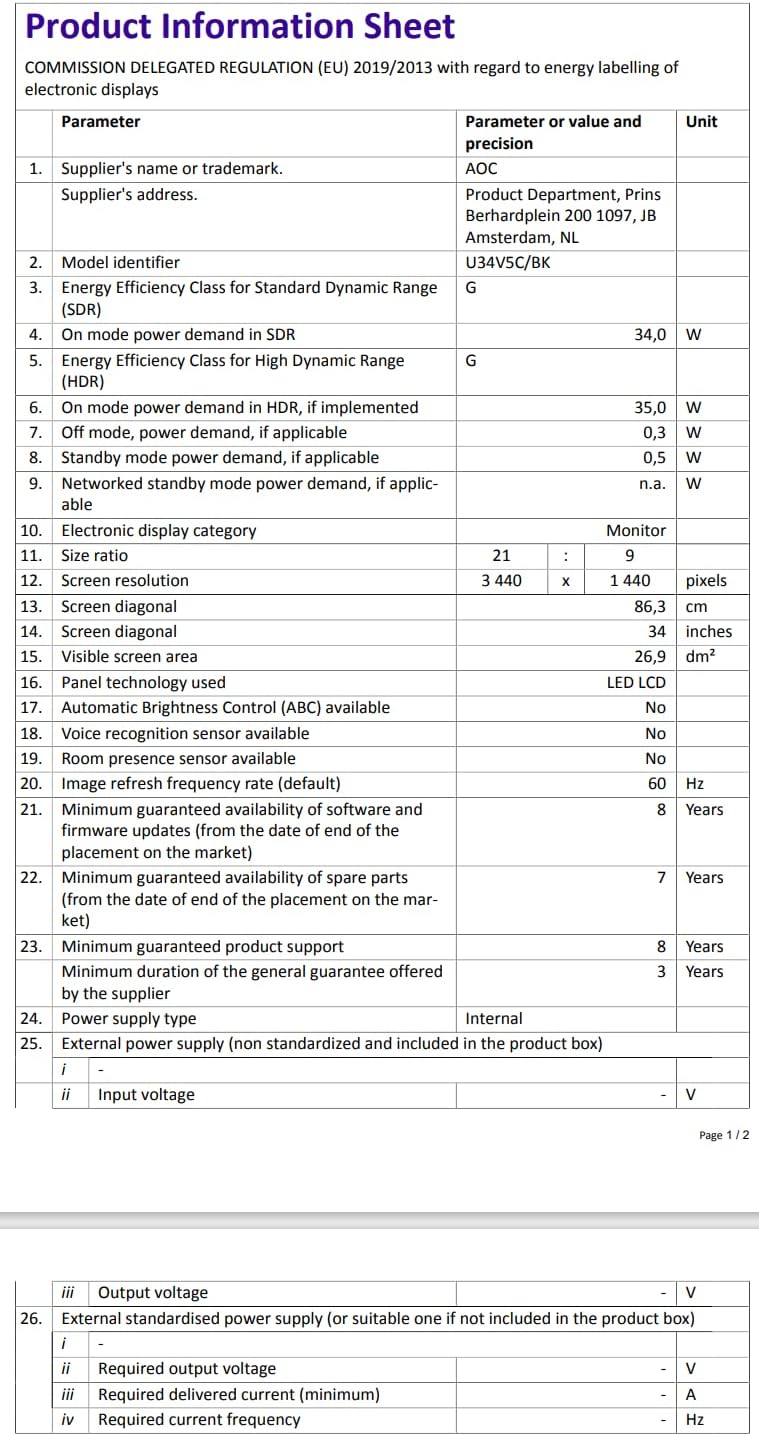
Figure 9.2: Energy Label for AOC U34V5C/BK. For more details, visit the EPREL duomenų bazė.
10. Garantija ir palaikymas
The AOC U34V5C/BK monitor comes with a minimum guaranteed general warranty of 3 metai pateikė tiekėjas.
For technical support, warranty claims, or service inquiries, please visit the official AOC website or contact your local AOC customer service center. Ensure you have your monitor's model number (U34V5C/BK) and serial number ready when contacting support.


