Įvadas
This manual provides essential information for the safe and efficient operation of your Saba SA40S77A11 40-inch Full HD Smart Android TV. Please read these instructions carefully before using the product and retain them for future reference. This television combines Full HD resolution with the Android 11 operating system, offering integrated smart features like Chromecast and Airplay, along with versatile connectivity options.
Svarbi saugos informacija
Visada laikykitės šių saugos priemonių, kad išvengtumėte elektros smūgio, gaisro ar televizoriaus sugadinimo.
- Saugokite televizorių nuo lietaus ar drėgmės.
- Neatidarykite televizoriaus korpusoasing; visus techninės priežiūros darbus patikėkite kvalifikuotiems darbuotojams.
- Užtikrinkite tinkamą vėdinimą aplink televizorių. Neužblokuokite ventiliacijos angų.
- Pastatykite televizorių ant stabilaus, lygaus paviršiaus, kad jis nenukristų.
- Saugokite maitinimo laidą, kad ant jo neužeitų ar nesuspaustų.
- Atjunkite televizorių nuo elektros tinklo žaibuojant arba kai jis ilgą laiką nenaudojamas.
- Keep small objects and liquids away from the TV to prevent them from entering the unit.
Pakuotės turinys
Patikrinkite, ar dėžutėje yra visi reikalingi daiktai:
- Saba SA40S77A11 40-inch Full HD Smart Android TV
- Nuotolinio valdymo pultas (su 2 x AAA 1.5 V baterijomis)
- Mini AV adapterio kabelis
- Maitinimo kabelis
- TV Stand (if not pre-assembled)
- Vartotojo vadovas (šis dokumentas)
Sąranka
1. Stovo pritvirtinimas (neprivaloma)
If your TV stand is not pre-assembled, carefully attach it to the bottom of the television using the provided screws. Ensure the TV is placed face down on a soft, clean surface to prevent screen damage during this process.

Vaizdas: priekis view of the Saba SA40S77A11 TV with its silver stand attached, ready for placement.
Alternatively, the TV can be wall-mounted using a compatible VESA mount (sold separately). Refer to the wall mount's instructions for installation.
2. Išorinių įrenginių prijungimas
Connect your external devices to the appropriate ports on the back or side of the TV.
- HDMI: Skirta „Blu-ray“ grotuvams, žaidimų konsolėms, priedėliams ir kt.
- USB: For USB drives to play media or connect compatible accessories.
- Antena / kabelis: Connect an antenna or cable TV signal for DVB-T2/S2/C reception.
- Ethernet: Laidiniam interneto ryšiui.
- Mini AV: Senesniems analoginiams įrenginiams naudokite pridedamą adapterio laidą.

Vaizdas: Šoninė view of the Saba SA40S77A11 TV, illustrating the various input and output ports for connecting external devices.
3. Įjungimas ir pradinė sąranka
After connecting all necessary cables, plug the power cord into an electrical outlet. Press the power button on the remote control or on the TV itself.
The first time you turn on the TV, a setup wizard will guide you through initial configurations:
- Kalbos pasirinkimas: Pasirinkite pageidaujamą kalbą.
- Tinklo prisijungimas: Prisijunkite prie „Wi-Fi“ tinklo arba naudokite eterneto kabelį interneto prieigai.
- Google paskyra: Prisijunkite naudodami „Google“ paskyrą, kad galėtumėte pasiekti „Google Play“ parduotuvę ir kitas „Android TV“ funkcijas.
- Kanalo nuskaitymas: Scan for available digital TV channels (DVB-T2/S2/C).
Naudojimo instrukcijos
1. Nuotolinio valdymo pultasview
The remote control allows you to navigate the TV's interface and control various functions. Common buttons include:
- Galia: Įjungia arba išjungia televizorių.
- Įvestis: Pasirenka įvesties šaltinį (HDMI, AV, TV).
- Navigacija (aukštyn / žemyn / kairėn / dešinėn) ir OK: Meniu naršymui ir pasirinkimui.
- Garsas (+/-): Reguliuoja garsumo lygį.
- Kanalas (P+/P-): Keičia televizijos kanalus.
- Pagrindinis puslapis: Grąžina į „Android TV“ pagrindinį ekraną.
- Atgal: Grįžta į ankstesnį ekraną arba meniu.
- „Google“ padėjėjas: Įjungia balso valdymą.
2. Smart Android TV Features
Your Saba TV runs on Android 11, providing access to a wide range of smart features.

Image: The Saba SA40S77A11 TV screen showing the Android TV home interface with various streaming app icons and content recommendations.
- „Google Play“ parduotuvė: Download and install your favorite streaming apps, games, and utilities.
- Įtaisytasis „Chromecast“: Cast content (videos, photos, music) from your compatible smartphone, tablet, or computer directly to the TV.
- Airplay: Stream content from Apple devices to your TV.
- Valdymas balsu: Use the Google Assistant button on your remote to search for content, control smart home devices, and get information using voice commands.
3. Įvesties šaltinio pasirinkimas
Press the "Input" button on your remote control to cycle through available input sources (e.g., HDMI 1, HDMI 2, AV, TV Tuner). Select the desired source for your connected device.
Priežiūra
1. Televizoriaus valymas
- Prieš valydami visada atjunkite televizorių nuo elektros tinklo.
- Ekraną ir korpusą nuvalykite minkštu, sausu skudurėliu.
- Jei ekrane yra sunkiai įveikiamų žymių, lengvai nuvalykiteampNuvalykite šluostę vandeniu arba specializuotu ekrano valikliu. Niekada nepurkškite skysčio tiesiai ant ekrano.
- Nenaudokite abrazyvinių valiklių, vaškų ar tirpiklių.
2. Programinės įrangos atnaujinimai
Your Android TV may receive software updates periodically to improve performance and add new features. Ensure your TV is connected to the internet to receive these updates. You can usually check for updates in the TV's settings menu under "About" or "System Update."
Trikčių šalinimas
Jei kyla problemų dėl televizoriaus, žr. toliau pateiktas dažniausiai pasitaikančias problemas ir sprendimus:
| Problema | Galimas sprendimas |
|---|---|
| Nėra galios | Patikrinkite, ar maitinimo laidas tvirtai prijungtas prie televizoriaus ir sieninio lizdo. Išbandykite kitą lizdą. Įsitikinkite, kad nuotolinio valdymo pulto baterijos nėra išsikrovusios. |
| Nėra vaizdo, bet yra garsas | Ensure the correct input source is selected. Check cable connections (HDMI, AV). Try restarting the TV. |
| Nėra garso, bet vaizdas yra | Check the volume level and ensure the TV is not muted. Verify audio settings in the TV menu. Check external audio device connections if applicable. |
| Pranešimas „Nėra signalo“ | Verify the antenna/cable connection. Ensure the correct input source is selected. Perform a channel scan if using the TV tuner. |
| Nepavyksta prisijungti prie „Wi-Fi“. | Įsitikinkite, kad jūsų „Wi-Fi“ maršrutizatorius įjungtas ir veikia. Iš naujo įveskite „Wi-Fi“ slaptažodį. Pabandykite iš naujo paleisti televizorių ir maršrutizatorių. |
| Nuotolinio valdymo pultas neveikia | Pakeiskite baterijas. Įsitikinkite, kad tarp nuotolinio valdymo pulto ir televizoriaus IR jutiklio nėra jokių kliūčių. |
Specifikacijos
Below are the technical specifications for the Saba SA40S77A11 TV:
| Funkcija | Detalė |
|---|---|
| Prekės ženklas | Saba |
| Modelio numeris | SA40S77A11 |
| Ekrano dydis | 40 coliai (100.3 cm įstrižainė) |
| Ekrano technologija | LED |
| Rezoliucija | 1920 x 1080 (Full HD) |
| Operacinė sistema | Android 11 |
| Atnaujinimo dažnis | 60 Hz |
| Ryšys | „Wi-Fi“, Ethernet, „Bluetooth“, HDMI, USB |
| Ypatingos savybės | Flat screen, Chromecast, Airplay |
| Iš viso USB prievadų | 1 |
| Įtraukti komponentai | Mini AV adapter cable, Remote control with 2x AAA 1.5V batteries |
| Gaminio matmenys (DxPxA) | 22.9 x 89.8 x 56.8 cm |
| Energijos vartojimo efektyvumo klasė (SDR) | G |
| Energijos suvartojimas (SDR) | 47.0 W / 1000 val. |
| Energijos suvartojimas (budėjimo režimu) | 0.4 W |
| Minimum Software Updates Guaranteed Until | Informacijos nėra |
| Minimum Spare Parts Availability | Informacijos nėra |

Image: EU Energy Label for the Saba SA40S77A11 TV, showing energy efficiency class G and power consumption of 47 kWh/1000h.
Norėdami gauti daugiau informacijos, apsilankykite EPREL duomenų bazė.
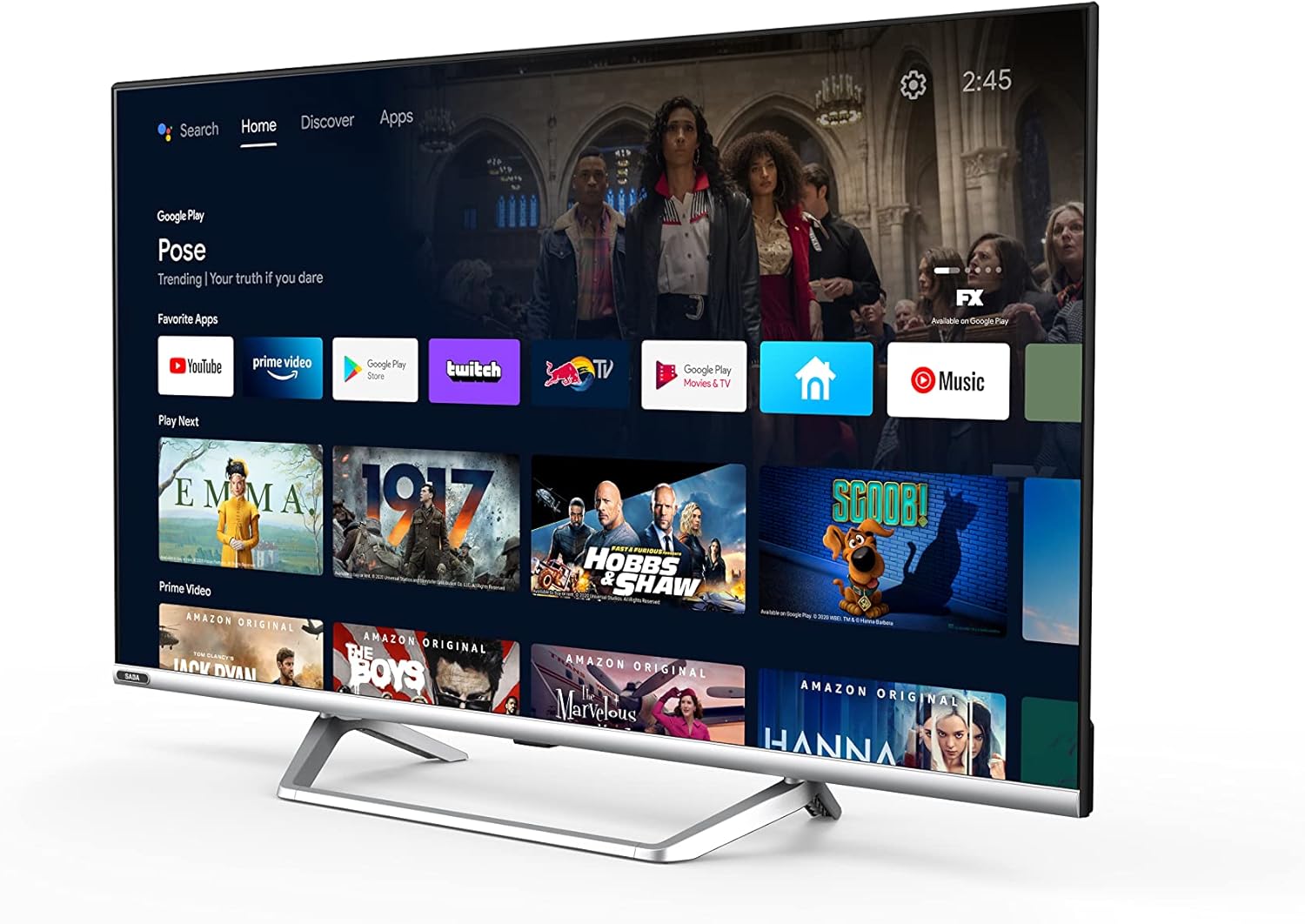
Image: Official product information sheet for the Saba SA40S77A11 TV, detailing various technical parameters and energy consumption data.
Garantija ir palaikymas
The manufacturer provides a minimum general warranty period of 2 metai for this product. For specific warranty terms and conditions, please refer to the warranty card included with your product or contact the retailer where the TV was purchased.
For technical support, troubleshooting beyond this manual, or inquiries regarding spare parts and software updates, please contact Saba customer service or your local dealer. Information regarding the guaranteed availability of spare parts and software updates is not explicitly provided in the product specifications.


