1. Įvadas
Thank you for choosing the Cherry KW 9100 Slim Wireless Keyboard. This manual provides essential information for setting up, operating, and maintaining your new keyboard. The KW 9100 Slim is designed for both work and home office environments, offering flexible connectivity options and a comfortable typing experience with its silent SX Scissor Mechanism.

1.1 pav.: Iš viršaus į apačią view of the Cherry KW 9100 Slim Wireless Keyboard, showcasindėl viso išdėstymo ir elegantiško dizaino.
2. Pakuotės turinys
Prašome patikrinti, ar pakuotėje yra visi reikalingi daiktai:
- Cherry KW 9100 Slim Wireless Keyboard
- USB laidas (USB-A–USB-C)
- USB Receiver (2.4 GHz RF dongle)
- Instrukcijų vadovas (šis dokumentas)
- Magnetic Support Bar (pre-attached or separate)
3. Pagrindinės savybės
- Dvigubas ryšys: Seamlessly switch between wireless RF (2.4 GHz) and Bluetooth transmission modes.
- Įkraunama baterija: Built-in lithium rechargeable battery with USB-C connection for convenient charging.
- SX Scissor Mechanism: Cherry's proprietary low-profile scissor technology ensures a quiet and precise typing experience.
- Slim and Stable Design: Features a thin profile with a built-in metal plate for maximum stability and rigidity.
- Reguliuojamas spausdinimo kampas: Includes a removable magnetic support bar for a steeper typing angle preference.
- Būsenos šviesos diodai: Integrated LEDs for CAPS LOCK, NUM, and SCROLL keys.
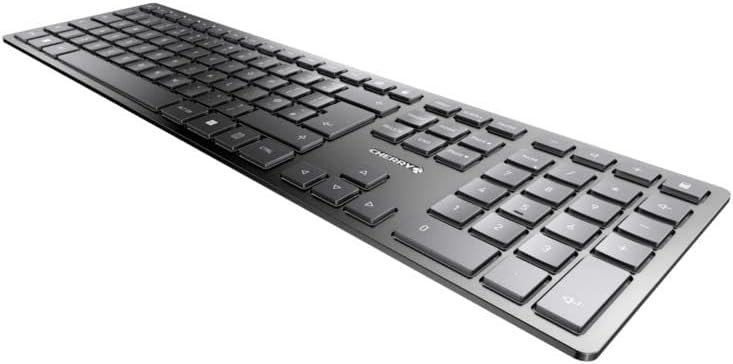
3.1 pav.: Kampinis view pabrėžiant „Slim Pro“file and key layout of the keyboard.

3.2 pav. Iš arti view of the keys, illustrating the low-profile design and quiet SX Scissor Mechanism.
4. Sąranka ir prijungimas
4.1 Klaviatūros įkrovimas
Prieš pirmą kartą naudojant, rekomenduojama visiškai įkrauti klaviatūrą.
- Connect the supplied USB-A to USB-C cable to the USB-C port on the keyboard.
- Connect the other end of the cable to a USB-A port on your computer or a compatible USB power adapter.
- The charging indicator LED will illuminate. The keyboard can be used while charging.

Figure 4.1: Location of the USB-C charging port on the Cherry KW 9100 Slim keyboard.
4.2 Connecting via 2.4 GHz RF Wireless
For a stable and fast wireless connection, use the included USB receiver.
- Locate the USB receiver (dongle) in the package.
- Prijunkite USB imtuvą prie laisvo kompiuterio USB-A prievado.
- On the keyboard, locate the connectivity switch (usually on the back or side) and set it to the "RF" or 2.4 GHz icon position.
- Klaviatūra turėtų automatiškai prisijungti prie kompiuterio.
4.3 Prisijungimas per Bluetooth
The keyboard supports Bluetooth connectivity for devices with Bluetooth capabilities.
- On the keyboard, set the connectivity switch to the "Bluetooth" icon position.
- The Bluetooth indicator LED on the keyboard will start blinking, indicating it's in pairing mode.
- Kompiuteryje arba įrenginyje atidarykite „Bluetooth“ nustatymus.
- Ieškokite new devices and select "Cherry KW 9100 Slim" from the list.
- Vykdykite visus ekrane pateikiamus nurodymus, kad užbaigtumėte susiejimo procesą.
4.4 Attaching the Magnetic Support Bar
The keyboard comes with a magnetic support bar that can be attached to adjust the typing angle.
- Locate the magnetic support bar.
- Align the bar with the magnetic strip on the underside of the keyboard.
- The magnets will snap the bar into place, providing an elevated typing angle.
- To remove, simply pull the bar away from the keyboard.

4.2 pav.: šonas view of the keyboard demonstrating the elevated angle with the magnetic support bar attached.

Figure 4.3: Illustration of how the magnetic support bar attaches to the keyboard's underside.
5. Operacija
5.1 Pagrindinis naudojimas
Once connected, the Cherry KW 9100 Slim functions as a standard keyboard. Type as you normally would.

Figure 5.1: A user demonstrating typing on the Cherry KW 9100 Slim keyboard in an office setting.
5.2 Function Keys (F-Keys)
The F-keys (F1-F12) on the top row may have secondary functions accessible by pressing the Fn key simultaneously. Refer to the keycap legends for specific functions such as media control, volume adjustment, or brightness control.
5.3 būsenos šviesos diodai
The keyboard features indicator LEDs for:
- DIDŽIOSIOS RAIDĖS: Šviečia, kai aktyvus „Caps Lock“ režimas.
- NUM: Šviečia, kai aktyvus „Num Lock“ mygtukas.
- SCROLL: Šviečia, kai aktyvus „Scroll Lock“ režimas.
- Battery/Charging: Indicates charging status or low battery.
6. Priežiūra
6.1 Klaviatūros valymas
Norėdami išlaikyti klaviatūros išvaizdą ir funkcionalumą:
- Prieš valydami atjunkite klaviatūrą nuo kompiuterio.
- Šiek tiek naudokite minkštą, be pūkelių šluostę dampnuplauti vandeniu arba švelniu valymo tirpalu.
- Venkite per didelės drėgmės ir nepurkškite valiklių tiesiai ant klaviatūros.
- Dulkėms ir šiukšlėms tarp klavišų pašalinti naudokite suslėgtą orą.
6.2 Akumuliatoriaus priežiūra
The built-in rechargeable battery is designed for long life.
- Recharge the keyboard when the battery indicator shows low power.
- Kad pailgintumėte akumuliatoriaus tarnavimo laiką, venkite jo dažnai visiškai iškrauti.
- Jei klaviatūra nebus naudojama ilgą laiką, laikykite ją vėsioje, sausoje vietoje.
7. Problemų sprendimas
| Problema | Galima priežastis | Sprendimas |
|---|---|---|
| Keyboard not responding (RF) | USB receiver not plugged in; keyboard not in RF mode; low battery. | Ensure USB receiver is securely plugged in. Set keyboard switch to RF mode. Charge the keyboard. Try a different USB port. |
| Klaviatūra nereaguoja („Bluetooth“) | Keyboard not in Bluetooth mode; not paired; out of range; low battery. | Set keyboard switch to Bluetooth mode. Ensure keyboard is paired with the device. Move keyboard closer to the device. Charge the keyboard. |
| Klavišai yra lipnūs arba nereaguoja | Debris under keys; liquid spill. | Clean the keyboard using compressed air. If liquid spill, disconnect immediately and allow to dry completely before use. Do not attempt to disassemble. |
| Akumuliatorius neįkraunamas | Faulty USB cable or port; power source issue. | Try a different USB cable and/or USB port. Ensure the power source is active. |
8. Specifikacijos
| Funkcija | Detalė |
|---|---|
| Modelio numeris | JK-9100US-2 |
| Ryšys | Bluetooth, 2.4 GHz RF (with USB receiver), USB-C (for charging) |
| Klaviatūros aprašymas | Wireless, Full-size |
| Pagrindinis mechanizmas | SX Scissor Mechanism |
| Raktų skaičius | 108 |
| Spalva | Juoda |
| Medžiaga | Metal (built-in plate) |
| Prekės svoris | 1.49 svaro (apie 676 gramų) |
| Pakuotės matmenys | 18.19 x 6.69 x 1.26 colio |
| Gamintojas | VYŠNĖ |
| Suderinami įrenginiai | PC |
| Rekomenduojami naudojimo būdai | Gaming, Office, Work |
9. Garantija ir palaikymas
Dėl garantijos informacijos ir techninės pagalbos kreipkitės į oficialią „Cherry“ websvetainėje arba susisiekite su „Cherry“ klientų aptarnavimo tarnyba. Išsaugokite pirkimo įrodymą garantiniams reikalavimams.
Oficiali vyšnia Websvetainė: www.cherry.de/en/
Klientų aptarnavimas: Žr. kontaktų skiltį oficialioje svetainėje webregioninės pagalbos informacijos svetainėje.


