1. Įvadas
Ačiū, kad pirkoteasing the Yifeng Wireless Keyboard. This keyboard offers versatile connectivity options, supporting both 2.4 GHz USB wireless and Bluetooth connections. It is designed for multi-device use, allowing simultaneous pairing with up to four devices and quick switching between them. Featuring a comfortable scissor-switch mechanism and an integrated stand, it enhances productivity across various platforms including Windows, iOS, and Android devices.
2. Saugos informacija
- Saugokite klaviatūrą nuo skysčių ar ekstremalių temperatūrų.
- Avoid disassembling or attempting to repair the device yourself.
- Laikyti vaikams nepasiekiamoje vietoje.
- Įkrovimui naudokite tik pateiktą USB laidą.
3. Pakuotės turinys
Prašome patikrinti, ar yra visi daiktai:
- Yifeng Wireless Keyboard
- USB įkrovimo laidas
- 2.4 GHz USB Receiver (may be stored in the keyboard's battery compartment)
- Vartotojo vadovas (šis dokumentas)
4. Sąranka
4.1. 2.4 GHz USB Wireless Connection
- Locate the 2.4 GHz USB receiver. It is often stored in a dedicated slot on the keyboard.
- Prijunkite USB imtuvą prie laisvo kompiuterio ar įrenginio USB prievado.
- Turn on the keyboard using the power switch (usually located on the side or back).
- The keyboard should automatically connect to your device. If not, press the dedicated 2.4GHz connection key (often labeled with a '4' or '2.4G' icon) to activate pairing mode.
4.2. „Bluetooth“ ryšys
- Įsitikinkite, kad klaviatūra yra įkrauta ir įjungta.
- Paspauskite ir palaikykite vieną iš „Bluetooth“ kanalų klavišų (pvz., Bluetooth 1, Bluetooth 2, arba Bluetooth 3) 3–5 sekundes, kol pradės mirksėti indikatoriaus lemputė, rodanti susiejimo režimą.
- On your device (tablet, smartphone, PC), go to Bluetooth settings and enable Bluetooth.
- Ieškokite available devices. The keyboard should appear as "Yifeng Keyboard" or similar.
- Pasirinkite klaviatūrą, kurią norite susieti. Vykdykite visus ekrane pateikiamus nurodymus, pvz., įveskite susiejimo kodą.
- Once paired, the indicator light will stop flashing and remain solid for a few seconds.
4.3. Multi-Device Pairing
This keyboard supports connecting up to 4 devices simultaneously: one via 2.4 GHz USB and three via Bluetooth. Follow the steps above to pair each device to a different channel (2.4GHz, Bluetooth 1, Bluetooth 2, Bluetooth 3).
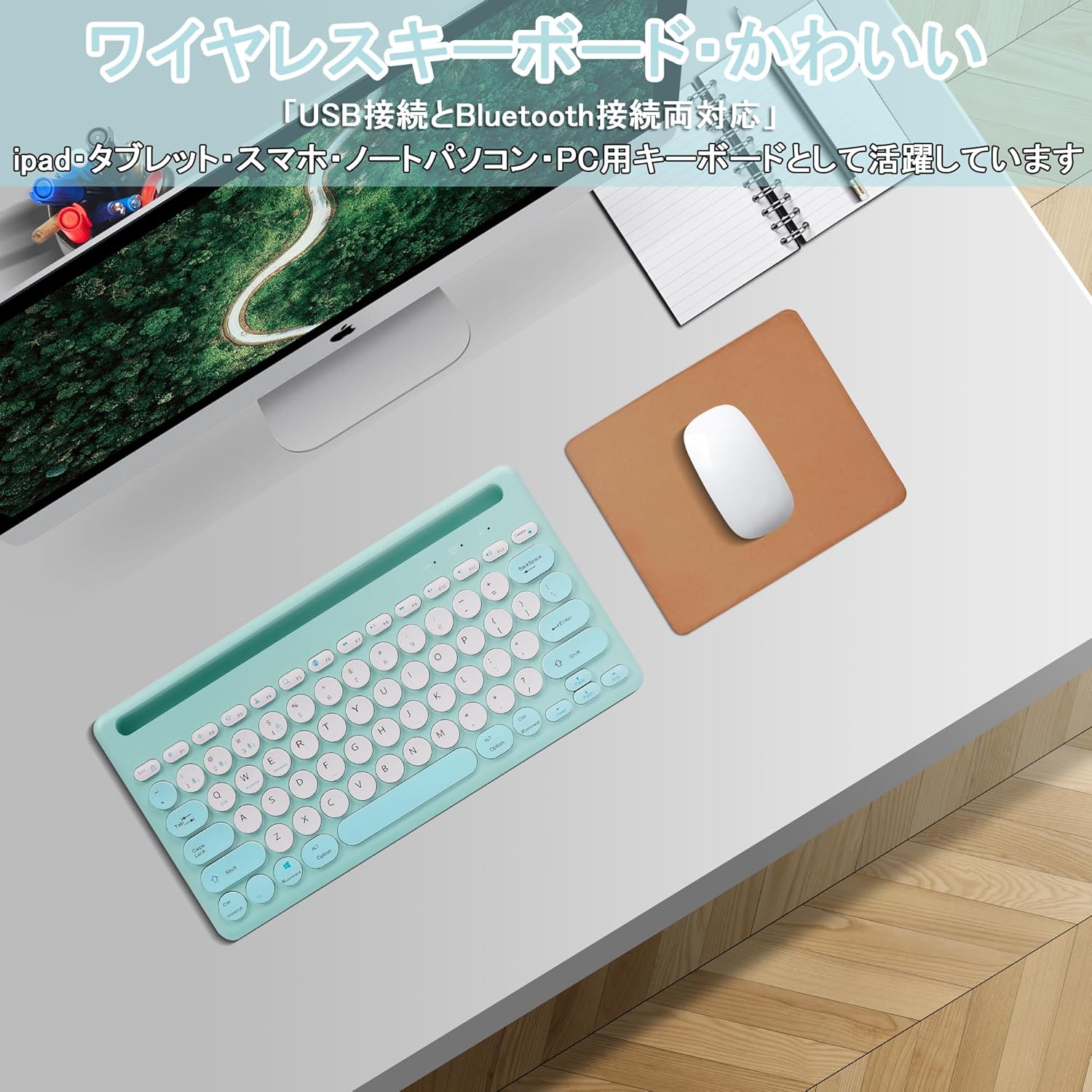
Image: The Yifeng Wireless Keyboard connected to a tablet, smartphone, and laptop, demonstrating its multi-device pairing capability.
5. Naudojimo instrukcijos
5.1. Perjungimas tarp prijungtų įrenginių
To switch between your paired devices, simply press the corresponding connection key:
- Paspauskite Bluetooth 1 to switch to the first Bluetooth device.
- Paspauskite Bluetooth 2 to switch to the second Bluetooth device.
- Paspauskite Bluetooth 3 to switch to the third Bluetooth device.
- Paspauskite 2.4 GHz key (often labeled with a '4' or '2.4G' icon) to switch to the USB wireless device.
5.2. System Compatibility Switching
The keyboard supports Windows, iOS, and Android operating systems. Use the dedicated system keys to optimize key functions for your current device:
- Paspauskite Fn + Q skirta iOS.
- Paspauskite Fn + W skirta „Android“.
- Paspauskite Fn + E skirta Windows.
5.3. Klaviatūros įkrovimas
The keyboard features a built-in rechargeable lithium-ion battery. A single full charge provides approximately 30 days of continuous use.
- Connect the included USB charging cable to the charging port on the keyboard.
- Kitą USB kabelio galą prijunkite prie USB maitinimo šaltinio (pvz., kompiuterio USB prievado, USB sieninio adapterio).
- Įkrovimo indikatoriaus lemputė užsidegs įkrovimo metu ir užges, kai bus visiškai įkrauta.

Image: The Yifeng Wireless Keyboard connected to a power strip via its USB charging cable, indicating the rechargeable feature.
5.4. Integruoto stovo naudojimas
The keyboard includes an integrated stand slot at the top, designed to hold your tablet or smartphone upright. This allows for comfortable viewing and typing, making it ideal for document creation, chatting, or watching media while commenting.
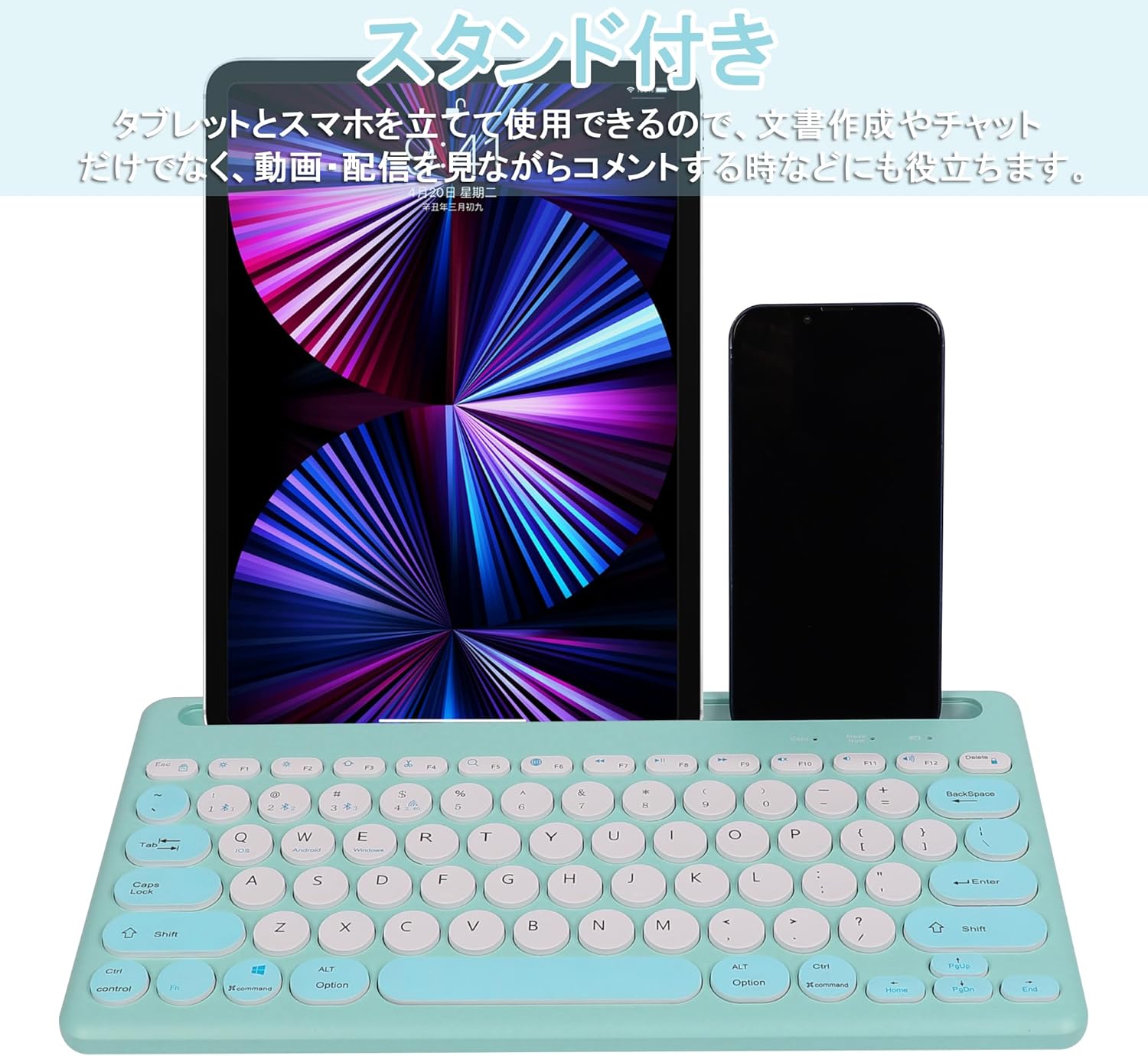
Image: The Yifeng Wireless Keyboard with a tablet and smartphone securely positioned in its integrated stand, demonstrating its utility for multi-device setups.
6. Priežiūra
- Reguliariai valykite klaviatūrą minkšta, sausa šluoste. Įsisenėjusius nešvarumus lengvai nuvalykite.amp cloth can be used, ensuring no moisture enters the keyboard.
- Venkite naudoti stiprių cheminių medžiagų ar abrazyvinių valiklių.
- Kai nenaudojate klaviatūros, laikykite ją vėsioje, sausoje vietoje.
- The keyboard features anti-slip pads on the back for stable use. Ensure these pads are clean and intact for optimal stability.

Image: The underside of the Yifeng Wireless Keyboard, highlighting the four anti-slip pads designed for stable placement on various surfaces.
7. Problemų sprendimas
7.1. Klaviatūra neprisijungia
- Patikrinkite galią: Ensure the keyboard is powered on and has sufficient battery charge.
- Iš naujo suporuoti: For Bluetooth, delete the keyboard from your device's Bluetooth list and attempt to pair again. For 2.4 GHz USB, try plugging the receiver into a different USB port.
- Perjungti kanalus: Ensure you have selected the correct channel (Bluetooth 1/2/3 or 2.4GHz) for your device.
- Įrenginys „Bluetooth“: Verify that Bluetooth is enabled on your device and that it is discoverable.
7.2. Klavišai nereaguoja
- Baterijos lygis: Įkraukite klaviatūrą, jei baterija išsikrovusi.
- Sistemos režimas: Ensure the keyboard is set to the correct operating system mode (Windows, iOS, Android) using Fn + Q/W/E.
- Trikdžiai: Perkelkite klaviatūrą arčiau savo įrenginio ir toliau nuo kitų belaidžių įrenginių, kurie gali sukelti trikdžius.
7.3. Įkrovimo problemos
- Kabelio patikrinimas: Ensure the USB charging cable is securely connected to both the keyboard and the power source.
- Maitinimo šaltinis: Išbandykite kitą USB prievadą arba sieninį adapterį.
- Indikatoriaus lemputė: If the charging indicator light does not turn on, the cable or power source may be faulty.
8. Specifikacijos
| Prekės ženklas | Yifeng |
| Modelio numeris | AMWS0584A-L |
| Ryšio technologija | Bluetooth, 2.4 GHz Wireless (USB) |
| Suderinami įrenginiai | Tablets, Smartphones, PCs, Laptops (Windows, iOS, Android) |
| Klaviatūros išdėstymas | QWERTY (US Layout) |
| Pagrindinis mechanizmas | Žirklinis jungiklis |
| Ypatinga funkcija | Rechargeable, Integrated Stand, Multi-Pairing (4 devices) |
| Baterijos tipas | 1 ličio jonų baterija (pridedama) |
| Baterijos veikimo laikas | Maždaug 30 dienų (vienam įkrovimui) |
| Matmenys | 33.7 x 16.7 x 2.9 cm |
| Svoris | 820 g |
| Įtraukti komponentai | USB kabelis |
9. Garantija ir palaikymas
Šis produktas tiekiamas su a 1 metų kokybės garantija from the date of purchase. In case of initial defects or malfunctions occurring within the warranty period, we offer return or exchange services.
Should you encounter any issues or require assistance, please contact us directly through your purchase platform:
- Eikite į savo Užsakymų istorija.
- Select the order for this product.
- Spustelėkite Susisiekite su pardavėju.
Our support team will be happy to assist you.


