1. Įvadas
This manual provides detailed instructions for the setup, operation, and maintenance of your Milestone 623-L58P Bluetooth Thermal Label and Receipt Printer. This portable printer is designed for efficient printing of labels and receipts using direct thermal technology, eliminating the need for ink or toner. It supports both iOS and Android systems via Bluetooth 4.0 connectivity.
2. Kas yra dėžutėje
Išpakuodami patikrinkite, ar yra visi toliau išvardyti daiktai:
- 1 x Milestone 623-L58P Thermal Label Printer
- 1 x C tipo USB laidas
- 1 x Naudotojo vadovas (šis dokumentas)
- 5 x Label Rolls
- 5 x Receipt Thermal Rolls

Image: The Milestone 623-L58P thermal printer shown with its included accessories: a Type-C USB cable, five label rolls, and five receipt thermal rolls.
3. Produktas baigtasview
3.1. Matmenys

Vaizdas: Priekinė ir šoninė view of the Milestone 623-L58P printer illustrating its dimensions: 120mm height, 85mm width, and 60mm depth. It also shows the Type-C port and the cover opening and closing key.
- Aukštis: 120 mm
- Plotis: 85 mm
- Gylis: 60 mm
- Svoris: 720 g
4. Sąrankos vadovas
4.1. Spausdintuvo įkrovimas
Before initial use, fully charge the printer. Connect the provided Type-C USB cable to the printer's charging port and the other end to a compatible USB power adapter (not included) or a computer's USB port. The printer is equipped with a 1500 mAh battery.
4.2. Terminio popieriaus įdėjimas
- Locate the cover opening and closing key on the side of the printer (refer to the dimensions image in Section 3.1).
- Press the key to open the printer cover.
- Insert the thermal paper roll, ensuring the printing side is facing up. The paper width range is 20mm to 50mm.
- Tvirtai uždarykite spausdintuvo dangtį, kol jis spragtelėdamas užsifiksuos.
Svarbu: Ensure the paper is inserted correctly with the printing side facing up to avoid blank prints.
4.3. Programėlės diegimas ir „Bluetooth“ ryšys
The Milestone 623-L58P printer operates via a dedicated mobile application. You can download the "Print Master" or "DLabel" app from your device's app store.

Image: A QR code for downloading the printing application, suitable for various operating systems. Also includes an icon and link for computer printing software: DLabel Computer Software.

Image: Screenshots of the DLabel app interface, demonstrating various label templates and editing options available for free download on Google Play and App Store.
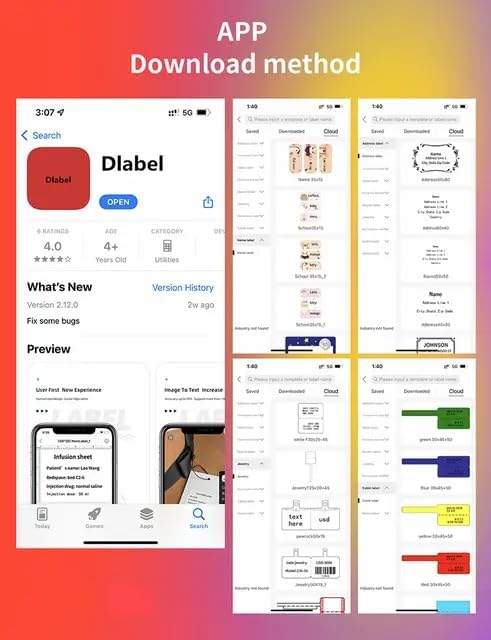
Image: A visual guide showing how to search for and download the "DLabel" app from an app store, along with examples of label designs within the app.
- Download and install the "Print Master" or "DLabel" app on your smartphone (Android or iOS).
- Ensure your printer is powered on and Bluetooth is enabled on your smartphone.
- Open the app and follow the on-screen instructions to connect to the printer via Bluetooth. The printer's Bluetooth connection is stable up to 10 meters.
5. Naudojimo instrukcijos
5.1. Printing Labels and Receipts
Once connected to the app, you can design and print various labels and receipts. The app offers over 300 free label templates, or you can create custom templates.
- Šablono naudojimas: Select a pre-designed template from the app and customize it with your desired text, barcodes, or images.
- Individualus dizainas: Use the app's editing tools to create labels from scratch.
- Spausdinimas: After finalizing your design, tap the print button within the app. The printer's speed can reach 45mm/s.

Vaizdas: pvzamples of various labels printed by the Milestone 623-L58P, including cable labels, jewelry labels, clothing labels, and price tags, demonstrating its multi-functionality.
5.2. OCR funkcija
The app includes an Optical Character Recognition (OCR) function, allowing you to convert text from images into editable text. This feature can recognize text in approximately 4 seconds.
- Open the app and navigate to the OCR function.
- Capture an image containing text or select one from your gallery.
- The app will process the image and convert the text, which can then be edited and used in your label designs.
5.3. Mode Switching (Label/Receipt)
To switch between label and receipt printing modes after a self-check page is printed, press the button on the left side of the printer two times immediately.
6. Priežiūra
6.1. Spausdinimo galvutės valymas
Regular cleaning of the print head ensures optimal print quality. Use a soft, lint-free cloth lightly dampened with isopropyl alcohol. Gently wipe the print head surface. Allow it to dry completely before use.
6.2. Akumuliatoriaus priežiūra
To prolong battery life, avoid fully discharging the battery frequently. If the printer will not be used for an extended period, charge it to about 50% and store it in a cool, dry place. Recharge every few months to prevent deep discharge.
7. Problemų sprendimas
| Problema | Galima priežastis | Sprendimas |
|---|---|---|
| Spausdintuvas neįsijungia | Senka baterija arba maitinimo problema | Charge the printer using the provided Type-C cable. Ensure the charging cable and adapter are working. |
| No print output / Blank pages | Paper inserted incorrectly or no paper | Ensure thermal paper is loaded correctly with the printing side facing up. Check if there is enough paper. |
| Nepavyksta prisijungti per Bluetooth | Bluetooth off, app issue, or printer not discoverable | Ensure printer is on and Bluetooth is enabled on your device. Restart the app and printer. Try re-pairing the device. |
| Prasta spausdinimo kokybė | Dirty print head or low battery | Clean the print head as described in Section 6.1. Ensure the printer is fully charged. Use high-quality thermal paper. |
| App or computer connecting problem | Software compatibility or driver issues | Ensure you are using the latest version of the app. For computer connection, verify driver installation and compatibility with your operating system. Refer to the DLabel computer software link provided in Section 4.3. |
8. Specifikacijos
| Modelio numeris | 623-L58P |
| Spausdinimo tipas | Tiesioginis terminis |
| Ryšys | Bluetooth 4.0, Micro USB (Type-C cable included) |
| Palaikomos sistemos | iOS, Android |
| Baterijos talpa | 1500 mAh |
| Etiketės pločio diapazonas | 20mm ~ 50mm |
| Max Printable Width | 48 mm |
| Spausdinimo raiška | 203 dpi |
| Spausdinimo greitis | Iki 45 mm/s |
| Pager Gap Type | Continuous / Gap |
| Matmenys (IxPxH) | 7.6 x 5.4 x 5.3 Centimeters (approx. 76 x 54 x 53 mm) |
| Prekės svoris | 720 g |

Image: Visual representation of key specifications: 1 week standby time, 1500mAh battery, and printer speed of 50-80mm/s.
9. Garantija ir palaikymas
The product comes with a 7-day warranty as per the purchase terms. For technical support, troubleshooting assistance, or warranty claims, please contact your retailer or the manufacturer directly. Refer to the contact information provided with your purchase documentation.
10. Taikymo scenarijai
The Milestone 623-L58P printer is versatile and suitable for various industries and personal uses:
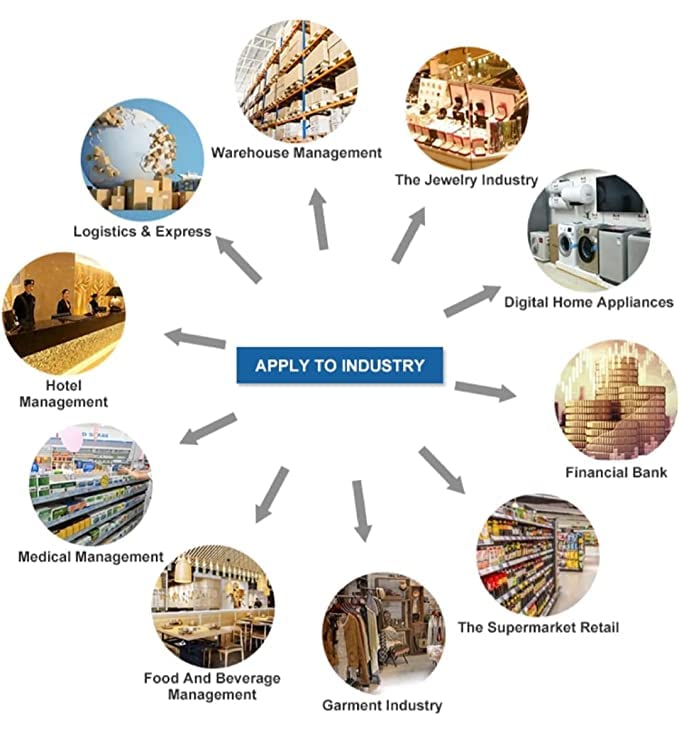
Image: A diagram illustrating various industries where the printer can be applied, including Warehouse Management, The Jewelry Industry, Digital Home Appliances, Financial Bank, The Supermarket Retail, Garment Industry, Food And Beverage Management, Medical Management, Hotel Management, and Logistics & Express.
- Mažmeninė prekyba: Kaina tags, produktų etiketės, lentynų etiketės.
- Logistics & Warehouse: Shipping labels, inventory management.
- Papuošalai: Small item labels, price tags.
- Drabužiai: Drabužius tags, size labels.
- Home & Office: Organization labels, cable labels.
- Food & Beverage: Date labels, ingredient labels.


