1. Įvadas
This manual provides comprehensive instructions for the setup, operation, and maintenance of your Tibuta 15.6 Inch WiFi Digital Photo Frame. Please read this manual thoroughly before using the device to ensure proper functionality and to maximize your user experience.

Image 1.1: Tibuta 15.6 Inch WiFi Digital Photo Frame in use, showing its touchscreen capabilities and companion app integration.
2. Saugos informacija
Kad nesugadintumėte įrenginio ar nesusižalotumėte, laikykitės šių saugos priemonių:
- Saugokite prietaisą nuo vandens ar per didelės drėgmės.
- Venkite ilgą laiką laikyti prietaisą šalia šilumos šaltinių arba tiesioginiuose saulės spinduliuose.
- Naudokite tik pateiktą maitinimo adapterį.
- Nebandykite patys išardyti ar taisyti įrenginio. Kreipkitės pagalbos į klientų aptarnavimo tarnybą.
- Prietaisą laikykite atokiau nuo vaikų ir naminių gyvūnėlių.
3. Pakuotės turinys
Patikrinkite, ar pakuotėje yra visi reikalingi daiktai:
- Tibuta 15.6 Inch WiFi Digital Photo Frame
- Maitinimo adapteris
- Vartotojo vadovas (šis dokumentas)
- Stovi
4. Produktas baigtasview
Familiarize yourself with the components of your digital photo frame.
4.1 Priekis View

4.1 vaizdas: priekis view and key features of the Tibuta 15.6 Inch Digital Photo Frame.
- 15.6 Inch HD Touch Screen: High-definition display with 1280x800 resolution and IPS technology for wide viewkampų.
- Jutiklinio ekrano sąsaja: Allows for direct interaction with the frame's menus and settings.
4.2 Galinis View ir uostai

4.2 vaizdas: galinis view of the Tibuta Digital Photo Frame with labeled ports and features.
- Maitinimo jungiklis: Įjungia arba išjungia įrenginį.
- Sieninis: Mounting points for wall installation.
- Ampgelbėtojai: Integrated speakers for audio playback.
- „Micro SD“ kortelės lizdas: Palaiko iki 128 GB talpos „Micro SD“ korteles, kad būtų galima išplėsti atmintį.
- Ausinių lizdas: Skirtas prijungti išorinius garso įrenginius.
- A tipo USB prievadas: For connecting USB drives or other peripherals.
- Mini USB prievadas: For data transfer (if applicable).
- DC maitinimo prievadas: Jungiamas prie maitinimo adapterio.
- Stovas: Attachable stand for desktop placement.
5. Sąranka
5.1 Pradinis įjungimas
- Attach the stand to the back of the photo frame for stable placement on a flat surface.
- Prijunkite maitinimo adapterį prie nuolatinės srovės maitinimo prievado, esančio rėmelio gale.
- Įkiškite maitinimo adapterį į sieninį lizdą.
- Press the Power Switch to turn on the device.
- Follow the on-screen prompts to select your language, time zone, and connect to a Wi-Fi network.
5.2 Prisijungimas prie „Wi-Fi“.
- From the main menu, navigate to "Settings" and then "Wi-Fi".
- Iš sąrašo pasirinkite norimą „Wi-Fi“ tinklą.
- Įveskite „Wi-Fi“ slaptažodį naudodami ekrano klaviatūrą.
- Tap "Connect". Once connected, a Wi-Fi icon will appear on the screen.
5.3 Papildomos programėlės diegimas
To share photos and videos remotely, download the dedicated companion app.

Image 5.1: Download the Uhale App from Google Play or the App Store.
- On your smartphone or tablet, open the Google Play parduotuvė (for Android devices) or the Apple App Store (for iOS devices).
- Ieškokite "Uhale App" (or the specified app name in your frame's instructions).
- Atsisiųskite ir įdiekite programą.
- Follow the in-app instructions to pair your device with the digital photo frame. This typically involves entering a unique code displayed on your photo frame.
6. Naudojimo instrukcijos
6.1 Sharing Photos and Videos via App
Once the frame is connected to Wi-Fi and paired with the app:
- Išmaniajame telefone atidarykite papildomą programą.
- Select the photos or videos you wish to share.
- Programėlėje palieskite mygtuką „Siųsti“ arba „Bendrinti“.
- The selected media will be transferred to your digital photo frame and displayed.
The frame supports various display modes, including timing, zooming, and cropping, which can often be adjusted via the app or directly on the frame's settings.
6.2 Using External Storage (Micro SD Card)
The frame has 16GB of built-in storage and supports Micro SD cards up to 128GB.
- Insert a Micro SD card into the designated slot on the back of the frame.
- The frame will automatically detect the card.
- Navigate to the "Gallery" or "Files" section on the frame to access content from the Micro SD card.
- Galite kopijuoti files from the Micro SD card to the internal storage or play them directly.
6.3 Automatic Rotation (Gravity Sensing)
The frame features gravity sensing for automatic rotation, adjusting the display orientation based on how the frame is positioned (landscape or portrait).
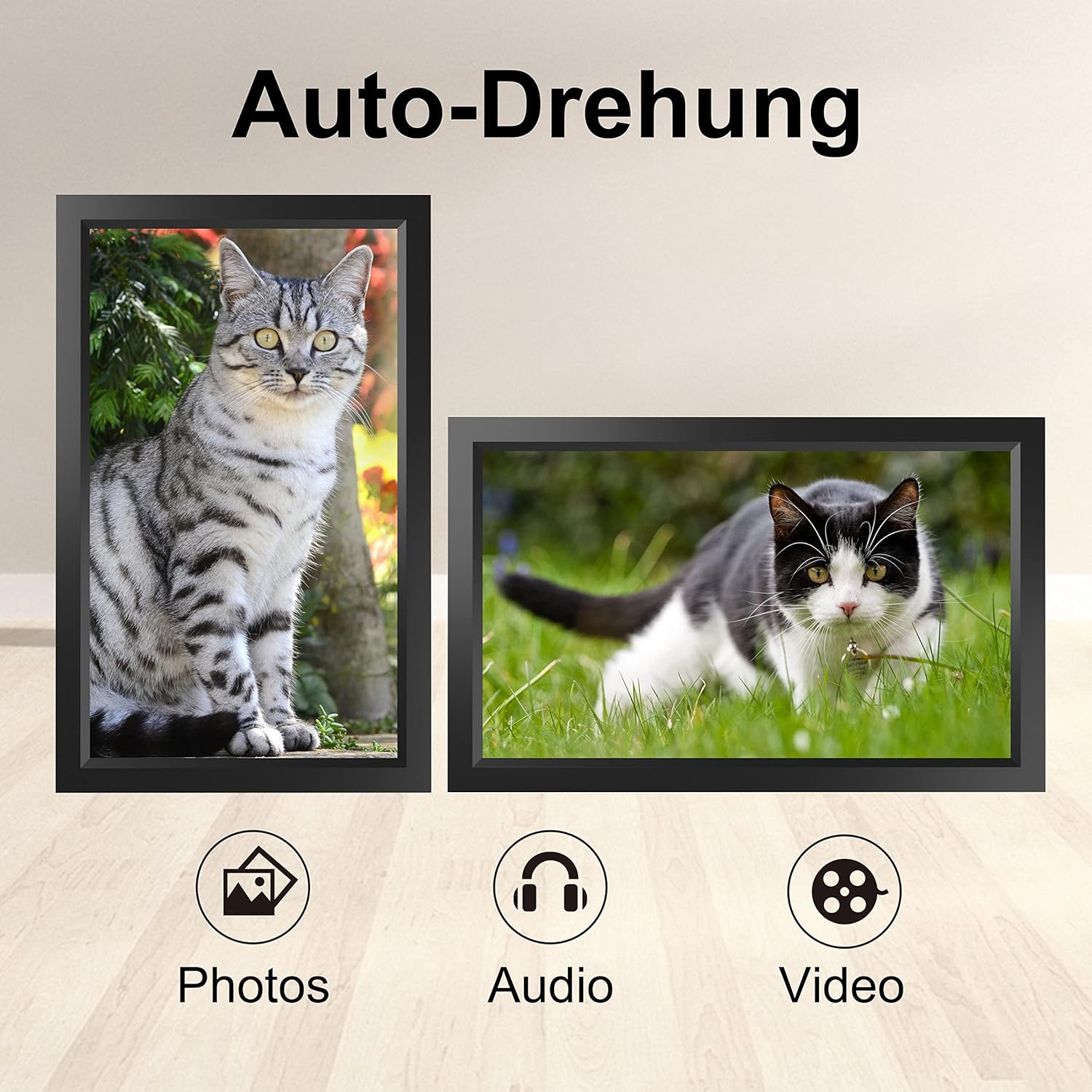
Image 6.1: Automatic display rotation based on frame orientation.
Ensure the gravity sensing feature is enabled in the frame's settings if you wish to utilize this functionality.
6.4 Ekrano nustatymai
Tinkinkite savo viewing experience through the frame's settings menu:
- Skaidrių demonstravimo intervalas: Adjust how long each photo is displayed.
- Transition Effects: Choose different effects between photos.
- Ryškumas: Sureguliuokite ekrano ryškumą.
- Sleep Mode/Timer: Set schedules for the frame to turn on/off automatically.
- Priartinimas / Apkirpimas: Options to adjust how photos fit the screen.
7. Priežiūra
7.1 Ekrano valymas
To clean the touchscreen, gently wipe it with a soft, lint-free cloth. For stubborn smudges, slightly dampNuvalykite šluostę vandeniu arba ekrano valymo tirpalu. Venkite naudoti stiprias chemines medžiagas ar abrazyvines medžiagas.
7.2 Bendroji priežiūra
- Keep the frame in a dry environment.
- Protect it from dust by occasionally wiping the frame's body with a soft cloth.
- Saugokitės, kad prietaisas nenukristų ir nepatirtų stipraus smūgio.
8. Problemų sprendimas
| Problema | Galima priežastis | Sprendimas |
|---|---|---|
| Rėmelis neįsijungia. | Maitinimo adapteris neprijungtas arba sugedęs. | Įsitikinkite, kad maitinimo adapteris yra tvirtai prijungtas tiek prie rėmelio, tiek prie veikiančio maitinimo lizdo. Išbandykite kitą lizdą. |
| Nepavyksta prisijungti prie „Wi-Fi“. | Neteisingas slaptažodis, už diapazono ribų arba tinklo problema. | Verify the Wi-Fi password. Move the frame closer to the router. Restart your router. |
| Nuotraukos / vaizdo įrašai nerodomi. | App not paired, incorrect file format, or storage issue. | Ensure the app is correctly paired. Check if the media files are in a supported format. Verify sufficient storage space on the frame or SD card. |
| Jutiklinis ekranas nereaguoja. | Laikinas programinės įrangos triktis. | Restart the frame by holding the power button or unplugging and replugging the power adapter. |
| Automatic rotation not working. | Feature disabled or sensor issue. | Check the frame's settings to ensure gravity sensing/auto-rotation is enabled. |
9. Specifikacijos
| Funkcija | Detalė |
|---|---|
| Modelio numeris | TID15.6 |
| Ekrano dydis | 15.6 colių |
| Ekrano tipas | IPS jutiklinis ekranas |
| Rezoliucija | 1280x800 |
| Vidinė saugykla | 16GB (approx. 20,000 photos) |
| Išorinė saugykla | „Micro SD“ kortelė iki 128 GB |
| Ryšys | Wi-Fi |
| Ypatingos savybės | Gravity Sensing Automatic Rotation, Touchscreen |
| Matmenys (I x P x A) | 39.12 x 24.64 x 2.51 cm |
| Svoris | 1.48 kg |
| Maitinimo šaltinis | Battery Powered (includes 1 Lithium Ion battery) |
Pastaba: specifikacijos gali būti keičiamos be išankstinio įspėjimo.
10. Garantija ir palaikymas
10.1 Gaminio garantija
The Tibuta Digital Photo Frame comes with a one-year product warranty. This warranty covers manufacturing defects and operational issues arising from normal use. If any issues arise during this period, please contact our after-sales support team for assistance.
10.2 Pagalba klientams
For technical support, warranty claims, or any other inquiries, please refer to the contact information provided on the Tibuta official website or your purchase documentation. When contacting support, please have your model number (TID15.6) and purchase date available.


