Neideso N300

User Manual for Neideso 360° Dash Cam

Modelis: N300

Įvadas

The Neideso N300 360° Dash Cam is an advanced vehicle recording system designed to provide comprehensive surveillance for your car. Featuring four Full HD 1080P channels, built-in Wi-Fi, GPS, voice control, and enhanced night vision, it ensures all-around protection and detailed recording of your journeys and parking incidents. This manual provides detailed instructions for installation, operation, maintenance, and troubleshooting to help you maximize the functionality of your dash cam.

Neideso N300 360 degree dash cam with phone app interface and various features highlighted.

Baigėsiview of the Neideso N300 Dash Cam and its key features.

Kas yra dėžutėje

Prašome patikrinti, ar pakuotėje yra visi reikalingi daiktai:

  • 1 x Neideso N300 Dash Cam
  • 1x galinė kamera
  • 1 x 64GB SD Memory Card (pre-inserted)
  • 1 x 3M Adhesive Mount
  • 1 x Car Charger with Type-C USB Cable (3.5m)
  • 1 x 19.6 pėdų galinės kameros kabelis
  • 1 x Car Wiring Tool
  • 1 x Electrostatic Film for 3M Mount
  • 1 x Vartotojo vadovas
Contents of the Neideso N300 Dash Cam box, including the main unit, rear camera, cables, mount, SD card, and tools.

All components included in the Neideso N300 package.

Sąranka

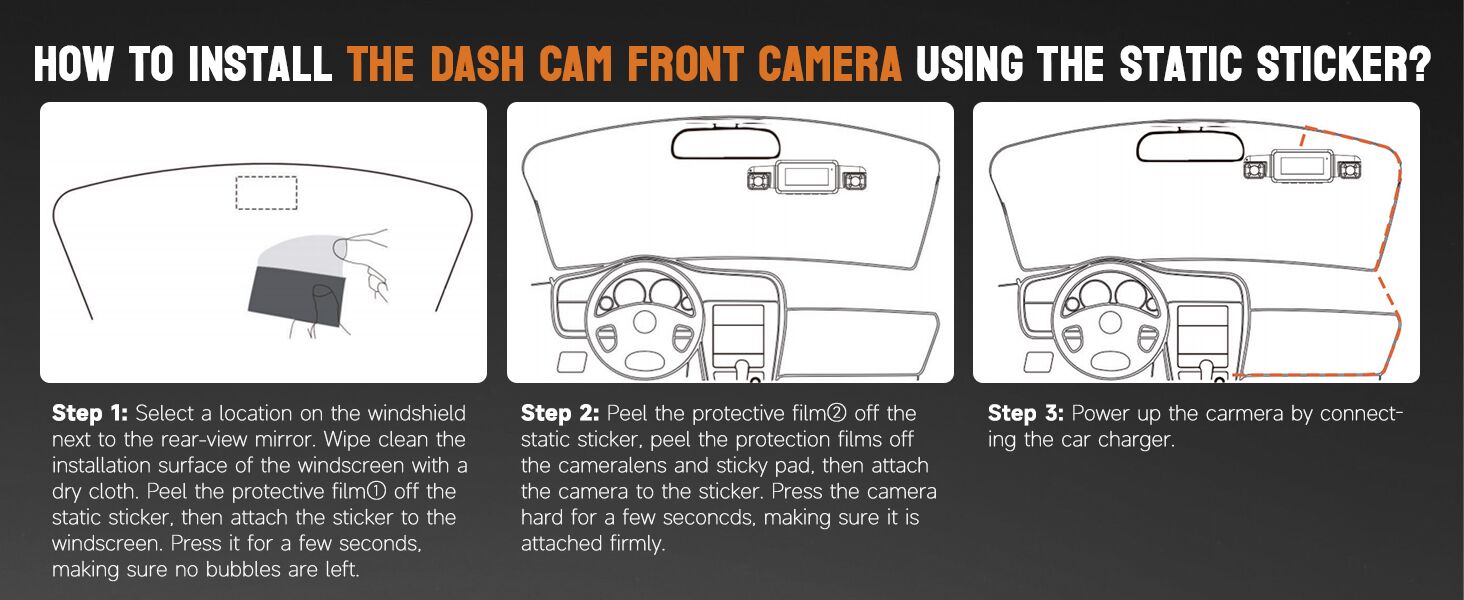
1. Installing the Front Dash Cam

  1. Paruoškite montavimo paviršių: Pasirinkite vietą ant priekinio stiklo šalia galinioview mirror. Clean the installation surface of the windscreen with a dry cloth.
  2. Užklijuokite elektrostatinį lipduką: Peel the protective film off the static sticker, then attach the sticker to the windscreen. Press it firmly for a few seconds, ensuring no bubbles are left. Let it adhere for 30 minutes before attaching the dash cam.
  3. Pritvirtinkite vaizdo registratorių: Peel the protection films off the camera lens and sticky pad. Then, attach the camera to the sticker. Press the camera hard for a few seconds, making sure it is attached firmly.
  4. Maitinimo kabelio maršrutas: Use the included trim tool to tuck the power cable along the windshield edge and A-pillar, ensuring it doesn't obstruct visibility. Connect the Type-C USB cable to the dash cam and the car charger.
Diagram showing steps for installing the front dash cam using the static sticker and routing the power cable.

Step-by-step guide for front dash cam installation.

2. Installing the Rear/Interior Camera

  1. Find Mounting Spot: Find the right spot on the rear windshield or inside the car for the interior camera. Clean the installation surface with a dry cloth.
  2. Prijunkite kamerą: Peel the protective film off the static sticker, then attach the sticker to the windscreen. Peel the protection films off the camera lens and sticky pad. Select an installation location on the windscreen to fix the rear camera.
  3. Kabelio prijungimas: Connect the jack end of the 19.6ft rear camera cable to the interior port of the front camera. Conceal the power cord through gaps (e.g., front windshield to roof, passenger-side ceiling, rear seat to ceiling).
Diagram showing the connection of the rear camera to the main dash cam unit and power source.

Wiring diagram for the dash cam system, including front, rear, and power connections.

Naudojimo instrukcijos

Maitinimo įjungimas/išjungimas

Vaizdo registratorius automatiškai įsijungs ir pradės įrašinėti, kai bus prijungtas prie transporto priemonės maitinimo šaltinio ir užvestas variklis. Jis automatiškai išsijungs išjungus variklį.

Recording Modes (4-Channel FHD)

The N300 supports 4-channel recording, capturing video from the front, rear, left, and right interior cameras simultaneously. You can choose from various resolution modes:

  • 4K+1080p
  • 2K+1080P+1080P
  • 1080P+1080P+1080P+1080P

Adjust the resolution settings via the dash cam's menu or the smartphone app.

Image showing the four camera views: front, left, right, and rear, all recording in 1080P resolution.

The N300 captures comprehensive 4-channel video footage.

Valdymas balsu

Operate the dash cam hands-free using simple English voice commands. This allows you to focus on driving while managing recordings.

  • "Nufotografuoti"
  • „Vaizdo įrašo pradžia“
  • "Turn On/Off Audio"
  • "Turn On/Off Wi-Fi"
  • "Turn On/Off Screen"

Note: Only the voice option in the menu is supported. Ensure minimal background noise for optimal recognition.

A person using voice commands to control the dash cam while driving, with examples of commands like 'Take Photo' and 'Video Start'.

Hands-free operation with voice control for safer driving.

„Wi-Fi“ ir programėlių valdymas

The built-in Wi-Fi allows you to connect your smartphone to the dash cam via a dedicated app (e.g., TsCam App). This enables live preview, playback, download, and sharing of recorded videos and photos.

  1. Download the app from your smartphone's app store.
  2. Connect to the dash cam's Wi-Fi network (SSID) on your phone. The default password is usually 12345678.
  3. Atidarykite programą, kad view gyvas kvailystage, prieiga užregistruota files, download them to your phone, and adjust settings.

Note: The built-in Wi-Fi is for connecting the camera to the app, not for internet access.

Smartphone screen showing the dash cam app interface with options to view, save, and share recordings.

Easily manage and share recordings using the smartphone app.

Screenshots of the app interface demonstrating steps to connect, view, and manage dash cam content.

Detailed steps for connecting to the dash cam via Wi-Fi and using the app.

Integruotas GPS

The integrated GPS module accurately tracks your vehicle's location, speed, and route. This data is embedded in the recorded video and can be viewed on the smartphone app or a dedicated PC player (GXPlayer).

Antena view of a car on a road with GPS tracking points overlaid, indicating the dash cam's ability to record driving tracks.

GPS module records driving tracks for accurate evidence.

Laptop screen showing GPS tracking data on a map with video playback, and a smartphone showing the app interface.

GPS tracking data can be viewed on the app or PC player.

Super naktinis matymas

Equipped with 8 LED infrared lights and Wide Dynamic Range (WDR) technology, the N300 provides clear and color-accurate images even in low-light or overly bright conditions. It automatically adjusts brightness to prevent overexposure from headlights.

Comparison images showing dash cam footage in too dark, WDR corrected, and too bright conditions, highlighting improved visibility with Super Night Vision.

Enhanced night vision ensures clear recordings in challenging light.

24 valandų parkavimo režimas

When your vehicle is parked and turned off, the dash cam automatically switches to parking mode, providing continuous surveillance. This feature requires a separate hardwire kit (ASIN: B0CDWT8BF4) for continuous power.

Two parking monitor modes are available:

  • Motion & Collision Detection: If a moving object is detected within 3-4 meters in front of the car, the dash cam will automatically start recording for 1 minute.
  • Only Collision Detection: The dash cam will record if a collision is detected.
Illustration of the 24-hour radar parking monitor detecting movement around a parked car, with a note about the required hardwire kit.

24-hour parking mode provides continuous surveillance.

Diagram illustrating two parking monitor modes: Motion Detection and Collision Detection, showing how they are triggered.

Choose between motion and collision detection for parking monitoring.

G jutiklio ir kilpos įrašymas

The built-in G-sensor automatically detects sudden shakes or collisions. When an event is detected, the footage is locked to prevent it from being overwritten, even during loop recording. These protected files are saved in the "Event" folder for quick access.

Loop recording ensures continuous recording by overwriting the oldest unlocked footage when the SD card is full. Each recording segment is typically 3 minutes long.

Graphic illustrating the G-Sensor detecting a collision and automatically locking the relevant video footage.

G-Sensor protects critical footage during incidents.

Visual representation of seamless loop recording, showing how older footage is overwritten except for locked files.

Loop recording ensures continuous operation without manual SD card management.

Wide Dynamic Range (WDR) Technology

WDR technology automatically adjusts light sensitivity to avoid high exposure to strong sunlight while also capturing clear and color-accurate images at night or in low-light conditions. This ensures balanced exposure across the entire frame.

Image demonstrating how Wide Dynamic Range (WDR) technology improves image clarity in varying light conditions.

WDR technology provides balanced exposure in diverse lighting.

Priežiūra

Proper maintenance ensures the longevity and optimal performance of your dash cam.

  • SD kortelės tvarkymas: Regularly format the SD card (at least once a month) to prevent data corruption and ensure smooth recording. Use a high-quality Class 10 or U3 microSD card.
  • Objektyvo valymas: Gently clean the camera lenses with a soft, lint-free cloth to remove dust or smudges that may affect video clarity. Do not use abrasive cleaners.
  • Firmware atnaujinimai: Patikrinkite gamintojo webPeriodiškai apsilankykite svetainėje, kad sužinotumėte apie programinės įrangos atnaujinimus. Nuolat atnaujinant programinę įrangą galima pagerinti našumą ir pridėti naujų funkcijų.
  • Temperatūros valdymas: Avoid exposing the dash cam to extreme temperatures for prolonged periods. If parked in direct sunlight, consider removing the dash cam or using a sunshade.
  • Kabelio apžiūra: Periodically inspect all cables for any signs of wear or damage. Replace damaged cables immediately to prevent power issues.

Trikčių šalinimas

If you encounter issues with your Neideso N300 Dash Cam, refer to the table below for common problems and solutions.

ProblemaGalima priežastisSprendimas
Vaizdo registratorius neįsijungia.Nėra maitinimo šaltinio; sugedęs laidas / įkroviklis; atsilaisvinęs kontaktas.Check car charger connection. Ensure vehicle's power outlet is working. Try a different USB cable/charger.
Įrašymas sustoja arba užstringa.SD kortelės klaida; pilna SD kortelė; nesuderinama SD kortelė.Format the SD card. Use a high-quality Class 10 or U3 microSD card. Replace the SD card if damaged.
Prasta vaizdo kokybė.Nešvarus objektyvas; apsauginė plėvelė vis dar ant objektyvo; neteisingi raiškos nustatymai.Clean the camera lenses. Remove any protective films. Adjust video resolution settings in the menu.
„Wi-Fi“ ryšio problemos.Incorrect password; app not updated; interference.Ensure correct Wi-Fi password (default: 12345678). Update the app to the latest version. Move closer to the dash cam.
Balso valdymas nereaguoja.Background noise; voice control disabled; unrecognized command.Reduce background noise. Ensure voice control is enabled in settings. Use exact commands listed in the manual.
Parkavimo režimas neveikia.Hardwire kit not installed; incorrect settings.Install the required hardwire kit (ASIN: B0CDWT8BF4). Check parking mode settings in the menu.

Specifikacijos

Modelio pavadinimasNeideso N300 Dash Cam
Vaizdo įrašymo raiška4K+1080P / 2K+1080P+1080P / 1080P+1080P+1080P+1080P
OrientacijaFront, Rear, and Inside (4-channel)
Ryšio technologija„Wi-Fi“, GPS
Ypatingos savybės360 laipsnių view, App Control, Voice Control, Super Night Vision, 24-Hour Parking Mode (Radar Detection), G-Sensor, Loop Recording, WDR
Montavimo tipasWindshield Mount (3M Adhesive)
Gaminio matmenys3.39 x 1.5 x 2.28 colio
Prekės svoris6.4 uncijos
Įtraukti komponentaiDash Cam, Rear Camera, 64GB SD Card, 3M Mount, Car Charger, Cables, Wiring Tool, User Manual
Image showing the compact size of the dash cam with dimensions of 6.8 inches length and 1.9 inches height.

Compact design of the Neideso N300 Dash Cam.

Garantija ir palaikymas

Neideso products are designed for reliability and performance. For specific warranty details, please refer to the warranty card included in your product packaging or visit the official Neideso websvetainę.

If you require technical assistance, have questions about your product, or need to claim warranty service, please contact Neideso customer support through the following channels:

  • El. paštas: Refer to your product packaging or the official Neideso websvetainėje, kurioje pateikiamas naujausias palaikymo el. pašto adresas.
  • Palaikymas internetu: Visit the Neideso official webDUK, trikčių šalinimo vadovų ir kontaktinių formų svetainė.

Please have your product model (N300) and purchase information ready when contacting support.
Susiję dokumentai - N300

Preview HYUNDAI N300 serijos vektoriaus keitiklio naudojimo instrukcija
Išsami HYUNDAI N300 serijos vektoriaus keitiklio naudojimo instrukcija, kurioje aprašomas montavimas, laidai, veikimas, saugos priemonės ir funkcijų paaiškinimai.
Preview BG Electrical Wi-Fi Socket Range Extender N300 Quick Installation Guide
Comprehensive guide to installing and setting up the BG Electrical Wi-Fi Socket Range Extender N300 and N300 + USB Charger, covering positioning, wiring, wireless setup, and FAQs.
Preview „Tenda N300“ „Wi-Fi“ diapazono ilgintuvas R10/T10 – greitas diegimo vadovas
Glaustas vadovas, kaip nustatyti „Tenda N300 Wi-Fi“ diapazono plėtiklį (R10/T10) naudojant belaidžio ryšio plėtinį arba AP režimą. Apima nustatymo veiksmus, trikčių šalinimą ir saugos informaciją.
Preview N300 belaidžio maršrutizatoriaus T1 Pro naudotojo vadovas
„Micronet N300“ belaidžio maršrutizatoriaus T1 Pro naudotojo vadovas, kuriame aprašoma sąranka, konfigūravimas, specifikacijos, saugos instrukcijos ir trikčių šalinimas. Sužinokite, kaip prijungti įrenginius ir valdyti tinklą.
Preview D-Link EAGLE PRO AI N300 Wi-Fi AI maršrutizatoriaus naudotojo vadovas
Išsamus D-Link EAGLE PRO AI N300 Wi-Fi AI maršrutizatoriaus (R04) naudotojo vadovas. Sužinokite apie DI valdomą tinklo optimizavimą, didelės spartos belaidį ryšį, balso asistento integraciją su „Amazon Alexa“ ir „Google Assistant“, paprastą sąranką naudojant EAGLE PRO AI programėlę ir išsamias konfigūravimo parinktis.
Preview „Cudy WR300“ greito diegimo vadovas
A concise guide to installing and setting up the Cudy WR300 Wi-Fi router, including hardware overview, connection steps, and Wi-Fi setup.