Įvadas
The Tera 8100Pro Wireless 2D QR Barcode Scanner is a versatile and robust device designed for efficient barcode scanning in various environments. Featuring advanced connectivity options and a durable build, it provides reliable performance for businesses and individuals alike. This manual provides comprehensive instructions for setup, operation, maintenance, and troubleshooting.
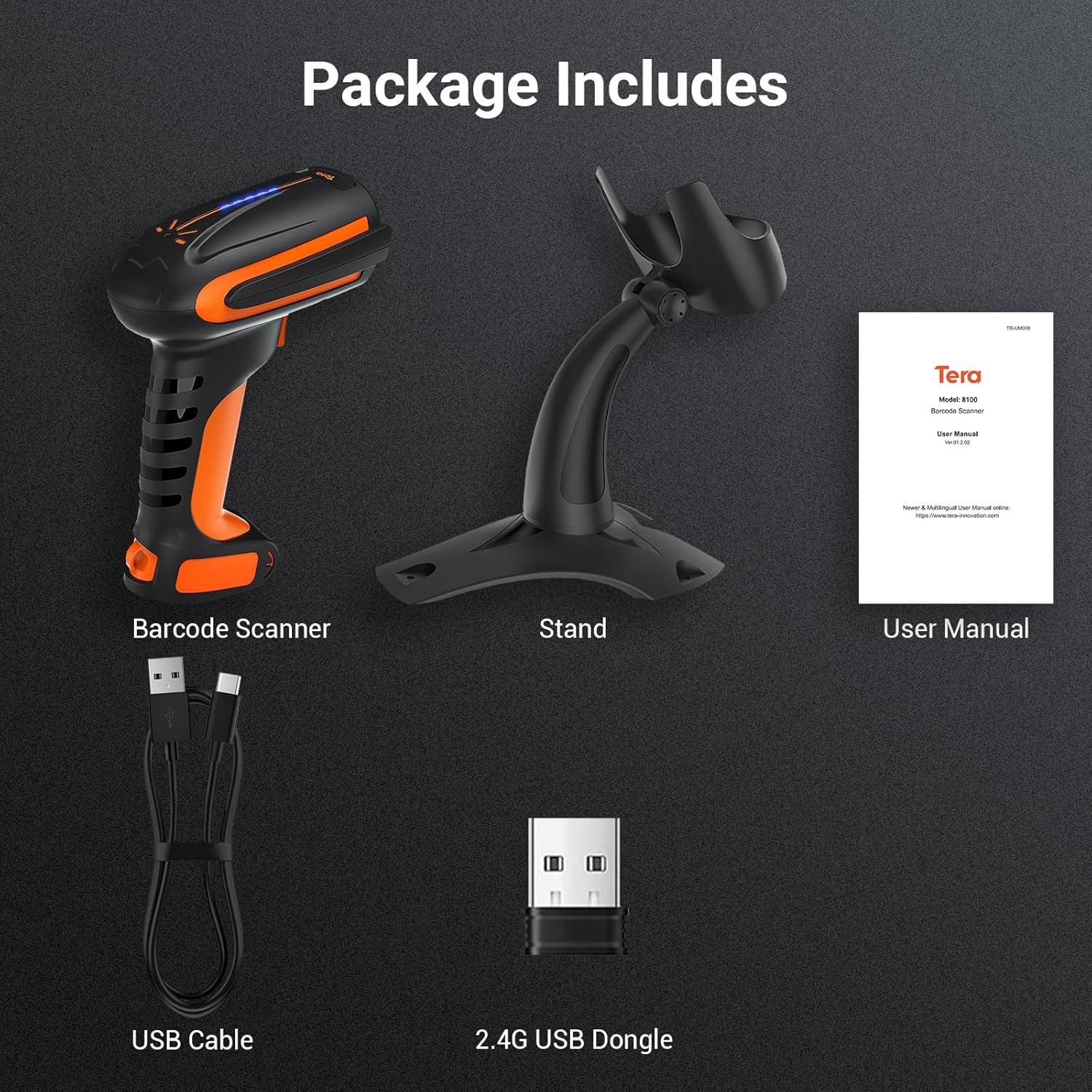
Pakuotės turinys
Atidarę pakuotę, patikrinkite, ar yra visi šie daiktai:
- Brūkšninių kodų skaitytuvas x1
- Brūkšninių kodų skaitytuvo stovas x1
- USB laidas x1
- 2.4G USB Dongle x1
- Vartotojo vadovas x1
Savybės
The Tera 8100Pro scanner is equipped with several advanced features to enhance user experience and operational efficiency:
- Baterijos lygio indikatorius: The scanner features a new battery indicator light system. Each of the four indicator lights represents 25% of the 2500mAh battery capacity, allowing for easy monitoring and planning of usage.
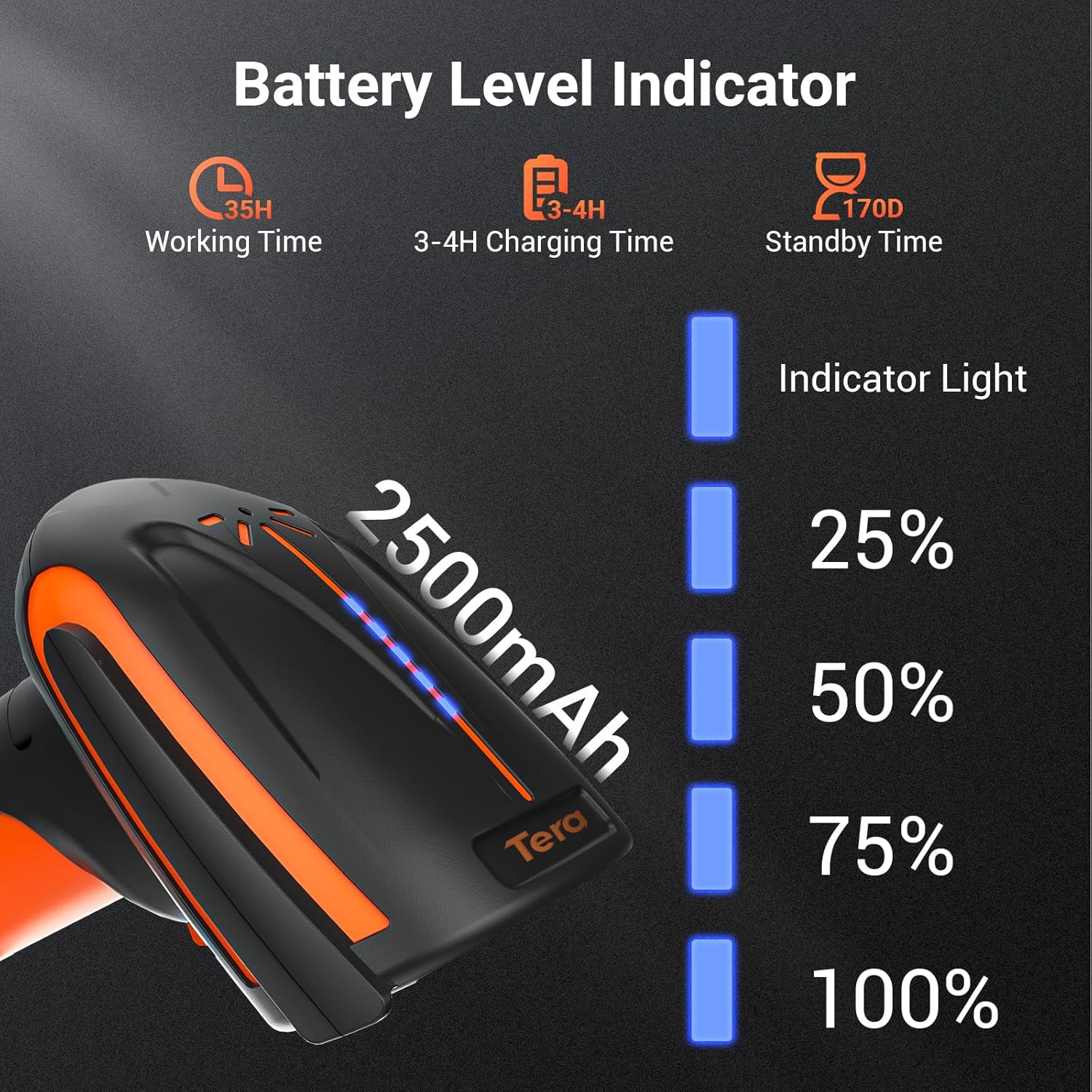
Figure 2: Battery Level Indicator on the Tera 8100Pro. - Industrial-Grade Durability: Designed for heavy-duty use, the 8100Pro is highly resistant to drops (up to 9.84ft), dust, and water, ensuring reliability in demanding environments.
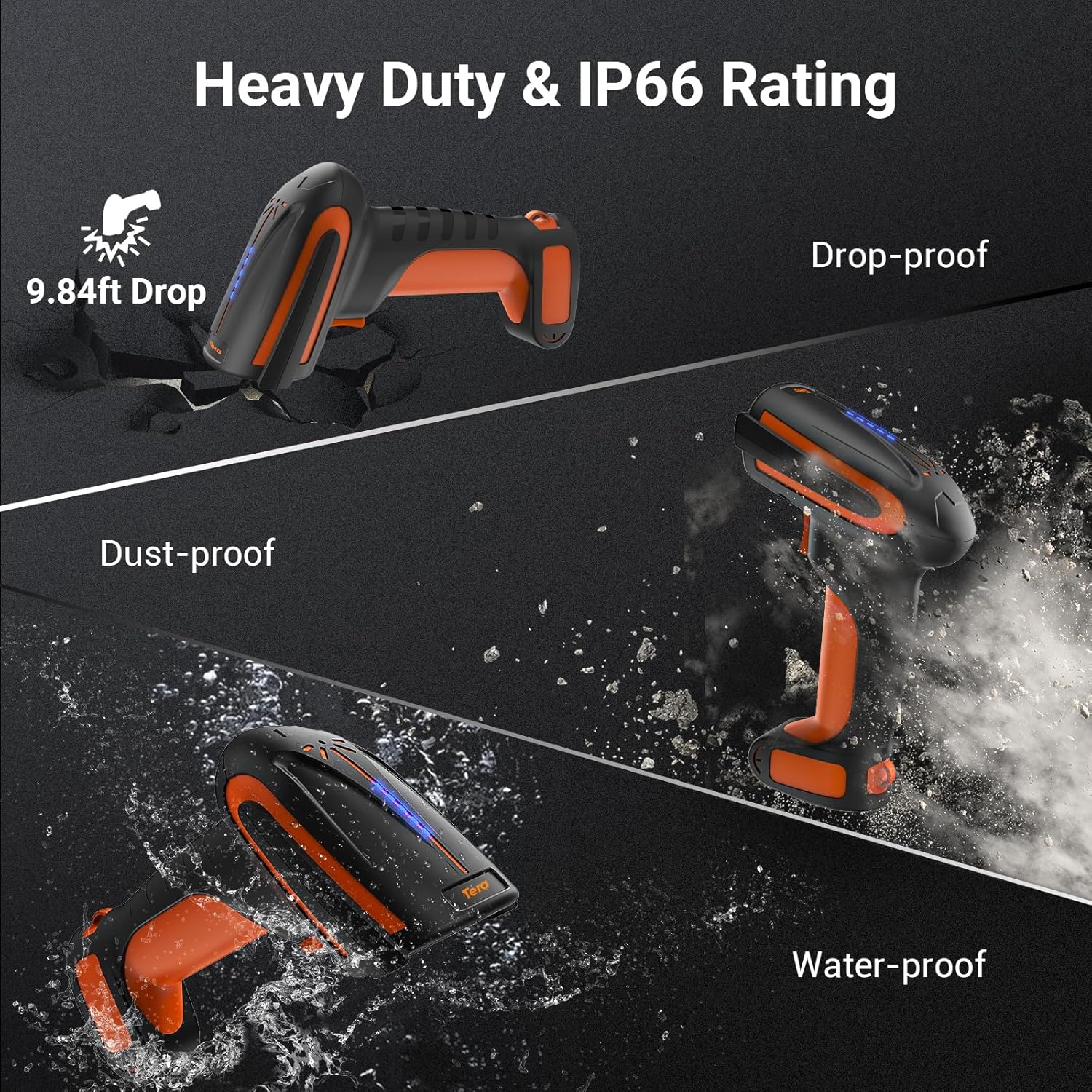
Figure 3: Durability features of the Tera 8100Pro. - Superior Scanning Capabilities: This scanner can read various barcode types, including 1D, 2D, and QR codes, even if they are smudged, damaged, fuzzy, or reflective. It also excels at scanning barcodes directly from screens.

Figure 4: The Tera 8100Pro's advanced image scanning technology allows it to read barcodes from various surfaces and conditions, including damaged or reflective ones, unlike traditional laser scanners. - 3 viename jungiamumas: Offers flexible connection options including Bluetooth, 2.4G wireless via USB dongle, and direct USB wired connection. The 2.4G wireless mode provides a transmission distance of up to 328 feet in open environments.

Figure 5: 3-in-1 Connectivity Options. - Platus suderinamumas: Compatible with a broad range of operating systems including Windows 11/10/8/7/XP, Mac OS, iOS, Android, and Linux.
- Vibration/Sound Alert: Users can switch between vibration and sound alerts for successful scans, providing flexibility for different working environments.
- Specific Symbology Setup: Allows for advanced customization, such as editing data (e.g., deleting characters or adding tabs) for specific barcode types like Code 39, while leaving others unedited.
- Laisvų rankų režimas: Includes a stable, adjustable stand for hands-free scanning, improving efficiency in high-volume scanning tasks.

Figure 6: Hands-Free Scanning with the Adjustable Stand.
Sąranka
1. Skaitytuvo įkrovimas
Before first use, fully charge the scanner. Connect the provided USB cable to the scanner's charging port and the other end to a USB power adapter (not included) or a computer's USB port. The battery indicator lights will show charging progress.
2. Skaitytuvo prijungimas
The Tera 8100Pro offers three connection methods:
USB laidinis jungtis:
- Connect the USB cable directly from the scanner to your computer's USB port.
- Skaitytuvas bus atpažintas kaip HID klaviatūros įrenginys. Paprastai nereikia diegti tvarkyklės.
2.4G belaidis ryšys:
- Įkiškite 2.4G USB adapterį į laisvą kompiuterio USB prievadą.
- Turn on the scanner. It should automatically pair with the dongle. If not, refer to the user manual for pairing instructions (usually involves scanning a specific pairing barcode).
„Bluetooth“ ryšys:
- Ensure your device (smartphone, tablet, computer) has Bluetooth enabled.
- Put the scanner into Bluetooth pairing mode (refer to the included user manual for the specific barcode to scan for Bluetooth pairing).
- On your device, search for Bluetooth devices and select "Tera 8100Pro" (or similar name) to connect.
Skaitytuvo valdymas
Nuskaitymo režimai:
The Tera 8100Pro supports two primary scanning modes:
- Klavišo paleidimo režimas: Press the trigger button to activate the scan beam and read a barcode. Release the button to stop scanning.
- Nepertraukiamo nuskaitymo režimas: The scanner continuously emits a scan beam, automatically reading any barcode placed in its path. This mode is ideal for hands-free operation with the stand.

Basic Scanning Procedure:
- Nukreipkite skaitytuvo langelį į brūkšninį kodą, kurį norite nuskaityti.
- Ensure the scan beam covers the entire barcode.
- Press the trigger (or place the barcode in the beam for continuous mode).
- A successful scan will be indicated by a beep or vibration (depending on your settings) and the data will be transmitted to your connected device.
Išplėstiniai nustatymai:
The scanner can be configured by scanning specific setup barcodes found in the full user manual (PDF). These settings include:
- Adjusting sound volume or switching to vibration mode.
- Pridėti prefiksus arba priesagas prie nuskaitytų duomenų.
- Enabling or disabling specific symbologies.
- Switching between Storage Mode (data stored internally, then uploaded) and Instant Upload Mode (data transmitted immediately).
Priežiūra
Proper maintenance ensures the longevity and optimal performance of your Tera 8100Pro barcode scanner:
- Valymas: Use a soft, dry, lint-free cloth to clean the scanner's exterior. For the scanning window, use a lens cleaning cloth and a mild, non-abrasive cleaner if necessary. Avoid harsh chemicals or abrasive materials.
- Saugykla: Kai nenaudojate, laikykite skaitytuvą vėsioje, sausoje vietoje, toliau nuo tiesioginių saulės spindulių ir ekstremalių temperatūrų.
- Akumuliatoriaus priežiūra: Norėdami pailginti akumuliatoriaus veikimo laiką, venkite dažnai visiškai jį iškrauti. Jei ilgą laiką nenaudosite, įkraukite akumuliatorių maždaug iki 50 % ir vėl įkraukite kas kelis mėnesius.
- Venkite lašų: While the scanner is drop-proof, repeated severe impacts can still cause damage. Handle with care.
Trikčių šalinimas
If you encounter issues with your Tera 8100Pro barcode scanner, refer to the following common problems and solutions:
| Problema | Galima priežastis | Sprendimas |
|---|---|---|
| Skaitytuvas neįsijungia. | Low or no battery. | Kraukite skaitytuvą bent 3–4 valandas. |
| Scanner not connecting to device. | Incorrect connection mode, out of range, or pairing issue. | Ensure correct mode (USB, 2.4G, Bluetooth) is selected. Move closer to the receiver/device. Re-pair the scanner following the manual's instructions. |
| Skaitytuvas neskaito brūkšninių kodų. | Barcode damaged, poor lighting, incorrect symbology enabled, or dirty scanning window. | Try scanning a different, clear barcode. Ensure adequate lighting. Check symbology settings in the full user manual. Clean the scanning window. |
| Nuskaityti duomenys yra neteisingi arba nepilni. | Prefix/suffix settings enabled, or data editing rules applied. | Refer to the full user manual to disable or adjust prefix/suffix settings and data editing rules. |
Specifikacijos
| Atributas | Detalė |
|---|---|
| Gaminio matmenys | 9 x 5.3 x 3.7 colio |
| Prekės svoris | 1.52 svaro |
| Baterija | 1 ličio polimerų baterija (2500 mAh) |
| Ryšio technologija | „Bluetooth“, 2.4G belaidis ryšys, USB laidas |
| Suderinami įrenginiai | Nešiojamasis kompiuteris, stalinis kompiuteris, planšetinis kompiuteris, išmanusis telefonas |
| Operacinės sistemos | „Windows 11/10/8/7/XP“, „Mac OS“, „iOS“, „Android“, „Linux“ |
| Gamintojas | Tera |
| Kilmės šalis | Kinija |
Oficialus produkto vaizdo įrašas
Šis vaizdo įrašas pateikia vaizdinę apžvalgąview of the Tera 8100Pro Barcode Scanner, demonstrating its features and functionality.
Garantija ir palaikymas
For detailed warranty information and technical support, please refer to the official Tera website or the full User Manual PDF provided with your product. You can also find the digital version of the user manual at: Tera 8100Pro User Manual (PDF).
For further assistance, please contact Tera customer support through their official channels.


