1. Įvadas
This user manual provides comprehensive instructions for the installation, operation, and maintenance of your ABASK J05Pro Dash Cam. This device is designed to enhance your driving safety by recording high-quality video footage of your journeys, both from the front of your vehicle and its interior. Please read this manual thoroughly before using the product to ensure proper functionality and to maximize its benefits.
2. Produkto ypatybės
- Dviguba kamerų įrašymas: Captures true 4K (3840x2160P) video from the front and 1080P (1920x1080P) video from the interior, ensuring comprehensive coverage.
- Platus kampas View: Features a 170° front lens and a 140° interior lens, providing a total 310° wide-angle field of view.
- Integruotas „Wi-Fi“ ir programėlių valdymas: Seamlessly connect to the "LuckyCam" app on your Android or iOS device to view gyvas kvailystage, atsisiųsti įrašus ir koreguoti nustatymus.
- Super Infrared Night Vision & HDR: Equipped with four infrared lights for the interior camera and HDR technology for the front, ensuring clear video capture even in low-light conditions.
- 24 valandų automobilių stovėjimo aikštelės stebėjimas: Automatically activates video recording upon detecting disturbances when hardwired, providing continuous vehicle protection.
- G jutiklis: Detects sudden shakes or collisions and automatically locks the current video segment to prevent overwriting.
- Ciklo įrašymas: Perrašo seniausią atrakintą „foo“tage with new recordings when the memory card is full, ensuring continuous operation.
- Kompaktiškas dizainas: Features a 1.5-inch display for easy viewir meniu navigacija.
- Saugykla: Supports up to 128GB Micro SD cards; a 32GB card is included.
3. Kas yra dėžutėje

Image: The Abask J05Pro Dash Cam with its suction cup mount and a 32GB Micro SD card.
- ABASK J05Pro Dash Cam
- Siurbimo taurelės kalnas
- Automobilio įkroviklio maitinimo laidas
- Mini USB kabelis
- 32GB Micro SD kortelė
- Vartotojo vadovas
- Hardwire Kit (for 24-hour parking monitoring, may be included or sold separately based on product variant)
- Kabelių spaustukai
- Plastikinis Pry įrankis
4. Sąranka
4.1 Vaizdo registratoriaus montavimas
Pasirinkite tinkamą vietą ant priekinio stiklo, geriausia už galinioview veidrodėlį, kad vaizdo registratorius neužstotų vaizdo view. Clean the windshield surface thoroughly before attaching the suction cup mount.
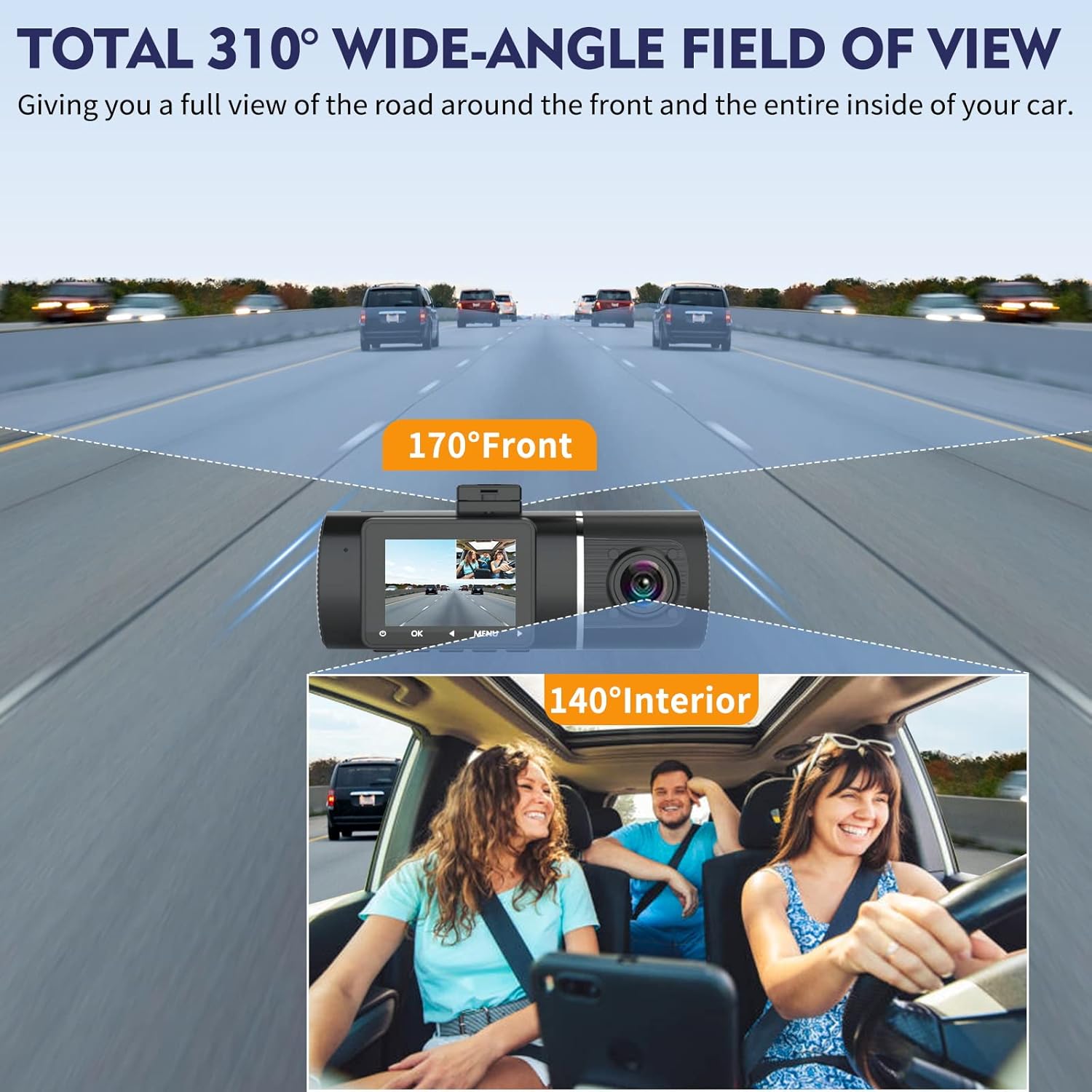
Image: The dash cam mounted on a car windshield, illustrating its wide-angle view pajėgumus.
Attach the dash cam to the suction cup mount. The lens angle is flexibly adjustable by 160 degrees vertically and 360 degrees horizontally to capture the optimal view.

Image: Diagram illustrating the 360-degree horizontal rotation and 160-degree vertical adjustment of the dash cam lens.
4.2 Maitinimo jungtis
Connect the car charger power cable to the dash cam's power port and plug the other end into your vehicle's cigarette lighter socket. For 24-hour parking monitoring, a hardwire kit (included or sold separately) is required to connect the dash cam directly to your car's fuse box.

Image: Illustration of how to route the power cable neatly along the car's interior trim.
4.3 Micro SD kortelės įdėjimas
Insert the provided 32GB Micro SD card into the dash cam's card slot. Ensure the card is inserted correctly until it clicks into place. The dash cam supports up to 128GB Micro SD cards. It is recommended to format the SD card regularly (e.g., once a month) to maintain optimal performance.
4.4 Pradinė sąranka ir programėlės prijungimas
Upon first power-on, the dash cam may prompt you to set the date, time, and language. Follow the on-screen instructions. To utilize the WiFi features, download the "LuckyCam" app from your smartphone's app store.

Image: A smartphone displaying the LuckyCam app interface, with QR codes for both iOS and Android app downloads. The app allows for easy connection and control of the dash cam via WiFi.
Scan the QR code to download the LuckyCam app:

Once installed, enable WiFi on your dash cam and connect your smartphone to the dash cam's WiFi network (SSID and password typically displayed on the dash cam screen). Open the LuckyCam app to access live view, atkūrimas ir nustatymai.
5. Naudojimo instrukcijos
5.1 Pagrindinis įrašymas
The dash cam automatically begins recording when powered on (e.g., when the car engine starts). Recording will stop when the power is turned off. The dash cam records in a continuous loop, overwriting the oldest unlocked files kai atminties kortelė pilna.

Image: Visual representation of the dash cam capturing both 4K front road footage and 1080P interior cabin footage vienu metu.

Paveikslėlis: Padalijimas view showing the dash cam's front 4K recording and the cabin's 1080P recording, with examples of both daylight and night mode for the interior camera.
5.2 G jutiklis (avarinis užraktas)
The built-in G-Sensor detects sudden impacts or rapid acceleration/deceleration. When triggered, it automatically locks the current video segment, preventing it from being overwritten by loop recording.

Image: An illustration depicting the G-Sensor locking footage during a collision and the loop recording process, showing how new footage overwrites old, unlocked files.
5.3 24 valandų automobilių stovėjimo aikštelės stebėjimas
With the optional hardwire kit installed, the dash cam can monitor your vehicle for 24 hours. If motion or impact is detected while parked, the dash cam will automatically wake up and record a short video.

Image: A car parked, indicating the 24-hour motion-activated parking mode feature of the dash cam.

Image: An illustration showing the dash cam's parking monitoring feature detecting a person approaching the parked car, triggering recording.
5.4 Playback and Download
Jūs galite iš naujoview recorded videos directly on the dash cam's 1.5-inch display or by connecting to the LuckyCam app via WiFi. The app allows for easy playback, downloading of 4K-quality videos to your smartphone, and sharing on social media.

Image: The dash cam alongside a smartphone displaying the LuckyCam app, highlighting the WiFi app control feature for viewįrašų darymas ir tvarkymas.
Video: An official product video demonstrating the features of the ABASK J05 Pro Dash Cam, including its dual camera recording, WiFi connectivity, and G-sensor functionality.
Alternatively, you can remove the Micro SD card and insert it into a computer to access the video files tiesiogiai.
6. Priežiūra
6.1 Formatting the SD Card
Regularly format the Micro SD card (e.g., once a month) to prevent data corruption and ensure smooth recording. This can typically be done through the dash cam's menu settings or via the LuckyCam app.
6.2 Cleaning the Lenses and Device
Use a soft, lint-free cloth to gently clean the dash cam lenses and the device body. Avoid using abrasive cleaners or solvents that could damage the surfaces.
7. Problemų sprendimas
| Problema | Galima priežastis | Sprendimas |
|---|---|---|
| Dash cam not turning on. | No power, faulty cable, or full SD card. | Check power connection. Ensure car charger is working. Try a different USB cable. Format or replace SD card. |
| Įrašymas netikėtai nutrūksta. | SD card error, card full, or power interruption. | Format the SD card. Use a high-speed (Class 10 or U3) SD card. Check power connection stability. |
| Video footage yra neryškus arba neaiškus. | Protective film on lens, dirty lens, or incorrect focus. | Remove any protective film. Clean the lens with a soft cloth. Ensure the dash cam is securely mounted and not vibrating. |
| „Wi-Fi“ ryšio problemos su programėle. | Incorrect WiFi password, app not updated, or signal interference. | Ensure correct WiFi password. Update LuckyCam app. Restart dash cam and phone. Stay within 10-meter range. |
| Parkavimo stebėjimas neveikia. | Not hardwired, or settings incorrect. | Ensure dash cam is connected via hardwire kit to constant power. Check parking mode settings in the menu. |
8. Specifikacijos
| Modelio pavadinimas | J05Pro |
| Prekės ženklas | ABASK |
| Vaizdo įrašymo raiška | Front: 2160p (4K), Interior: 1080p |
| Ryšio technologija | Wi-Fi |
| Ypatingos savybės | Built-In Speaker, Built-In WiFi, Built-In Display (1.5 inch), 4K 2160P, Built-In Microphone, G-Sensor, Loop Recording, Infrared Night Vision, HDR, 24H Parking Monitoring |
| Saugojimo palaikymas | Up to 128GB Micro SD (32GB included) |
| Prekės svoris | 13.4 uncijos |
| Pakuotės matmenys | 5.63 x 4.09 x 2.72 colio |
9. Garantija ir palaikymas
9.1 Informacija apie garantiją
Your ABASK J05Pro Dash Cam comes with a standard manufacturer's warranty. Please refer to the product packaging or the official ABASK webKonkrečias garantijos sąlygas ir nuostatas rasite svetainėje. Išsaugokite pirkimo kvitą kaip pirkimo įrodymą garantijos pretenzijoms.
9.2 Pagalba klientams
For any questions, technical assistance, or support inquiries regarding your ABASK J05Pro Dash Cam, please contact ABASK customer service.
- Palaikymas internetu: Visit the official ABASK store on Amazon: ABASK Store
- Pagalba el. paštu: Žr. kontaktinę informaciją, pateiktą ant gaminio pakuotės arba oficialiame websvetainę.

Image: Customer service representatives ready to assist with product inquiries.