Įvadas
This instruction manual provides comprehensive guidance for the installation, operation, and maintenance of your Vrabocry 5V 5050 RGB LED Strip Light. Please read this manual thoroughly before use to ensure proper functionality and safety.
Pakuotės turinys
Patikrinkite, ar pakuotėje yra visi toliau išvardyti daiktai:
- 4 x LED Strip Lights (each 1.64ft / 50cm)
- 1 x 44-Key IR Remote Control (battery not included)
- 1 x USB Controller Cable
- 3 x Strip Connector Cables

Image: All components included in the Vrabocry LED Strip Light package.
Specifikacijos
| Funkcija | Specifikacija |
|---|---|
| LED tipas | SMD 5050 RGB |
| Juostos ilgis | 4 x 1.64ft (50cm) sections |
| PCB plotis | 10 mm |
| Šviesos diodų kiekis | 30 LEDs per 50cm section |
| LED spalva | RGB (daugiaspalvis) |
| Kontrolės metodas | 44 klavišų IR nuotolinio valdymo pultas |
| Darbo ttage | USB DC 5V |
| Atsparumo vandeniui rodiklis | IP30 (Non-Waterproof) |
| Klijai | Double-sided tape on back |
| Naudojimas viduje / lauke | Naudoti tik patalpose |
Saugos informacija
- This LED strip light is designed for naudoti tik patalpose. It is not waterproof (IP30 rated). Avoid exposure to water or high humidity.
- Ensure the power source is 5V DC USB. Using an incorrect voltage galite sugadinti gaminį.
- Do not cover the LED strips with flammable materials when in operation.
- Laikyti vaikams nepasiekiamoje vietoje.
Sąranka ir diegimas
Norėdami įdiegti LED juostelę, atlikite šiuos veiksmus:
- Paruoškite paviršių: Clean the surface where the LED strips will be installed. Ensure it is dry and free of dust or grease for optimal adhesive performance.
- Įdėkite nuotolinio valdymo pulto bateriją: Open the battery compartment on the back of the 44-key IR remote control and insert a CR2025 button cell battery (not included), ensuring correct polarity.
- Connect the Strips: Connect the individual LED strip sections using the provided strip connector cables. Ensure the arrows on the connectors align with the '+' markings on the LED strips for proper electrical connection.
- Connect to USB Controller: Attach the assembled LED strip to the USB controller cable.
- Adhere the Strips: Peel off the protective backing from the double-sided tape on the back of the LED strips. Firmly press the strips onto the cleaned surface. For long-term use, consider reinforcing the adhesive with additional glue or by gently heating the tape with a hairdryer before application to improve adhesion.
- Juostelių pjovimas (nebūtina): The LED strips can be cut at designated marks (usually indicated by a scissor icon or copper pads) to fit specific lengths. Cut only along these marks to avoid damaging the circuit.
- Maitinimas: Plug the USB controller into a 5V USB power source (e.g., TV USB port, USB wall adapter, power bank).
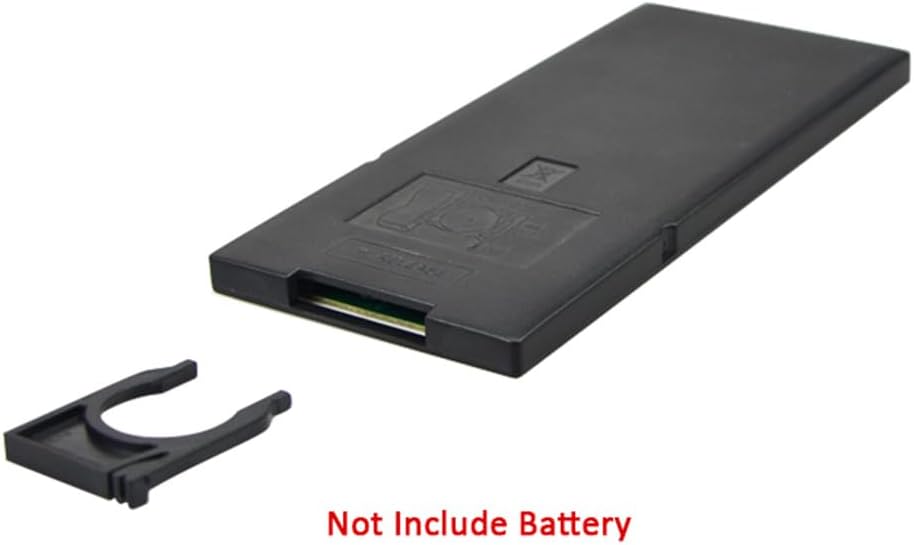
Image: Remote control battery compartment. Battery is not included.

Image: Visual guide for surface preparation, strip connection, and cutting points.
Naudojimo instrukcijos
Use the 44-key IR remote control to manage your LED strip lights:

Image: 44-Key IR Remote Control layout and functions.
- Maitinimo įjungimas/išjungimas: Paspauskite ĮJUNGTA/IŠJUNGTA mygtuką.
- Ryškumo reguliavimas: Naudokite Ryškumas + ir Ryškumas - arrows to increase or decrease light intensity.
- Statinės spalvos: Select from 20 preset static colors, including Red, Green, Blue, and White, by pressing the corresponding color buttons.
- DIY Color Setting:
- Paspauskite vieną iš Pasidaryk pats1 į Pasidaryk pats6 mygtukai.
- Naudokite Raudona, Žalia, Mėlyna arrow buttons (e.g., Red+, Red-) to adjust the intensity of each primary color.
- Paspauskite tą patį DIY button again to save your custom color.
- Dinaminiai režimai:
- AUTOMATINIS: Cycles through various dynamic modes automatically.
- GREITAS / LĖTAS: Reguliuoja dinaminių režimų greitį.
- JUMP3 / JUMP7: Jumps between 3 or 7 different colors.
- FADE3 / FADE7: Fades between 3 or 7 different colors.
- BLYKSTĖ: Flashes through different colors.
Priežiūra
- Valymas: Gently wipe the LED strips with a dry, soft cloth to remove dust. Do not use liquid cleaners or immerse in water.
- Klijai: If the adhesive tape loses its stickiness over time, you may reinforce it with additional double-sided tape or a suitable adhesive.
- Saugykla: When not in use for extended periods, store the LED strips in a cool, dry place away from direct sunlight.
Trikčių šalinimas
| Problema | Galima priežastis | Sprendimas |
|---|---|---|
| LED strips do not light up. | No power, incorrect connection, remote battery depleted. | Ensure USB power source is active. Check all connections, especially arrow alignments. Replace remote battery. |
| Nuotolinio valdymo pultas neveikia. | Battery depleted, IR receiver blocked, remote too far. | Replace remote battery. Ensure clear line of sight between remote and IR receiver on the USB controller. Operate within 5-8 meters. |
| Spalvos yra neteisingos arba nenuoseklios. | Incorrect connection, faulty strip section. | Verify all strip connector cables are correctly aligned (arrow to '+'). If one section is consistently problematic, it may be faulty. |
| Adhesive tape not sticking well. | Surface not clean, cold temperature. | Clean surface thoroughly. Gently heat the adhesive tape with a hairdryer before application to improve stickiness. Consider additional adhesive. |
Garantija ir palaikymas
Specific warranty information for this product is not provided in the available documentation. For warranty inquiries or technical support, please contact Vrabocry customer service through your purchase platform or the manufacturer's official contact channels.