1. Įvadas
This manual provides detailed instructions for the safe and efficient operation of your NexiGo Aurora Pro Ultra Short Throw 4K Tri-Color Laser Projector. Please read this manual thoroughly before using the product and retain it for future reference.
The NexiGo Aurora Pro is designed to deliver a high-quality home cinema experience with its 4K resolution, tri-color laser technology, and ultra-short throw capabilities.
2. Saugos informacija
Svarbios saugos instrukcijos:
- Do not look directly into the projector lens when the projector is on. The laser light source is powerful and can cause eye damage.
- Užtikrinkite tinkamą vėdinimą aplink projektorių. Neužblokuokite ventiliacijos angų.
- Naudokite tik prie projektorijaus pridėtą maitinimo adapterį.
- Saugokite projektorių nuo lietaus ar drėgmės, kad išvengtumėte gaisro ar elektros smūgio.
- Projektorių laikykite atokiau nuo šilumos šaltinių, tokių kaip radiatoriai, šildytuvai, viryklės ar kiti šilumą skleidžiantys prietaisai.
- Atjunkite projektorių nuo elektros tinklo žaibuojant arba kai jis ilgą laiką nenaudojamas.
- Visus techninės priežiūros darbus patikėkite kvalifikuotam techninės priežiūros personalui.
3. Pakuotės turinys
Patikrinkite, ar pakuotėje yra visi reikalingi daiktai:
- NexiGo Aurora Pro Projector
- Nuotolinio valdymo pultas
- Maitinimo kabelis
- Vartotojo vadovas (šis dokumentas)
- Neprivaloma: 100/120 Fresnel Screen (if purchased as a bundle)
- Neprivaloma: 3D Glasses (if purchased as a bundle)
4. Produktas baigtasview
4.1 Projektoriaus komponentai
Familiarize yourself with the main components of your NexiGo Aurora Pro projector.

1 vaizdas: Priekyje view of the NexiGo Aurora Pro projector, showcasing its sleek design and front speaker grille.

2 vaizdas: Galinis view of the NexiGo Aurora Pro projector, highlighting the various input and output ports for connectivity.
The projector features multiple connectivity options including HDMI ports, USB ports, and an Ethernet port for network connectivity. One HDMI port supports eARC.
4.2 Nuotolinis valdymas
The included remote control allows for easy navigation and control of the projector's functions. It features backlit keys for use in dark environments.
5. Sąranka
5.1 Įdėjimas
The Aurora Pro is an Ultra Short Throw (UST) projector, designed to project a large image from a very short distance to the screen or wall. Proper placement is crucial for optimal image quality.

3 vaizdas: Diagram illustrating the recommended placement distances for various screen sizes (80-150 inches) for the NexiGo Aurora Pro projector.
Refer to the table below for recommended distances from the screen based on desired image size:
| Ekrano dydis (įstrižainė) | A: Screen to Front | B: Screen to Rear | C: Screen to Top | D: Screen to Foot | E: Y+D |
|---|---|---|---|---|---|
| 80 colio | 20.00 | 3.96 | 6.95 | 11.76 | 50.98 |
| 90 colio | 21.92 | 5.88 | 7.91 | 12.72 | 56.71 |
| 100 colio | 23.84 | 7.80 | 8.87 | 13.68 | 62.66 |
| 110 colio | 25.76 | 9.72 | 9.83 | 14.64 | 68.57 |
| 120 colio | 27.56 | 11.52 | 10.91 | 15.72 | 74.54 |
| 135 colio | 30.44 | 14.40 | 12.35 | 17.16 | 83.35 |
| 150 colio | 33.32 | 17.28 | 13.79 | 18.60 | 92.10 |
Note: The unit for values in the table is inches. Measurements do not include the screen border size.
5.2 Maitinimo prijungimas
- Prijunkite maitinimo laidą prie projektoriaus maitinimo įvesties prievado.
- Kitą maitinimo laido galą prijunkite prie įžeminto elektros lizdo.
5.3 Įrenginių prijungimas
The Aurora Pro offers various ports for connecting external devices:
- HDMI: Connect Blu-ray players, gaming consoles, streaming devices, or computers. HDMI 1 supports eARC.
- USB: Connect USB drives for media playback or external accessories.
- Optinis garsas: Connect to external audio systems.
- Ethernet: Laidinio tinklo ryšiui.
Prieš įjungdami projektorių, įsitikinkite, kad visi laidai yra tvirtai prijungti.
6. Naudojimo instrukcijos
6.1 Įjungimas / išjungimas
- Norėdami įjungti, paspauskite projektoriaus arba nuotolinio valdymo pulto maitinimo mygtuką.
- To power off, press the power button again. A confirmation prompt may appear.
6.2 Pradinio nustatymo vedlys
Upon first power-on, the projector will guide you through an initial setup wizard to configure language, network settings, and image adjustments.
6.3 Vaizdo koregavimas
The Aurora Pro features automatic screen adoption and dynamic dimming. Manual adjustments can be made via the settings menu.
- Fokusas: Adjust the focus using the remote control or on-screen menu to achieve a sharp image.
- Keystone korekcija: If the image is not perfectly rectangular, use keystone correction to adjust. Note that excessive keystone correction can reduce image quality.
- Screen Alignment: Fine-tune the image position to fit your screen perfectly.
6.4 Įvesties šaltinio pasirinkimas
Press the "Input" button on the remote control to select between connected HDMI devices, USB media, or internal smart TV applications.
6.5 Garso nustatymai
The projector includes built-in 60W stereo speakers with Dolby Atmos support. You can adjust volume and audio modes through the settings menu. For external audio systems, connect via HDMI eARC or optical audio output.

4 vaizdas: Visual representation of the immersive sound experience provided by the projector's 60W speakers, supporting Dolby Atmos and DTS HD.
6.6 Išmaniosios funkcijos ir programėlės
The projector includes a smart TV interface. Navigate using the remote control to access pre-installed applications or download new ones from the app store.
Pastaba: Some streaming applications may require specific external devices for 4K content or may have compatibility limitations.
6.7 Žaidimų režimas
For an optimized gaming experience, enable Gaming Mode in the settings. This mode reduces input lag to 8ms (tested at 1080p 240Hz) and supports 4K@120Hz input, providing smoother motion.
5 vaizdas: A user engaged in gaming on a large projected screen, demonstrating the projector's low latency and 4K 120Hz input capabilities for a smooth gaming experience.
7. Priežiūra
7.1 Projektoriaus valymas
- Išorė: Use a soft, dry cloth to wipe the projector's exterior. Do not use abrasive cleaners or solvents.
- Objektyvas: Gently clean the projector lens with a lens cleaning cloth specifically designed for optical surfaces. Avoid touching the lens directly with your fingers.
7.2 Air Filter (if applicable)
Check the user manual for specific instructions regarding air filter cleaning or replacement, if your model is equipped with one. Regular cleaning ensures optimal performance and prevents overheating.
7.3 Firmware atnaujinimai
Periodically check for firmware updates through the projector's settings menu. Updates can improve performance, add features, and resolve issues.
8. Problemų sprendimas
Jei kyla problemų dėl projektoriaus, žr. šias dažniausiai pasitaikančias problemas ir sprendimus:
| Problema | Galima priežastis | Sprendimas |
|---|---|---|
| Vaizdas nerodomas | Power cable loose, incorrect input source, device not connected. | Check power connections. Select correct input source. Ensure source device is on and connected. |
| Vaizdas neryškus | Out of focus, dirty lens, incorrect placement. | Adjust focus. Clean the lens. Verify projector placement according to guidelines. |
| Nėra garso | Volume too low, incorrect audio output setting, external audio system issue. | Increase volume. Check audio output settings on projector and source. Verify external audio system connections. |
| Nuotolinio valdymo pultas neveikia | Išsikrovusios baterijos, kliūtis, nuotolinio valdymo pultas nesuporuotas. | Replace batteries. Remove obstructions. Re-pair remote if necessary (refer to remote control section in full manual). |
| Smart apps not working or slow | Network connectivity issues, outdated app, insufficient memory. | Check Wi-Fi/Ethernet connection. Update the app. Restart the projector. |
For further assistance, please contact NexiGo customer support.
9. Specifikacijos
| Funkcija | Detalė |
|---|---|
| Modelio numeris | PJ92 |
| Ekrano raiška | 3840 x 2160 (4K UHD) |
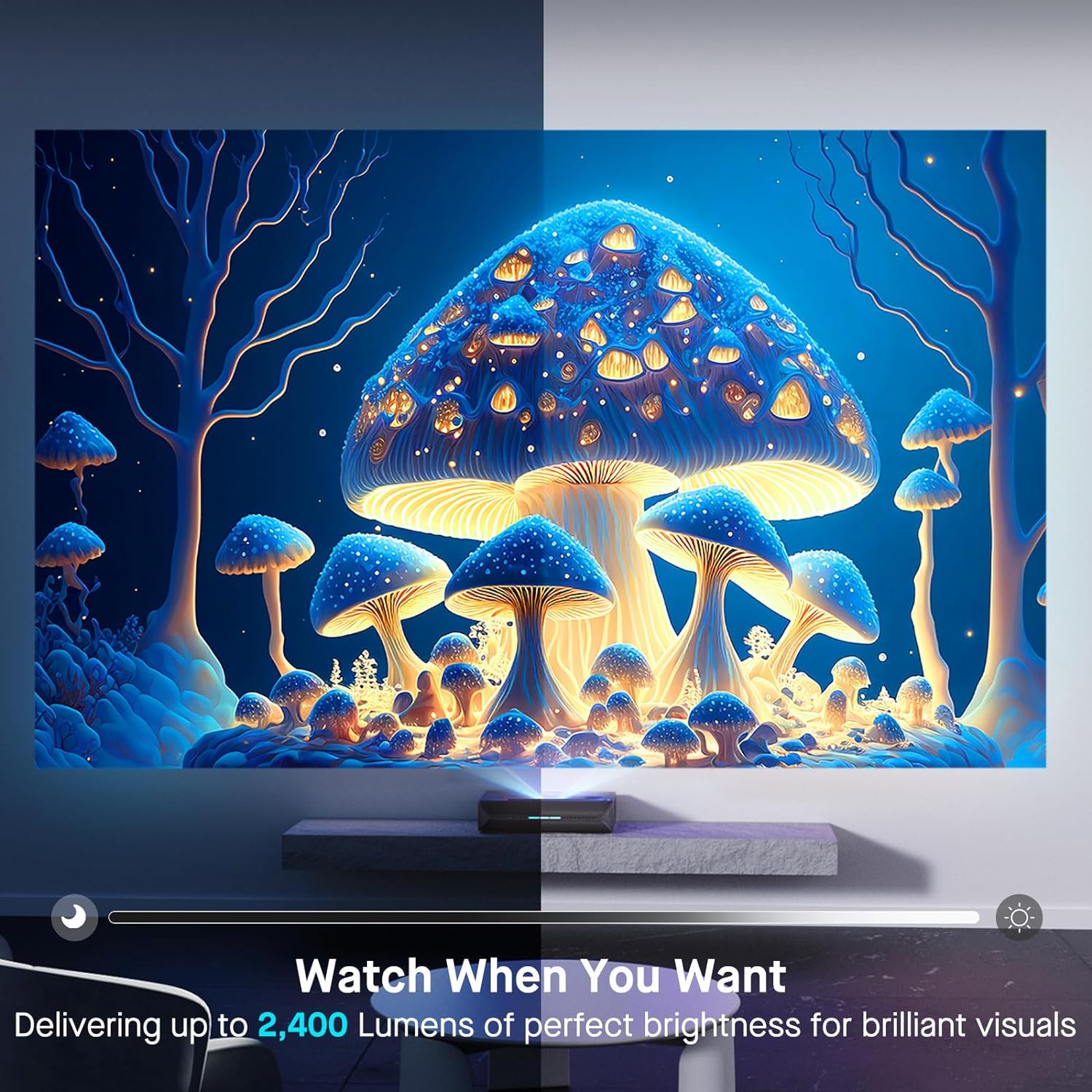
| Ryškumas | 2400 liumenų |
| Šviesos šaltinis | Tri-Color Laser (ALPD 4.0 RGB+) |
| Natūralus kontrasto santykis | 3000:1 |
| Dinaminis kontrasto santykis | >6000:1 (with dynamic laser dimming) |
| Spalvų gama | 107 % Rec.2020 |
| HDR palaikymas | Dolby Vision, HDR10+, HLG |
| 3D palaikymas | Aktyvus 3D |
| Įvesties delsa | 8ms (tested at 1080p 240Hz) |
| Max Input Resolution/Refresh Rate | 4K@120Hz |
| MEMC | Yes (120Hz) |
| Garso išvestis | 60W Stereo Speakers (2x15W Woofers, 2x15W Tweeters), Dolby Atmos, eARC |
| Ryšys | HDMI (3, one with eARC), USB, Optical Audio, Ethernet |
| Gaminio matmenys | 21.54 x 16.04 x 4.81 colio |
| Prekės svoris | 22 svaro |
| Matoma ekrano įstrižainė | 80" - 150" (381 cm max) |
| Lazerio tarnavimo laikas | 25,000 valandos |
10. Garantija ir palaikymas
NexiGo provides customer support and warranty services for its products. For specific warranty terms and conditions, please refer to the warranty card included with your product or visit the official NexiGo websvetainę.
Klientų aptarnavimas:
- For technical assistance, troubleshooting, or product inquiries, please contact NexiGo customer support.
- Contact information can typically be found on the NexiGo websvetainėje arba ant produkto pakuotės.
- NexiGo offers 24-hour customer support and lifetime technical support.
Grąžinimas ir keitimas:
- Refer to your purchase agreement or retailer's policy for details on returns and exchanges. NexiGo typically offers a 30-day return or exchange period.


