1. Įvadas
The Rii RK801 is a versatile wireless keyboard designed for multi-device compatibility. It supports both Bluetooth 5.0 (BT1, BT2) and 2.4G wireless connections, allowing seamless switching between up to three devices. Featuring a rechargeable battery, RGB backlighting, and a built-in phone/tablet holder, this keyboard enhances productivity across various operating systems including Mac OS, Windows PC, and Android Smart TVs.
2. Pakuotės turinys
- Rii RK801 Wireless Keyboard
- USB 2.4G imtuvas
- USB įkrovimo laidas
- Vartotojo vadovas (šis dokumentas)
3. Sąranka
3.1 Pradinis įkrovimas
Before first use, fully charge the keyboard using the provided USB charging cable. Connect the cable to the keyboard's charging port and a USB power source. The charging indicator will show the charging status.
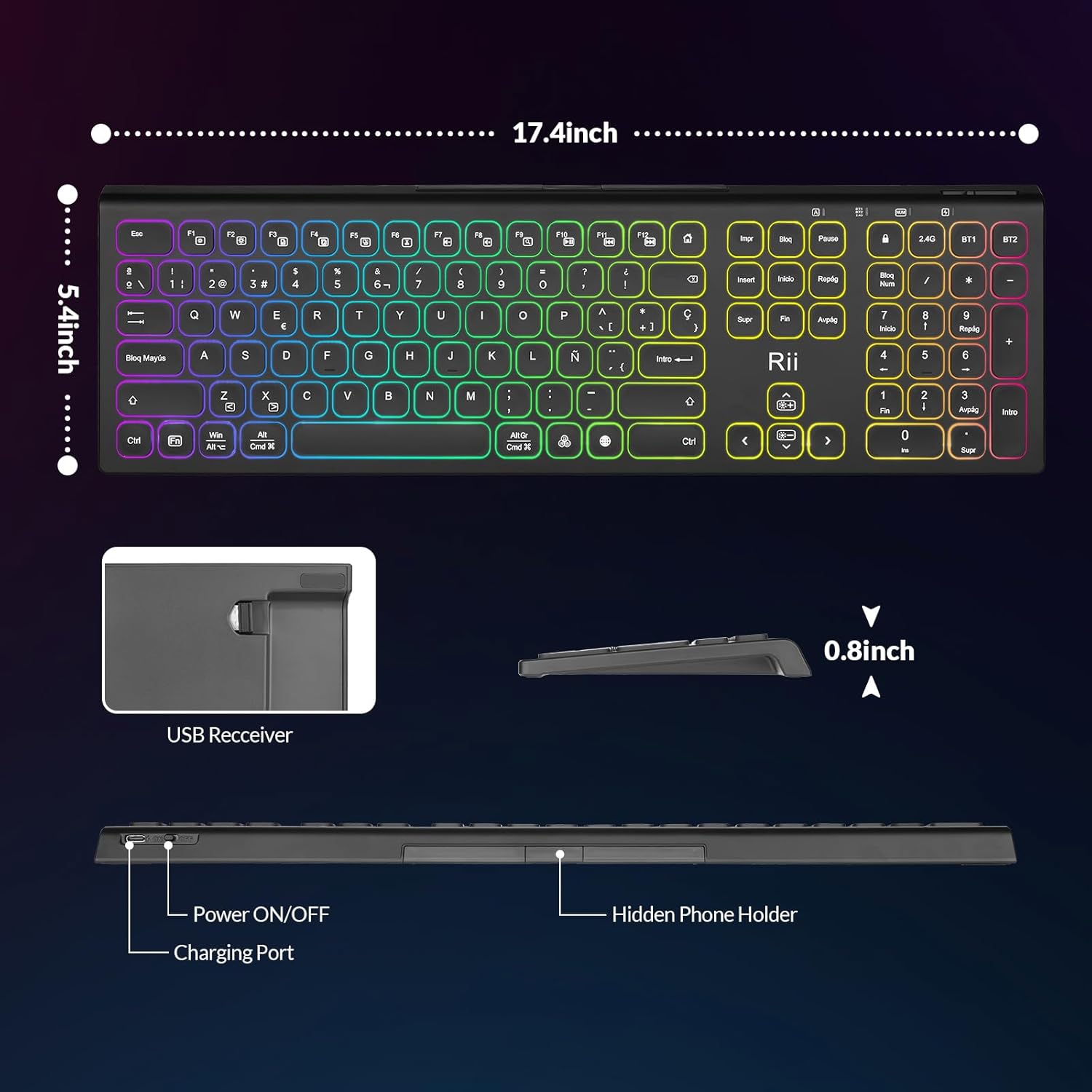
Image: The Rii RK801 keyboard highlighting the charging port and the location of the USB receiver. Dimensions are also shown.
3.2 2.4G belaidis ryšys
- Locate the USB 2.4G receiver, typically stored in a compartment on the keyboard.
- Plug the USB receiver into an available USB port on your computer or compatible device.
- Įjunkite klaviatūrą naudodami maitinimo jungiklį.
- Paspauskite 2.4G key on the keyboard. The keyboard should automatically connect to your device.
3.3 „Bluetooth“ ryšys (BT1 / BT2)
The keyboard supports two Bluetooth channels (BT1 and BT2) for connecting to different devices.
- Įjunkite klaviatūrą naudodami maitinimo jungiklį.
- Paspauskite ir palaikykite arba BT1 or BT2 key for 3-5 seconds until the indicator light flashes rapidly, indicating pairing mode.
- On your device (e.g., MacBook, iPad, Android Smart TV), go to Bluetooth settings and search for new devices.
- Select "Rii RK801" from the list of available devices.
- Kai susiejimas bus atliktas, indikatoriaus lemputė nustos mirksėti.
- Repeat these steps for the other Bluetooth channel to connect a second device.

Image: The Rii RK801 keyboard illustrating the different connection modes: 2.4G USB for laptops/PCs and Bluetooth (BT1/BT2) for smartphones, tablets, and laptops.
4. Naudojimo instrukcijos
4.1 Maitinimo įjungimas/išjungimas
Use the physical power switch located on the keyboard to turn it on or off.
4.2 Įrenginių perjungimas
Norėdami perjungti prijungtus įrenginius, tiesiog paspauskite atitinkamą ryšio klavišą: 2.4G, BT1, arba BT2. The keyboard will connect to the last paired device on that channel.
4.3 RGB foninio apšvietimo valdymas
The keyboard features customizable RGB backlighting.
- Įjungti/išjungti: Ilgai paspauskite mygtuką RGB mygtuką.
- Keisti spalvą: Trumpai paspauskite RGB button to cycle through different colors.
- Sureguliuokite ryškumą: Paspauskite Fn +
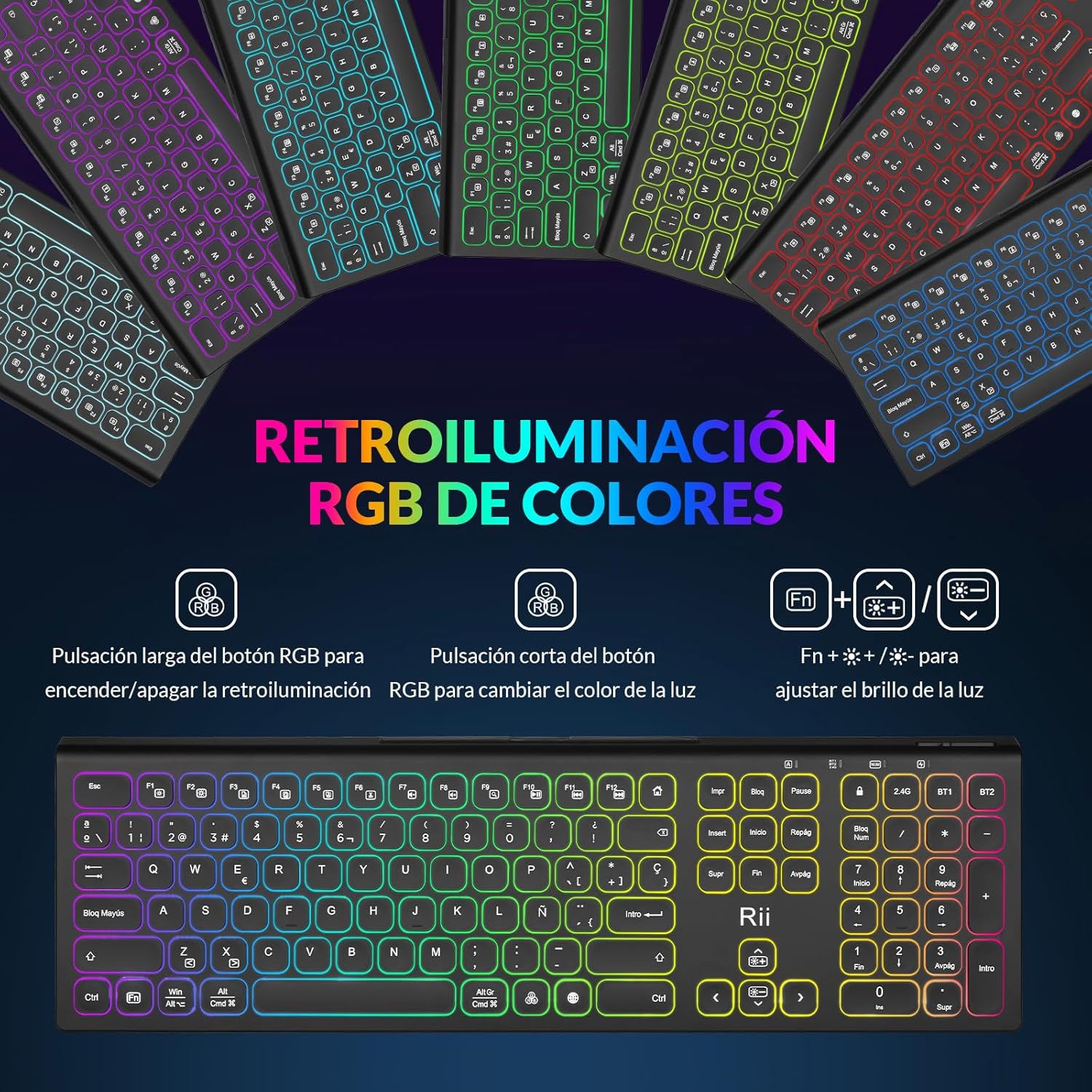 reguliuoti foninio apšvietimo ryškumą.
Image: The Rii RK801 keyboard displaying the keys for controlling the RGB backlight: long press for on/off, short press for color change, and Fn + brightness keys for adjustment.
4.4 Integrated Phone/Tablet Holder
The keyboard includes a discreet, retractable stand designed to hold your smartphone or tablet, providing a convenient viewrašymo kampas.
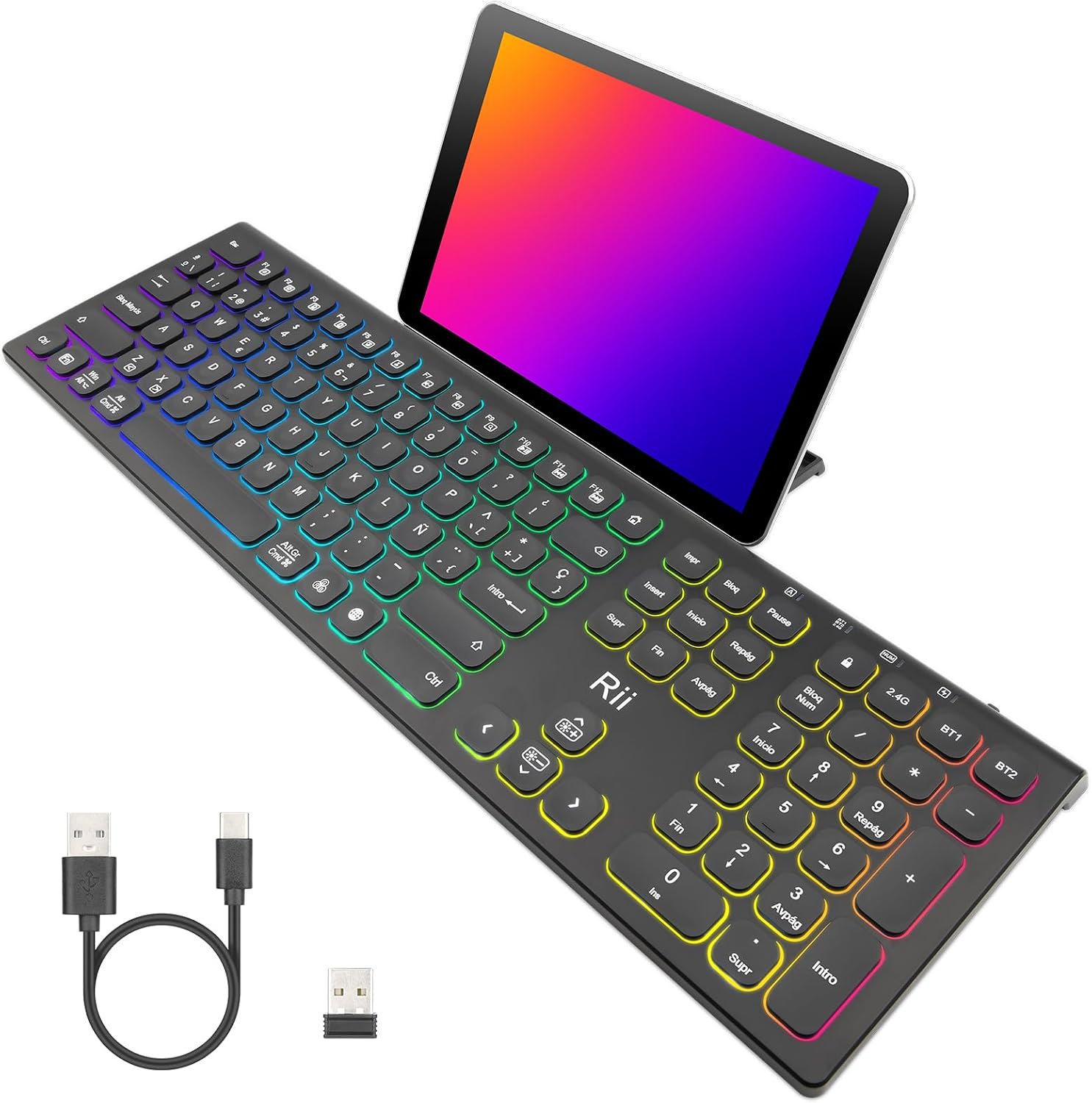
Image: The Rii RK801 keyboard with a tablet placed in its integrated stand, demonstrating the convenience for multi-device use.
Paveikslėlis: Šoninė pusė view of the Rii RK801 keyboard indicating the location of the hidden phone holder.
4.5 Key Type and Feel
The keyboard features mechanical keys with an innovative switch design, providing a comfortable typing experience and reduced noise.

Image: A diagram illustrating the scissor-type mechanical switch used in the Rii RK801 keyboard, designed for comfortable and quiet typing.

Vaizdas: Stambus planas view of a key on the Rii RK801 keyboard, highlighting its spherical design for comfortable finger placement.
5. Priežiūra
- Valymas: Use a soft, dry cloth to clean the keyboard surface. For deeper cleaning, a slightly damp cloth can be used, ensuring no liquid enters the keycaps or internal components.
- Akumuliatoriaus priežiūra: To prolong battery life, avoid fully discharging the keyboard frequently. Recharge when the low battery indicator appears. If storing for an extended period, charge the keyboard to about 50% and turn it off.
- Saugykla: Klaviatūrą laikykite vėsioje, sausoje vietoje, apsaugotoje nuo tiesioginių saulės spindulių ir ekstremalių temperatūrų.
6. Problemų sprendimas
- Klaviatūra neprisijungia: Ensure the keyboard is turned on and fully charged. For 2.4G, check if the USB receiver is properly inserted. For Bluetooth, ensure the keyboard is in pairing mode (flashing indicator) and your device's Bluetooth is enabled. Try re-pairing the device.
- Keys not responding or double typing: Ensure the keyboard is fully charged. If the issue persists, try cleaning around the affected keys. Ensure you are pressing keys centrally and firmly.
- Foninis apšvietimas neveikia: Ensure the keyboard is turned on. Long press the RGB button to toggle the backlight. Check battery level.
- Trumpas baterijos veikimo laikas: Backlighting consumes more power. Reduce brightness or turn off the backlight to extend battery life. Ensure the keyboard is fully charged before use.
- Lag or delay in input: Ensure the keyboard is within range of the receiver/device. Avoid interference from other wireless devices. For 2.4G, try plugging the USB receiver into a different USB port, preferably a rear port on desktop PCs.
7. Specifikacijos
| Prekės ženklas | pamatyti |
| Modelio numeris | RK801 |
| Ryšys | Bluetooth 5.0 (BT1, BT2), 2.4G Wireless |
| Ypatingos savybės | Rechargeable, RGB Backlight, Integrated Phone/Tablet Holder |
| Suderinami įrenginiai | Laptop, Smart TV, PC, Mac OS, Android devices |
| Baterijos tipas | Ličio jonų polimeras |
| Mygtukų skaičius | 104 |
| Matmenys (apytiksliai) | 17.4 colio (ilgis) x 5.4 colio (plotis) x 0.8 colio (aukštis) |
Image: The Rii RK801 keyboard with its approximate dimensions of 17.4 inches in length, 5.4 inches in width, and 0.8 inches in height.
8. Garantija ir palaikymas
Specific warranty details and direct support contact information are not available in the provided product data. Please refer to the retailer's return policy or the manufacturer's official website for warranty claims and technical support.


