1. Įvadas
The NETVIP WiFi Repeater is designed to extend the coverage of your existing wireless network, eliminating Wi-Fi dead zones and providing a stable, high-speed internet connection throughout your home or office. This device supports a data transfer rate of up to 300Mbps and offers multiple operating modes, including Repeater Mode and Access Point (AP) Mode, to adapt to various network requirements.
Its compact, wall-plug design and easy WPS setup make it a convenient solution for enhancing your Wi-Fi signal.
2. Pakuotės turinys
Atidžiai patikrinkite pakuotę, ar joje nėra šių daiktų:
- 1 x NETVIP Wireless Mini Repeater
- 1 x RJ45 eterneto kabelis
- 1 x Naudotojo vadovas (šis dokumentas)
3. Produktas baigtasview ir Savybės
The NETVIP WiFi Repeater is equipped with features designed for optimal performance and ease of use.

Figure 3.1: NETVIP WiFi Repeater (Front View)
- Boosting WiFi Coverage: Extends existing network signals up to 300Mbps, eliminating dead zones.
- Keli veikimo režimai: Supports Repeater Mode for signal amplification and Access Point (AP) Mode to create a new wireless network from a wired connection.
- Kompaktiškas dizainas: Portable, wall-plug design with an integrated Ethernet LAN port for wired connections.
- WPS sąranka: One-touch wireless security encryption for quick and easy setup.
- Smart Signal Lights: LED indicators show signal strength, helping to find the best placement for the device.
4. Specifikacijos
| Funkcija | Detalė |
|---|---|
| bevielio ryšio standartas | 802.11b/g/n |
| Duomenų perdavimo sparta | Iki 300 Mbps |
| Dažnių juosta | Vieno diapazono (2.4 GHz) |
| Ethernet prievadas | 1 x 10/100 Mbps LAN Port |
| Saugumas | WPS, WPA/WPA2 |
| Matmenys | 12.7 x 9.5 x 7.3 cm |
| Svoris | 170 g |
| Maitinimo šaltinis | Wall Plug (UK Port) |
5. Sąranka ir diegimas
5.1 Geriausios vietos pasirinkimas
For optimal performance, place the repeater in a location where it can receive a strong signal from your existing router and also effectively extend coverage to the desired areas. Use the signal indicator lights on the device to help determine the best spot.
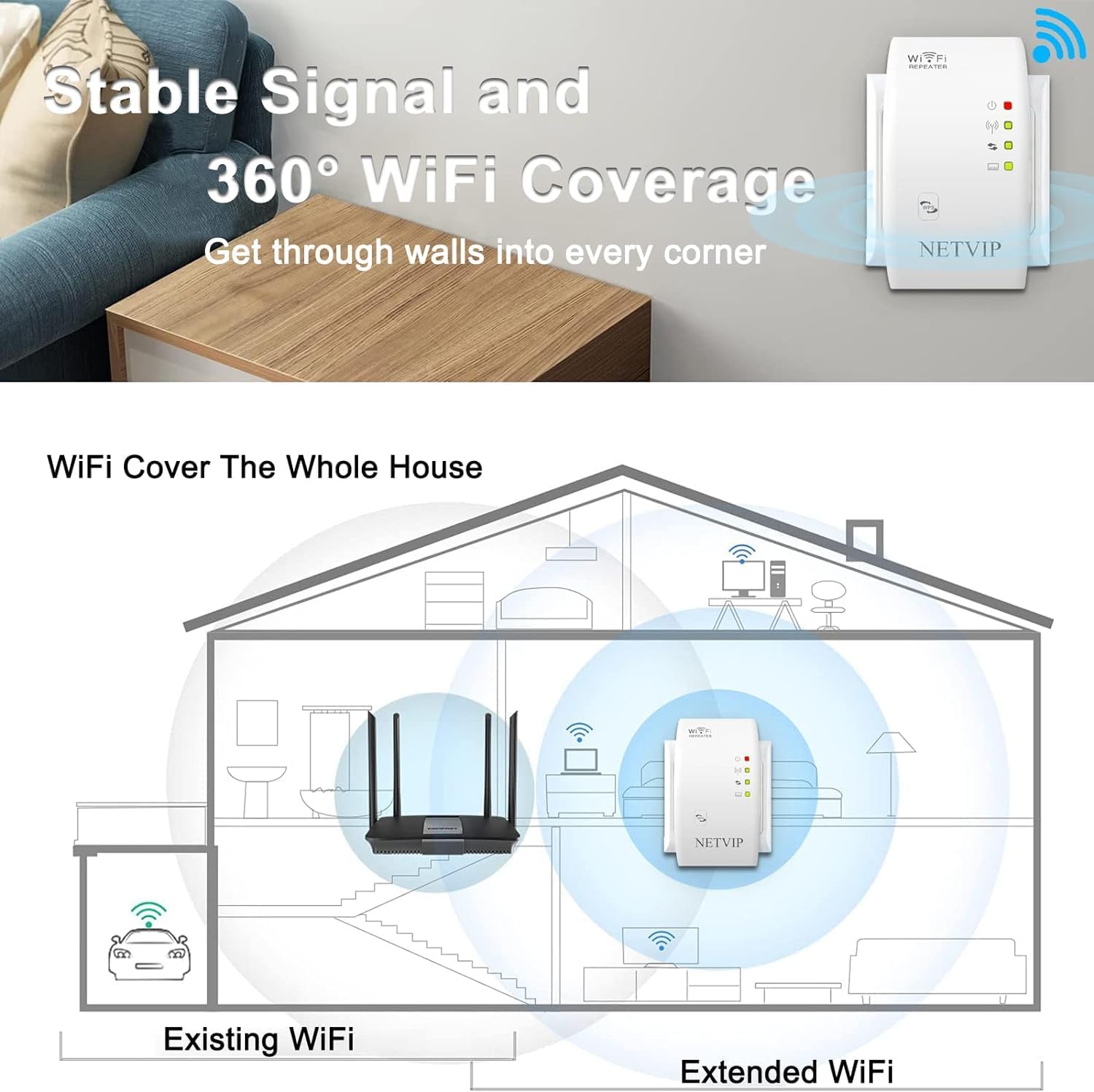
Figure 5.1: Optimal Placement for WiFi Coverage
5.2 Įjungimas
Plug the NETVIP WiFi Repeater directly into a standard electrical wall socket. The power indicator light should illuminate.
5.3 Initial Configuration (WPS Method)
The easiest way to set up your repeater is using the WPS (Wi-Fi Protected Setup) button.
- Plug the NETVIP Repeater into a power outlet near your existing wireless router.
- Press the WPS button on your existing wireless router.
- Within 2 minutes, press the WPS button on the NETVIP WiFi Repeater.
- Wait for approximately 3 seconds. The repeater's signal indicator lights will change to indicate a successful connection.

Figure 5.2: WPS Setup Process
Once connected, you can unplug the repeater and move it to your desired location within the range of your main router's signal.
5.4 Pradinė konfigūracija (Web Browser Method)
If your router does not support WPS, or for advanced settings, you can configure the repeater via a web naršyklė.
- Plug the NETVIP Repeater into a power outlet.
- Connect your computer or mobile device to the repeater's default Wi-Fi network (e.g., "NETVIP_XXXXXX"). No password is required initially.
- Atidarykite a web browser and enter the default IP address (usually 192.168.10.1 or check the user manual included in the box for the exact IP).
- Log in using the default username and password (typically "admin" for both).
- Follow the on-screen wizard to select your operating mode (Repeater or AP) and configure network settings, including selecting your existing Wi-Fi network and entering its password.
- Save the settings. The repeater will restart, and you can then connect your devices to the extended network.
6. Veikimo režimai
The NETVIP WiFi Repeater supports two primary operating modes:
6.1 Kartotuvo režimas
In Repeater Mode, the device extends the range of your existing wireless network. It receives the Wi-Fi signal from your main router and re-broadcasts it, effectively expanding your network's coverage area.

Figure 6.1: Repeater Mode Operation
6.2 Prieigos taško (AP) režimas
In AP Mode, the device transforms a wired internet connection into a wireless one. You connect the repeater to your router or modem via an Ethernet cable, and it then broadcasts a new Wi-Fi network.

Figure 6.2: Access Point Mode Operation
This mode is useful for adding wireless capability to a wired network or creating a separate Wi-Fi network.
7. Prietaisų prijungimas
After successful setup, your extended Wi-Fi network will be available. The network name (SSID) will typically be your original network name followed by "_EXT" or similar. Connect your wireless devices (laptops, smartphones, tablets, smart TVs) to this new network using the same password as your main router.
7.1 Laidinis ryšys
The repeater also features an Ethernet LAN port. You can connect wired devices such as desktop computers, gaming consoles, or smart TVs to this port for a stable wired connection to your extended network.

Figure 7.1: Wired and Wireless Device Connections
8. Priežiūra
To ensure the longevity and optimal performance of your NETVIP WiFi Repeater, consider the following maintenance tips:
- Valymas: Švelniai nuvalykite įrenginį minkštu, sausu skudurėliu. Nenaudokite skystų valiklių ar aerozolių.
- Vėdinimas: Įsitikinkite, kad prietaisas yra gerai vėdinamoje vietoje ir jo ventiliacijos angos nėra uždengtos.
- Firmware atnaujinimai: Periodically check the NETVIP official websvetainėje, kurioje pateikiami visi galimi programinės įrangos atnaujinimai, siekiant užtikrinti geriausią našumą ir saugumą.
- Iš naujo nustatoma: If the device is unresponsive or you wish to revert to factory settings, use a paperclip to press and hold the 'Reset' button for about 5-10 seconds until the lights flash.
9. Problemų sprendimas
If you encounter issues with your NETVIP WiFi Repeater, refer to the following common problems and solutions:
- Nėra maitinimo / lemputės išjungtos:
Ensure the repeater is securely plugged into a working electrical outlet. Try a different outlet.
- Nepavyksta prisijungti prie kartotuvo „Wi-Fi“:
Make sure the repeater is powered on. If it's a new setup, ensure you're connecting to the default open network. If already configured, verify the Wi-Fi password.
- No Internet Access After Connecting:
Check if your main router has internet access. Ensure the repeater is within range of your main router and receiving a strong signal (check signal indicator lights). Re-run the setup process if necessary, especially if settings were changed.
- Lėtas greitis arba nutrūkstamas ryšys:
Relocate the repeater closer to your main router to improve signal strength. Ensure there are no major obstructions (thick walls, large metal objects) between the router and repeater. Reduce interference from other electronic devices. Consider updating the repeater's firmware.
- WPS sąranka nepavyksta:
Ensure you press the WPS button on both the router and repeater within the 2-minute window. Some routers require WPS to be enabled in their settings. Try the web naršyklės sąrankos metodą, jei WPS ir toliau nepavyksta.
- Pamiršote prisijungimo slaptažodį? Web Sąsaja:
Perform a factory reset on the repeater by pressing the 'Reset' button. This will revert the login credentials to default ("admin"/"admin"). Note that this will erase all your configured settings.
10. Garantija ir palaikymas
NETVIP products come with a standard manufacturer's warranty. For specific warranty terms and conditions, please refer to the warranty card included in your product packaging or visit the official NETVIP websvetainę.
For technical support, troubleshooting assistance, or further inquiries, please contact NETVIP customer service through the contact information provided on their official websvetainėje arba savo produkto dokumentacijoje.
Websvetainė: www.netvip.com (Pvzampnuoroda, prašome patikrinti jos tikrumą websvetainė)