1. Įvadas
The PhoFuta M832 is an ultra-portable wireless thermal printer designed for convenience and efficiency. Weighing approximately 1.5 pounds and compact in size, it is ideal for use in various settings including business trips, vehicles, offices, homes, and schools. This printer utilizes thermal technology, eliminating the need for ink cartridges and simplifying your printing experience.

2. Saugos informacija
Please read all safety instructions carefully before using the device to ensure safe and proper operation.
- Saugokite spausdintuvą nuo ekstremalių temperatūrų, tiesioginių saulės spindulių ar didelės drėgmės.
- Keep the printer away from water or other liquids to prevent electric shock or damage.
- Naudokite tik pridedamą įkrovimo laidą ir adapterį.
- Do not attempt to disassemble or repair the printer yourself. Contact customer support for assistance.
- Įkraudami įrenginį užtikrinkite tinkamą vėdinimą.
3. Kas yra dėžutėje
Patikrinkite, ar pakuotėje yra visi komponentai:
- 1 x PhoFuta M832 Portable A4 Printer
- 1 x USB Cable and Type-C Converter
- 1 x A4 Thermal Paper Roll
- 1 x Vartotojo vadovas
4. Sąranka
4.1 Įrenginio įkrovimas
Before first use, fully charge the printer. Connect the provided USB-C cable to the printer's charging port and the other end to a compatible power source (e.g., wall adapter, computer USB port). The indicator light will show charging status.

4.2 Terminio popieriaus įdėjimas
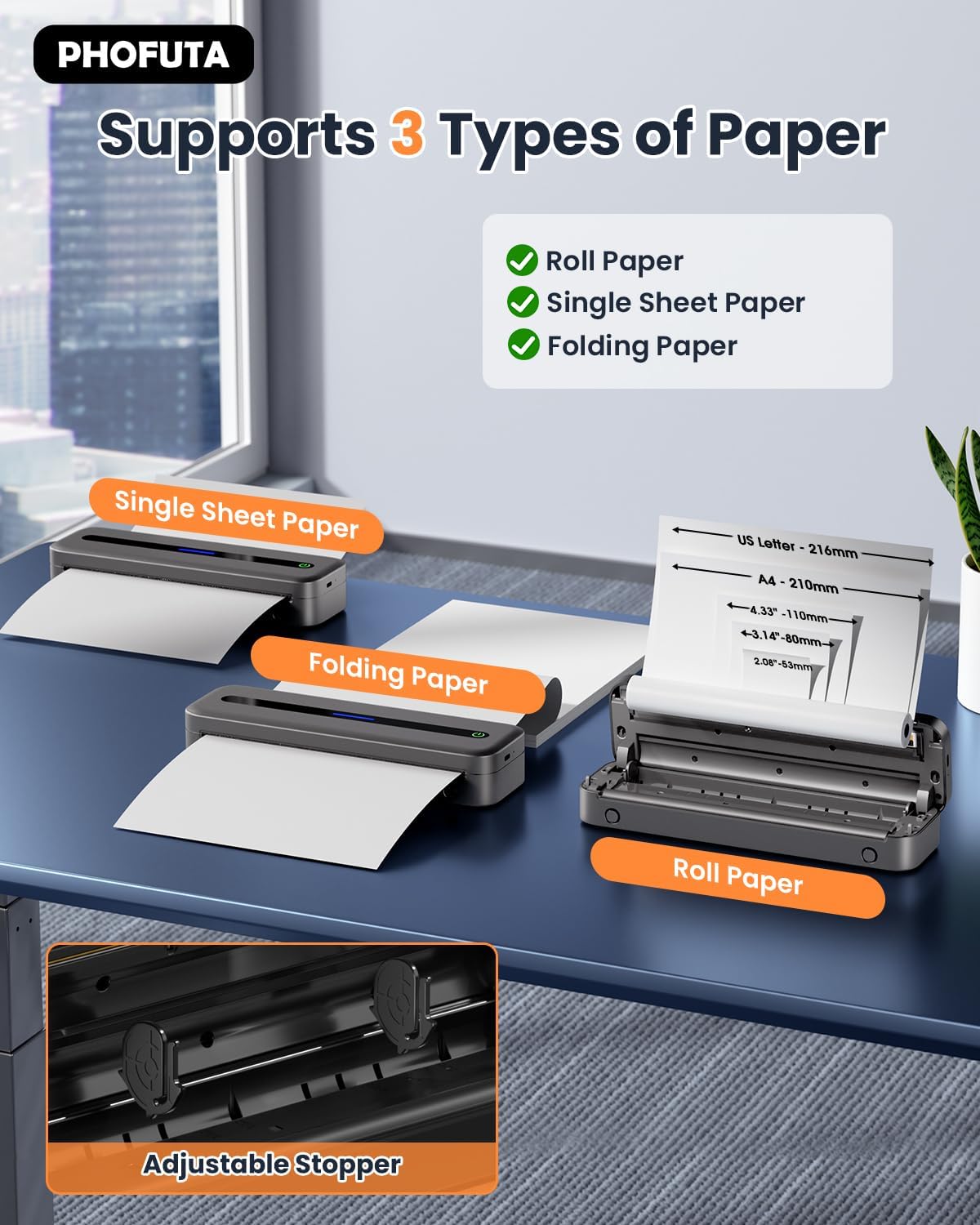
The PhoFuta M832 supports various thermal paper types, including roll paper, single sheets, and folding paper. Open the paper compartment cover, insert the thermal paper according to the diagram, ensuring the printable side faces the print head. Close the cover securely.
4.3 Prijungimas prie įrenginio
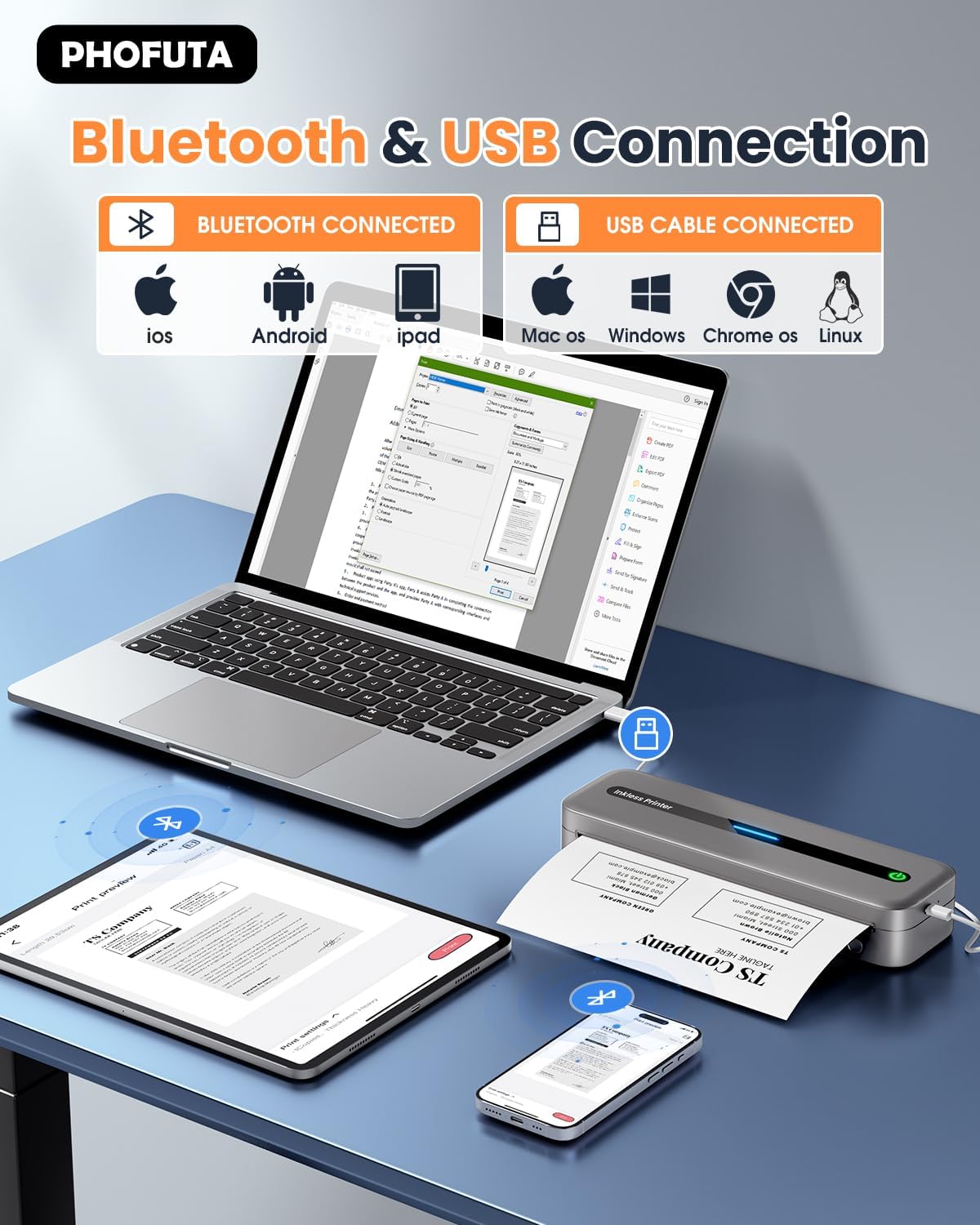
The printer offers both Bluetooth and USB connectivity options.
- „Bluetooth“ ryšys: Turn on the printer and enable Bluetooth on your smartphone or tablet. Download the Phomemo app (available for iOS and Android). Open the app, search for the printer, and pair.
- USB jungtis: Connect the printer to your laptop or computer using the provided USB-C cable. Install the necessary drivers (usually available from the PhoFuta website or included on a small disk/QR code).
5. Naudojimo instrukcijos
5.1 Pagrindinis spausdinimas
Once connected, open the document or image you wish to print from your device. Select the PhoFuta M832 as your printer. Adjust print settings as needed (e.g., paper size, orientation) and initiate the print command. The printer will feed the thermal paper and produce the printout.
5.2 Spausdinimo kokybė
The PhoFuta M832 offers a maximum print resolution of 300 DPI (dots per inch) for black and white prints, ensuring clear and legible documents.

5.3 Supported Paper Sizes
The printer supports various paper sizes, including US Letter, A4, and smaller sizes like 4-inch, 3-inch, and 2-inch (216mm, 210mm, 110mm, 80mm, 53mm respectively). Ensure you use thermal paper compatible with these dimensions.
6. Priežiūra
6.1 Spausdintuvo valymas
Regularly clean the printer to maintain optimal performance. Use a soft, dry, lint-free cloth to wipe the exterior. For the print head, use a cotton swab lightly dampened with isopropyl alcohol, wiping gently. Ensure the printer is off and disconnected from power before cleaning.
6.2 Thermal Paper Considerations
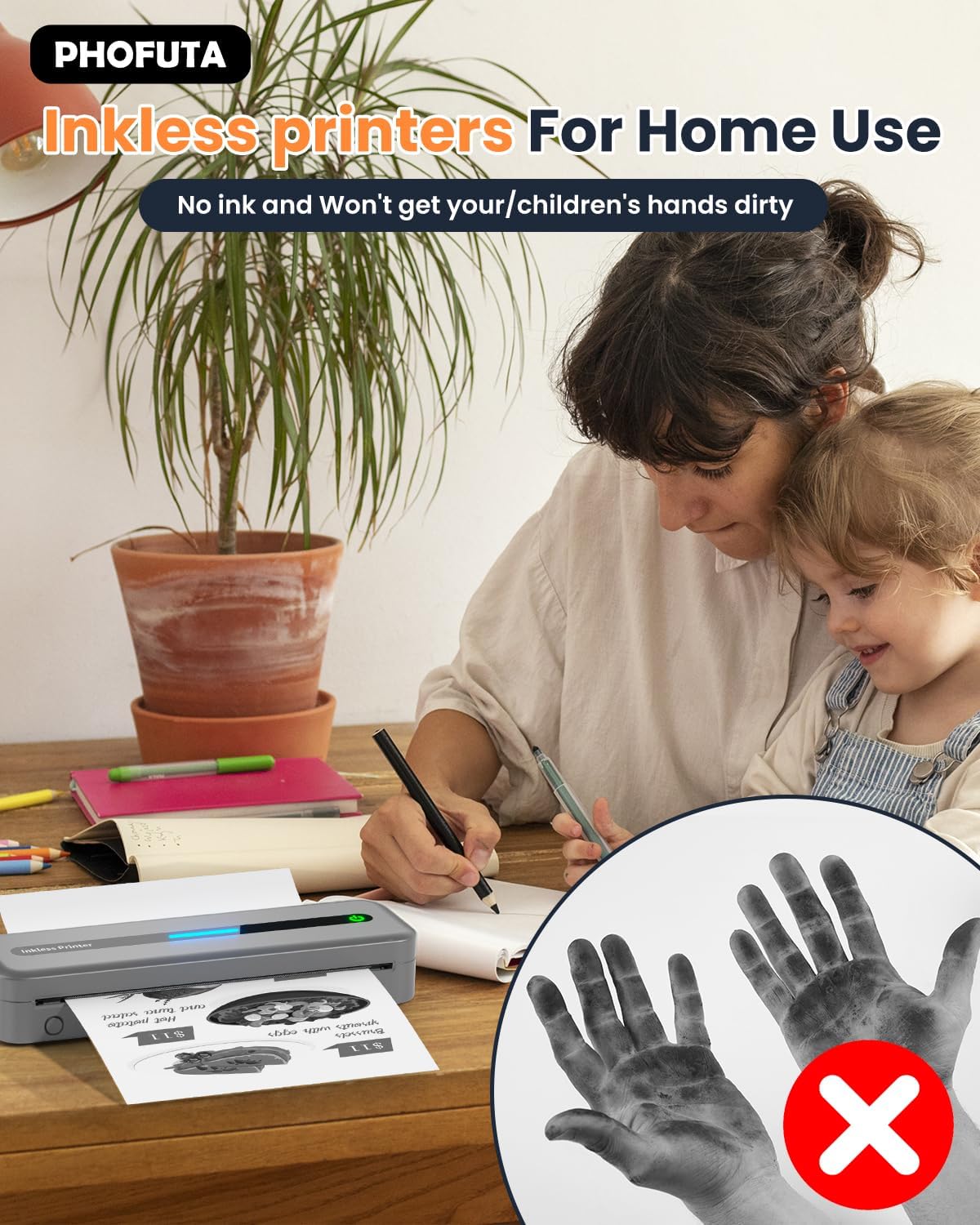
The PhoFuta M832 is an inkless printer, meaning it uses thermal paper that reacts to heat to create images. This eliminates the need for ink cartridges, preventing messy hands and reducing ongoing costs. However, it is crucial to use only thermal paper, as regular paper will not work. Thermal prints may fade over time if exposed to heat, light, or certain chemicals, so store important documents appropriately.

7. Problemų sprendimas
If you encounter issues with your PhoFuta M832 printer, refer to the following common problems and solutions:
- Spausdintuvas neįsijungia: Ensure the battery is charged. Connect the printer to a power source and try again.
- Nepavyksta prisijungti per „Bluetooth“: Make sure Bluetooth is enabled on both devices. Restart the printer and your device. Ensure the Phomemo app is installed and updated.
- Prasta spausdinimo kokybė: Check if you are using thermal paper. Ensure the paper is loaded correctly. Clean the print head if smudges or lines appear.
- Popieriaus strigtis: Turn off the printer, open the paper compartment, and carefully remove any jammed paper. Ensure paper is loaded straight and not wrinkled.
- Spausdintuvas nereaguoja: Try restarting the printer. If the issue persists, perform a factory reset (refer to the Phomemo app or detailed user manual for instructions).
8. Specifikacijos
| Funkcija | Specifikacija |
|---|---|
| Prekės ženklas | PhoFuta |
| Modelis | M832 |
| Produkto numeris | PH-M832-GY |
| Spalva | Pilka |
| Spausdinimo technologija | Šiluminis |
| Spausdintuvo išvestis | Vienspalvis |
| Maksimali spausdinimo raiška (nespalvota) | 300 DPI |
| Maksimalus spausdinimo greitis (vienspalvis) | 5 puslapių per minutę |
| Maksimali įvesties lapo talpa | 300 XNUMX lapų |
| Palaikomas laikmenos tipas | Plain Paper (Thermal Paper) |
| Lapo dydis | US Letter/A4/4"/3"/2" (216mm/210mm/110mm/80mm/53mm) |
| Dvipusis spausdinimas | Nr |
| Ryšio technologija | Bluetooth |
| Techninės įrangos sąsaja | USB-C |
| Suderinami įrenginiai | Išmanieji telefonai, planšetiniai kompiuteriai, nešiojamieji kompiuteriai, kompiuteriai |
| Skaitytuvo tipas | Nešiojami |
| Skaitytuvo raiška | 203 x 203 XNUMX DPI |
| Gaminio matmenys | 31 x 11.4 x 9.2 cm |
| Produkto svoris | 992 g |
| Baterija | 1 ličio jonas (įtraukta) |
| Baterijos sudėtis | Ličio |
| Programinės įrangos atnaujinimai garantuojami iki | Nežinoma |
9. Garantija ir palaikymas
9.1 Informacija apie garantiją
The PhoFuta M832 Portable Thermal Printer comes with a Visą gyvenimą trunkanti garantija. This warranty covers manufacturing defects and ensures the long-term reliability of your device. Please retain your proof of purchase for warranty claims.
9.2 Pagalba klientams
For technical assistance, troubleshooting, or warranty inquiries, please contact PhoFuta customer support. Refer to the official PhoFuta website or the contact information provided with your purchase for the most up-to-date support channels.


