1. Įvadas
This manual provides detailed instructions for the installation, operation, and maintenance of your Jennov JS7015 5MP Dual-Band Wi-Fi Outdoor Security Camera. Please read this manual thoroughly before using the product to ensure correct usage and optimal performance.

Figure 1: Jennov JS7015 Outdoor Security Camera
The Jennov JS7015 is a 5-megapixel outdoor security camera featuring dual-band Wi-Fi connectivity (2.4GHz and 5GHz). It offers 360-degree viewing capabilities, PIR human detection, auto-tracking, 24/7 recording, and two-way audio for comprehensive outdoor surveillance.
2. Pakuotės turinys
Gavę siuntinį, patikrinkite jo turinį. Jei trūksta kokių nors prekių arba jos pažeistos, susisiekite su klientų aptarnavimo tarnyba.
- Jennov JS7015 5MP Dual-Band Wi-Fi Outdoor Security Camera
- Maitinimo adapteris
- Montavimo varžtai ir inkarai
- Vartotojo vadovas (šis dokumentas)
3. Produktas baigtasview
Susipažinkite su fotoaparato komponentais.

Figure 2: Camera Pan and Tilt Mechanism
The camera features a motorized pan and tilt mechanism, allowing for a 355° horizontal rotation (pan) and a 60° vertical rotation (tilt). This enables comprehensive coverage of the surveillance area. The camera body houses the lens, infrared LEDs, white light LEDs, microphone, and speaker. Two external antennas provide enhanced Wi-Fi signal reception.
- Kameros objektyvas: Užfiksuoja vaizdo įrašą footage.
- Infraraudonųjų spindulių šviesos diodai: Užtikrina apšvietimą nespalvotam naktiniam matymui.
- Baltos šviesos diodai: Provide illumination for color night vision and act as a spotlight.
- Mikrofonas: Įrašo garsą dvipusiam ryšiui ir įrašymui.
- Pranešėjas: Išveda garsą dvipusiam ryšiui ir signalizacijai.
- Antenos: Dėl „Wi-Fi“ ryšio.
- Maitinimo prievadas: Jungiamas prie maitinimo adapterio.
- Atkūrimo mygtukas: Used to reset the camera to factory settings (usually located near the SD card slot or under a cover).
- SD kortelės lizdas: For local video storage (supports up to 128GB, not included).
4. Sąrankos vadovas
4.1 Fizinis įrengimas
The camera is designed for outdoor use and is IP66 waterproof. Choose a suitable location for mounting, ensuring a clear view of the area you wish to monitor and proximity to a power source.
- Gręžimo pozicijų žymėjimas: Use the mounting template (if provided) or the camera base to mark the screw holes on the wall.
- Gręžimo skylės: Drill holes at the marked positions. Insert wall anchors if mounting on masonry.
- Saugi kamera: Attach the camera base to the wall using the provided screws.
- Sureguliuoti kampą: Loosen the adjustment screws (if any) to position the camera for optimal coverage before tightening.

3 pav.: IP66 vandeniui atspari konstrukcija
The camera is built with waterproof materials and has an IP66 rating, making it suitable for outdoor installation and resistant to dust and water jets.
4.2 Maitinimo jungtis
Connect the provided power adapter to the camera's power port and then plug it into a power outlet. The camera will power on and initiate its startup sequence.
4.3 Programėlės atsisiuntimas ir paskyros registravimas
The Jennov JS7015 camera uses the EseeCloud application for remote access and control.
- Atsisiųsti programą: Ieškokite "EseeCloud" in your smartphone's app store (Google Play Store for Android or Apple App Store for iOS) and download the application.
- Registruoti paskyrą: Open the EseeCloud app and follow the on-screen instructions to register a new account using your email address or phone number.
4.4 Kameros pridėjimas prie programėlės
Ensure your smartphone is connected to the same Wi-Fi network (2.4GHz or 5GHz) that you intend to connect the camera to.
- Atidaryti programą: Launch the EseeCloud app and log in.
- Pridėti įrenginį: Tap the "+" icon or "Add Device" option.
- Pasirinkite įrenginio tipą: Choose "Wi-Fi Camera" or similar option.
- Nuskaityti QR kodą: The app may prompt you to scan a QR code located on the camera or its packaging.
- „Wi-Fi“ konfigūracija: Follow the app's instructions to enter your Wi-Fi network name (SSID) and password. The camera supports both 2.4GHz and 5GHz Wi-Fi bands.
- Prisijunkite: The camera will attempt to connect to your Wi-Fi network. Once connected, it will appear in your device list within the app.
- Nustatyti slaptažodį: Create a strong password for your camera for security purposes.
5. Naudojimo instrukcijos
5.1 Tiesiogiai View ir panoraminio/pakreipimo valdymas
„EseeCloud“ programėlėje pasirinkite savo kamerą, kad pasiektumėte tiesioginį vaizdą view.
- Tiesioginis tiekimas: View real-time video from your camera.
- Stumti / pakreipti: Use the directional controls within the app to remotely adjust the camera's horizontal (pan) and vertical (tilt) angles.
5.2 Automatinis sekimas
Kamera gali automatiškai sekti judančius objektus savo lauke view.

4 pav.: Automatinis sekimas veikiant
Enable the auto-tracking feature in the app settings. The camera will then detect and follow moving targets until they leave the camera's view.
5.3 Judesio aptikimas ir signalizacijos
The camera features advanced PIR (Passive Infrared) human detection to minimize false alarms.

Figure 5: PIR Human Detection and Alarm Options
When a human thermal profile is detected, the camera can trigger various alarms.
- PIR aptikimas: Activates recording and sends notifications when a human is detected.
- Garso signalas: Configure the camera to emit a siren sound upon detection.
- Spotlight Alarm: The integrated spotlight can be activated to deter intruders.
- Pranešimai: Receive instant alerts on your smartphone via the EseeCloud app.
5.4 Dvipusis garsas
Communicate directly with individuals near the camera using the built-in microphone and speaker.

6 pav.: Dvipusis garso ryšys
Tap the microphone icon in the app to speak, and listen through the camera's speaker. This feature is useful for interacting with visitors or deterring unwanted guests.
5.5 Įrašymas ir saugojimas
The camera supports continuous 24/7 recording and offers flexible storage options.
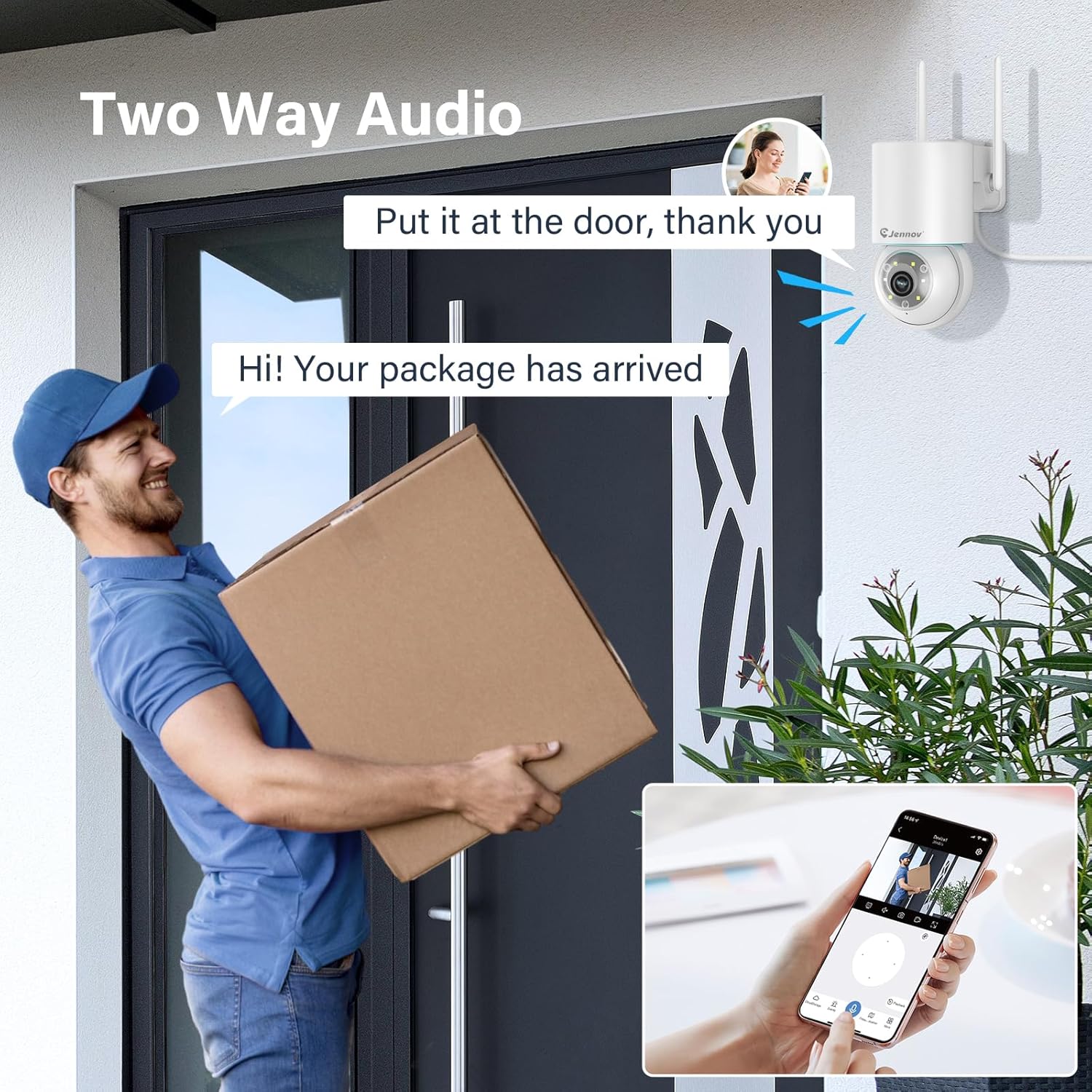
Figure 7: 24/7 Recording and Storage Options
Prieiga įrašyta footage via the app's playback function.
- 24/7 įrašymas: The camera can continuously record footage, ensuring no vital moments are missed.
- Vietinė saugykla: Insert a microSD card (up to 128GB, not included) into the camera's SD card slot for local storage.
- Saugykla debesyje: Optional cloud storage service is available, often with a free trial period (e.g., 7 days). This provides off-site backup of your recordings.
5.6 Naktinio matymo režimai
The camera offers three night vision modes for clear visibility in low-light conditions.

Figure 8: 5MP Color Night Vision
The camera provides clear night vision up to 65 feet (20 meters) with 5MP resolution.
- Visų spalvų režimas: Utilizes white LEDs to provide full-color video at night.
- Juodai baltas režimas: Uses infrared LEDs for traditional black and white night vision.
- "Smart Mode": Automatically switches between black and white and full color based on detected motion or light conditions.
You can switch between these modes within the EseeCloud mobile application.
5.7 Customized Detection Area
Apibrėžkite konkrečias sritis kameros viduje view kur turėtų būti aktyvus judesio aptikimas.

Figure 9: Customized Detection Area Settings
This feature helps reduce unwanted alerts by focusing detection on critical zones. The app typically offers "Area mode" and "Cordon mode" for defining these zones.
6. Priežiūra
- Valymas: Reguliariai valykite kameros objektyvą minkštu, sausu skudurėliu, kad užtikrintumėte ryškią vaizdo kokybę. Nenaudokite stiprių cheminių medžiagų.
- Firmware atnaujinimai: Check the EseeCloud app periodically for available firmware updates. Keeping your camera's firmware updated ensures optimal performance and security.
- SD kortelės tvarkymas: If using local storage, periodically check the SD card's status in the app. Format the card as needed to maintain recording efficiency.
- Maitinimas: Ensure the power adapter and cable are free from damage and properly connected.
7. Problemų sprendimas
- Fotoaparatas neprisijungęs:
- Patikrinkite „Wi-Fi“ signalo stiprumą.
- Įsitikinkite, kad fotoaparatas įjungtas.
- Paleiskite fotoaparatą ir „Wi-Fi“ maršrutizatorių iš naujo.
- If using 5GHz Wi-Fi, ensure your router supports it and the camera is connected to the correct band.
- Try re-adding the camera to the EseeCloud app.
- Prasta vaizdo kokybė:
- Nuvalykite fotoaparato objektyvą.
- Ensure sufficient lighting, especially at night.
- Patikrinkite savo interneto ryšio greitį.
- Judesio aptikimas neveikia:
- Verify motion detection settings in the app are enabled.
- Sureguliuokite aptikimo jautrumą.
- Ensure no obstructions are blocking the camera's view.
- Check if detection areas are correctly configured.
- Dvipusio garso problemos:
- Ensure microphone and speaker permissions are granted to the EseeCloud app on your smartphone.
- Patikrinkite garsumo nustatymus tiek programėlėje, tiek telefone.
- Įsitikinkite, kad nėra jokių fizinių kliūčių, blokuojančių kameros mikrofoną ar garsiakalbį.
- Cannot Access SD Card Recordings:
- Įsitikinkite, kad SD kortelė tinkamai įdėta.
- Patikrinkite, ar SD kortelė tinkamai suformatuota (dažniausiai FAT32).
- Verify that continuous recording or event recording to SD card is enabled in the app.
- The SD card might be full; consider formatting it or replacing it.
8. Specifikacijos
| Funkcija | Specifikacija |
|---|---|
| Modelio numeris | JS7015 |
| Prekės ženklas | Jennovas |
| Rezoliucija | 5 Megapixel (1920p video recording) |
| Kreipimo / pakreipimo kampas | 355°, pakreipimas 60° |
| Naktinis matymas | Color Night Vision, Black & White Night Vision, Smart Mode (up to 65ft/20m) |
| Wi-Fi ryšys | Dviejų dažnių juosta (2.4 GHz / 5 GHz) |
| Garsas | Dvipusis garsas (įmontuotas mikrofonas ir garsiakalbis) |
| Judesio aptikimas | PIR Human Detection, Auto Tracking |
| Saugojimo parinktys | „MicroSD“ kortelė (iki 128 GB), debesies saugykla |
| Atsparumo vandeniui įvertinimas | IP66 |
| Maitinimo įvestis | 5 voltų |
| Energijos suvartojimas | 24 vatų |
| Matmenys (I x P x A) | 12 x 8 x 16 cm |
| Medžiaga | Plastikiniai |
| Montavimo tipas | Sieninis laikiklis |
| Suderinami įrenginiai | Išmanusis telefonas, planšetinis kompiuteris, kompiuteris |
| Valdymo programa | EseeCloud |
9. Garantija ir palaikymas
For warranty information and technical support, please refer to the warranty card included with your product or visit the official Jennov websvetainę.
- Klientų aptarnavimas: Contact Jennov customer support for assistance with product issues, technical questions, or warranty claims.
- Internetiniai ištekliai: Check the Jennov webDUK, atnaujintų vadovų ir programinės įrangos atsisiuntimų svetainė.


