1. Produktas baigtasview
The POLONO P31S is a compact and portable thermal label printer designed for various labeling needs in home, office, and school environments. It connects wirelessly via Bluetooth to your smartphone or tablet, allowing you to design and print labels using the dedicated mobile application. This device features a built-in cutter and operates without ink, utilizing thermal printing technology for clear, durable labels.
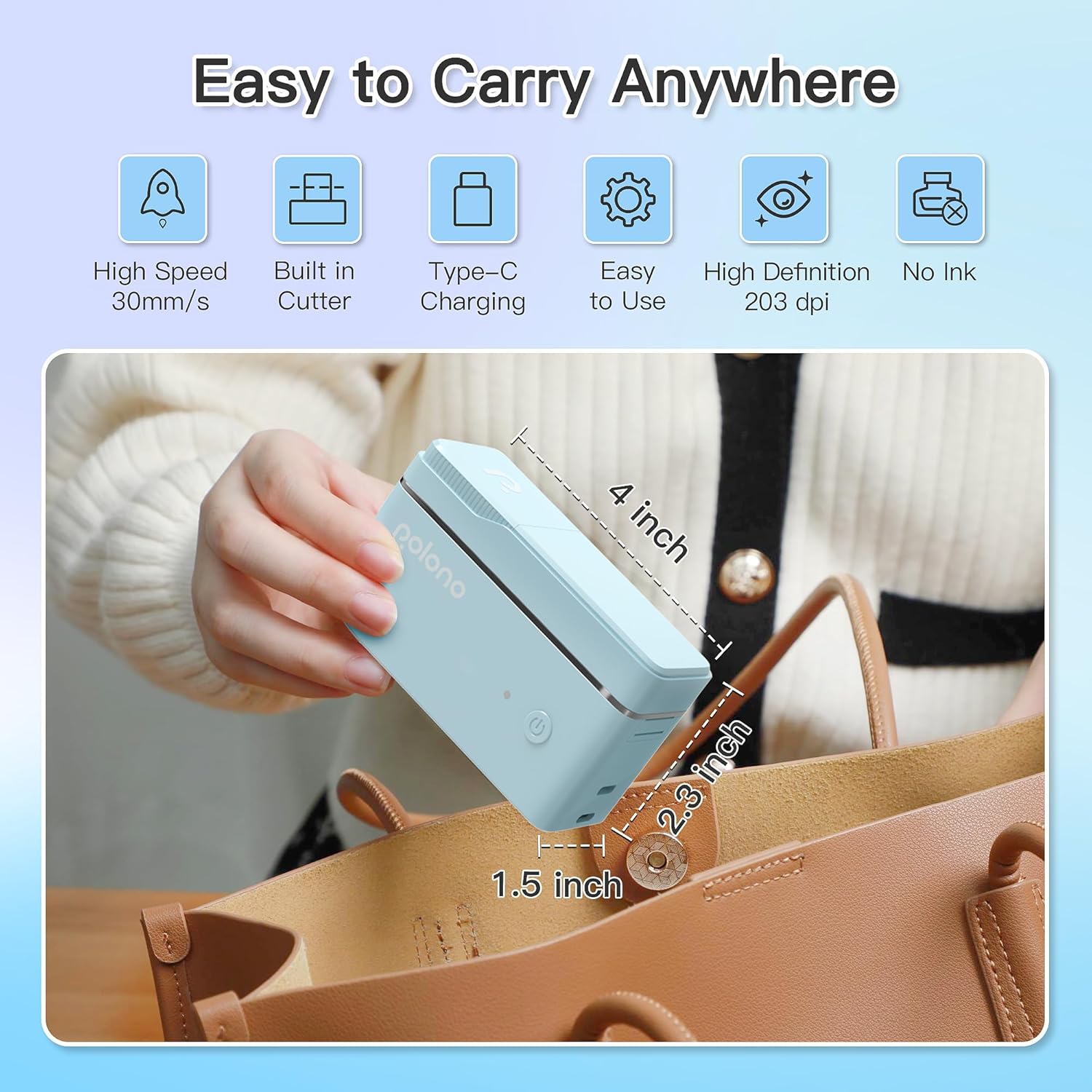
1 paveikslas: POLONO P31S Label Printer highlighting its compact design and dimensions (approximately 4 inches long, 2.3 inches high, 1.5 inches wide).
Pagrindinės funkcijos:
- Nešiojamas ir lengvas dizainas.
- „Bluetooth“ ryšys belaidžiam spausdinimui.
- Thermal printing technology (no ink required).
- Built-in label cutter.
- Supports various label types including text, QR codes, barcodes, and images.
- Pakraunama baterija.
2. Saugos informacija
Please read and understand all safety instructions before using the POLONO P31S label printer to prevent injury or damage to the device.
- Neardykite, netaisykite ir nemodifikuokite įrenginio.
- Saugokite įrenginį nuo vandens, drėgmės ir ekstremalių temperatūrų.
- Use only POLONO-approved label tapes to ensure optimal performance and prevent damage.
- Nelieskite spausdinimo galvutės iškart po spausdinimo, nes ji gali būti karšta.
- Laikyti vaikams nepasiekiamoje vietoje.
- Use the provided charging cable or a certified equivalent.
3. Pakuotės turinys
Patikrinkite, ar pakuotėje yra visi reikalingi daiktai:
- POLONO P31S Label Printer
- Label Tape Roll (starter roll)
- USB įkrovimo laidas
- Vartotojo vadovas (šis dokumentas)
4. Sąranka
4.1 Įrenginio įkrovimas
Before first use, fully charge the label printer. Connect the provided USB charging cable to the printer's charging port and to a USB power adapter (not included) or a computer's USB port. The indicator light will show charging status.
4.2 Etikečių juostos klijavimas
- Atidarykite etikečių skyriaus dangtelį.
- Insert the label tape roll with the printing surface facing up, ensuring it is properly seated.
- Pull a small portion of the label tape out, extending it past the cutter blade.
- Tvirtai uždarykite etikečių skyriaus dangtelį.

2 paveikslas: Proper installation of POLONO P31S label tape. Ensure the green sticker on the tape is not removed or damaged, as it contains chip technology for optimal performance. Do not pull the label out directly; use the cutting blade.
4.3 Programėlės atsisiuntimas ir „Bluetooth“ ryšys
- Download the "Labelnize" app from the Apple App Store or Google Play Store.
- Turn on the POLONO P31S label printer by pressing and holding the power button.
- Įjunkite „Bluetooth“ išmaniajame telefone ar planšetiniame kompiuteryje.
- Open the "Labelnize" app. The app will prompt you to allow Bluetooth access. Grant permission.
- Within the app, search for available devices and select "P31S" to connect.
- Once connected, the app will indicate a successful connection, and you are ready to create labels.
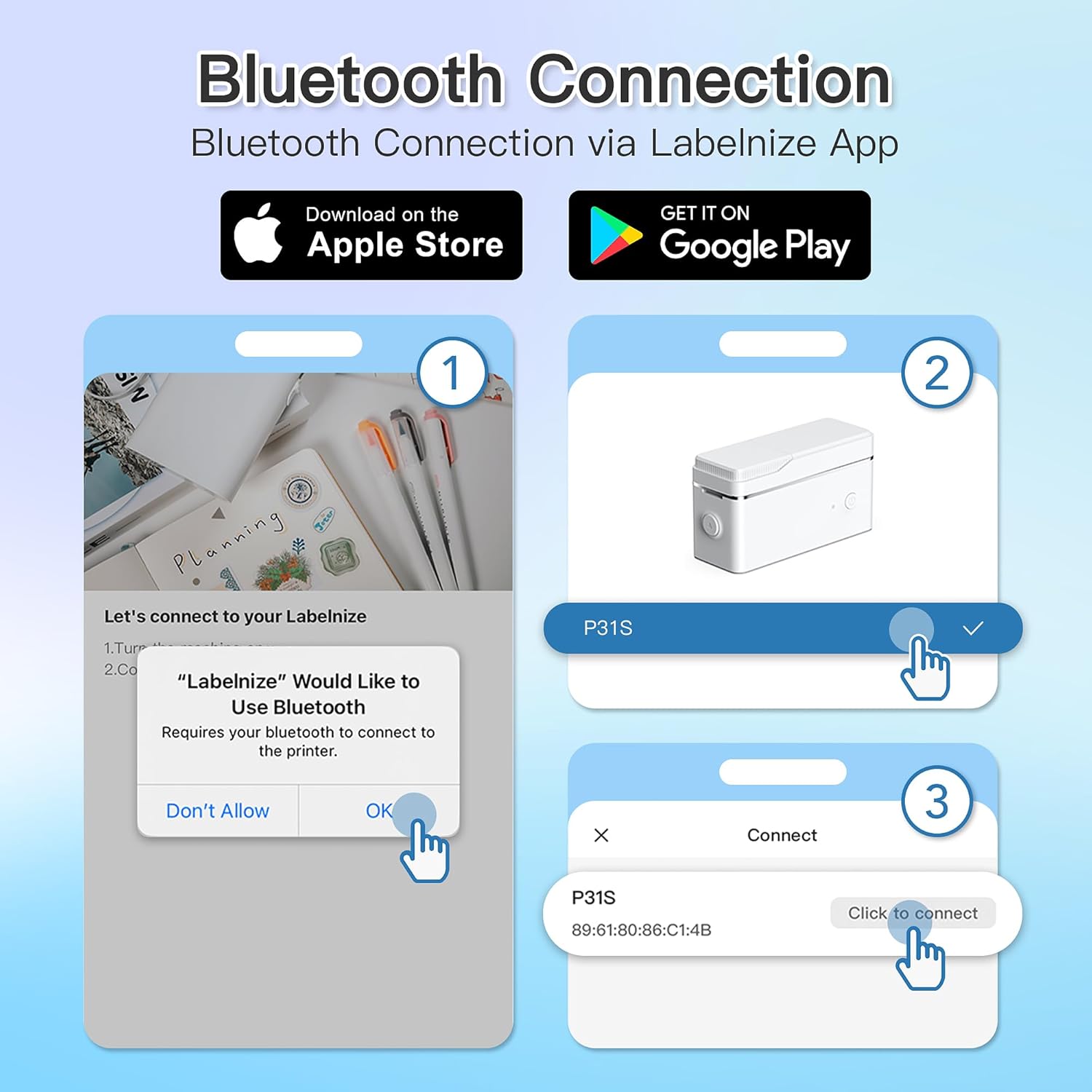
3 paveikslas: Steps for Bluetooth connection via the Labelnize App. Download the app, allow Bluetooth access, select "P31S" from the device list, and click "Connect".
5. Naudojimo instrukcijos
5.1 Creating Labels with the Labelnize App
The Labelnize app offers a variety of tools to design your labels:
- Tekstas: Enter custom text, choose from over 90 fonts, adjust size, style (bold, italic), and alignment.
- Sienos: Select from over 95 border designs to frame your labels.
- Icons/Graphics: Access a library of over 670 tab icons and other graphics to enhance your labels.
- QR Code/Barcode: Generate QR codes or barcodes for various applications.
- Vaizdai: Insert images from your device's gallery.
- Šablonai: Įprastoms ženklinimo užduotims naudokite iš anksto sukurtus šablonus.

4 paveikslas: The Labelnize app interface for creating labels, offering extensive customization options including borders, fonts, and icons. The app supports multiple languages.
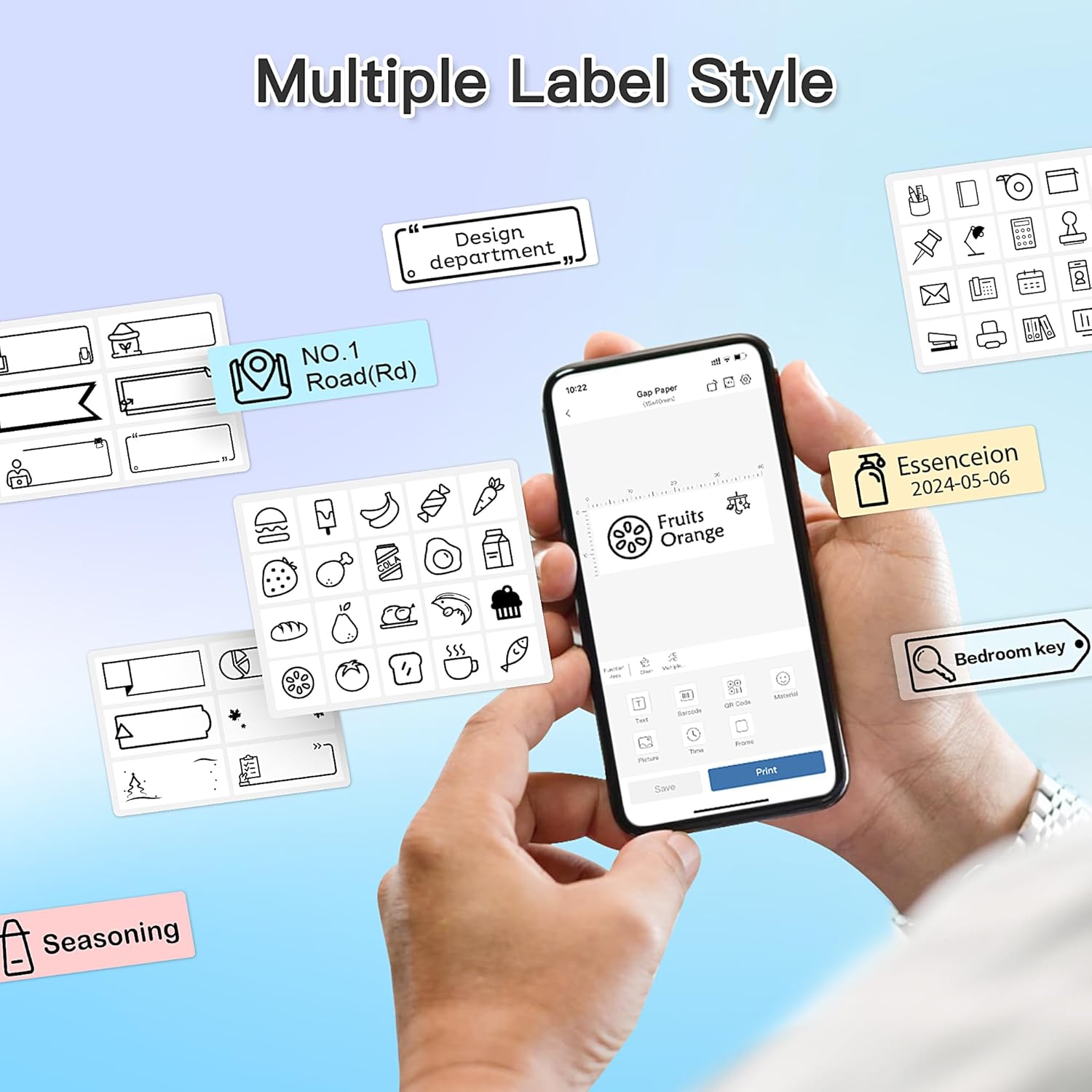
5 paveikslas: Examples of diverse label styles achievable with the POLONO P31S, demonstrating the flexibility in design for different organizational needs.
5.2 Etikečių spausdinimas
After designing your label in the Labelnize app:
- Review savo etiketės dizainą programėlės ekrane.
- Programėlėje palieskite mygtuką „Spausdinti“.
- Confirm print settings (e.g., number of copies) if prompted.
- Spausdintuvas automatiškai paduos ir atspausdins etiketę.
5.3 Integruoto pjaustytuvo naudojimas
The POLONO P31S features a built-in cutter for clean and precise label separation. After printing, gently press the cutter button or lever (depending on model variation) to cut the label. Do not pull the label manually to tear it, as this may damage the printer or result in uneven cuts.
6. Priežiūra
6.1 Spausdinimo galvutės valymas
To maintain print quality, clean the print head periodically:
- Išjunkite spausdintuvą ir atjunkite maitinimo laidą.
- Atidarykite etikečių skyriaus dangtelį.
- Švelniai nuvalykite spausdinimo galvutę vatos tamponu, lengvai dampsu izopropilo alkoholiu.
- Prieš uždarydami dangtį ir įjungdami spausdintuvą, leiskite spausdinimo galvutei visiškai išdžiūti.
6.2 Akumuliatoriaus priežiūra
- Charge the battery regularly, even if the printer is not used frequently, to prolong its lifespan.
- Venkite ilgesnį laiką visiškai iškrauti akumuliatorių.
- Nenaudojamą spausdintuvą laikykite vėsioje, sausoje vietoje.
7. Problemų sprendimas
| Problema | Galima priežastis | Sprendimas |
|---|---|---|
| Spausdintuvas neįsijungia. | Senka baterija arba nėra energijos. | Įkraukite spausdintuvą naudodami pateiktą USB laidą. |
| Nepavyksta prisijungti per „Bluetooth“. | Bluetooth is off, printer is off, or app issue. | Ensure printer is on, Bluetooth is enabled on your device, and restart the Labelnize app. Try re-pairing. |
| Prasta spausdinimo kokybė. | Dirty print head, incorrect label tape, or low battery. | Clean the print head (Section 6.1). Ensure you are using POLONO P31S compatible label tape. Charge the printer. |
| Label jam. | Improper tape installation or foreign object. | Turn off the printer, open the cover, carefully remove any jammed tape. Reinstall tape correctly. |
| Printer not responding. | Laikinas programinės įrangos triktis. | Restart the printer and the Labelnize app. |
8. Specifikacijos
| Funkcija | Detalė |
|---|---|
| Modelis | P31S |
| Spausdinimo technologija | Šiluminis |
| Ryšys | Bluetooth |
| Spausdinimo raiška | 203 x 203 XNUMX DPI |
| Maksimalus spausdinimo greitis (vienspalvis) | 15 ppm |
| Maksimalus laikmenos dydis | Label rolls (2 inches / 24 millimeters) |
| Rašalo spalva | Juoda (terminė spauda) |
| Maitinimo šaltinis | 1 ličio polimero baterija (pridedama) |
| Gaminio matmenys | 7.2 x 7.4 x 12.7 cm; 260 g |
| Įtraukti komponentai | Etiketės |
9. Garantija ir palaikymas
For warranty information and technical support, please refer to the official POLONO websvetainėje arba susisiekite su jų klientų aptarnavimo tarnyba. Išsaugokite pirkimo kvitą kaip pirkimo įrodymą garantijos pretenzijoms.
Oficialus Websvetainė: www.polono.com (Pastaba: tai yra vietos žymeklis URL, prašome patikrinti tikrąjį oficialų website for POLONO products.)


