1. Įvadas
This manual provides comprehensive instructions for the installation, operation, and maintenance of your Geniatech APC Android 11 Smart TV Box. Please read this manual thoroughly before using the device to ensure proper functionality and to maximize its capabilities. This device is designed for various applications, including digital signage, media playback, and industrial communication.
2. Produktas baigtasview
The Geniatech APC is a compact and powerful Android 11-based mini PC designed for robust performance in demanding environments. It features a durable construction with a metal bottom shell and a plastic top shell, engineered for efficient heat dissipation.
2.1 Įrenginio komponentai

The Geniatech APC device, showcasing its compact design and various ports on the side.
2.2 Prievadai ir jungtys
The device is equipped with a variety of connectors to support diverse applications and peripherals.

Išsamią view highlighting the connectivity options: USB 2.0, USB 3.0, TF Slot, Power input, Network port, IR receiver, DC power input, RS232 serial port, HDMI output, and LAN port.
- USB 2.0 prievadai: For connecting standard USB devices such as keyboards, mice, or storage.
- USB 3.0 prievadas: For high-speed data transfer with compatible USB 3.0 devices.
- TF lizdas: For inserting a TransFlash (MicroSD) card to expand storage.
- NET (Ethernet) Port: Laidinio tinklo ryšiui.
- IR (infraraudonųjų spindulių) imtuvas: Skirta signalams priimti iš nuotolinio valdymo pulto.
- DC maitinimo įvestis: Maitinimo adapterio prijungimui.
- RS232 prievadas: An industrial serial port for communication with industrial machines and network equipment.
- HDMI OUT prievadas: For connecting to a display device (TV, monitor) to output video and audio.
- LAN prievadas: Another name for the Ethernet port, for wired network connectivity.
3. Sąranka
Follow these steps to set up your Geniatech APC device.
- Prisijungti prie ekrano: Prijunkite vieną HDMI kabelio galą prie HDMI OUT port on the Geniatech APC and the other end to an HDMI input on your television or monitor.
- Prijunkite prie maitinimo: Prijunkite pateiktą maitinimo adapterį prie Nuolatinės srovės įvestis port on the device, then plug the adapter into a wall outlet.
- Tinklo ryšys (neprivaloma):
- Laidinis: Prijunkite Ethernet kabelį nuo maršrutizatoriaus arba tinklo komutatoriaus prie NET (LAN) įrenginio prievadas.
- Belaidis ryšys: The device supports dual-band Wi-Fi. You will configure Wi-Fi settings after initial boot-up through the Android interface.
- Prijunkite periferinius įrenginius (neprivaloma): Connect a USB keyboard, mouse, or other USB devices to the USB 2.0 or USB 3.0 prievadai.
- Maitinimas: The device should power on automatically once connected to power. If not, press the power button located near the IR receiver.
- Pradinė konfigūracija: Follow the on-screen prompts to complete the initial Android setup, including language selection, network configuration, and Google account login (if desired).
4. Naudojimo instrukcijos
4.1 „Android“ sąsajos naršymas
The Geniatech APC runs on Android 11, providing a familiar and intuitive user experience. You can navigate using the included remote control or by connecting a USB mouse and keyboard.
- Pagrindinis ekranas: Displays your installed applications, widgets, and quick access shortcuts.
- Programėlių stalčius: Pasiekite visas įdiegtas programas.
- Nustatymai: Configure network, display, sound, storage, applications, and system preferences.
4.2 Nuotolinio valdymo pulto naudojimas
Point the remote control towards the IR receiver on the front of the device. The remote allows you to navigate menus, select items, adjust volume, and control media playback.
4.3 Installing and Managing Applications
You can install applications from the Google Play Store (if configured) or by sideloading APK files. To manage applications, go to Nustatymai > Programos.
4.4 Medijos atkūrimas
The device supports 4K2K Ultra HD and 1080p resolution playback. Use pre-installed media players or download your preferred applications for video and audio content. Connect external storage via USB or TF card for local media files.
4.5 Digital Signage Functionality
For digital signage applications, the device supports a Remote Device Management System (MDM). This allows for remote control of online devices, content distribution, application deployment, and service push, making it suitable for commercial advertising and menu displays.
5. Pagrindinės savybės
- Operacinė sistema: Android 11.
- Procesorius: Amlogic S905X4 64-bit quad-core ARM Cortex-A55.
- Atmintis ir saugojimas: 2GB RAM and 8GB ROM.
- Vaizdo įrašo išvestis: 4K2K Ultra HD playback and real-time decoding, supporting 4K and 1080p resolutions.
- Garsas: Dolby Surround Sound (Dolby AC-4) for enhanced audio experience.
- Ryšys: Dual-band Wi-Fi, Ethernet (LAN), Bluetooth, USB 2.0, USB 3.0, TF Card Slot, HDMI OUT, RS232.
- Industrial Communication: RS232 port for easy communication with industrial machines and network equipment.
- Nuotolinis valdymas: Support for Remote Device Management System (MDM) for centralized control and content deployment.
- Šilumos išsklaidymas: Excellent heat dissipation performance with a metal bottom shell and plastic top shell featuring vents for internal ventilation.
- Patikimumas: Built-in hardware watchdog to monitor system status in real-time, ensuring stable and continuous operation (7x24h).

An image illustrating the Dolby Surround Sound feature (Dolby AC-4) of the device, enhancing the audio experience for users.

An illustration demonstrating the excellent heat dissipation performance of the device, achieved through vents on both sides of its metal and plastic casing, ensuring stable operation.
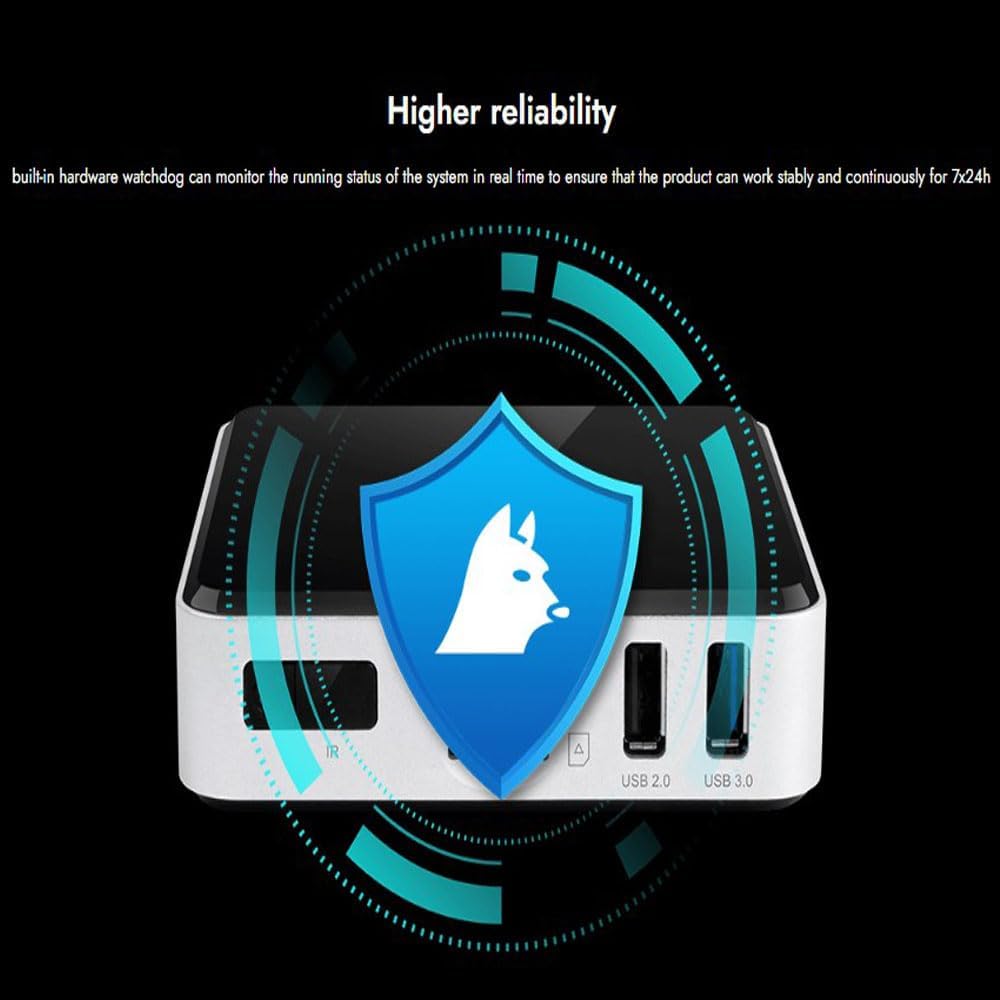
A graphic depicting the built-in hardware watchdog, which monitors the system's running status in real-time to ensure stable and continuous operation for 24/7.
6. Paraiškos
The Geniatech APC is versatile and suitable for a wide range of applications:
- Skaitmeniniai ženklai: Ideal for advertising screen displays, commercial advertising, and menu displays.
- Hotel Intelligent Interactive TV: Enhances guest experience with interactive content.
- IPTV DVB OTT Integration: Supports various streaming and broadcast integration needs.
- Network Video Calling: Facilitates video communication.
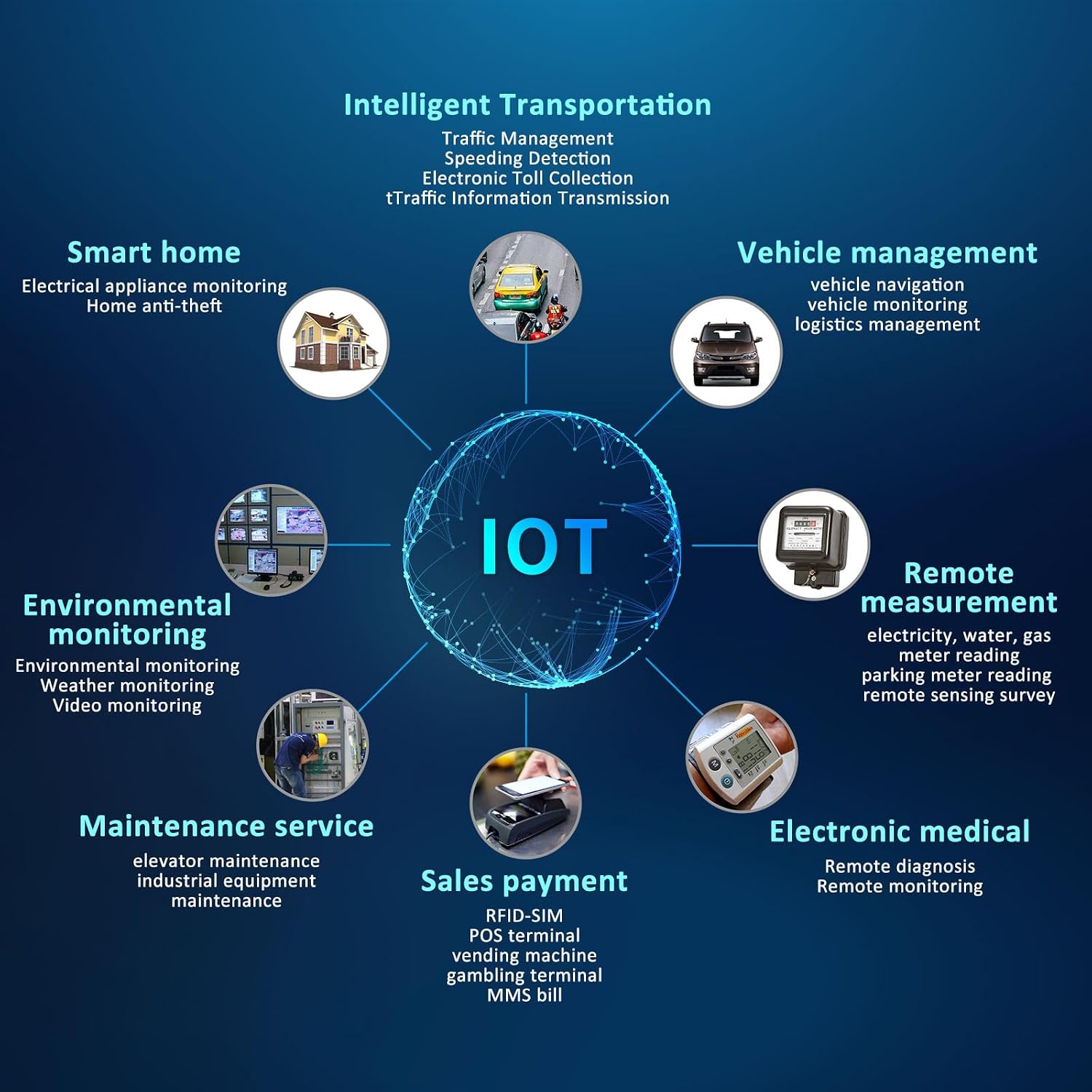
- Daiktų internetas (IoT): Applicable in various IoT scenarios including:
- Smart home (electrical appliance monitoring, home anti-theft)
- Vehicle management (vehicle navigation, vehicle monitoring, logistics management)
- Remote measurement (electricity, water, gas meter reading, parking meter reading, remote sensing survey)
- Maintenance service (elevator maintenance, industrial equipment maintenance)
- Sales payment (RFID-SIM, POS terminal, vending machine, gambling terminal, MMS bill)
- Electronic medical (remote diagnosis, remote monitoring)
- Intelligent Transportation (traffic management, speeding detection, electronic toll collection, traffic information transmission)
Various scenarios where the Geniatech APC can be utilized, such as advertising screens, hotel interactive TVs, and menu displays in commercial settings.

Diagrama rodoasing the diverse applications of the device within the Internet of Things (IoT), including smart home, vehicle management, remote measurement, maintenance, sales payment, electronic medical, and intelligent transportation.
7. Priežiūra
Regular maintenance helps ensure the longevity and optimal performance of your Geniatech APC.
- Valymas: Use a soft, dry cloth to clean the exterior of the device. Avoid using liquid cleaners or abrasive materials. Ensure vents are free from dust accumulation.
- Programinės įrangos atnaujinimai: Periodically check for system updates in the Android settings (Settings > About device > System update) to ensure you have the latest features and security patches.
- Vėdinimas: Ensure the device is placed in a well-ventilated area, away from direct sunlight or heat sources, to maintain optimal operating temperature and prevent overheating. Do not block the side vents.
- Saugyklos valdymas: Reguliariai valykite nereikalingus files and uninstall unused applications to free up internal storage and maintain performance.
8. Problemų sprendimas
If you encounter issues with your Geniatech APC, refer to the following common problems and solutions.
| Problema | Galima priežastis | Sprendimas |
|---|---|---|
| Įrenginys neįsijungia | Maitinimo adapteris neprijungtas arba sugedęs; maitinimo lizdo problema. | Įsitikinkite, kad maitinimo adapteris yra tvirtai prijungtas prie įrenginio ir veikiančio maitinimo lizdo. Išbandykite kitą lizdą. |
| No display on TV/monitor | HDMI cable loose or faulty; incorrect input selected on TV; device not powered on. | Check HDMI cable connections. Ensure TV is set to the correct HDMI input. Verify the device is powered on. Try a different HDMI cable or port on the TV. |
| Wi-Fi ryšio problemos | Incorrect Wi-Fi password; out of range; router issue. | Verify Wi-Fi password in Nustatymai > Tinklas ir internetas > „Wi-Fi“. Move device closer to router. Restart router. |
| Nuotolinio valdymo pultas nereaguoja | Batteries low or depleted; IR receiver blocked; remote not pointed correctly. | Replace remote control batteries. Ensure no obstructions between remote and device's IR receiver. Point remote directly at the device. |
| Programos stringa arba užstringa | Insufficient memory; app conflict; outdated app version. | Uždarykite fonines programas. Išvalykite programų talpyklą (Nustatymai > Programos > [Programos pavadinimas] > Atmintis > Išvalyti talpyklą). Update the application. Restart the device. |
9. Specifikacijos
| Funkcija | Aprašymas |
|---|---|
| Prekės ženklas | Geniatech |
| Modelio pavadinimas | APC |
| Operacinė sistema | Android 11 |
| Procesorius | Amlogic S905X4 64-bit Quad-core ARM Cortex-A55 |
| RAM | 2 GB |
| ROM | 8 GB |
| Rezoliucijos palaikymas | 4K2K Ultra HD playback / real time decoding, 1080p |
| Ryšio technologija | Wireless (Dual-band Wi-Fi), Bluetooth, Ethernet |
| Jungčių tipai | USB 2.0, USB 3.0, TF Slot, HDMI OUT, RS232, DC Power Input, LAN |
| Garso funkcijos | Dolby Surround Sound (Dolby AC-4) |
| Valdiklio tipas | Nuotolinio valdymo pultas |
| Formos faktorius | TV Box / Mini PC |
| Spalva | Juoda |
| Ypatingos savybės | Android OS, HDMI-out, Digital Signage Player, MDM Support, Hardware Watchdog, Excellent Heat Dissipation |
10. Garantija ir palaikymas
For warranty information and technical support, please refer to the documentation included with your purchase or visit the official Geniatech websvetainėje. Išsaugokite pirkimo kvitą kaip pirkimo įrodymą garantiniams reikalavimams.
For further assistance, you may contact Geniatech customer support through their official channels.


