1. Įvadas
Thank you for choosing the Bisofice VTR-T58W 58mm Thermal Receipt Printer. This portable printer is designed for efficient receipt printing in various business environments, including retail, restaurants, and more. It supports both Bluetooth and USB connectivity, offering flexibility for use with mobile devices and computers. This manual provides essential information for setting up, operating, and maintaining your printer.

Image: The Bisofice VTR-T58W thermal receipt printer in a point-of-sale environment, demonstrating its use for printing customer receipts.
2. Saugos informacija
- Saugokite spausdintuvą nuo vandens ar drėgmės.
- Venkite naudoti spausdintuvą itin karštoje arba šaltoje aplinkoje.
- Naudokite tik prie spausdintuvo pridėtą maitinimo adapterį.
- Laikykite spausdintuvą atokiau nuo tiesioginių saulės spindulių ir šilumos šaltinių.
- Nebandykite patys ardyti ar taisyti spausdintuvo. Jei iškyla problemų, kreipkitės į palaikymo tarnybą.
3. Pakuotės turinys
Patikrinkite, ar pakuotėje yra visi reikalingi daiktai:
- Bisofice VTR-T58W Thermal Receipt Printer
- Maitinimo adapteris
- USB kabelis
- Terminio popieriaus ritinys
- Vartotojo vadovas
4. Produktas baigtasview
The Bisofice VTR-T58W printer features a compact design with essential ports and indicators for easy operation.

Image: Diagram illustrating the dimensions of the Bisofice VTR-T58W printer (180mm x 130mm x 110mm) and a three-step visual guide for loading thermal paper.
Pagrindinės funkcijos:
- Tiesioginis terminis spausdinimas: No ink cartridges required, reducing operational costs.
- Didelės spartos spausdinimas: Up to 90mm/s for efficient transaction processing.
- Dvigubas ryšys: Supports both USB and Bluetooth for versatile connection options.
- Platus suderinamumas: Works with Windows, Linux, Android, and iOS systems.
- ESC/POS Command Support: Standard command set for broad software compatibility.
5. Sąranka
5.1 Terminio popieriaus įdėjimas
- Open the top cover of the printer by pressing the release button.
- Insert a 58mm thermal paper roll into the compartment, ensuring the printing side faces upwards.
- Ištraukite nedidelį kiekį popieriaus pro pjaustytuvą.
- Tvirtai uždarykite viršutinį dangtelį, kol jis spragtelėdamas užsifiksuos vietoje.

Image: A visual guide demonstrating the process of opening the printer cover, inserting the thermal paper roll, and closing the cover.
5.2 Spausdintuvo prijungimas
Spausdintuvas palaiko tiek USB, tiek „Bluetooth“ ryšius.

Image: The Bisofice VTR-T58W printer connected via USB to a laptop and wirelessly via Bluetooth to a smartphone, illustrating its dual connectivity.
USB Connection (for Computers - Windows/Linux)
- Prijunkite spausdintuvą prie kompiuterio naudodami pateiktą USB kabelį.
- For Windows systems, download the printer driver from the official Bisofice support website. The driver link is typically provided in the product documentation or can be found at https://www.oadlu.com/support/driver/thermal-printer (look for "T58W driver-2").
- Įdiekite tvarkyklę vadovaudamiesi ekrane pateikiamomis instrukcijomis.
- Once installed, select the printer within your application's print settings.
Bluetooth Connection (for Mobile Devices - Android/iOS)
Bluetooth connection is not supported for computers.
- Įsitikinkite, kad jūsų mobiliajame įrenginyje įjungtas „Bluetooth“.
- Įjunkite spausdintuvą.
- Open the application you intend to use for printing (e.g., Loyverse, iREAP, CasierStock, Kyte).
- Within the application's settings, search for and connect to the printer via Bluetooth. You may need to enable location services on your mobile device for Bluetooth scanning.
6. Naudojimo instrukcijos
After successful setup, you can begin printing receipts.
6.1 Pagrindinis spausdinimas
- Ensure the printer is powered on and connected to your device (via USB or Bluetooth).
- Open your POS software or printing application.
- Initiate a print command from your application. The printer will automatically print the receipt.
- The printer supports ESC/POS commands for various printing functions, including text, images, and 1D barcodes.

Image: The Bisofice VTR-T58W printer actively printing a receipt, highlighting its 90mm/s high-speed capability for busy environments.
6.2 Rekomenduojamos taikymo sritys
The Bisofice VTR-T58W is compatible with several applications:
- Loyverse: For retail and clothing businesses.
- iREAP: For retail and inventory management.
- CasierStock: For shopping and inventory management.
- Kyte: For mobile sales.
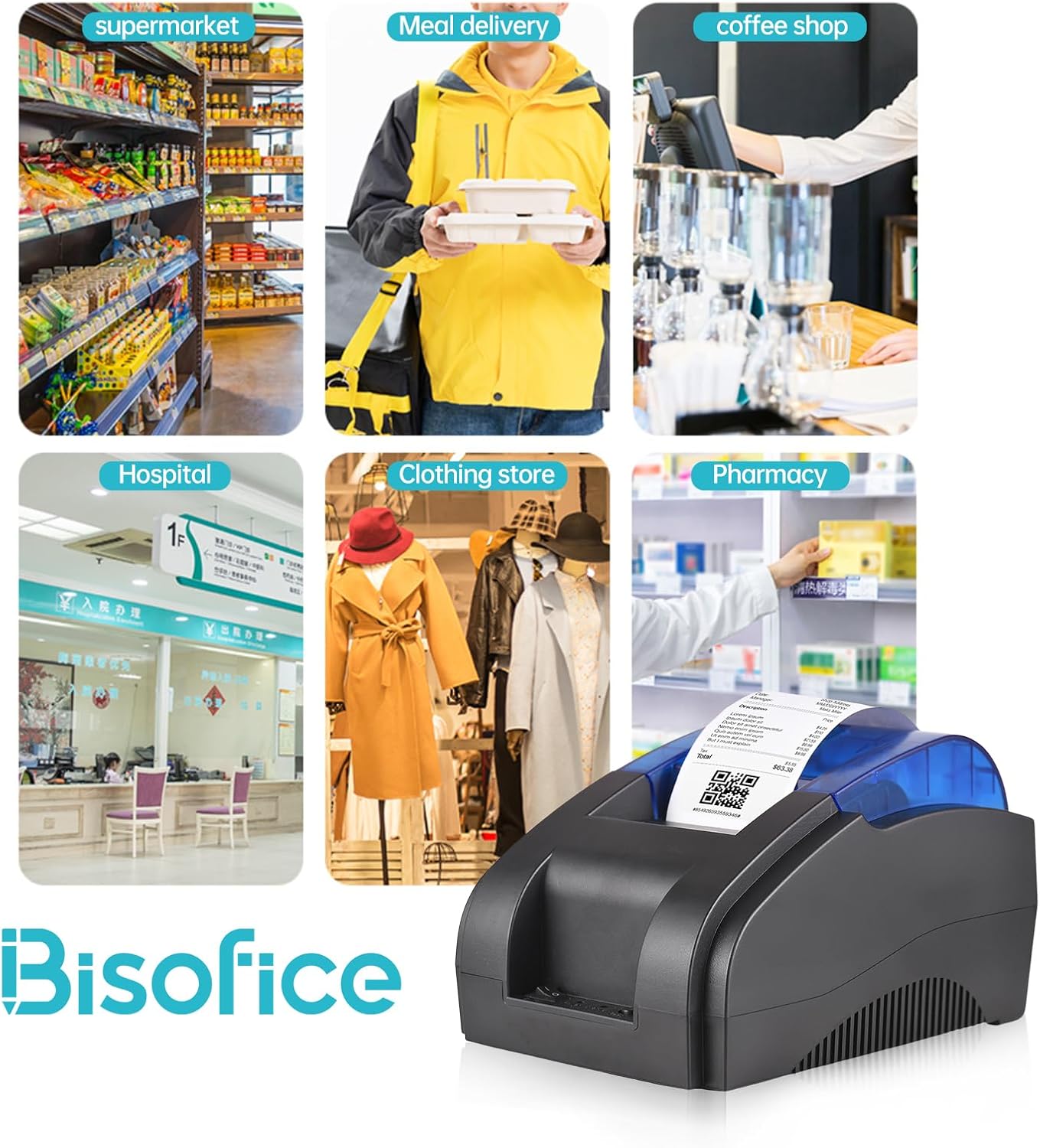
Image: A collage showing the Bisofice VTR-T58W printer being used in diverse settings such as a supermarket, meal delivery service, coffee shop, hospital, clothing store, and pharmacy.
7. Priežiūra
The Bisofice VTR-T58W printer uses thermal printing technology, which means it does not require ink cartridges or ribbons. This simplifies maintenance significantly.
7.1 Spausdintuvo valymas
- Prieš valydami įsitikinkite, kad spausdintuvas yra išjungtas ir atjungtas nuo elektros tinklo.
- Spausdintuvo išorę nuvalykite minkštu, sausu, nepūkuotu audiniu.
- To clean the thermal print head, gently wipe it with an alcohol swab. Allow it to dry completely before use.
- Regularly remove any paper dust or debris from the paper compartment.
8. Problemų sprendimas
Jei kyla problemų dėl spausdintuvo, žr. toliau pateiktas dažniausiai pasitaikančias problemas ir sprendimus:
8.1 Spausdinimo problemos
- Nėra spausdinimo išvesties: Check if the printer is powered on, connected correctly (USB or Bluetooth), and has thermal paper loaded. Ensure the paper is loaded with the correct side facing the print head.
- Blankūs arba tušti atspaudai: This usually indicates the thermal paper is loaded upside down or the print head needs cleaning.
- Garbled Characters: Verify that the correct printer driver is installed on your computer or that the mobile application settings are configured for the Bisofice VTR-T58W.
8.2 Ryšio problemos
- „Bluetooth“ ryšio sutrikimas: Ensure Bluetooth is enabled on your mobile device and the printer. Make sure no other device is currently paired with the printer. Try restarting both the printer and your mobile device. Remember, Bluetooth is not for computer connections.
- USB Connection Failure: Check the USB cable connection. Try a different USB port on your computer. Reinstall the printer driver if necessary.
8.3 Programinės įrangos suderinamumas
Please note that this printer is Netinkamas with the following POS systems and applications:
- SumUp, Hello Cash, Zettle, Ubereats, Shopify, Grubhub, Doordash, Gloriafoods, Lightspeed, Postmates, Square, Clover, TabShop, O3POS, Credit Card Reader, Settle, FileMaker, MobiPOS Lite, Kasse Speedy, Open Table.
Always confirm compatibility with your specific POS application or system before purchase.
9. Specifikacijos
| Modelis | VTR-T58W |
| Spausdinimo būdas | Tiesioginis terminis |
| Popieriaus plotis | 58 mm |
| Spausdinimo plotis | 48 mm |
| Spausdinimo greitis | 90 mm/s (maks.) |
| Rezoliucija | 203 dpi |
| Sąsaja | USB, Bluetooth |
| Palaikoma OS | Windows, Linux, Android, iOS |
| Komandų rinkinys | Suderinamas su ESC/POS |
| Matmenys (I x P x A) | 20 x 13 x 14 cm |
| Svoris | 770 g |
10. Garantija ir palaikymas
10.1 Ribota garantija
The Bisofice VTR-T58W Thermal Receipt Printer comes with a limited warranty. Please refer to the warranty card included in your package or contact your retailer for specific terms and conditions regarding warranty coverage and duration.
10.2 Pagalba klientams
For technical assistance, driver downloads, or further inquiries, please visit the official Bisofice support websvetainėje arba susisiekite su jų klientų aptarnavimo tarnyba. Kontaktinę informaciją paprastai galite rasti ant produkto pakuotės arba gamintojo websvetainę.


