1. Produktas baigtasview
The Irfora Portable Receipt Printer MP210 is a versatile 58mm thermal receipt printer designed for various business environments. It offers flexible connectivity options and high-quality printing capabilities, making it an ideal solution for small businesses, restaurants, and retail stores.
- Universalus ryšys: Supports both Bluetooth (BT) and USB connections, compatible with Android, iOS, and Windows systems. Seamlessly integrates with popular apps like Loyverse, iREAP, CasierStock, and Kyte.
- Aukštos kokybės spausdinimas: Achieves a maximum print speed of 70mm/s with a resolution of 203dpi, ensuring clear and fast output. Utilizes 58mm thermal paper with a valid print width of 48mm. Capable of printing receipts, orders, barcodes, QR codes, and text.
- Cost-Effective and Convenient: Operates without ink cartridges or ribbons, reducing running costs. Thermal paper is widely available and easy to replace.
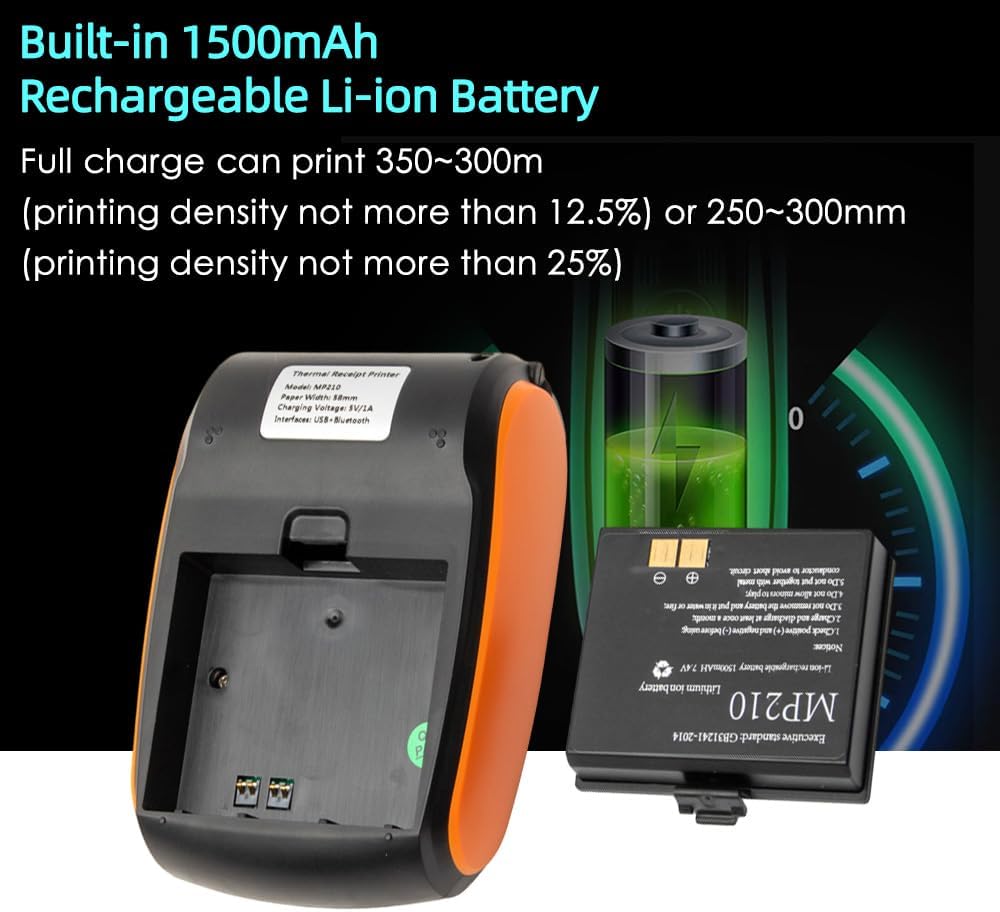
- Ilgai veikianti baterija: Equipped with a built-in 1500mAh rechargeable Li-ion battery, allowing for portable printing anytime, anywhere. Lightweight and easy to carry.
- Platus pritaikymas: Suitable for supermarkets, shopping malls, restaurants, fast food outlets, cake shops, and various retail industries.
2. Specifikacijos
| Modelis | MP210 |
| Matmenys | 121 x 83.5 x 54.8 mm |
| Spausdinimo būdas | Terminio taško linijos spausdinimas |
| Rezoliucija | 203 dpi, 8 taškai / mm |
| Spausdinimo greitis (maks.) | 70 mm/s |
| Popieriaus plotis | 58 mm |
| Galiojantis spausdinimo plotis | 48 mm |
| Popieriaus storis | 60–80 μm |
| Paper Roller Diameter | ≤40 mm |
| Sąsaja | BT and USB |
| Character Set Font | ASCII:9×17,12×24, Multiple code pages support |
| Brūkšninio kodo simboliai | 1D: UPC-A, UPC-E, EAN8, EAN13, CODE39, ITF, CODEBAR, CODE128, CODE93; 2D: QR code |
| Grafika | Support bitmap printing with different density and user defined bitmap printing (Max. 40K for per bitmap, and Max. 64K for total) |
| Baterija | 1500mAh/7.4V rechargeable Li-ion battery. Full charge can print 250~300m (printing density not more than 25%) or 350~300m (printing density not more than 12.5%). |
| Palaikymo sistema | Android, iOS, Win7/Win8/Win10 |
3. Pakuotės turinys
- 1 x Thermal Printer
- 1 x terminio popieriaus ritinys
- 1x USB laidas
- 1 x Vartotojo vadovas
4. Darbo pradžia
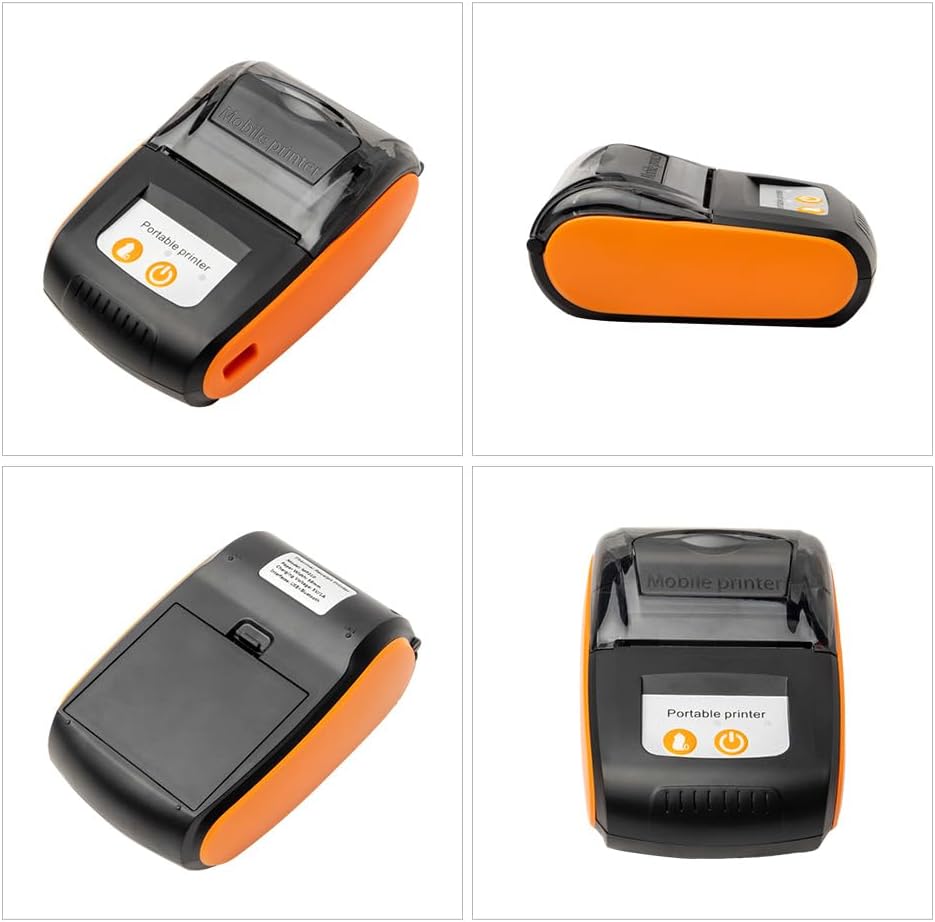
4.1. Printer Components Overview
4.2. Akumuliatoriaus įdėjimas
The MP210 printer comes with a removable rechargeable Li-ion battery. Ensure the battery is properly installed before first use or charging.
- Raskite baterijų skyriaus dangtelį spausdintuvo apačioje.
- Pastumkite dangtelį, kad atidarytumėte skyrių.
- Insert the 1500mAh Li-ion battery into the compartment, ensuring the contacts align correctly.
- Saugiai uždarykite akumuliatoriaus skyriaus dangtelį.

4.3. Popieriaus ritinio įdėjimas
The printer uses 58mm thermal paper rolls. Follow these steps to load a new paper roll:
- Press the cover open button (usually on the side or front) to open the paper compartment.
- Insert the thermal paper roll with the printing side facing outwards (the paper should feed from the bottom of the roll).
- Ištraukite nedidelį popieriaus gabalėlį už pjovimo krašto.
- Tvirtai uždarykite popieriaus skyriaus dangtelį, kol jis spragtelėdamas užsifiksuos.

4.4. Įjungimas/išjungimas
Press and hold the power button (usually marked with a power symbol) for a few seconds to turn the printer on or off. The indicator lights will illuminate when the printer is on.
5. Ryšys
5.1. Bluetooth Connection (Android/iOS)
The MP210 printer supports Bluetooth connectivity for mobile devices.
- Įsitikinkite, kad spausdintuvas įjungtas ir jūsų mobiliajame įrenginyje įjungtas „Bluetooth“ ryšys.
- Mobiliajame įrenginyje eikite į „Bluetooth“ nustatymus ir ieškokite galimų įrenginių.
- Select the printer (e.g., "Bluetooth Printer" or a device name starting with "MP210") from the list.
- If prompted for a PIN, enter "0000" or "1234".
- Once paired, you can connect the printer through your printing application.

This video demonstrates the process of loading paper into the 58mm Bluetooth Receipt Printer and connecting it to a mobile phone via Bluetooth for printing. It shows the steps for pairing the device and initiating a print job from a mobile application.
5.2. USB Connection (Windows)
For Windows systems, connect the printer via USB and install the necessary drivers.
- Prijunkite spausdintuvą prie kompiuterio naudodami pateiktą USB kabelį.
- Atsisiųsti spausdintuvo tvarkyklę iš oficialaus website (refer to the links in the product description: http://www.asia-printer.com/software or http://www.weinprinter.com/products_detail.aspx?ProductsID=126&ProductsCateId=74&CurrCateID=74&CateID=74).
- Vykdykite ekrane pateikiamas instrukcijas, kad įdiegtumėte tvarkyklę.
- After installation, you can print a test page to confirm successful setup.
This video demonstrates the process of installing the printer driver on a Windows operating system and printing a test page via USB connection. It guides users through the software setup and verification of printer functionality.
6. Operacija
6.1. Printing from Mobile Applications
The MP210 is compatible with various POS applications. Ensure your mobile device is paired via Bluetooth.
- Open your preferred POS application (e.g., Loyverse, iREAP, CasierStock, Kyte).
- Navigate to the printer settings within the app.
- Select the paired Bluetooth printer.
- Configure print settings such as paper width (58mm) and receipt/bill options.
- Initiate a print test or print a transaction receipt.
This video illustrates the process of connecting the Bluetooth Receipt Printer to a mobile device and using the Loyverse POS application to print a receipt. It covers Bluetooth pairing, printer setup within the app, and completing a transaction print.
6.2. Printing Text, Images, and Barcodes
The printer supports various content types:
- Teksto spausdinimas: Send plain text or formatted text from your application.
- Image Printing: Print logos or other graphic elements.
- Barcode/QR Code Printing: Generate and print 1D and 2D barcodes for product scanning or information.
7. Priežiūra
7.1. Spausdinimo galvutės valymas
Reguliarus spausdinimo galvutės valymas užtikrina optimalią spausdinimo kokybę ir pailgina spausdintuvo tarnavimo laiką.
- Išjunkite spausdintuvą ir atjunkite maitinimo laidą.
- Atidarykite popieriaus skyriaus dangtį.
- Švelniai nuvalykite vatos tamponuampšvelniai nuvalykite spausdinimo galvutės paviršių, suvilgytą izopropilo alkoholiu.
- Prieš uždarydami dangtį ir įjungdami spausdintuvą, leiskite spausdinimo galvutei visiškai išdžiūti.
7.2. Akumuliatoriaus priežiūra
Norėdami maksimaliai pailginti akumuliatoriaus veikimo laiką:
- Prieš pradėdami naudoti akumuliatorių, visiškai jį įkraukite.
- Venkite dažnai visiškai iškrauti akumuliatorių.
- Jei spausdintuvą ilgesnį laiką nenaudosite, įkraukite akumuliatorių iki maždaug 50 % ir laikykite vėsioje, sausoje vietoje.
8. Problemų sprendimas
8.1. Spausdintuvas nereaguoja
- Patikrinkite, ar spausdintuvas įjungtas ir ar akumuliatorius įkrautas.
- Verify the power adapter is securely connected.
- If using Bluetooth, ensure the printer is paired and connected to your device.
- If using USB, ensure the cable is connected and drivers are correctly installed.
8.2. Prasta spausdinimo kokybė
- Išvalykite spausdinimo galvutę, kaip aprašyta skyriuje „Priežiūra“.
- Įsitikinkite, kad naudojate aukštos kokybės terminį popierių.
- Check if the paper roll is loaded correctly.
8.3. Paper Jam
- Išjunkite spausdintuvą ir atidarykite popieriaus skyriaus dangtelį.
- Carefully remove any jammed paper. Avoid pulling forcefully to prevent damage.
- Ensure the paper roll is correctly seated and the cover is closed properly.
9. Garantija ir palaikymas
For warranty information, technical support, or service inquiries, please refer to the contact information provided with your purchase or visit the official Irfora websvetainę.

