1. Įvadas
Thank you for choosing the iProda 15.6-inch Portable Monitor. This device is designed to enhance your productivity and entertainment by providing a versatile second screen for your laptop, PC, smartphone, and gaming consoles. This manual will guide you through the setup, operation, and maintenance of your new monitor.
2. Produkto ypatybės
- 15.6-inch Full HD (1080p) IPS Display: Patirkite ryškias spalvas ir platų viewkampų.
- 60Hz atnaujinimo dažnis: Ensures smooth visuals for work and entertainment.
- Apsauginis ekranas nuo akinimo: Sumažina atspindžius, kad būtų patogu viewesant įvairioms apšvietimo sąlygoms.
- Lengvas ir nešiojamas: Weighing approximately 1.2 kg (2.6 lbs) and only 0.6 cm (0.24 inches) thick, it's ideal for on-the-go use.
- „Plug and Play“ jungtis: Simple setup with USB-C or HDMI.
- Integruoti garsiakalbiai: Integrated audio for convenience.
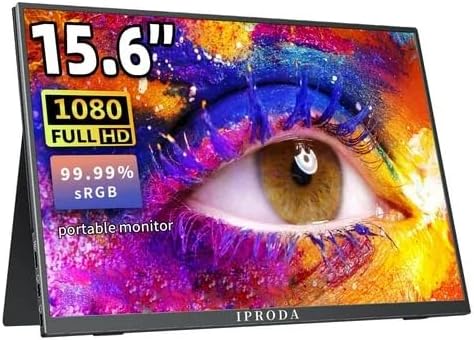
Figure 2.1: iProda 15.6-inch Portable Monitor showcasing its 1080 Full HD resolution and sRGB color accuracy.

Figure 2.2: Close-up of the iProda portable monitor screen highlighting IPS technology and a 178-degree super wide viewing angle for an excellent visual experience.
3. Sąrankos vadovas
The iProda portable monitor is designed for easy plug-and-play setup. Follow these steps to connect your device:
- Maitinimo jungtis: Connect the monitor to a power source using the provided USB-C cable and a compatible power adapter (not always included, check packaging).
- Vaizdo jungtis:
- USB-C (Full Function): If your device (laptop, smartphone) has a full-function USB-C port that supports video output and power delivery, simply connect a single USB-C cable from your device to one of the monitor's USB-C ports.
- Mini HDMI: Connect a mini HDMI to HDMI cable from the monitor's mini HDMI port to your device's HDMI port. You will also need to connect a USB-C cable for power.
- Garsas (neprivaloma): If you prefer to use external headphones or speakers, connect them to the 3.5mm audio jack on the monitor.
- Įrenginio nustatymai: Your device should automatically detect the monitor. If not, you may need to adjust display settings in your operating system (e.g., Windows Display Settings, macOS System Preferences).
4. Naudojimo instrukcijos
The monitor features intuitive controls for adjusting settings:
- Power Button / Return Button: Press and hold to power on/off. Short press to return to the previous menu in OSD settings.
- Dial-wheel Switch (OSD Settings):
- Paspauskite: Enter the On-Screen Display (OSD) menu.
- Slinkti aukštyn / žemyn: Naršykite meniu parinktis arba koreguokite vertes.
- Press (while in menu): Patvirtinkite pasirinkimą.
The OSD menu allows you to adjust brightness, contrast, color settings, input source, and other display parameters.
5. Ryšys ir suderinamumas
The iProda portable monitor offers broad compatibility with various devices:
- USB-C (x2, Full Function): Connects to laptops, PCs, tablets, and smartphones that support DisplayPort Alternate Mode and Power Delivery.
- Mini HDMI (x1): Connects to devices with an HDMI output, including laptops, PCs, gaming consoles (Xbox, PlayStation, Nintendo Switch), and media players.
- 3.5 mm ausinių lizdas (x1): Skirtas prijungti išorinius garso įrenginius.
Suderinami įrenginiai:
- Staliniai kompiuteriai
- Laptops (Windows, macOS)
- Tabletės
- Smartphones (with full-function USB-C)
- Nintendo Switch
- PlayStation 4/5
- Xbox One/Series X|S

Figure 5.1: Port layout and compatible devices for the iProda portable monitor.
6. Naudojimo režimai
When connected to a laptop or PC, the iProda portable monitor supports various display modes:
- Dubliavimo režimas: Displays the same content on both your primary screen and the portable monitor. Ideal for presentations or sharing content.
- Išplėsti režimą: Extends your desktop across both screens, providing more screen real estate for multitasking. Drag windows between screens.
- Tik antrojo ekrano režimas: Displays content only on the portable monitor, with your primary screen turned off. Useful for focusing on a single display or when using the portable monitor as the main display.

Figure 6.1: Display modes (Duplicate, Extend, Second Screen Only) with a laptop.
7. Taikymas ir naudojimo atvejai
The iProda portable monitor is versatile for various scenarios:
- Daily Work & Business: Enhance productivity by extending your workspace for spreadsheets, documents, and presentations.
- Phone Extension: Transform your smartphone into a larger display for media consumption or light productivity tasks.
- On-the-GO: Its lightweight design makes it perfect for travel, remote work, or mobile presentations.
- Žaidimai: Connect to your favorite gaming consoles for an immersive gaming experience anywhere.

Figure 7.1: Various applications of the iProda portable monitor.

Figure 7.2: iProda portable monitor used for gaming with various consoles.
8. Priežiūra
To ensure the longevity and optimal performance of your iProda portable monitor, follow these maintenance guidelines:
- Ekrano valymas: Šiek tiek naudokite minkštą, be pūkelių šluostę dampened with water or a screen-cleaning solution. Do not spray liquid directly onto the screen. Avoid using harsh chemicals or abrasive materials.
- C valymasasing: Nuvalykite monitoriaus dangtelįasing minkštu, sausu skudurėliu.
- Saugykla: Kai nenaudojate, laikykite monitorių vėsioje, sausoje vietoje, geriausia originalioje pakuotėje arba apsauginiame dėkle, kad apsaugotumėte jį nuo dulkių ir įbrėžimų.
- Tvarkymas: Visada imkite monitorių už kraštų. Venkite spausti ekraną.
9. Problemų sprendimas
If you encounter issues with your iProda portable monitor, refer to the following common problems and solutions:
| Problema | Galima priežastis | Sprendimas |
|---|---|---|
| Nėra signalo / Juodas ekranas | Incorrect input source selected; Loose cable connection; Insufficient power; Device not outputting video. | Check cable connections; Ensure monitor is powered; Select correct input source via OSD; Verify device's video output settings. |
| Nėra galios | Power cable not connected; Power adapter faulty; USB-C port on device not providing enough power. | Ensure power cable is securely connected; Try a different power adapter/USB-C port; Use an external power source if needed. |
| Mirgantis ekranas | Faulty cable; Interference; Graphics driver issue. | Try a different cable; Ensure no strong electromagnetic interference; Update graphics drivers on your connected device. |
| No Audio from Monitor | Monitor volume too low; Audio output not set to monitor; External speakers/headphones connected. | Adjust monitor volume via OSD; Set audio output to the monitor in your device's sound settings; Disconnect external audio devices if using monitor speakers. |
If the problem persists after trying these solutions, please contact iProda customer support for further assistance.
10. Specifikacijos
| Funkcija | Specifikacija |
|---|---|
| Ekrano dydis | 15.6 colių |
| Ekrano tipas | IPS, Anti-glare |
| Rezoliucija | Full HD (1920 x 1080) |
| Atnaujinimo dažnis | 60 Hz |
| Krašto santykis | 16:9 |
| Ryšys | 2x USB-C (Full Function), 1x Mini HDMI, 1x 3.5mm Audio Jack |
| Svoris | apytiksliai 1.2 kg (2.6 svaro) |
| Storis | apytiksliai 0.6 cm (0.24 colio) |
| Integruoti garsiakalbiai | Taip |
11. Garantija ir palaikymas
Your iProda portable monitor comes with a standard manufacturer's warranty. Please refer to the warranty card included in your product packaging for specific terms and conditions.
For technical support, troubleshooting assistance, or warranty claims, please contact iProda customer service through the contact information provided on the official iProda websvetainėje arba jūsų pirkimo platformoje.
Kreipdamiesi į palaikymo tarnybą, turėkite paruoštą savo produkto modelį ir pirkimo informaciją.


