1. Įvadas
This manual provides detailed instructions for the setup, operation, and maintenance of your KTC 32-Inch 2K QHD IPS Monitor, model H32T13. Please read this manual thoroughly before using the monitor to ensure proper functionality and to prevent damage.
The KTC H32T13 monitor features a 32-inch IPS panel with 2K QHD (2560x1440) resolution, a 100Hz refresh rate, and support for FreeSync/G-Sync technologies. It is designed for both office productivity and gaming, offering vibrant colors, wide viewing angles, and eye-care features.
2. Kas yra dėžutėje
Patikrinkite, ar pakuotėje yra visi komponentai:
- KTC 32-Inch 2K QHD IPS Monitor (H32T13)
- Monitoriaus stovas (pagrindas ir kaklelis)
- HDMI kabelis
- Maitinimo laidas
- Maitinimo adapteris
- Atsuktuvas
- Vartotojo vadovas (šis dokumentas)

Image: Contents of the KTC H32T13 monitor package.
3. Produktas baigtasview
The KTC H32T13 monitor is designed for a superior visual experience. Key features include:
- 32-inch QHD (2560x1440) IPS Panel: Delivers crisp, detailed images with accurate colors and wide viewkampų.
- 100Hz atnaujinimo dažnis: Provides smoother motion for gaming and fast-paced content.
- FreeSync/G-Sync Compatibility: Sumažina ekrano plyšinėjimą ir mirgėjimą, kad žaidimų patirtis būtų sklandi.
- HDR palaikymas: Enhances contrast and color for more realistic visuals.
- Akių priežiūros technologija: Features Flicker-Free and Low Blue Light modes to reduce eye strain during prolonged use.
- Universalus ryšys: Equipped with multiple HDMI 2.0 and DisplayPort 1.4 inputs.
- Ergonomiškas dizainas: Offers tilt adjustment and VESA mount compatibility for flexible positioning.
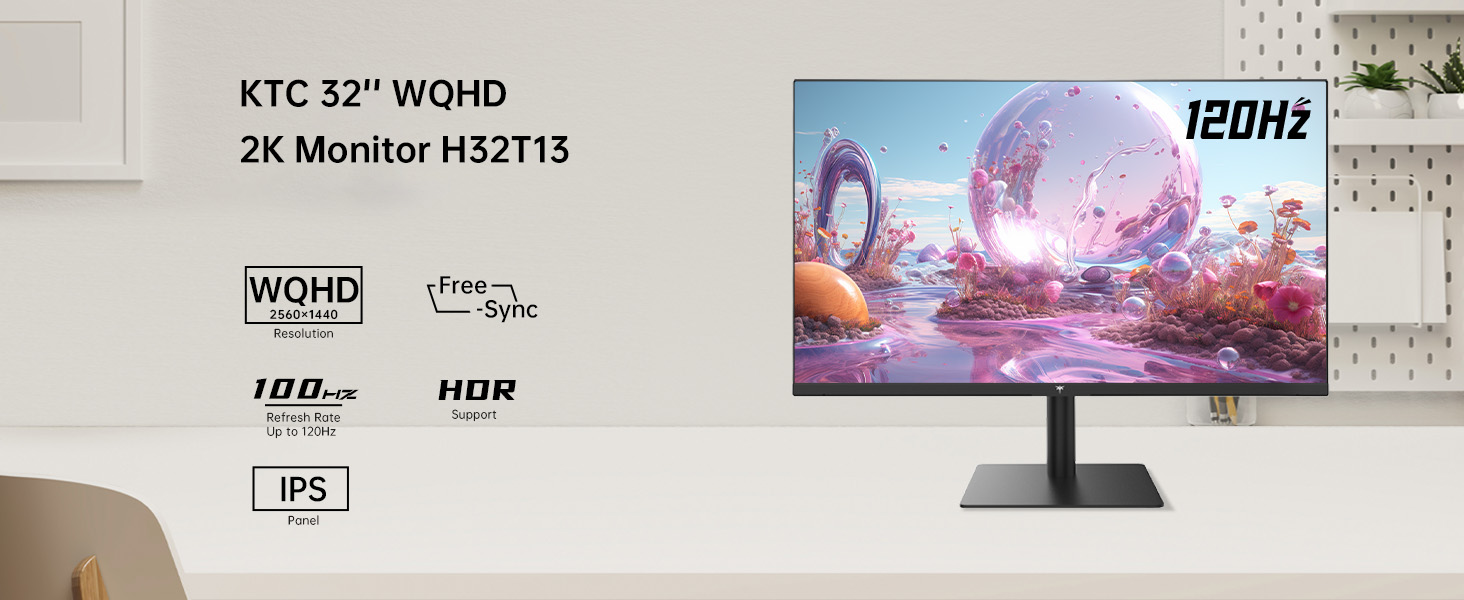
Image: KTC H32T13 monitor showcasing its key display technologies.

Image: The 32-inch screen size of the KTC H32T13 monitor.
4. Sąranka
4.1 Stovo surinkimas
- Atsargiai išimkite monitoriaus ir stovo komponentus iš pakuotės.
- Attach the stand neck to the monitor panel using the provided screws and screwdriver.
- Pritvirtinkite stovo pagrindą prie stovo kaklelio.
- Surinktą monitorių padėkite ant stabilaus, lygaus paviršiaus.
4.2 VESA tvirtinimas (pasirinktinai)
The monitor supports VESA 100mm x 100mm mounting. If you wish to use a VESA-compatible arm or wall mount (not included), remove the stand and attach the VESA mount according to its instructions.

Vaizdas: Galinis view of the monitor with VESA 100x100mm mounting points.
4.3 Prijungimas prie kompiuterio
- Įsitikinkite, kad ir monitorius, ir kompiuteris yra išjungti.
- Connect one end of the provided HDMI cable to an HDMI port on your computer's graphics card.
- Connect the other end of the HDMI cable to one of the HDMI 2.0 ports on the monitor. Alternatively, use a DisplayPort cable to connect to a DP 1.4 port for higher refresh rates and FreeSync/G-Sync functionality.
- Connect the power adapter to the monitor's DC input and then plug the power cord into a power outlet.
- Įjunkite kompiuterį, tada įjunkite monitorių.

Image: Monitor connectivity ports (DC, HDMI 1, HDMI 2, DP 1).
5. Naudojimo instrukcijos
5.1 Maitinimo įjungimas/išjungimas
Norėdami įjungti arba išjungti monitorių, paspauskite ant jo esantį maitinimo mygtuką. Įjungus monitorių, užsidegs maitinimo indikatoriaus lemputė.
5.2 Įvesties šaltinio pasirinkimas
Use the OSD (On-Screen Display) menu buttons to navigate and select your desired input source (HDMI 1, HDMI 2, or DisplayPort).
5.3 Ekrano nustatymų reguliavimas (OSD meniu)
The OSD menu allows you to customize various display settings. Typically, buttons are located on the back or bottom of the monitor. Refer to the quick start guide for specific button functions.
- Ryškumas / kontrastas: Sureguliuokite bendrą šviesumo ir kontrasto santykį.
- Spalvų nustatymai: Modify color temperature, gamma, and individual RGB levels. The monitor supports 1.07 billion colors and 103% sRGB.
- Vaizdo režimas: Select from preset modes optimized for different content (e.g., Standard, Game, Movie, Text).
- Atnaujinimo dažnis: The monitor supports up to 100Hz. Ensure your graphics card settings are configured to match.
- FreeSync/G-Sync: Enable this feature in the OSD menu and your graphics card control panel for adaptive synchronization.
- Eye Care Modes: Activate Flicker-Free and Low Blue Light modes to reduce eye strain.
- HDR: Enable HDR for compatible content and devices.

Image: Monitor displaying enhanced colors and brightness with HDR enabled.

Image: Visual comparison of FreeSync/G-Sync enabled and disabled, demonstrating smoother gameplay.

Image: IPS panel advantages in brightness and color over VA panels.
5.4 Fiziniai koregavimai
The monitor stand allows for tilt adjustment from -5° to 15° to optimize your viewing kampas.

Image: Monitor tilt adjustment range and eye care features.
Vaizdo įrašas: Užbaigtaview of the KTC 2K IPS Office Monitor, highlighting its features and suitability for office use. This video demonstrates the monitor's visual quality and design.
6. Priežiūra
6.1 Monitoriaus valymas
- Prieš valydami visada išjunkite monitorių ir atjunkite maitinimo laidą.
- Lengvai naudokite minkštą, nepūkuotą audinį dampnuplaukite vandeniu arba švelniu, neabrazyviniu ekrano valikliu.
- Wipe the screen gently to remove dust and smudges. Avoid applying direct pressure to the screen.
- Nenaudokite alkoholio, amoniako pagrindo valiklių ar abrazyvinių medžiagų, nes jos gali pažeisti ekrano paviršių.
- Išvalykite monitorių casing minkštu, sausu skudurėliu.
6.2 Saugykla
Jei monitorių ilgesnį laiką laikysite, įsitikinkite, kad jis yra išjungtas, atjungtas nuo elektros tinklo ir laikomas vėsioje, sausoje vietoje, apsaugotoje nuo tiesioginių saulės spindulių ir ekstremalių temperatūrų. Geriausiai apsaugai naudokite originalią pakuotę, jei įmanoma.
7. Problemų sprendimas
| Problema | Galima priežastis | Sprendimas |
|---|---|---|
| Ekrane nėra vaizdo | Monitor not powered on; Incorrect input source; Loose video cable; Computer in sleep mode. | Ensure power is connected and monitor is on. Select correct input source. Check video cable connections. Wake up computer. |
| Vaizdas neryškus arba iškraipytas | Incorrect resolution; Faulty video cable; Graphics driver issues. | Set display resolution to 2560x1440. Try a different video cable. Update graphics drivers. |
| Ekrano mirgėjimas arba plyšimas | Refresh rate mismatch; FreeSync/G-Sync not enabled or incompatible. | Ensure refresh rate is set to 100Hz. Enable FreeSync/G-Sync in monitor OSD and graphics card settings. Use DisplayPort for FreeSync/G-Sync. |
| Iš ausinių nėra garso | Headphones not connected properly; Audio output not set to monitor. | Check headphone connection. Set monitor as default audio output in your computer's sound settings. |
| Mygtukai nereaguoja | OSD lock enabled; Temporary software glitch. | Check if OSD lock is active (refer to quick start guide). Power cycle the monitor. |
8. Specifikacijos
| Funkcija | Detalė |
|---|---|
| Modelio numeris | H32T13 |
| Ekrano dydis | 32 colių |
| Skydelio tipas | IPS |
| Rezoliucija | 2560 x 1440 (QHD plačiaekranis 1440p) |
| Krašto santykis | 16:9 |
| Atnaujinimo dažnis | 100 Hz |
| Ryškumas | 350 Candela (typ.) |
| Spalvų gama | 103% sRGB |
| Spalvos gylis | 1.07 milijardo spalvų |
| HDR palaikymas | Taip |
| Adaptyvusis sinchronizavimas | FreeSync/G-Sync Compatible |
| Ryšys | 2 HDMI 2.0, 1 DisplayPort 1.4 |
| Pasvirimo reguliavimas | -5° iki 15° |
| VESA kalnas | 100 mm x 100 mm |
| Akių priežiūros funkcijos | Flicker-Free, Eye Protection Mode (Low Blue Light) |
| Gaminio matmenys | 5.31 x 32.48 x 21.2 colio |
| Prekės svoris | 18.81 svaro |
9. Garantija ir palaikymas
9.1 Informacija apie garantiją
KTC products are covered by a limited warranty. Please refer to the warranty card included in your product packaging or visit the official KTC webIšsamias garantijos sąlygas ir nuostatas rasite svetainėje. Išsaugokite pirkimo įrodymą, jei prireiktų pateikti garantijos pretenzijas.
9.2 Pagalba klientams
For technical assistance, troubleshooting not covered in this manual, or warranty inquiries, please contact KTC customer support through the following channels:
- Palaikymas internetu: Visit the KTC official website for FAQs, driver downloads, and support contact forms.
- Pagalba el. paštu: Žiūrėkite savo garantijos kortelę arba KTC websvetainėje, kad gautumėte tinkamą palaikymo el. pašto adresą.
- „Amazon“ palaikymas: If purchased via Amazon, you can contact the seller directly through your Amazon order history for assistance.
Image: Steps to contact KTC customer support via Amazon.


