1. Įvadas
The Abask ZD-X78 4K WiFi Dash Camera is designed to provide reliable and high-quality video recording for your vehicle, enhancing driving safety and providing crucial evidence in case of incidents. This manual provides detailed instructions for the setup, operation, and maintenance of your dash camera.

Figure 1: Abask ZD-X78 Dash Camera and Included Accessories.
This image displays the Abask 4K WiFi Dash Camera, highlighting its compact design. Alongside the camera, a 64GB Micro SD card and a USB card reader are shown, indicating included accessories. A smartphone screen is also visible, demonstrating the camera's app interface with a live view of a car, emphasizing its WiFi connectivity and app control features.
2. Kas įskaičiuota
Atidžiai patikrinkite pakuotės turinį. Jei trūksta kokių nors daiktų arba jie pažeisti, susisiekite su klientų aptarnavimo tarnyba.
- 1 x Abask ZD-X78 Dash Camera
- 1x64GB Micro SD kortelė
- 1 x USB kortelių skaitytuvas
- 1 x Type-C Car Charger with extra USB port
- 1 x C tipo USB laidas
- 1 x priekinio stiklo laikiklis
- 1 x Pry Tool
- Kabelių spaustukai
- 1 x User Manual (English and German)
3. Pagrindinės savybės
- 4K Front Dash Cam & Super Night Vision: Records in exceptional 4K (3840 x 2160) resolution with a 170° wide-angle lens and F1.8 aperture. Provides clear video evidence even in low-light conditions.
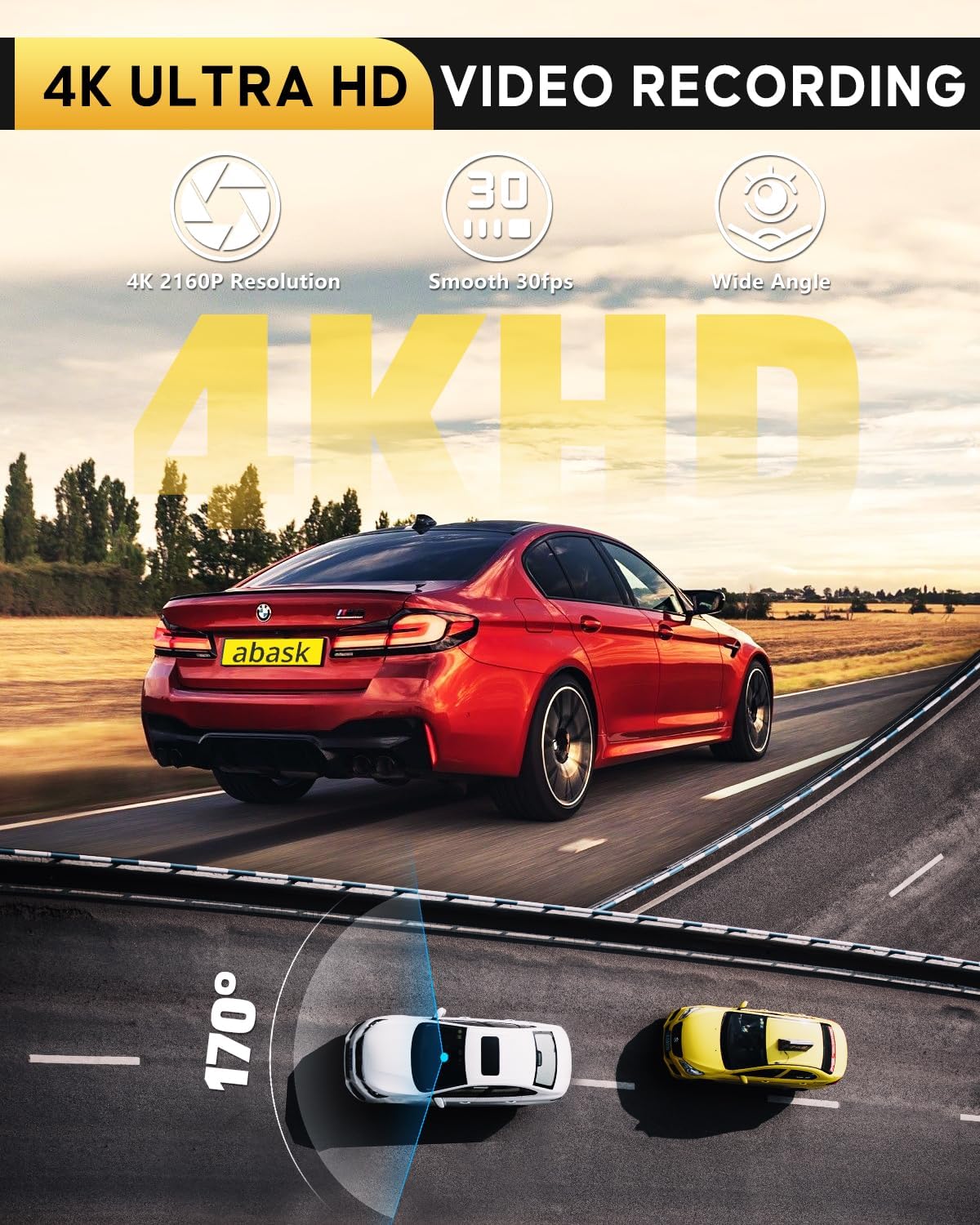
Figure 2: 4K Ultra HD Video Recording.
This illustration highlights the camera's 4K Ultra HD video recording capabilities, featuring a resolution of 2160P, smooth 30 frames per second, and a wide 170-degree angle, demonstrating its comprehensive road coverage.

Figure 3: Super Night Vision.
This image showcases the dash camera's Super Night Vision feature, depicted with a car driving at night. Key technologies like an F1.8 large aperture, Wide Dynamic Range (WDR), and a Sony IMX 335 sensor are highlighted, ensuring clear recordings even in challenging low-light conditions.
- WiFi Connection & App Control: Connect to the dash cam via built-in WiFi using the "Viidure" app on your smartphone. View live recordings, adjust settings, and manage videos within a 10-meter range.

Figure 4: WiFi-App Control & Sharing.
This image illustrates the convenience of WiFi-App control and sharing. A smartphone in a car displays the dash camera's live feed, surrounded by various social media icons, signifying the ability to view live recordings, download, edit, and instantly share videos to platforms like YouTube, Twitter, and Facebook.
- Parkavimo stebėjimas ir G-jutiklis: The G-sensor automatically detects impacts and initiates recording, saving the footage to a special folder to prevent loss. With an optional hardwire kit (not included), the camera can record collisions even when the vehicle is off.

Figure 5: 24/7 Hour Parking Mode.
This image visually represents the 24/7 Hour Parking Mode, showing a parked car enveloped in a protective shield, with a '24' icon. A crucial note indicates that this feature requires a separate hardwire kit (not included) to connect to the vehicle's power fuse box for continuous operation.
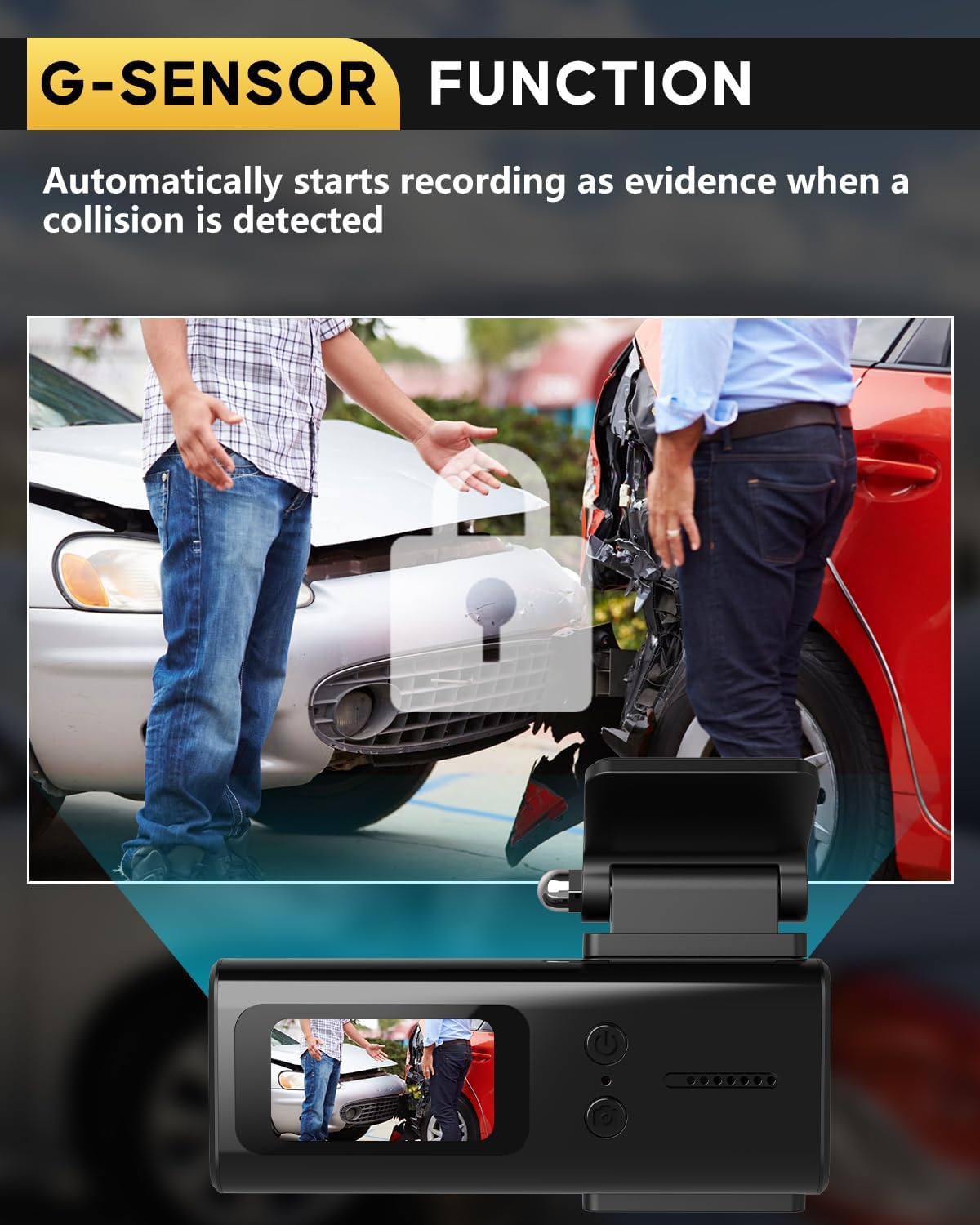
Figure 6: G-Sensor Function.
This image demonstrates the G-Sensor Function, showing a scenario of a car collision with two people assessing the damage. An inset displays the dash camera's perspective of the incident, emphasizing its ability to automatically start recording as evidence when an impact or collision is detected.
- Ciklo įrašymas: Ensures continuous recording by automatically overwriting the oldest unlocked video files when the memory card is full. Supports memory cards up to 128GB.
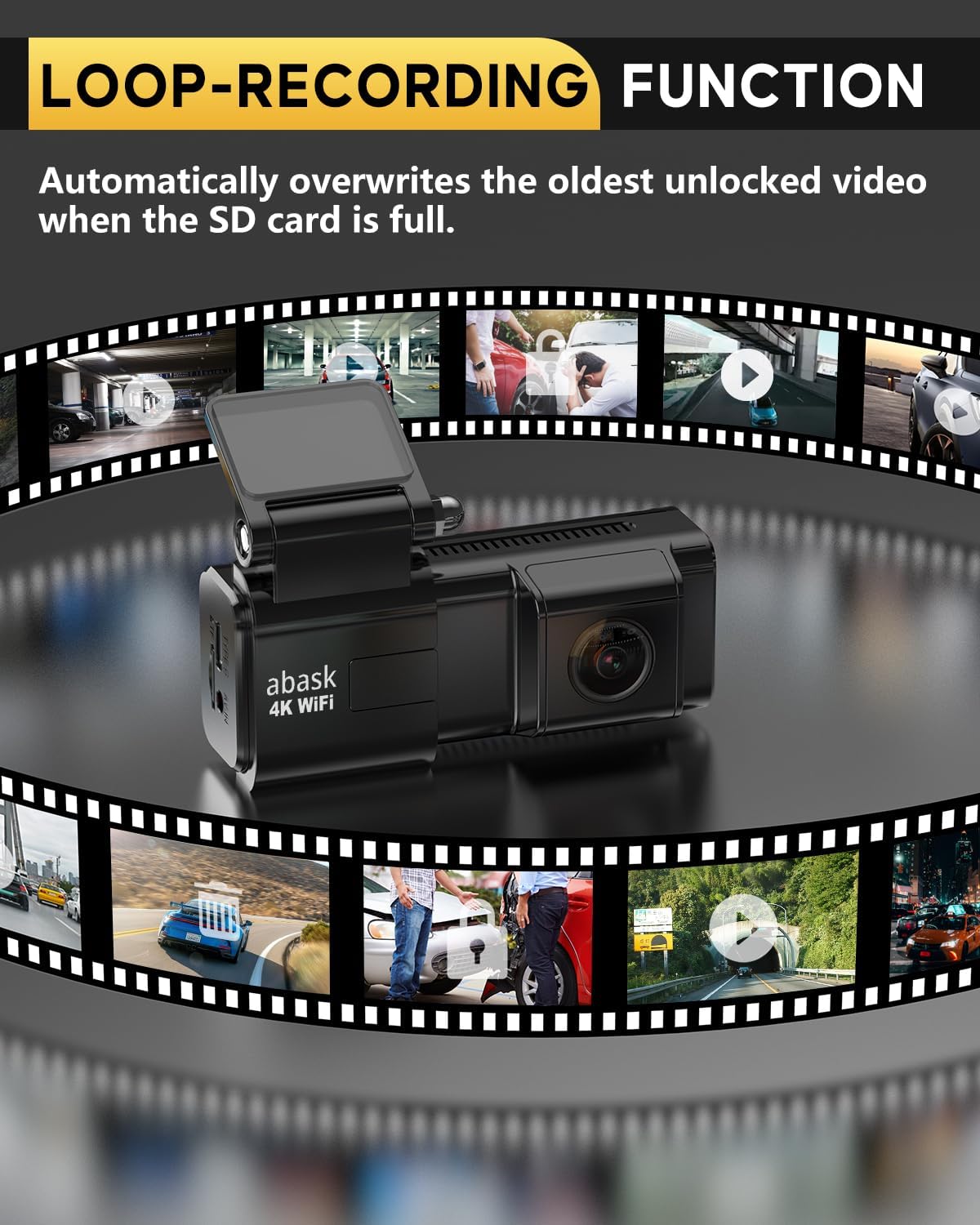
Figure 7: Loop-Recording Function.
This illustration visually explains the Loop-Recording Function. The dash camera is centrally placed, surrounded by a circular filmstrip depicting various driving scenes. This signifies that the camera continuously records, automatically overwriting the oldest unlocked video segments when the SD card reaches its full capacity, ensuring uninterrupted recording.
- Compact Design & Easy Installation: Elegant and compact design with a convenient Type-C connector, making it easy to install and remove without obstructing your view.
4. Sąrankos vadovas
4.1. Micro SD kortelės įdėjimas
- Locate the Micro SD card slot on the side of the dash camera.
- Insert the provided 64GB Micro SD card with the gold contacts facing the back of the camera until it clicks into place.
- Norėdami išimti, švelniai stumkite kortelę, kol ji iššoks.
- Note: For optimal performance, format the SD card regularly (e.g., monthly) using the camera's settings or the mobile app.
4.2. Vaizdo registratoriaus montavimas
- Clean the windshield area where you intend to mount the camera. Ensure it does not obstruct your driving view.
- Attach the windshield mount to the dash camera.
- Press the mount firmly against the windshield and flip the lever to secure it.
- Sureguliuokite kameros kampą, kad ji aiškiai užfiksuotų kelią priešais jus.
4.3. Prisijungimas prie maitinimo
- Connect the Type-C USB cable to the dash camera's Type-C port.
- Plug the other end of the cable into the Type-C car charger adapter.
- Insert the car charger adapter into your vehicle's cigarette lighter socket.
- Route the cable neatly along the windshield edge using the provided pry tool and cable clips to avoid interference with driving.
- Įjungus automobilio degimą, kamera automatiškai įsijungs ir pradės įrašinėti.
4.4. Installing the Mobile App (Viidure)
- Scan the QR code in the user manual or search for "Viidure" in your smartphone's app store (Google Play Store for Android, Apple App Store for iOS).
- Atsisiųskite ir įdiekite programą.
- Enable Wi-Fi on your smartphone and connect to the dash camera's Wi-Fi network (SSID and password usually found on the camera screen or manual).
- Open the Viidure app to access live view, nustatymus ir įrašytus vaizdo įrašus.
5. Naudojimo instrukcijos
5.1. Pagrindinis įrašymas
- Įjungus fotoaparatą, jis automatiškai pradeda filmuoti.
- Recordings are saved in segments (e.g., 1, 3, or 5 minutes) to the Micro SD card.
- To manually start/stop recording, press the record button on the camera (if available) or use the app.
5.2. Using the Viidure App
- Tiesiogiai View: See what your camera is recording in real-time.
- Atkūrimas: Access and play back recorded videos directly from the SD card.
- Parsisiųsti: Save important video clips to your smartphone.
- Nustatymai: Adjust camera settings such as resolution, G-sensor sensitivity, loop recording duration, and time zone.
- Dalijimasis: Easily share downloaded videos to social media platforms.
5.3. Parkavimo stebėjimas
- When enabled, the camera will automatically start recording if it detects a collision or significant vibration while the vehicle is parked.
- These recordings are typically saved in a protected folder to prevent them from being overwritten by loop recording.
- Note: For continuous 24/7 parking monitoring, a hardwire kit (sold separately) is required to provide constant power to the dash camera.
5.4. G jutiklio funkcionalumas
- The built-in G-sensor detects sudden movements or impacts (e.g., hard braking, collision).
- When an event is detected, the current video segment is automatically locked and saved to prevent it from being overwritten.
- Adjust G-sensor sensitivity in the app settings to prevent false triggers.
5.5. Ciklo įrašymas
- This feature ensures continuous recording by overwriting the oldest unlocked video files when the SD card reaches its capacity.
- Užrakinta files (from G-sensor events or manual locking) are protected from being overwritten.
6. Priežiūra
6.1. SD kortelių valdymas
- Regularly format the Micro SD card (e.g., once a month) to maintain optimal performance and prevent data corruption. This can usually be done via the camera's settings menu or the Viidure app.
- Use a high-quality Class 10 or U3 Micro SD card for reliable recording.
6.2. Kameros valymas
- Švelniai nuvalykite kameros objektyvą minkštu, nepūkuotu skudurėliu, kad užtikrintumėte aiškią vaizdo kokybę.
- Fotoaparato korpusą valykite sausa arba šiek tiek drėgna šluosteamp audinys. Venkite naudoti stiprių cheminių medžiagų ar abrazyvinių valiklių.
6.3. Firmware atnaujinimai
- Check the Abask official website or the Viidure app periodically for firmware updates. Updates can improve performance, add features, or fix bugs.
- Follow the instructions provided with the firmware update carefully.
7. Problemų sprendimas
| Problema | Galima priežastis | Sprendimas |
|---|---|---|
| Kamera neįsijungia. | Nėra maitinimo šaltinio; sugedęs laidas / įkroviklis; atsilaisvinęs kontaktas. | Check car charger connection; ensure vehicle's cigarette lighter is active; try a different USB cable/charger. |
| Įrašymas sustoja arba užstringa. | SD card full or corrupted; low-quality SD card; camera overheating. | Format the SD card; replace with a high-quality Class 10/U3 card; ensure proper ventilation. |
| Prasta vaizdo kokybė / neryškūs vaizdai. | Nešvarus objektyvas; apsauginė plėvelė vis dar ant objektyvo; neteisingi raiškos nustatymai. | Clean the lens; remove any protective film; check resolution settings in the app. |
| „Wi-Fi“ ryšio problemos. | Incorrect Wi-Fi password; too far from camera; app issues. | Ensure correct password; stay within 10m range; restart camera and app; reinstall app. |
| Sound is inaudible or distorted. | Microphone muted; environmental noise; faulty microphone. | Check microphone settings in the app; ensure windows are closed to reduce external noise. |
8. Specifikacijos
| Funkcija | Detalė |
|---|---|
| Prekės ženklas | abask |
| Modelio numeris | ZD-X78 |
| Spalva | Juoda |
| Ekrano dydis | 1.47 colių |
| Ryšys | Type C, Wi-Fi |
| Vaizdo įrašymo raiška | 2160p (4K) |
| Ypatingos savybės | Compact Design, G-Sensor, Automatic Incident Detection, Loop Recording, Mute Function, Night Vision, Built-in Supercapacitor, Built-in Speaker, Built-in Microphone, Parking Monitor, App Control, Integrated Display, Voice Alert |
| Suderinami įrenginiai | Išmanusis telefonas |
| Montavimo tipas | Priekinio stiklo kalnas |
| Įtraukti komponentai | User Manual, 64GB microSD card, Card Reader, Type-C Car Charger with extra USB port, Cable Clip, Pry Tool, Windshield Mount |
9. Garantija ir palaikymas
Abask is committed to providing high-quality products and excellent customer service.
- Palaikymas visą gyvenimą: Abask offers lifetime support for its products.
- 24-Hour Service Support: Dedicated customer service is available to assist you with any inquiries or issues.
- 45 dienų nemokamas grąžinimas: Pasinaudokite 45 dienų nemokamo grąžinimo politika.
For further assistance, please refer to the contact information provided in your user manual or visit the official Abask websvetainę.


Figure 8: Abask Customer Service and Brand Commitment.
These images highlight Abask's commitment to customer satisfaction, detailing superior customer service with lifetime support, 24-hour service, and a 45-day free return policy. They also convey the brand's mission to reshape the journey of life on the road and its contribution to UNICEF.