1. Įvadas ir suderinamumas
This manual provides detailed instructions for the installation, operation, and maintenance of your ViaBecs XC004 Android 12 Car Stereo. Please read this manual thoroughly before installation and use to ensure proper functionality and to avoid damage.
1.1 Produktas baigtasview
The ViaBecs XC004 is a 10.2-inch touch screen car stereo system designed to upgrade your vehicle's infotainment experience. It features Android 12.0, wireless Apple CarPlay, wireless/wired Android Auto, and a range of multimedia and navigation capabilities.
1.2 Transporto priemonių suderinamumas
Šis įrenginys yra specialiai sukurtas:
- Toyota Tundra: 2007-2013 modeliai
- Toyota Sequoia: 2008-2018 modeliai
Svarbi pastaba: This model is for vehicles be the JBL sound system. If your vehicle has a JBL sound system, a different harness (CAN005-X) may be required. Please verify your vehicle's factory radio model before installation.

1.1 paveikslas: Suderinamumas baigtasview, illustrating the difference between factory radios without JBL (Model A) and with JBL (Model D) to ensure correct harness selection.
2. Pagrindinės savybės
2.1 „Android 12.0“ operacinė sistema
The stereo operates on Android 12.0, powered by a UIS7862 Octa-core processor with up to 2.0GHz frequency. It includes 6GB RAM and 128GB internal storage, allowing for smooth performance and ample space for applications and media. Access thousands of applications from the Google Play Store.
2.2 Belaidis „CarPlay“ ir „Android Auto“
Connect your smartphone wirelessly or via USB to access navigation, music, calls, and other applications directly on the 10.2-inch touchscreen. Supports hands-free control and voice commands (Siri/Google Assistant) for enhanced safety and convenience. The Tlink5 app facilitates CarPlay, Android Auto, and Mirror Link functions.
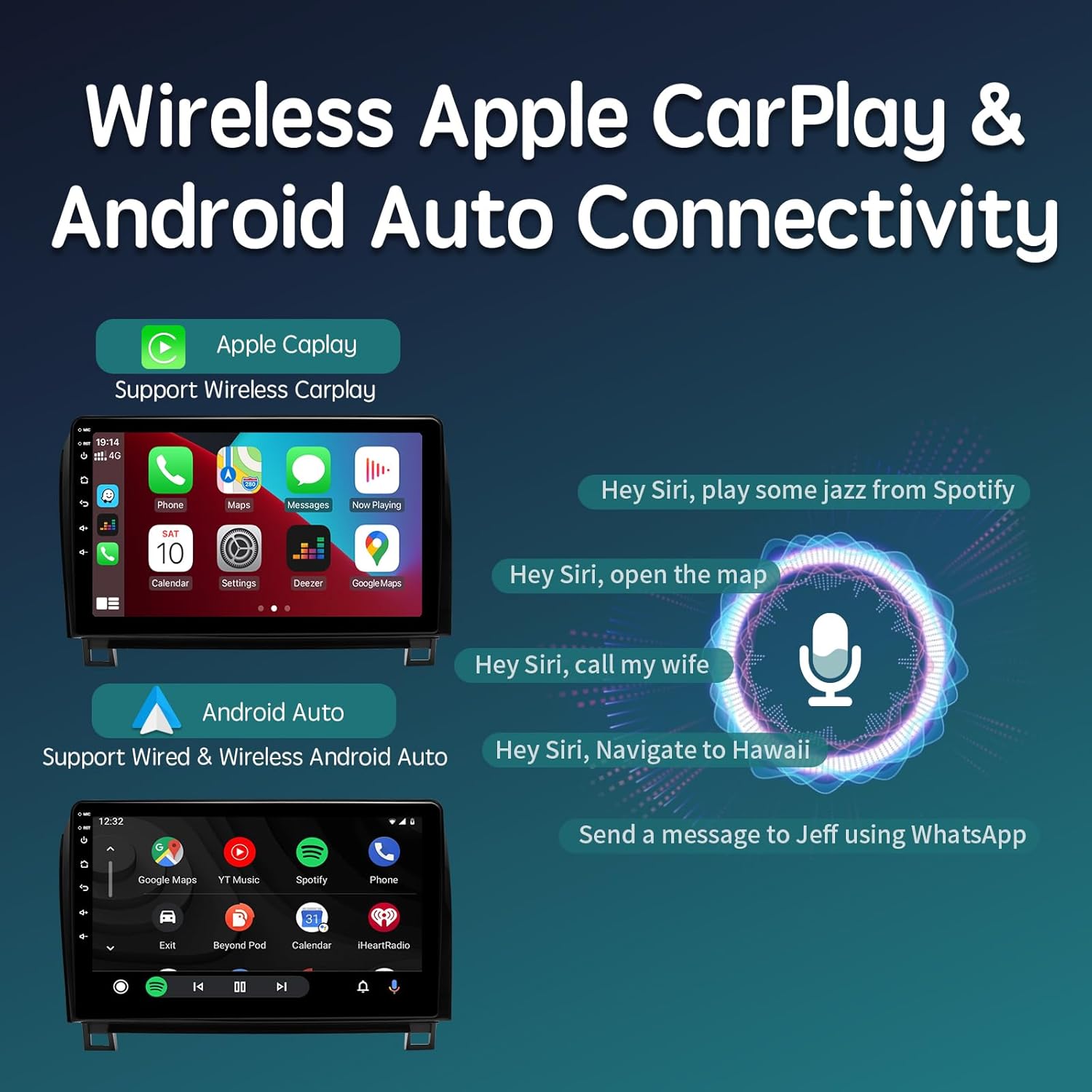
2.1 paveikslas: Wireless Apple CarPlay and Android Auto connectivity, showing smartphone integration and voice command capabilities.
2.3 10.2-inch QLED Touchscreen
The unit features a large, clear 10.2-inch QLED IPS screen with 1280x720 resolution, supporting 1080P HD video and multi-touch gestures. The QLED technology provides a brighter and more vivid display compared to standard IPS screens, offering a 178° full view angle. Adjust brightness and night mode settings as needed.

2.2 paveikslas: The 10.2-inch QLED touchscreen, emphasizing its high resolution and wide viewing angles for an enhanced visual experience.
2.4 Built-in DSP and 48-Band EQ
Experience superior audio quality with the integrated Digital Sound Processor (DSP) and a 48-band equalizer. This allows for precise tuning of audio frequencies from 20Hz to 20KHz, including subwoofer frequency, bass boost, and bass filter adjustments. The immersive surround sound feature enhances the listening experience.

2.3 paveikslas: Audio customization options, including the 48-band EQ and DSP for fine-tuning sound output.
2.5 Navigacija ir ryšys
The system includes a built-in GPS module and WiFi antenna, providing accurate real-time navigation. Users can utilize Google Maps, Waze, or other navigation applications, and download offline maps. Connectivity options include 2.4GHz & 5GHz WiFi, Bluetooth 5.0 for hands-free calling and music streaming, and 4G network support via an external antenna.
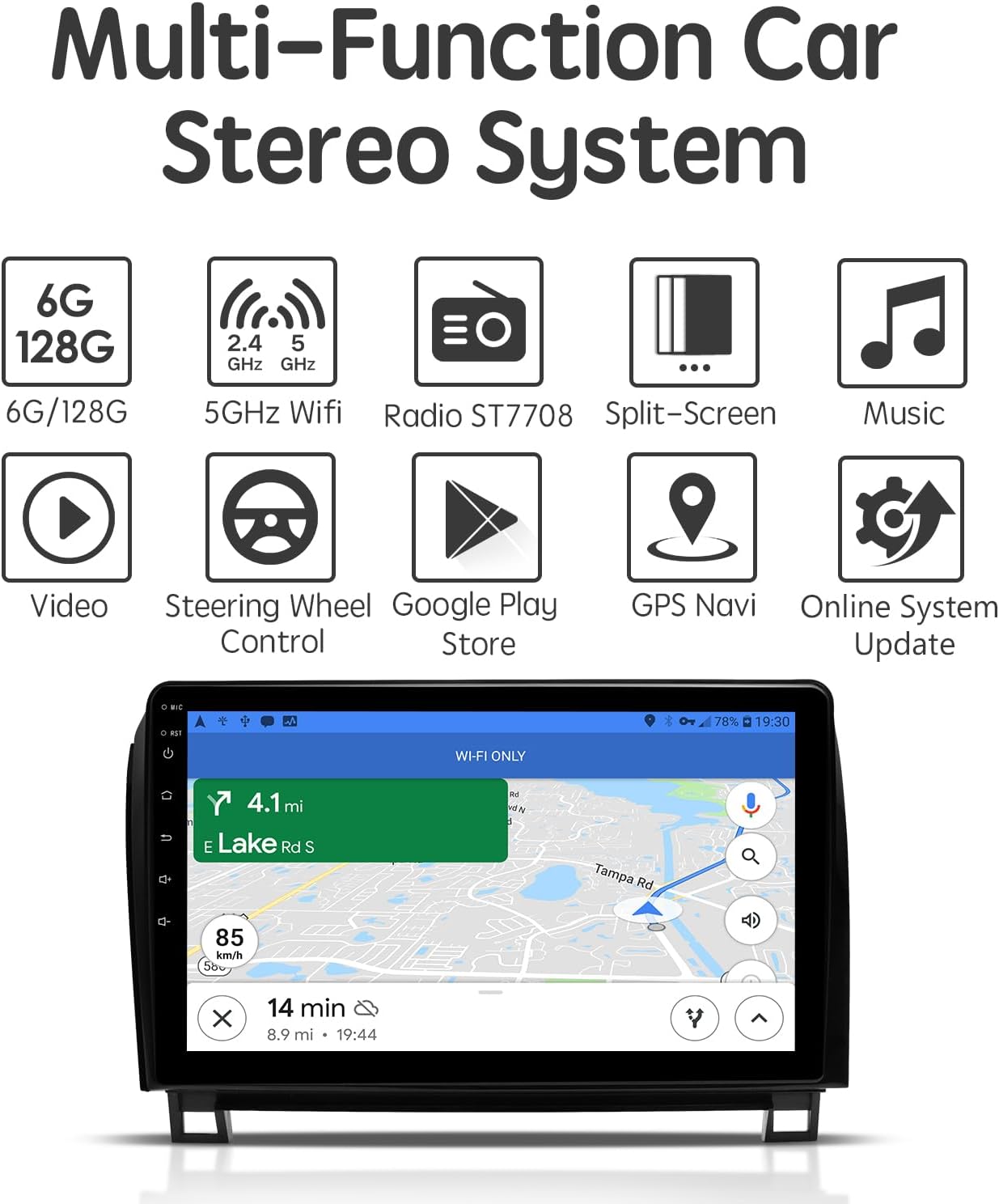
2.4 paveikslas: Multi-function car stereo system, highlighting key features like navigation, WiFi, and various applications.
3. Sąranka ir diegimas
The ViaBecs XC004 is designed for a plug-and-play installation with the included harness and dash frame. Basic automotive electrical knowledge and tools are recommended. If you are unsure about any steps, professional installation is advised.
3.1 Pakuotės turinys
Prieš pradėdami montuoti, įsitikinkite, kad yra visi komponentai:
- 1x Car Play Stereo Unit
- 1x Plug and Play Harness (XC004)
- 1x 4P USB Cable
- 1x 6P USB Cable
- 1 x 20P garso kabelis
- 1x 10P Camera Cable & Wi-Fi antenna
- 1x GPS antena
- 1x 4G antena
- 1x External Microphone
- 2x vartotojo vadovas
- 1x garantinis talonas
3.2 Diegimo veiksmai (bendrieji)
- Paruošimas: Atjunkite automobilio akumuliatorių, kad išvengtumėte trumpųjų jungimų.
- Nuimkite gamyklinį radiją: Carefully remove the existing factory radio and dash trim. Refer to your vehicle's service manual or online resources for specific instructions on removing the dash components for your Toyota Tundra or Sequoia.
- Prijunkite laidą: Connect the provided plug-and-play harness to the vehicle's factory wiring and to the new ViaBecs XC004 unit. Ensure all connections are secure.
- Prijunkite išorinius įrenginius: Connect the GPS antenna, 4G antenna, external microphone, USB cables, and camera input cables to the corresponding ports on the stereo unit. Position antennas for optimal signal reception.
- Bandymo funkcionalumas: Before fully reassembling the dash, reconnect the vehicle's battery and power on the unit. Test all functions, including audio, touch screen, steering wheel controls, CarPlay/Android Auto, GPS, and backup camera (if applicable).
- Saugus vienetas: Mount the new stereo unit into the dash using the provided dash frame and secure it.
- Surinkite brūkšnelį iš naujo: Carefully reassemble the dash trim and other components.
3.3 Sujungimo schema
Refer to the following diagram for detailed wiring connections. Ensure each cable is connected to its correct port.
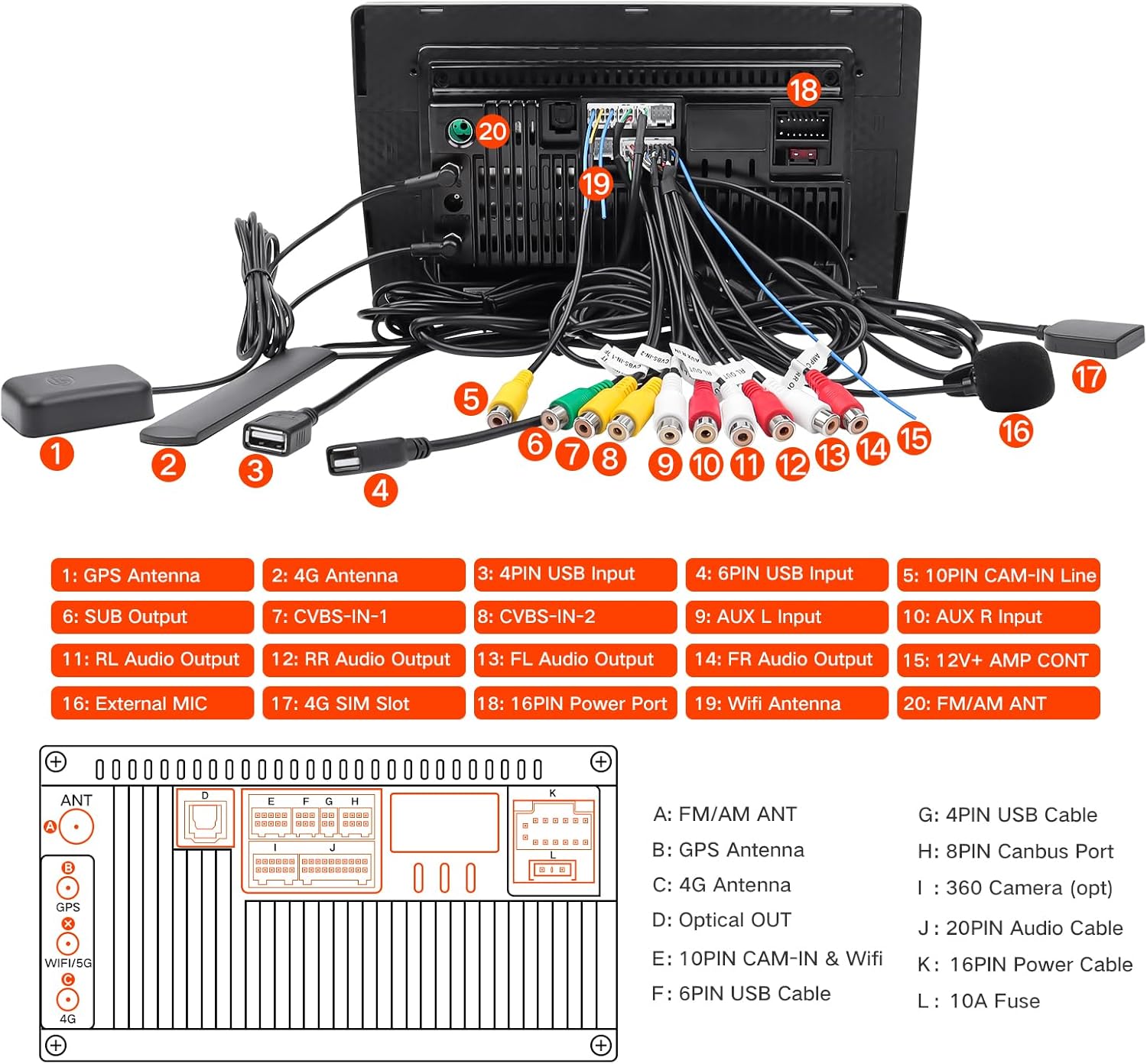
3.1 paveikslas: Galinis view of the stereo unit with labeled ports and corresponding cable connections.
4. Naudojimo instrukcijos
4.1 Pagrindinės operacijos
- Maitinimo įjungimas/išjungimas: Norėdami įjungti arba išjungti įrenginį, paspauskite ir palaikykite maitinimo mygtuką (paprastai esantį priekiniame skydelyje). Trumpas paspaudimas paprastai nutildo arba įjungia garsą.
- Garsumo valdymas: Garsumą reguliuokite naudodami fizinius mygtukus arba ekrane rodomus valdiklius.
- Jutiklinio ekrano navigacija: Use touch gestures (tap, swipe, pinch-to-zoom) to navigate the Android interface and applications.
- Pagrindinis ekranas: The main screen provides access to frequently used apps and widgets. Customize it by adding or removing icons.
4.2 Belaidis „CarPlay“ / „Android Auto“
- Įsitikinkite, kad jūsų išmaniajame telefone įjungti „Bluetooth“ ir „Wi-Fi“.
- On the car stereo, open the 'Tlink5' application.
- Follow the on-screen prompts to pair your phone via Bluetooth. Once paired, the system will automatically establish a Wi-Fi connection for CarPlay or Android Auto.
- For wired Android Auto, connect your phone via a USB cable to one of the stereo's USB ports.
4.3 „Bluetooth“ ryšys
The unit features Bluetooth 5.0 for hands-free calling and audio streaming.

4.1 paveikslas: Bluetooth music and hands-free calling interface.
- Eikite į stereo sistemos „Bluetooth“ nustatymus.
- Įjunkite Bluetooth ir ieškokite galimų įrenginių.
- Select your phone from the list and pair using the provided PIN (default is usually 0000).
- Once connected, you can make/receive calls and stream audio. The external microphone ensures clear call quality.
4.4 Navigacija
Utilize the built-in GPS module with pre-installed navigation apps or download your preferred ones from the Google Play Store. Connect to Wi-Fi or use a 4G connection for real-time traffic updates and online map services.
4.5 Radijas (AM/FM)
Access the Radio application to tune into AM/FM stations. Use the scan function to find available stations and save your favorites for quick access.
5. Priežiūra
Tinkama priežiūra užtikrina jūsų automobilio garso sistemos ilgaamžiškumą ir optimalų veikimą.
- Ekrano valymas: Jutiklinį ekraną valykite minkšta, nepūkuota šluoste. Įsisenėjusias dėmes lengvai nuvalykiteampNuvalykite šluostę vandeniu arba ekranui saugiu valikliu. Venkite stiprių cheminių medžiagų ar abrazyvinių medžiagų.
- Programinės įrangos atnaujinimai: Periodically check for system updates via the 'Settings' menu to ensure you have the latest features and security patches. A stable internet connection is required for updates.
- Temperatūros valdymas: Venkite ilgą laiką laikyti įrenginį ekstremalioje temperatūroje.
- Kabelių jungtys: Periodiškai patikrinkite visas kabelių jungtis, kad įsitikintumėte, jog jos yra tvirtos ir nepažeistos.
6. Problemų sprendimas
This section addresses common issues you might encounter. If problems persist, contact ViaBecs technical support.
6.1 No Power / Unit Not Turning On
- Check the vehicle's battery connection.
- Verify all power cables are securely connected to the stereo and the vehicle's wiring harness.
- Check the vehicle's fuse box for any blown fuses related to the stereo or accessory power.
6.2 Nėra garso išvesties
- Įsitikinkite, kad garsas nėra nutildytas arba nustatytas iki minimumo.
- Check all speaker wire connections at the back of the unit and to the vehicle's speakers.
- Verify the correct audio source is selected (e.g., Radio, Bluetooth, CarPlay).
6.3 Galinio vaizdo kamera nerodoma
- Ensure the camera input cable is correctly connected to the stereo's camera input port.
- Verify the camera's power supply is correctly wired and receiving power when the vehicle is in reverse.
- Some factory backup cameras may require specific wiring or adapters not included with the standard harness. Consult ViaBecs support if issues persist.
6.4 Poor Microphone Quality
- Ensure the external microphone is securely plugged into the unit.
- Position the microphone in a clear area, away from air vents or direct road noise, for optimal voice pickup.
- Check microphone settings within the stereo's system settings.
6.5 Neveikia vairo valdikliai
- Confirm the XC004 plug-and-play harness is correctly installed, as it is designed to retain factory steering wheel controls.
- Access the steering wheel control settings in the stereo's menu to program or recalibrate the buttons if necessary.
7. Specifikacijos
| Funkcija | Specifikacija |
|---|---|
| Modelio numeris | XC004 |
| Operacinė sistema | Android 12.0 |
| Procesorius | UIS7862 Octa-core, up to 2.0GHz |
| RAM | 6 GB |
| Vidinė saugykla | 128 GB |
| Ekrano dydis | 10.2 colių |
| Ekrano tipas | QLED IPS jutiklinis ekranas |
| Ekrano raiška | 1280 x 720 |
| Ryšys | Bluetooth 5.0, Wi-Fi (2.4GHz & 5GHz), 4G (external antenna) |
| Navigacija | Built-in GPS, supports Google Maps, Waze, etc. |
| Garso funkcijos | Built-in DSP, 48-band Equalizer |
| Ypatingos savybės | Wireless Apple CarPlay, Wireless/Wired Android Auto, Mirror Link, Split-Screen, Steering Wheel Control support |
| Montavimo tipas | Prietaisų skydelio laikiklis |
| Matoma ekrano įstrižainė | 11 colių / 26 cm |
| Prekės svoris | 4.48 svaro |
| Pakuotės matmenys | 13.58 x 9.96 x 5.75 colio |
8. Garantija ir palaikymas
The ViaBecs XC004 car stereo is backed by a 1 metų garantija. ViaBecs provides professional technical support for setup assistance, connectivity issues, and troubleshooting.
For technical assistance or warranty claims, please contact ViaBecs customer service through the platform where the product was purchased or refer to the contact information provided on the warranty card included in your package.


