1. Įvadas
This manual provides detailed instructions for the Formuler Z11 Pro Android 11 4K Streaming Media Player. Please read this manual thoroughly before using your device to ensure proper operation and to maximize your user experience. Keep this manual for future reference.
The Formuler Z11 Pro is a high-performance streaming media player designed to deliver 4K resolution content. It operates on Android 11 and comes equipped with 2GB RAM and 16GB ROM. The package includes a Universal Bluetooth Voice Remote Control (BT1 Edition), a protective case cover for the remote, an extra air remote keyboard with backlighting, and an extra magnetic mount.

Image 1.1: Formuler Z11 Pro and included accessories.
2. Pakuotės turinys
Patikrinkite, ar pakuotėje yra visi reikalingi daiktai:
- Formuler Z11 Pro BT1 Edition Streaming Device
- HDMI kabelis
- Maitinimo kabelis
- Bluetooth Voice Remote Control (BT1 Edition)
- Case Cover for Bluetooth Remote Control
- Extra Air Remote Keyboard (Backlit)
- Extra Magnetic Mount
- 2 AA batteries (for BT1 Remote Control)

Image 2.1: Formuler Z11 Pro device and BT1 remote control.
3. Sąrankos vadovas
3.1 Prietaiso prijungimas
- Prijungimas prie televizoriaus: Use the provided HDMI cable to connect the HDMI port on the Formuler Z11 Pro to an available HDMI input on your television.
- Prijunkite maitinimą: Plug the power adapter into the DC IN port on the Formuler Z11 Pro, then plug the adapter into a wall outlet. The device will power on automatically.
- Tinklo ryšys (neprivaloma):
- Ethernet: For a wired connection, connect an Ethernet cable from your router to the Gigabit LAN port on the Formuler Z11 Pro.
- „Wi-Fi“: For a wireless connection, you will configure Wi-Fi during the initial setup process.
3.2 Nuotolinio valdymo pulto sąranka
The Formuler Z11 Pro comes with two remote controls: the Bluetooth Voice Remote Control (BT1 Edition) and an extra Air Remote Keyboard.
3.2.1 Bluetooth Voice Remote Control (BT1 Edition)
- Įdėkite baterijas: Open the battery compartment on the back of the BT1 remote and insert the two AA batteries provided, ensuring correct polarity.
- Poravimas: The BT1 remote should automatically pair with the Z11 Pro upon first boot. If not, navigate to Settings > Remotes & Accessories > Add accessory on the Z11 Pro and follow the on-screen instructions to pair the remote.
- Remote Case Cover: Slide the protective case cover onto the BT1 remote for added protection.

Image 3.1: BT1 Remote Control with protective case cover.
3.2.2 Extra Air Remote Keyboard
- Įdėkite USB adapterį: Locate the small USB dongle included with the air remote keyboard. Insert this dongle into an available USB port on the Formuler Z11 Pro.
- Automatinis prisijungimas: The air remote keyboard should connect automatically once the dongle is inserted.

Image 3.2: Extra Air Remote Keyboard with USB dongle.
3.3 Pradinė programinės įrangos sąranka
Upon first boot, the Formuler Z11 Pro will guide you through an initial setup wizard. Follow the on-screen prompts to:
- Pasirinkite savo kalbą.
- Connect to a Wi-Fi network (if not using Ethernet).
- Sign in with your Google Account (recommended for app access).
- Sutikite su sąlygomis ir nuostatomis.
- Install essential updates.
4. Naudojimo instrukcijos
4.1 Using the BT1 Voice Remote Control
The BT1 remote is your primary interface for the Formuler Z11 Pro. It features universal TV control, voice search, and programmable buttons.
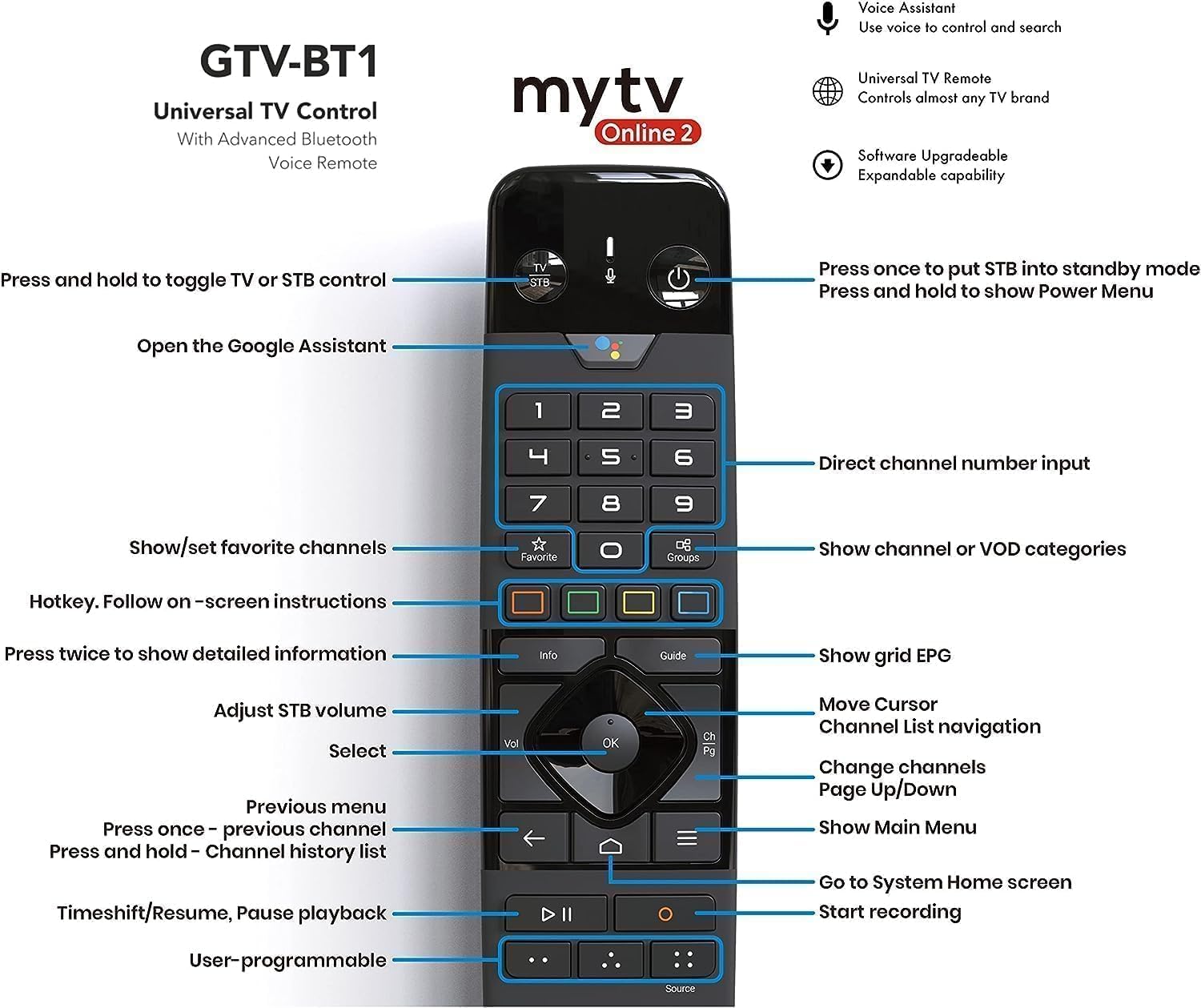
Image 4.1: BT1 Remote Control Button Layout and Functions.
- Maitinimo mygtukas: Press once to put the device into standby mode. Press and hold to show the Power Menu.
- TV/STB Toggle: Press and hold to switch control between TV and Set-Top Box.
- „Google“ asistento mygtukas: Open Google Assistant for voice commands and search.
- Navigacijos skydelis (aukštyn / žemyn / kairėn / dešinėn / gerai): Naršyti meniu ir pasirinkti elementus.
- Volume (Vol): Adjust STB volume.
- Kanalas (CH): Change channels, navigate channel lists.
- Back (Arrow Left): Grįžkite į ankstesnį meniu.
- Namai (namo piktograma): Go to the System Home screen.
- Menu (Three Lines): Show Main Menu.
- Informacija: Press twice for detailed information.
- Vadovas: Show grid EPG (Electronic Program Guide).
- Mėgstamiausias: Show/set favorite channels.
- Grupės: Show channel or VOD categories.
- Skaičių klaviatūra: Direct channel number input.
- Playback Controls (Play/Pause, Rewind, Fast Forward): Valdykite medijos atkūrimą.
- Įrašas (raudonas taškas): Pradėkite įrašymą.
- Šaltinis: Keisti įvesties šaltinį.
- User-programmable Buttons: Customize these buttons for quick access to functions or apps.
4.2 Using the Extra Air Remote Keyboard
The backlit air remote keyboard is ideal for text input, such as searching for content or entering login details. It also functions as a mouse with its air mouse feature.
- Keyboard Side: Use for typing text. The backlight activates automatically in low light conditions.
- Remote Side: Provides basic navigation and media control buttons.
- Oro pelė: Move the remote in the air to control a cursor on the screen. Press the dedicated mouse button to activate/deactivate the air mouse function.
4.3 Navigating Android 11 Interface
The Formuler Z11 Pro runs on Android 11, offering a user-friendly interface. You can:
- Įdiegti programas: Atsisiųskite ir įdiekite programas iš „Google Play“ parduotuvės.
- Tinkinkite pagrindinį ekraną: Arrange apps and widgets for quick access.
- Prieigos nustatymai: Adjust display, sound, network, and device preferences.
5. Priežiūra
5.1 Prietaiso valymas
- Prieš valydami įsitikinkite, kad prietaisas yra išjungtas ir atjungtas.
- Use a soft, dry, lint-free cloth to wipe the exterior of the device and remotes.
- Nenaudokite skystų valiklių, aerozolių ar abrazyvinių medžiagų.
5.2 Programinės įrangos naujiniai
Siekiant pagerinti našumą, pridėti funkcijų ir sustiprinti saugumą, reguliariai išleidžiami programinės įrangos atnaujinimai. Rekomenduojama nuolat atnaujinti įrenginio programinę įrangą.
- Eikite į Nustatymai > Apie > Sistemos atnaujinimas on your Formuler Z11 Pro.
- Patikrinkite, ar yra atnaujinimų, ir vykdykite ekrane pateikiamus nurodymus, kad juos įdiegtumėte.
- Ensure a stable internet connection during updates. Do not power off the device during an update.
5.3 Saugojimo valdymas
The device has 16GB of internal storage. To maintain optimal performance:
- Regularly uninstall unused applications.
- Išvalyti programų talpyklos duomenis Nustatymai > Programos.
- Consider using external storage (Micro SD card or USB drive) for large media files.
6. Problemų sprendimas
If you encounter issues with your Formuler Z11 Pro, refer to the following common problems and solutions:
6.1 Nėra maitinimo / Įrenginys neįsijungia
- Įsitikinkite, kad maitinimo laidas yra tvirtai prijungtas prie įrenginio ir sieninio lizdo.
- Patikrinkite, ar sieninis lizdas veikia, prijungdami prie jo kitą įrenginį.
- Išbandykite kitą maitinimo lizdą.
6.2 Nėra signalo / Tuščias ekranas
- Check that the HDMI cable is securely connected to both the Formuler Z11 Pro and your TV.
- Įsitikinkite, kad jūsų televizorius nustatytas į tinkamą HDMI įvesties šaltinį.
- Išbandykite kitą HDMI kabelį arba HDMI prievadą savo televizoriuje.
- Restart the Formuler Z11 Pro by unplugging and re-plugging the power cable.
6.3 Nuotolinio valdymo pultas nereaguoja
- BT1 Remote:
- Pakeiskite AA baterijas.
- Re-pair the remote: Go to Nustatymai > Nuotolinio valdymo pultai ir priedai ir vadovaukitės poravimo instrukcijomis.
- Air Remote Keyboard:
- Ensure the USB dongle is securely inserted into a USB port on the Z11 Pro.
- Try inserting the dongle into a different USB port.
- Check the batteries in the air remote keyboard.
6.4 Tinklo ryšio problemos
- „Wi-Fi“:
- Įsitikinkite, kad jūsų „Wi-Fi“ maršrutizatorius įjungtas ir veikia.
- Eikite į Nustatymai > Tinklas ir internetas > „Wi-Fi“. and ensure Wi-Fi is enabled and you are connected to the correct network.
- Pabandykite pamiršti tinklą ir prisijungti iš naujo.
- Restart your router and the Formuler Z11 Pro.
- Ethernet:
- Ensure the Ethernet cable is securely connected to both the device and the router.
- Patikrinkite, ar nepažeistas kabelis.
- Try a different Ethernet cable or port on your router.
6.5 Device Performance Issues
- Uždarykite nenaudojamas programas, veikiančias fone.
- Išvalyti programų talpyklas (Settings > Apps > [App Name] > Clear cache).
- Įsitikinkite, kad įrenginio programinė įranga yra atnaujinta.
- Jei problemos išlieka, apsvarstykite galimybę atkurti gamyklinius nustatymus (Nustatymai > Sistema > Atstatyti parinktys > Ištrinti visus duomenis (atkurti gamyklinius)). Įspėjimas: This will delete all data and settings on the device.
7. Specifikacijos
Key technical specifications for the Formuler Z11 Pro:
| Funkcija | Specifikacija |
|---|---|
| Išvesties raiška | 4K (3840 x 2160) |
| RAM | 2GB DDR @2400MHz |
| Sandėliavimas | 16 GB eMMC |
| Operacinė sistema | Android 11 |
| Belaidis tinklas | Dual-Band 2x2 AC Wireless |
| Bluetooth | 5.0 |
| Ethernet | 1000M (gigabitas) |
| Uostai | 1x USB 3.0, 1x USB 2.0, 1x HDMI, 1x Gigabit LAN, 1x Micro SD Card, 1x IR Extension, 1x Power Input |
| Matmenys (L/W/T) | 105mm / 105mm / 21mm |
| Spalva | Juoda |
| Prekės svoris | 1.72 svaro |
8. Informacija apie garantiją
Formuler products typically come with a limited manufacturer's warranty. The specific terms and duration of the warranty may vary by region and retailer. Please refer to the warranty card included with your product or visit the official Formuler websvetainėje rasite išsamią informaciją apie garantiją ir registracijos procedūras.
Išsaugokite pirkimo įrodymą (kvitą arba sąskaitą faktūrą), nes jo reikės pateikiant pretenzijas dėl garantijos.
9. Pagalba klientams
For further assistance, technical support, or inquiries not covered in this manual, please contact Formuler customer support through their official website. You may find FAQs, troubleshooting guides, and contact information for support channels there.
Before contacting support, please have your device model (Z11 Pro) and serial number ready.


