1. Įvadas
The SwitchBot Universal Remote Control with Hub Mini Matter Enabled is a versatile smart device designed to simplify control over your home electronics. It consolidates multiple remote controls into a single, user-friendly unit, capable of managing a wide range of infrared (IR) and Bluetooth devices, including TVs, air conditioners, lights, fans, projectors, Fire TV, Apple TV, and other SwitchBot BLE devices.
This manual provides comprehensive instructions for setting up, operating, maintaining, and troubleshooting your SwitchBot Universal Remote Control.

Image: The SwitchBot Universal Remote Control and its accompanying Hub Mini, both in white, displayed side-by-side.
2. Sąranka
2.1 Pradinis įkrovimas
Before first use, ensure the Universal Remote Control is fully charged. Connect the provided charging cable to the remote and a suitable USB power source. A full charge typically provides up to 150 days of battery life.

Paveikslėlis: Skaidrus view of the remote, illustrating its internal battery and emphasizing its long battery life of up to 150 days.
2.2 Programėlės diegimas ir įrenginių susiejimas
The SwitchBot app is required for initial setup and advanced features. Download the app from your device's app store.
- Install the SwitchBot app on your smartphone or tablet.
- Atidarykite programėlę ir sukurkite paskyrą arba prisijunkite.
- Follow the in-app instructions to add the SwitchBot Universal Remote and Hub Mini.
- For IR appliances, use the "Smart Match" feature by pointing your original remote at the Universal Remote, or manually select from the extensive code database.
- For Bluetooth devices like Apple TV or Fire TV, follow the app's pairing process.
- To add other SwitchBot devices, navigate to the "Add SwitchBot Devices" section within the app and follow the prompts.
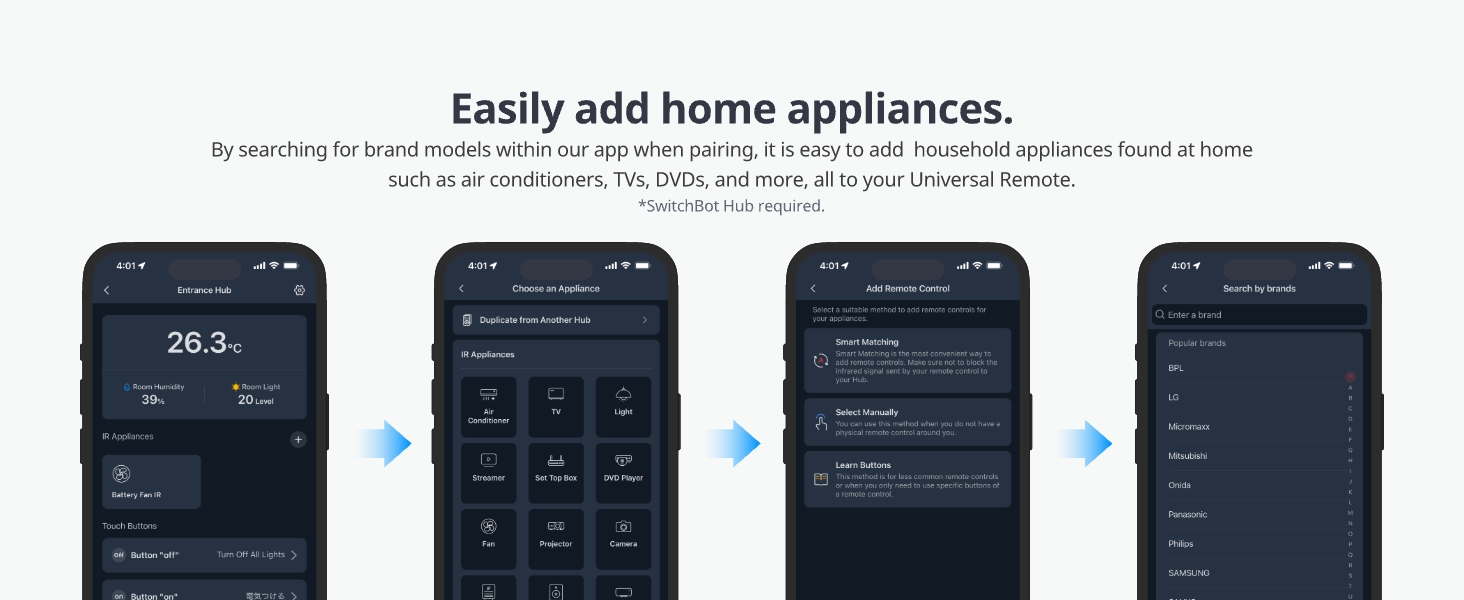
Image: A sequence of smartphone screenshots demonstrating the process of easily adding various home appliances to the Universal Remote via the app.
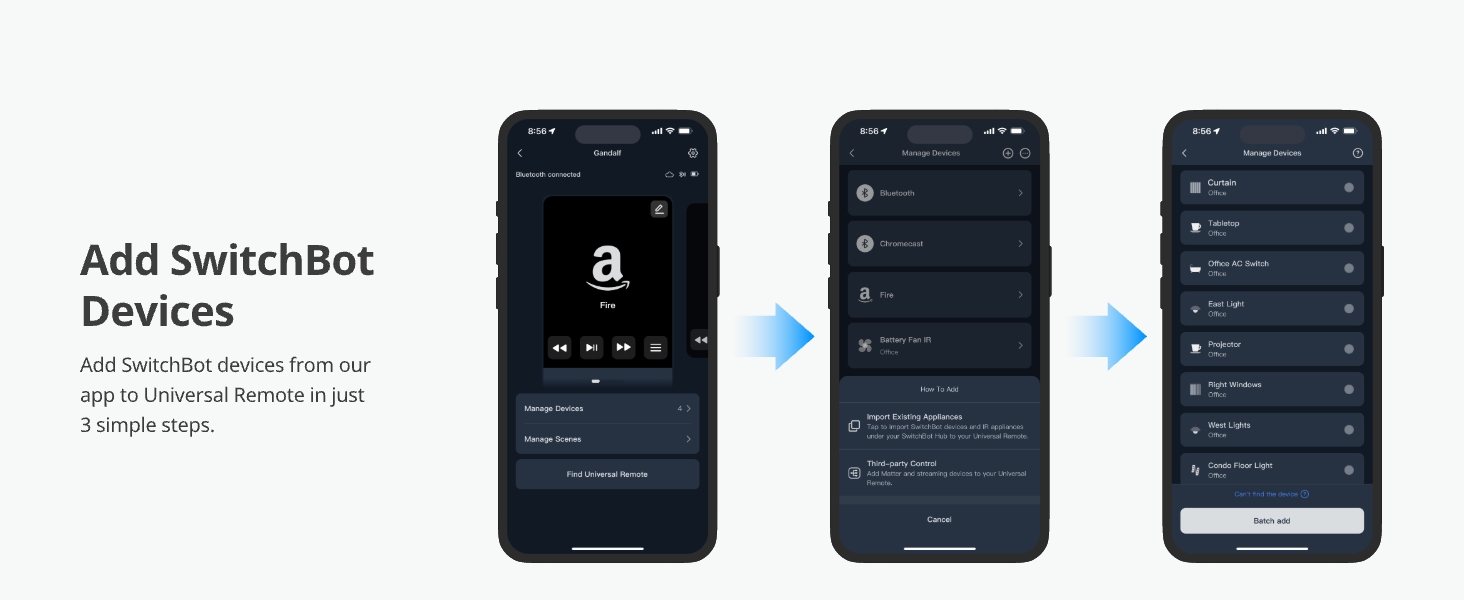
Image: A series of smartphone screenshots illustrating the simple 3-step process to add other SwitchBot devices to the Universal Remote through the app.
3. Naudojimo instrukcijos
3.1 Pagrindinis valdymas
The Universal Remote features a 2.4-inch LCD screen and a Touch Wheel for intuitive navigation. Use the Touch Wheel to select the desired device (e.g., TV, AC, Lights) from the screen. Once a device is selected, the physical buttons will control its functions (e.g., power, volume, channels).

Image: A detailed diagram of the SwitchBot Universal Remote, pointing out its 2.4-inch LCD screen, large buttons, intuitive Touch Wheel, and compact design for ease of use.
3.2 Controlling IR Appliances
The remote can control a wide array of IR appliances using its built-in database. This includes air conditioners, TVs, lights, fans, DVD players, speakers, and projectors. The database is regularly updated to ensure compatibility with new models.
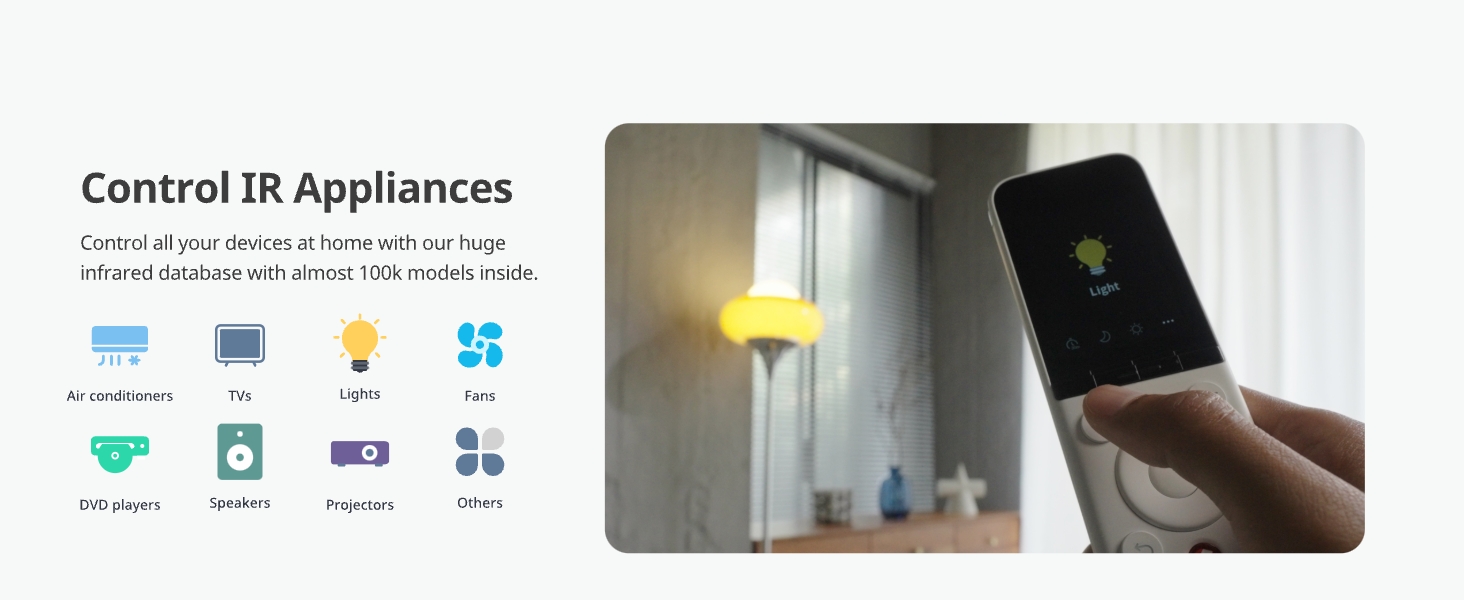
Image: Icons depicting various infrared appliances such as air conditioners, TVs, lights, fans, DVD players, speakers, and projectors, all controllable by the SwitchBot Universal Remote.
3.3 Controlling Bluetooth Devices
The Universal Remote can also control Bluetooth-enabled devices such as Apple TV and Fire TV, streamlining your entertainment setup.
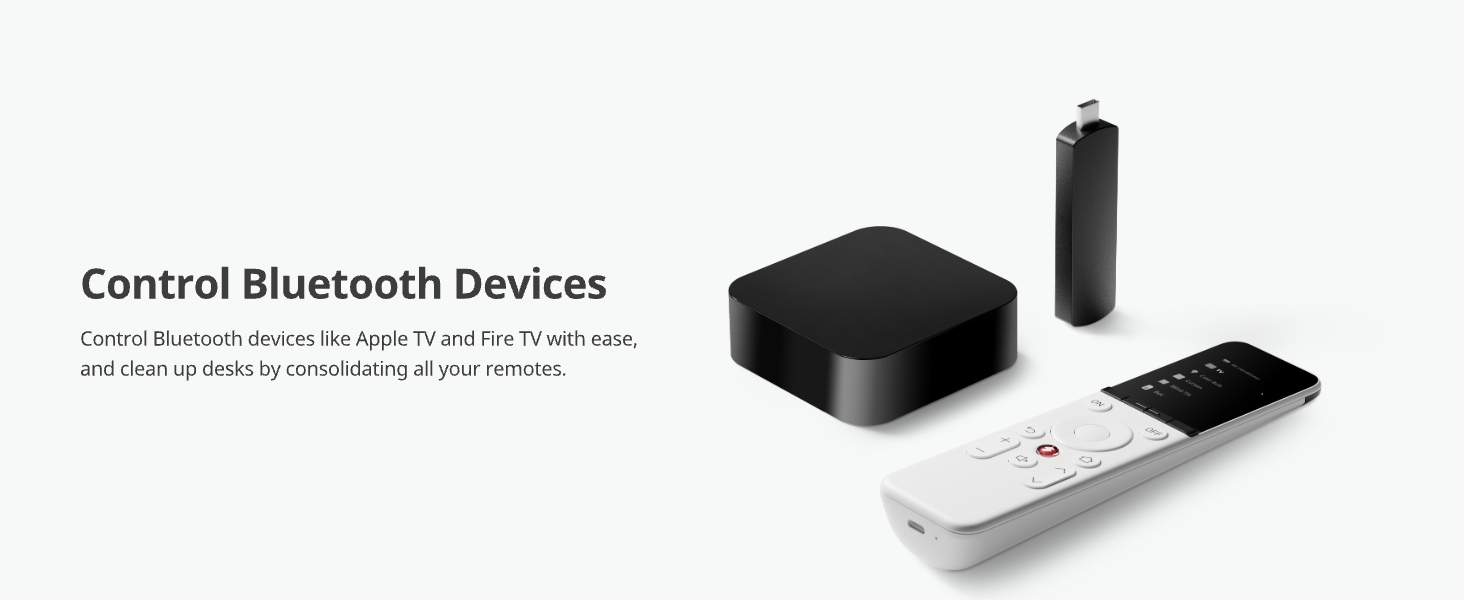
Image: An Apple TV box and a Fire TV stick are shown alongside the remote, illustrating its capability to control Bluetooth devices and help declutter your desk.
3.4 Išmaniosios scenos
Utilize the SwitchBot app to create custom smart scenes that activate multiple devices with a single click. For example, an "Arrive Mode" scene could turn on your AC and TV, while an "Away From Home Mode" could activate your robot vacuum and turn off lights. Note that scenes require a network connection via the Hub Mini.

Paveikslėlis: Vizualinis pavyzdysamples of smart scenes, including 'Arrive Mode' (turning on AC and TV), 'Away From Home Mode' (activating robot vacuum and bot), and 'Party Mode' (controlling blind tilt and speaker).
3.5 Veikimas neprisijungus
After initial setup, the Universal Remote can control all configured devices even without an internet connection. This ensures continuous functionality for basic controls.

Image: A diagram illustrating that the remote can be used to control devices like AC, TV, and lights even without an internet connection, after the initial setup.
4. Priežiūra
4.1 Valymas
Wipe the remote and hub with a soft, dry cloth. Do not use liquid cleaners or abrasive materials.
4.2 Akumuliatoriaus priežiūra
The Universal Remote has a built-in 2000mAh rechargeable battery. Recharge it using the provided USB-C cable when the battery indicator is low. Avoid extreme temperatures to prolong battery life.

Image: A hand pressing a button on the remote, highlighting its durability with a button press life of up to 100,000 times.
5. Problemų sprendimas
5.1 Remote Not Powering On
If the Universal Remote Control does not power on, try pressing the reset button while the device is charging. The reset thimble is included in the package for this purpose.
5.2 Cannot Find Remote
If you misplace your remote, use the "Find My Remote" function within the SwitchBot app. The remote will emit a sound to help you locate it.

Image: The remote partially hidden under a couch cushion, with a bell icon and sound waves indicating the "Find My Remote" feature in the app.
5.3 Įrenginys nereaguoja
- Ensure the Universal Remote is pointed directly at the IR receiver of the appliance.
- Verify that the correct device profile is selected on the remote's screen.
- Patikrinkite nuotolinio valdymo pulto baterijos lygį.
- If using the Hub Mini for network-dependent functions (like scenes), ensure it has a stable internet connection.
- For newly added devices, confirm the pairing process was completed successfully in the app.
6. Specifikacijos
| Funkcija | Detalė |
|---|---|
| Modelio numeris | W4600001 |
| Gaminio matmenys | 7.48 x 1.97 x 1.06 colio |
| Prekės svoris | 13.2 uncijos |
| Baterija | 1 ličio polimerų baterija (pridedama), 2000 mAh |
| Baterijos veikimo laikas | Iki 150 dienų |
| Maksimalus palaikomų įrenginių skaičius | 25 (10 IR, 15 „Bluetooth“) |
| Ryšys | Infrared (IR), Bluetooth Low Energy (BLE) |
| Ekranas | 2.4 colio LCD ekranas |
| Spalva | Baltas |
| Gamintojas | Wonderlabs |
| Pirmas prieinamas | 25 m. kovo 2024 d |
7. Garantija ir palaikymas
7.1 Informacija apie garantiją
SwitchBot provides a worry-free warranty. If the Universal Remote Control experiences hardware-related issues during the warranty period, a free replacement is guaranteed. Please refer to the included After-sales card for specific warranty terms and duration.
7.2 Pagalba klientams
For technical assistance, troubleshooting beyond this manual, or warranty claims, please contact SwitchBot customer support. Visit the official SwitchBot websvetainė, kurioje rasite kontaktinę informaciją ir dažnai užduodamus klausimus.
Oficialus Websvetainė: www.switch-bot.com


