Įvadas
Welcome to the user manual for your Tibuta Smartpad A40 tablet. This guide provides essential information on setting up, operating, maintaining, and troubleshooting your device. The Smartpad A40 is designed for versatile use, featuring a large 10.1-inch display, a powerful quad-core processor, and the Android 14 operating system.

Image: The Tibuta Smartpad A40 tablet, shown with its protective case, highlighting its Android 14 operating system and 6GB RAM + 64GB ROM configuration.
Sąrankos vadovas
1. Išpakavimas ir pirminė apžiūra
Carefully remove all components from the packaging. Ensure the tablet, protective case, charging cable, and power adapter are present. Inspect the tablet for any physical damage.

Image: The Tibuta Smartpad A40 tablet with its included case and headphones, illustrating its core features such as Android 14, IPS display, memory, battery capacity, and camera specifications.
2. Planšetinio kompiuterio įkrovimas
Before first use, fully charge the tablet. Connect the Type-C charging cable to the tablet's charging port and the other end to the power adapter. Plug the adapter into a wall outlet. The charging indicator will show the charging status.

Image: The Tibuta Smartpad A40 tablet connected to a Type-C charger, emphasizing its 5000mAh battery capacity and estimated usage times for video playback and overall endurance.
3. Įjungimas/išjungimas
- Norėdami įjungti: Press and hold the Power button located on the side of the tablet until the Tibuta logo appears.
- Norėdami išjungti: Paspauskite ir palaikykite maitinimo mygtuką, kol pasirodys maitinimo parinkčių meniu. Pasirinkite „Išjungti“ ir patvirtinkite.
- Norėdami paleisti iš naujo: Maitinimo parinkčių meniu pasirinkite „Paleisti iš naujo“ ir patvirtinkite.
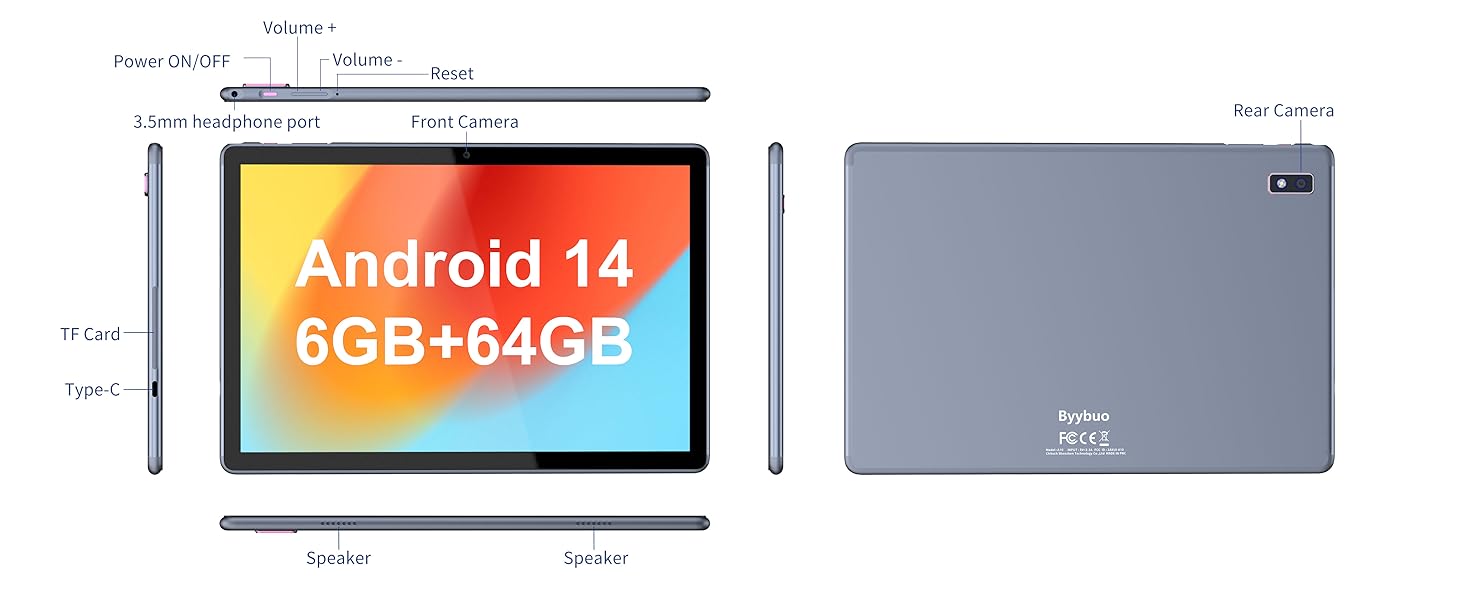
Image: A detailed diagram illustrating the physical layout of the Tibuta Smartpad A40, including the positions of its buttons, ports, and cameras for easy identification.
4. Pradinės sąrankos vedlys
Pirmą kartą įjungus planšetinį kompiuterį, jis padės atlikti pradinį nustatymą. Vykdykite ekrane pateikiamus nurodymus, kad:
- Pasirinkite savo kalbą.
- Prisijunkite prie „Wi-Fi“ tinklo.
- Prisijunkite naudodami „Google“ paskyrą arba sukurkite naują.
- Nustatykite ekrano užraktą (PIN kodą, šabloną, slaptažodį).
- Review ir sutikite su sąlygomis ir nuostatomis.
Operating Your Tibuta Smartpad A40
1. Navigation and Touchscreen Gestures
The Smartpad A40 features a responsive multi-touch display. Common gestures include:
- Bakstelėkite: Norėdami pasirinkti elementą arba atidaryti programėlę.
- Palieskite ir palaikykite: Norėdami pasiekti kontekstinius meniu arba perkelti piktogramas.
- Perbraukimas: To scroll through pages or navigate between screens.
- Žiupsnelis, norint priartinti: Norėdami priartinti arba atitolinti vaizdus ir web puslapių.
2. Ekranas ir garsas
Experience vibrant visuals on the 10.1-inch IPS HD display with a resolution of 1280 x 800 pixels. The tablet also features an eye protection mode to reduce strain during prolonged use. Enjoy clear audio through the integrated dual high-fidelity speakers.

Image: The Tibuta Smartpad A40 tablet showcasing its IPS Full HD display and dual speakers, emphasizing its 10.1-inch screen size, 1280x800 IPS resolution, eye protection mode, and high-fidelity audio output.
3. Našumas ir operacinė sistema
Powered by a robust Quad-Core processor and running on Android 14, the Smartpad A40 delivers smooth performance for multitasking, gaming, and streaming. The Android 14 system ensures access to the latest features and security updates.

Image: The Tibuta Smartpad A40 tablet showcasing its Android 14 operating system and GMS certification, with various application icons visible on the screen.
4. Storage and Memory
The tablet comes with 6GB of RAM (2GB + 4GB virtual) and 64GB of internal storage, providing ample space for your applications, photos, videos, and documents. Storage can be expanded up to 128GB using a microSD card (not included).

Image: The Tibuta Smartpad A40 tablet highlighting its 6GB RAM and 64GB internal storage, along with the option to expand storage up to 128GB via a microSD card.
5. Fotoaparatai
Capture moments with the tablet's dual cameras: a 5 MP front camera for video calls and selfies, and an 8 MP rear camera for photos and videos.

Image: Demonstrates the Tibuta Smartpad A40's camera capabilities, featuring a 5.0 MP front camera for HD video and an 8.0 MP rear camera with autofocus for capturing photos.
6. Ryšys
The Smartpad A40 supports Wi-Fi (802.11ac) for fast internet access and Bluetooth for connecting to wireless peripherals like headphones and speakers.
7. Versatile Use Cases
The Tibuta Smartpad A40 is designed for a wide range of activities, from entertainment to productivity. Its portability makes it ideal for on-the-go use, while its features support various daily needs.

Image: Illustrates the diverse applications of the Tibuta Smartpad A40, including watching videos, assisting with daily tasks, and serving as a tablet for both children and seniors.
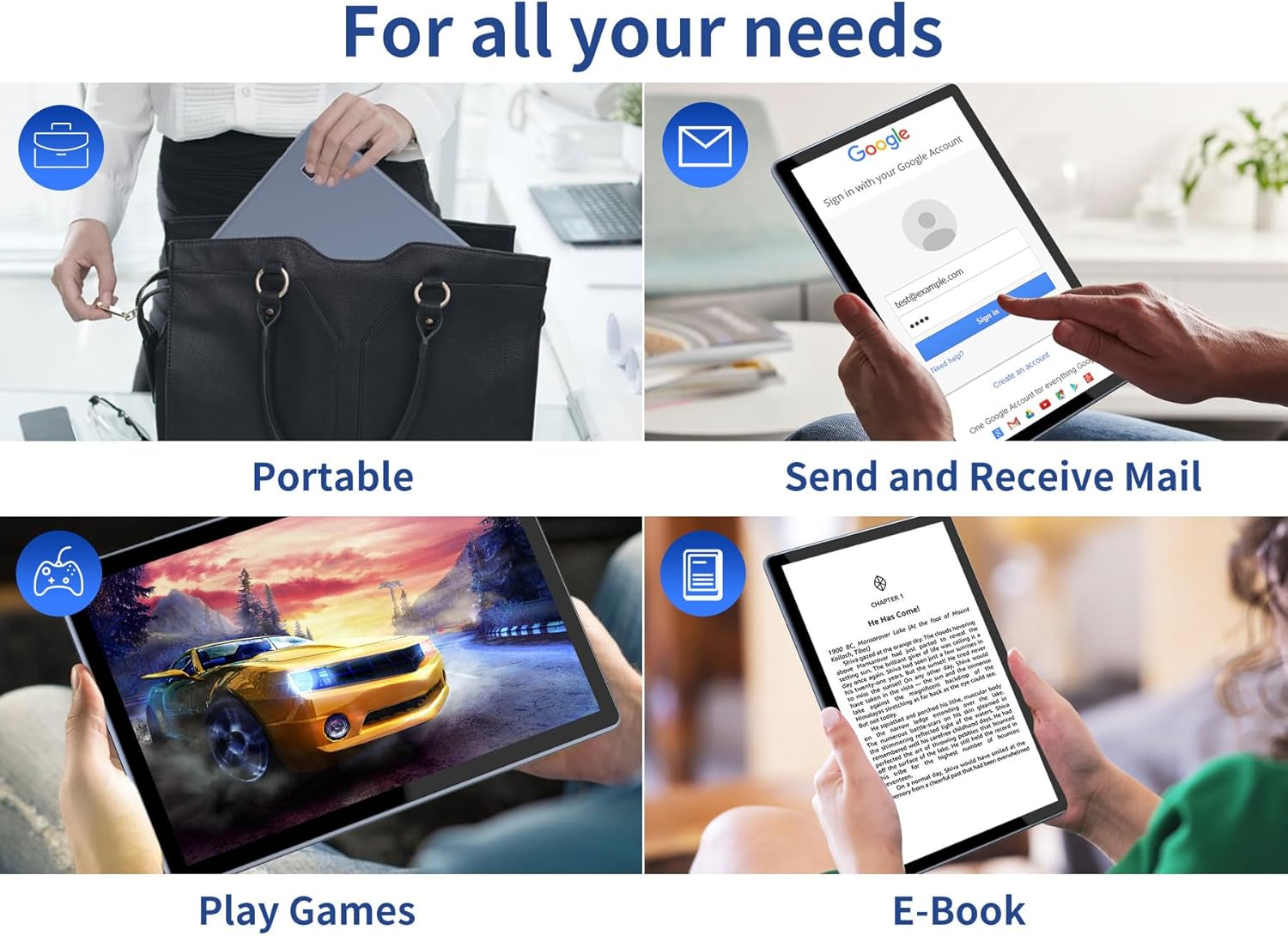
Image: Depicts the versatility of the Tibuta Smartpad A40 for various user needs, including portability, email communication, gaming, and e-book reading.
Priežiūra
1. Planšetinio kompiuterio valymas
Planšetinio kompiuterio ekraną ir korpusą valykite minkštu, nepūkuotu audiniu. Įsisenėjusias dėmes šiek tiek nuvalykite.ampNuvalykite šluostę vandeniu arba ekrano valikliu. Venkite naudoti stiprias chemines medžiagas ar abrazyvines medžiagas.
2. Programinės įrangos atnaujinimai
Reguliariai tikrinkite, ar yra sistemos naujinimų, ir juos įdiekite, kad planšetiniame kompiuteryje būtų įdiegtos naujausios funkcijos, saugos pataisymai ir našumo patobulinimai. Eikite į Nustatymai > Sistema > Sistemos naujinimas norėdami patikrinti, ar nėra atnaujinimų.
3. Akumuliatoriaus priežiūra
Norėdami pailginti baterijos veikimo laiką:
- Venkite ekstremalių temperatūrų.
- Neleiskite akumuliatoriui visiškai išsikrauti prieš jį dažnai įkraunant.
- Atjunkite įkroviklį, kai akumuliatorius bus pilnas.
4. Sandėliavimo valdymas
Periodiškai review jūsų įdiegtos programos ir files. Uninstall unused apps and delete unnecessary files to free up storage space and maintain optimal performance. Utilize the microSD card slot for additional storage if needed.
Trikčių šalinimas
| Problema | Galima priežastis | Sprendimas |
|---|---|---|
| Planšetinis kompiuteris neįsijungia. | Žema akumuliatoriaus įkrova; sistemos gedimas. | Charge the tablet for at least 30 minutes. Press and hold the Power button for 10-15 seconds to force restart. If unresponsive, locate the small reset pinhole (refer to diagram in Setup Guide) and gently press it with a paperclip. |
| „Wi-Fi“ ryšio problemos. | Neteisingas slaptažodis; maršrutizatoriaus problema; planšetinio kompiuterio „Wi-Fi“ išjungtas. | Ensure Wi-Fi is enabled in Settings. Re-enter Wi-Fi password. Restart your Wi-Fi router. Forget the network and reconnect. |
| Lėtas veikimas. | Per daug veikiančių programų; mažai vietos saugykloje; pasenusi programinė įranga. | Close background apps. Clear cache. Uninstall unused apps. Check for system updates. Restart the tablet. |
| Programėlės stringa arba užstringa. | App bug; insufficient resources. | Force close the app (Settings > Apps > [App Name] > Force Stop). Clear app cache/data. Reinstall the app. Ensure system is updated. |
Specifikacijos
| Funkcija | Detalė |
|---|---|
| Prekės ženklas | Tibuta |
| Modelio numeris | A40 |
| Operacinė sistema | Android 14 (Android 13 listed in some specs, but product title indicates 14) |
| Ekrano dydis | 10.1 colių |
| Ekrano raiška | 1280 x 800 Pixels (IPS HD) |
| Procesoriaus prekės ženklas | Allwinner (Quad-Core) |
| Įdiegtos RAM dydis | 6 GB (2+4GB) |
| Atminties talpa | 64 GB |
| Išplečiama saugykla | „Micro SD“ (iki 128 GB) |
| Priekinė kamera | 5 MP |
| Galinė kamera | 8 MP |
| Baterijos talpa | 5000 mAh |
| Ryšys | Wi-Fi (802.11ac), Bluetooth |
| Įkrovimo prievadas | C tipas |
| Prekės matmenys (I x P x A) | 25.8 x 15.8 x 2 cm |
| Prekės svoris | 1.16 kilogramo |
Garantija ir palaikymas
Informacija apie garantiją
Specific warranty details for the Tibuta Smartpad A40 are typically provided with your purchase documentation or on the product packaging. Please refer to these resources for information regarding warranty period, coverage, and terms. In general, manufacturer warranties cover defects in materials and workmanship under normal use.
Pagalba klientams
For technical assistance, troubleshooting beyond this manual, or warranty claims, please contact Tibuta customer support through the following channels:
- Žiūrėkite kontaktinę informaciją, pateiktą ant jūsų produkto pakuotės.
- Visit the official Tibuta websvetainė, kurioje rasite pagalbos išteklių, DUK ir kontaktinių formų.
- If purchased through an online retailer, their customer service portal may also offer support or direct you to the manufacturer.


