1. Įvadas
The EazeID M950 is a versatile label maker designed for home, office, and school use. It offers two primary printing modes: direct input via its integrated QWERTY keyboard and wireless control through the 'Print Master' mobile application via Bluetooth. Featuring a rechargeable battery and a backlit LCD screen, the M950 provides convenience and clarity for all your labeling needs. This manual provides detailed instructions for setting up, operating, and maintaining your device.
2. Pakuotės turinys
Patikrinkite, ar jūsų siuntinyje yra visi toliau išvardyti daiktai:
- 1 x EazeID M950 Label Maker
- 1 x 3M21 Black on White Label tape (12mm*4M)
- 1 x C tipo duomenų kabelis
- 1 x Packaging box
- 1 x Naudotojo vadovas (šis dokumentas)

Figure 2.1: EazeID M950 Label Maker package contents.
3. Produktas baigtasview
The EazeID M950 Label Maker features a compact design with an integrated QWERTY keyboard and a backlit LCD screen for ease of use. It utilizes thermal printing technology, eliminating the need for ink or toner.

3.1 pav.: priekis view of the EazeID M950 Label Maker and accessories.

Figure 3.2: Key features and components of the EazeID M950 Label Maker.
4. Sąranka
4.1 Įrenginio įkrovimas
The M950 Label Maker is equipped with a built-in 1200mAh rechargeable lithium battery. Before first use, or when the battery is low, charge the device using the provided Type-C USB cable.
- Connect the Type-C end of the cable to the charging port on the side of the label maker.
- Connect the USB-A end of the cable to a 5V-2A charging adapter (not included) or a compatible USB port.
- The device will indicate charging status on the LCD screen. A full charge typically takes 1-2 hours.
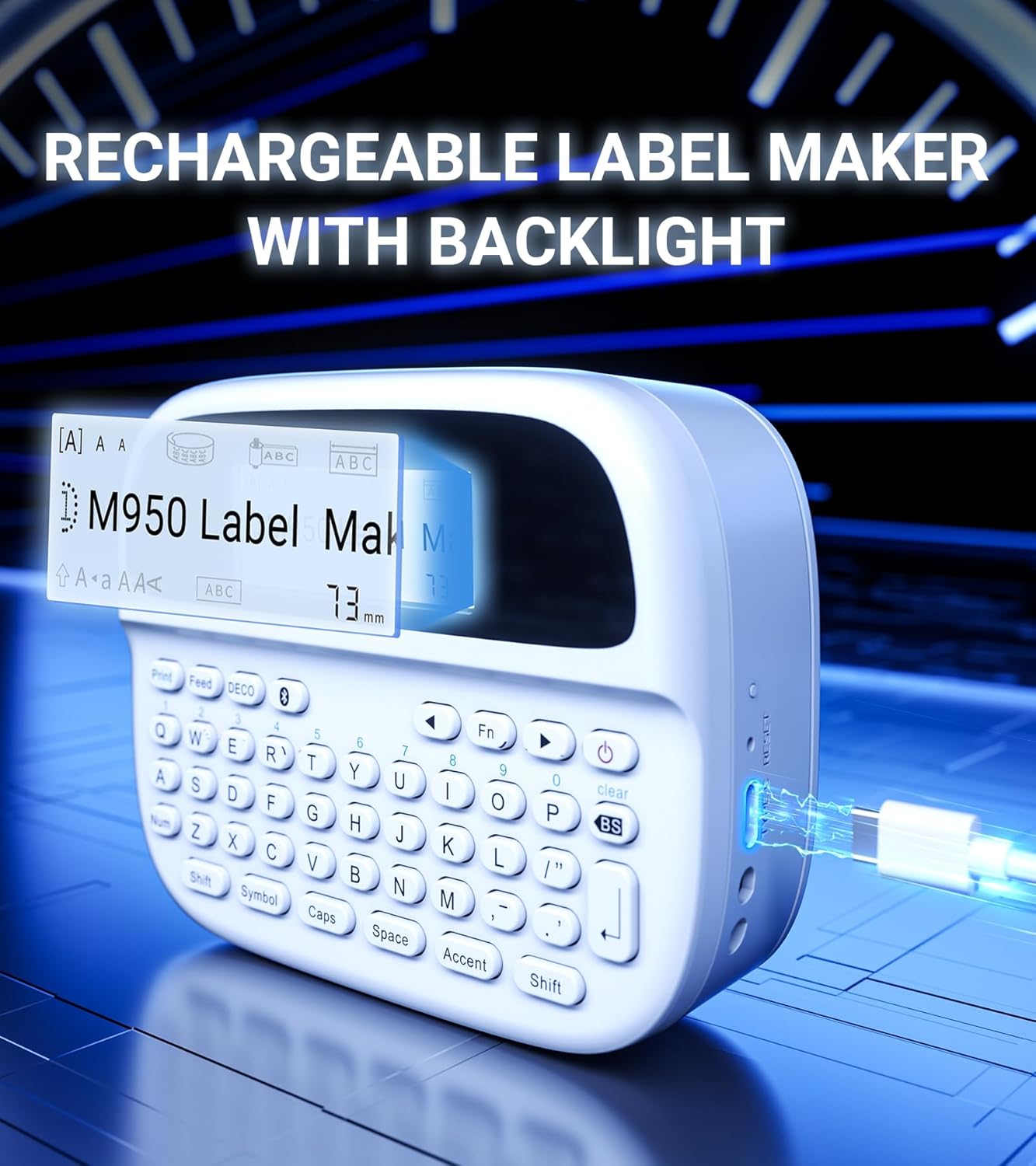
Figure 4.1: Charging the EazeID M950 Label Maker.
4.2 Etikečių juostos klijavimas
To install or replace the label tape cassette:
- Įsitikinkite, kad etikečių spausdintuvas yra išjungtas.
- Locate the tape compartment cover on the top of the device. Gently open the cover.
- Insert the label tape cassette into the compartment, ensuring it clicks into place. The tape should feed smoothly out of the slot.
- Tvirtai uždarykite kasečių skyriaus dangtelį.

4.2 pav. Vidinis view of the M950 label maker showing tape cassette placement.
5. Naudojimo instrukcijos
5.1 Įjungimas / išjungimas
- Norėdami įjungti: paspauskite ir palaikykite Galia mygtuką (paprastai pažymėtą maitinimo simboliu), kol įsijungs LCD ekranas.
- Norėdami išjungti: paspauskite ir palaikykite Galia button again until the screen turns off.
5.2 Direct Printing via QWERTY Keyboard
The M950 features an ergonomic QWERTY keyboard for direct label creation.
- Maitinimas: Turn on the label maker.
- Įvesties tekstas: Use the QWERTY keyboard to type your desired label text. The text will appear on the backlit LCD screen.
- Formatting Options: Use the function keys (e.g., Fn, Simbolis, Caps, Akcentas) to access various fonts, sizes, symbols, and other formatting options.
- Spausdinti: Paspauskite Spausdinti button to generate the label.
- Iškirpti: Use the built-in cutter to cleanly separate the printed label from the tape roll.

Figure 5.1: Using the QWERTY keyboard for direct label printing.
5.3 Bluetooth App Printing (Print Master App)
For advanced features and customization, connect your M950 to the 'Print Master' app via Bluetooth.
- Atsisiųsti programą: Download the 'Print Master' app from your device's app store (available on Android and iOS).
- Power On & Bluetooth: Turn on the label maker and ensure Bluetooth is enabled on both the label maker and your smartphone.
- Prisijunkite: Open the 'Print Master' app. The app will search for nearby EazeID label makers. Select 'EazeID M950' from the list to connect.
- Dizaino etiketė: Use the app's interface to create your label. The app offers a vast library of customizable templates, over 1000 patterns, 100+ frames, 100+ fonts, barcodes, and QR codes.
- Spausdinti: Once your label is designed, tap the 'Print' icon in the app.
- Iškirpti: Use the built-in cutter on the label maker to separate the printed label.

Figure 5.2: The EazeID M950 supports both keyboard and Bluetooth app printing modes.

Figure 5.3: Connecting to the 'Print Master' app via Bluetooth.
6. Priežiūra
6.1 Prietaiso valymas
To ensure optimal performance and longevity of your label maker:
- Prieš valydami įrenginį išjunkite.
- Etikečių spausdintuvo išorę nuvalykite minkštu, sausu skudurėliu.
- Spausdinimo galvutę švelniai nuvalykite vatos tamponu, lengvai dampsuvilgytas izopropilo alkoholiu. Prieš naudojimą leiskite jam visiškai išdžiūti.
- Nenaudokite abrazyvinių valiklių ar tirpiklių.
6.2 Akumuliatoriaus priežiūra
Norėdami maksimaliai pailginti akumuliatoriaus veikimo laiką:
- Venkite dažnai visiškai iškrauti akumuliatorių.
- Reguliariai kraukite įrenginį, net jei jis nėra nuolat naudojamas.
- Laikykite prietaisą vėsioje, sausoje vietoje, kai jo ilgesnį laiką nenaudojate.
7. Problemų sprendimas
If you encounter issues with your EazeID M950 Label Maker, refer to the following common problems and solutions:
| Problema | Galima priežastis | Sprendimas |
|---|---|---|
| Įrenginys neįsijungia | Žemas akumuliatoriaus lygis; Įrenginio gedimas; | Įkraukite įrenginį bent 30 minučių. Jei jis vis tiek nereaguoja, susisiekite su palaikymo tarnyba. |
| Nėra spaudinio arba spaudinys yra neryškus | Tape installed incorrectly; Print head dirty; Low battery | Reinstall tape cassette. Clean the print head. Charge the device. |
| „Bluetooth“ ryšys nepavyksta | Bluetooth off; App not updated; Device too far | Ensure Bluetooth is enabled on both devices. Update 'Print Master' app. Move label maker closer to smartphone. Restart both devices. |
| Labels are difficult to peel | Specific label tape characteristic | Ensure you are using genuine EazeID label tape. Try bending the label backing slightly to separate. |
8. Specifikacijos
Technical specifications for the EazeID M950 Label Maker:
- Modelio pavadinimas: EazeID M950 Label Maker
- Spausdinimo technologija: Šiluminis
- Spausdinimo raiška: 203 DPI
- Ryšys: „Bluetooth“, C tipo USB
- Maksimalus laikmenos dydis: 12 mm (0.47 colio)
- Baterija: 1200 mAh ličio jonų akumuliatorius (įkraunamas, pridedamas)
- Kontrolės metodas: App (Print Master), QWERTY Keyboard
- Ypatingos savybės: Backlit LCD Screen, Built-in Cutter, Portable
- Gaminio matmenys: Maždaug 1 x 1 x 1 colio
- Prekės svoris: 1.06 svaro
- Įtraukti komponentai: Label maker, tape, USB-C cable, user manual

Figure 8.1: EazeID M950 Label Maker dimensions and key features.
9. Garantija ir palaikymas
The EazeID M950 Label Maker comes with a limited warranty. For specific warranty terms and conditions, please refer to the warranty card included in your product packaging or visit the official EazeID websvetainę.
For technical support, troubleshooting assistance, or inquiries about replacement parts and accessories, please contact EazeID customer service through the contact information provided on the official websvetainėje arba jūsų pirkimo platformoje.


