1. Įvadas
The vretti BQ1 Bluetooth Label Printer is a compact, portable thermal label printer designed for various labeling needs in home, office, school, and small business environments. It connects wirelessly to your smartphone via Bluetooth, allowing for quick and easy label creation and printing through the dedicated "xeasy label" application.
This printer utilizes thermal printing technology, eliminating the need for ink or toner, which saves on replacement costs and maintenance. It supports label sizes from 25mm to 58mm, offering flexibility for printing address labels, price tags, food labels, clothing tags, barcodes, QR codes, and more.

Image 1.1: The vretti BQ1 Bluetooth Label Printer, highlighting its Bluetooth connectivity and compatibility with iOS and Android devices.
2. Sąranka
2.1 Pakuotės turinys
Prieš pradėdami, patikrinkite, ar pakuotėje yra visi reikalingi daiktai:
- 1 x vretti BQ1 Label Printer
- 1 x Naudotojo vadovas (šis dokumentas)
- 1 x 50x30mm Label Paper Roll (pre-installed inside the machine)
- 1 x C tipo USB įkrovimo laidas
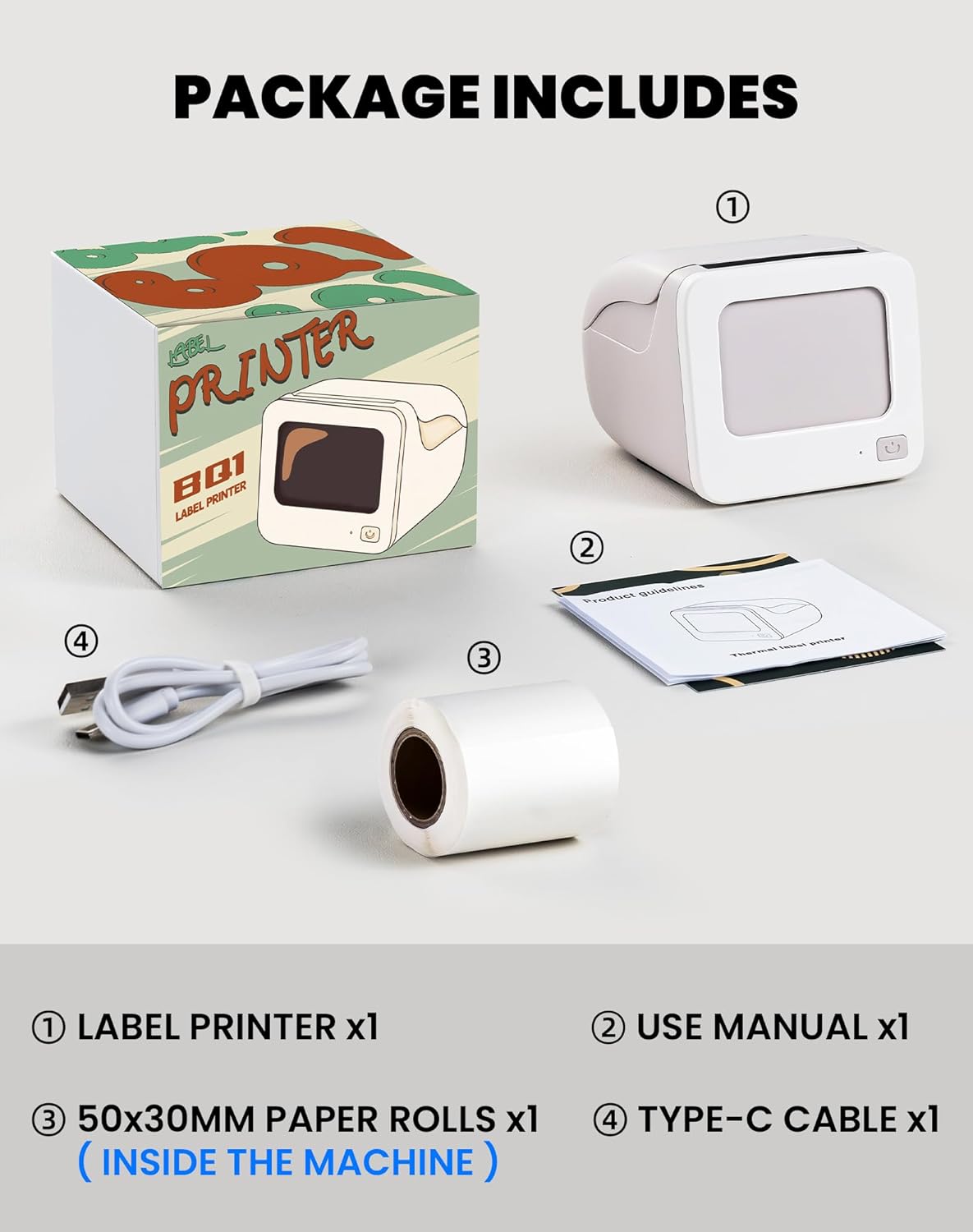
Image 2.1: Visual representation of the items included in the vretti BQ1 label printer package.
2.2 Etikečių popieriaus įdėjimas
The printer comes with a label roll pre-installed. If you need to replace or load a new roll:
- Švelniai atidarykite spausdintuvo dangtį.
- Insert the new label roll into the compartment, ensuring the labels feed out smoothly. The printable side of the label should face upwards.
- Saugiai uždarykite spausdintuvo dangtį.

Image 2.2: Proper insertion of a label roll into the vretti BQ1 printer, demonstrating the supported label width range.
2.3 Programėlės diegimas ir „Bluetooth“ ryšys
To use your vretti BQ1 printer, you need to download and connect it via the "xeasy label" application.
- Atsisiųskite programą: Ieškokite "xeasy label" in your smartphone's app store (Google Play Store for Android or Apple App Store for iOS) and install it.
- Įjunkite Bluetooth: Įsitikinkite, kad jūsų išmaniajame telefone įjungtas „Bluetooth“.
- Atidarykite programėlę ir prisijunkite: Open the "xeasy label" app. The app will guide you to connect to your printer. Select "BQ1" from the list of available devices.
- Maitinimas: Paspauskite ir palaikykite spausdintuvo maitinimo mygtuką, kol užsidegs indikatoriaus lemputė.

Image 2.3: Step-by-step guide for downloading the "xeasy label" app, connecting to the printer via Bluetooth, and preparing to edit a label.
3. Naudojimo instrukcijos
3.1 Etikečių kūrimas ir spausdinimas
Once connected, the "xeasy label" app provides a user-friendly interface for designing and printing labels.
- Select a Template or Create New: The app offers a variety of pre-designed templates, fonts, icons, and frames. You can choose an existing template or start a new design.
- Customize Your Label: Edit text, add images, barcodes, QR codes, and adjust the layout to fit your needs. The app supports various customization options.
- Preview ir spausdinti: Prieš spausdinant, iš ankstoview your label to ensure it looks as desired. Then, tap the print button in the app to send the design to your vretti BQ1 printer.
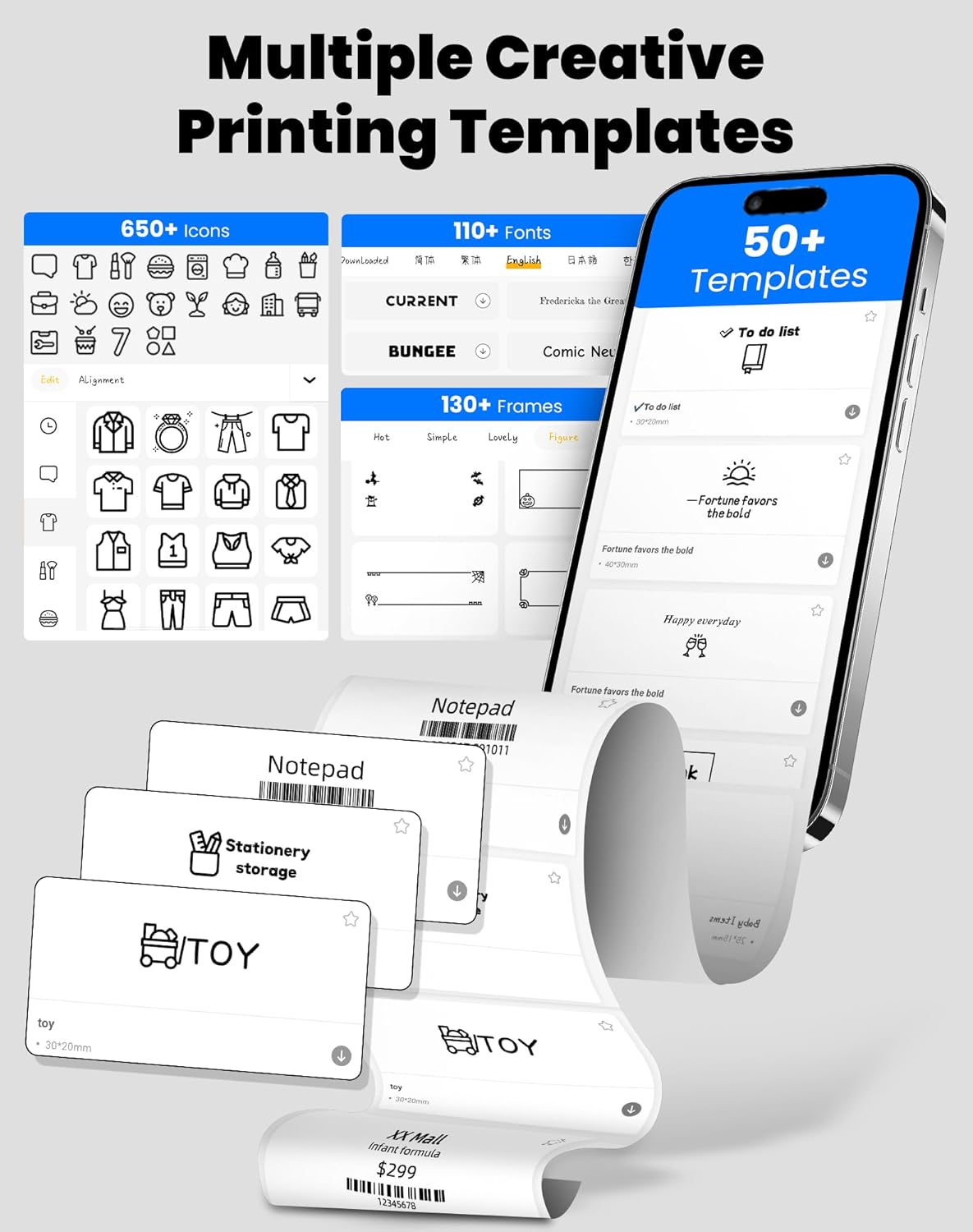
Image 3.1: The "xeasy label" app interface, showcasing a wide range of creative printing templates, icons, and fonts available for label design.

3.2 vaizdas: Baigtaview of the multi-functional applications within the "xeasy label" app, including support for barcodes, QR codes, images, various borders, font shapes, and hundreds of icons.
3.2 Common Label Applications
The vretti BQ1 printer is versatile and suitable for a wide range of applications:
- Namų organizavimas: Label storage bins, pantry items, spice jars, and more.
- Biuras ir mokykla: Organizuoti files, label stationery, create name tags, or mark assets.
- Mažmeninė prekyba ir smulkusis verslas: Print price tags, product labels, address labels for shipping, and inventory management labels.
- Asmeniniam naudojimui: Create decorative labels for gifts, DIY projects, or personal items.

3.3 pav.: pvz.amples of the vretti BQ1 printer's versatility, showing labels used for toy classification, light switches, to-do lists, clothing, and gifts.

Image 3.4: Demonstrations of common label types that can be printed, including address labels, price labels, food labels, and customizable DIY labels.
4. Priežiūra
4.1 Spausdintuvo valymas
To ensure optimal performance and print quality, regular cleaning is recommended:
- Išorė: Wipe the exterior of the printer with a soft, dry cloth. Avoid using abrasive cleaners or solvents.
- Spausdinimo galvutė: If print quality degrades, gently clean the thermal print head with an alcohol swab. Ensure the printer is turned off and cooled down before cleaning.
4.2 Label Roll Storage
Etikečių ritinėlius laikykite vėsioje, sausoje vietoje, toliau nuo tiesioginių saulės spindulių ir per didelio karščio, kad išsaugotumėte jų lipnumo savybes ir spausdinimo kokybę.
5. Problemų sprendimas
If you encounter issues with your vretti BQ1 printer, try the following steps:
- Spausdintuvas neįsijungia: Ensure the printer is charged. Connect it to a power source using the provided Type-C cable.
- Nepavyksta prisijungti per „Bluetooth“:
- Įsitikinkite, kad jūsų išmaniajame telefone įjungtas „Bluetooth“.
- Įsitikinkite, kad spausdintuvas įjungtas ir yra diapazone.
- Iš naujo paleiskite spausdintuvą ir išmanųjį telefoną.
- Try reconnecting through the "xeasy label" app.
- Prasta spausdinimo kokybė:
- Check if the label roll is inserted correctly and is not damaged.
- Išvalykite terminio spausdinimo galvutę, kaip aprašyta skyriuje „Priežiūra“.
- Ensure the label type is compatible with thermal printing.
- Etiketės netiekiamos tinkamai:
- Verify the label roll is properly seated and not jammed.
- Ensure the printer cover is fully closed.
5.1 vaizdo įrašas: bendras produktasview video for the vretti BQ1 label printer, demonstrating its features and operation. If the video does not load, please ensure your browser supports HLS streaming.
6. Specifikacijos
| Prekės ženklas | vretti |
| Modelio pavadinimas | BQ1 |
| Ryšio technologija | Bluetooth |
| Spausdinimo technologija | Šiluminis |
| Maksimalus laikmenos dydis | 58 mm (supports 25-58mm width) |
| Spausdinimo raiška | 203 dpi (vienspalvis) |
| Suderinami įrenginiai | Išmanusis telefonas („Android“, „iOS“) |
| Įtraukti komponentai | 1 Label Printer, 1 Label Roll (starter), 1 Type-C Cable |
| Gaminio matmenys | 10.3D x 10.4W x 8H centimetrai |
| Ypatinga funkcija | Elegant TV-like design |
7. Garantija ir palaikymas
7.1 Informacija apie garantiją
The vretti BQ1 Label Printer typically comes with a vienerių metų garantija from the date of purchase. Please retain your proof of purchase for warranty claims. The warranty covers manufacturing defects but does not cover damage caused by misuse, accidents, or unauthorized modifications.
7.2 Pagalba klientams
For further assistance, technical support, or warranty inquiries, please refer to the official vretti website or contact their customer service through the contact information provided on their official channels. Ensure you have your product model number (BQ1) and purchase details ready when contacting support.


