1. Įvadas
The Microsoft Surface Pro 10 is a versatile 2-in-1 device designed to adapt to various work styles, offering the functionality of both a tablet and a laptop. It features an Intel Core Ultra 5 processor, providing robust performance for daily tasks and advanced applications. This manual provides essential information to help you set up, operate, and maintain your device, ensuring optimal performance and longevity.
2. Kas yra dėžutėje
Carefully unpack your Surface Pro 10 and ensure all items are present. The standard package includes:
- Microsoft Surface Pro 10 Device
- Maitinimo blokas
- Microsoft Surface Pro Keyboard
- Microsoft Surface Pro Slim Pen
- Greitos pradžios vadovas
- Saugos ir garantijos dokumentai
3. Įrenginys baigtasview
Familiarize yourself with the physical components of your Surface Pro 10.

3.1 paveikslas: Priekyje view of the Surface Pro 10 with the keyboard attached, showcasing ekrano ir klaviatūros išdėstymą.

3.2 paveikslas: Šoninė view of the Surface Pro 10 in laptop configuration, highlighting the adjustable kickstand and connected keyboard.
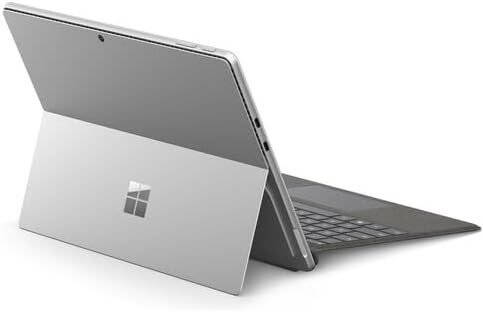
3.3 paveikslas: Galinis view of the Surface Pro 10 with the kickstand deployed, revealing the device's sleek design and the iconic Microsoft logo.
Pagrindiniai komponentai:
- 13-inch PixelSense Flow Display: High-resolution touchscreen for vibrant visuals and touch interaction.
- Priekinė kamera: For video calls and facial recognition (Windows Hello).
- Galinė kamera: Nuotraukų ir vaizdo įrašų fotografavimui.
- Maitinimo mygtukas: Esantis šone, naudojamas įrenginiui įjungti / išjungti arba užmigdyti.
- Garsumo mygtukai: Located on the side, for adjusting audio levels.
- USB-C prievadai: For charging, data transfer, and connecting external displays or accessories.
- „Surface Connect“ prievadas: For charging and connecting to Surface Dock accessories.
- Stovas: Integrated into the back, allows for multiple viewkampų.
- Mikrofonai: For voice commands and audio recording.
4. Sąranka
4.1 Pradinis įkrovimas
- Connect the power supply to the Surface Connect port or one of the USB-C ports on your Surface Pro 10.
- Įjunkite maitinimo šaltinį į sieninį lizdą.
- Prieš pirmą kartą naudodami, leiskite įrenginiui krautis bent 30 minučių arba tol, kol akumuliatoriaus indikatorius rodys pakankamą įkrovą.
4.2 Įjungimas / išjungimas
- Norėdami įjungti: Press and hold the Power button until the Microsoft logo appears on the screen.
- Norėdami išjungti: From the Windows desktop, select Pradėti > Galia > Išsijungti. Alternatively, press and hold the Power button for a few seconds, then slide down to shut down.
- Miegoti: Briefly press the Power button. Press it again to wake the device.
4.3 Pradinė „Windows“ sąranka
Upon first power-on, you will be guided through the Windows 11 setup process. Follow the on-screen prompts to:
- Pasirinkite savo kalbą ir regioną.
- Prisijunkite prie „Wi-Fi“ tinklo.
- Sutikite su licencijos sąlygomis.
- Prisijunkite naudodami „Microsoft“ paskyrą arba sukurkite naują.
- Set up Windows Hello (facial recognition or fingerprint, if available).
- Konfigūruoti privatumo nustatymus.
4.4 Attaching the Surface Pro Keyboard
Align the magnetic connector on the keyboard with the corresponding port at the bottom edge of your Surface Pro 10. The keyboard will snap into place magnetically. You can adjust the keyboard to lie flat or tilt it slightly for a more ergonomic typing experience.
4.5 Pairing the Surface Pro Slim Pen
The Surface Pro Slim Pen typically pairs automatically when first used with your Surface Pro 10. If not, follow these steps:
- Eikite į Pradėti > Nustatymai > Bluetooth ir įrenginiai > Pridėti įrenginį > Bluetooth.
- Press and hold the top button on your Slim Pen for 5-7 seconds until the LED light flashes white.
- Select your Surface Slim Pen from the list of available devices and follow any on-screen prompts.
5. Operating Your Surface Pro 10
5.1 Switching Between Tablet and Laptop Modes
- Nešiojamojo kompiuterio režimas: Attach the Surface Pro Keyboard and adjust the kickstand for a traditional laptop experience.
- Planšetinio kompiuterio režimas: Detach the keyboard or fold it back completely. Windows will automatically switch to Tablet Mode, optimizing the interface for touch input.
5.2 Jutiklinio ekrano naudojimas
The PixelSense Flow Display supports multi-touch gestures:
- Bakstelėkite: Pasirinkite elementą arba atidarykite programėlę.
- Palieskite ir palaikykite: Access context menus (right-click equivalent).
- Žiupsnelis, norint priartinti: Priartinkite arba atitolinkite vaizdus ir web puslapių.
- Swipe from Edges: Access quick settings, notifications, or switch between apps.
5.3 Using the Surface Pro Slim Pen
The Slim Pen allows for precise input and creative tasks:
- Rašymas/piešimas: Use the pen directly on the screen in compatible apps like Microsoft Whiteboard or OneNote.
- Pasirinkimas: Tap with the pen to select items.
- Trintukas: Use the eraser button on the pen to erase digital ink.
- Viršutinis mygtukas: Customizable for quick access to apps like OneNote or screenshots.
5.4 Basic Windows 11 Navigation
- Pradžios meniu: Access apps, settings, and power options.
- Užduočių juosta: Pin frequently used apps and view atidaryti programas.
- Veiksmų centras: Swipe in from the right edge (or click the icon) for quick settings and notifications.
- Valdikliai: Swipe in from the left edge (or click the icon) for personalized information.
6. Priežiūra
6.1 Įrenginio valymas
- Šiek tiek naudokite minkštą, be pūkelių šluostę dampened with water or an approved screen cleaner to wipe the display.
- For the body of the device and keyboard, use a soft, dry cloth.
- Avoid harsh chemicals, abrasive cleaners, or excessive moisture.
6.2 Akumuliatoriaus priežiūra
- Venkite dažnai visiškai iškrauti akumuliatorių.
- Laikykite prietaisą vėsioje, sausoje vietoje, kai jo ilgesnį laiką nenaudojate.
- Use only the official Microsoft power supply or certified compatible chargers.
6.3 Programinės įrangos naujiniai
Regularly check for and install Windows updates to ensure your device has the latest security patches, features, and performance improvements. Go to Pradėti > Nustatymai > Windows naujinimas.
7. Problemų sprendimas
7.1 Įrenginys neįsijungia
- Ensure the device is charged. Connect the power supply and wait a few minutes before attempting to power on.
- Perform a force restart: Press and hold the Power button for 15-20 seconds, then release and press it again briefly to turn on.
7.2 Ekrano problemos (nėra vaizdo, mirga)
- Iš naujo paleiskite įrenginį.
- Ensure display drivers are up to date via Windows Update.
- If connected to an external display, try disconnecting it.
7.3 „Wi-Fi“ arba „Bluetooth“ ryšio problemos
- Check if Wi-Fi or Bluetooth is enabled in Quick Settings or Windows Settings.
- Restart your Surface Pro 10 and your router/modem.
- Pamirškite tinklą / įrenginį ir bandykite prisijungti iš naujo.
- Update network drivers via Windows Update.
7.4 Performance Issues (Slowdowns, Freezes)
- Uždarykite nereikalingas programas, veikiančias fone.
- Check for and install all available Windows updates.
- Run a disk cleanup and optimize drives.
- Užtikrinkite pakankamai laisvos vietos saugykloje.
8. Specifikacijos
The following table outlines the key technical specifications for the Microsoft Surface Pro 10 (Intel Core Ultra 5, 16GB RAM, 256GB SSD) model:
| Funkcija | Specifikacija |
|---|---|
| Modelio pavadinimas | Surface Pro 10 (ZEA-00001) |
| Stovinčio ekrano dydis | 13 colių |
| Ekrano raiška | 2880 x 1920 pikselių |
| Maksimali ekrano skiriamoji geba | 2880x1920 |
| Procesorius | 1.4 GHz „Intel Core Ultra 5“ |
| Kietasis diskas | 256 GB SSD |
| Įdiegtos RAM atminties dydis | 16 GB DDR5 RAM |
| Operacinė sistema | Windows 11 Pro |
| Chipset prekės ženklas | Intel |
| Vaizdo plokštės aprašymas | Integruota |
| Belaidis tipas | „802.11ax“ |
| Spalva | Platina |
| Gaminio matmenys | 11.3 x 8.2 x 0.4 colio |
| Baterijos | 1 ličio jonų baterija (pridedama) |
9. Garantija ir palaikymas
Your Microsoft Surface Pro 10 comes with a limited hardware warranty. For detailed warranty information, please refer to the documentation included with your device or visit the official Microsoft Support websvetainę. Dėl techninės pagalbos, trikčių šalinimo vadovų ir tvarkyklių atsisiuntimų apsilankykite support.microsoft.com/surface.


