1. Įvadas
This manual provides detailed instructions for the setup, operation, maintenance, and troubleshooting of your NIIMBOT B1 Portable Thermal Label Printer. Please read this manual thoroughly before using the device to ensure proper function and longevity.

Image 1.1: The NIIMBOT B1 Label Maker shown with examples of printed labels for various applications.
2. Produktas baigtasview
2.1 Pakuotės turinys
Patikrinkite, ar pakuotėje yra visi reikalingi daiktai:
- NIIMBOT B1 Label Maker x1
- C tipo kabelis x1
- Vartotojo vadovas x1
- Roll label tape (50x30mm) x1 (pre-installed in some models)

Image 2.1: The NIIMBOT B1 Label Maker and its included accessories.
2.2 Pagrindinės savybės
- 2-Inch Label Printing: Supports label widths from 20mm to 50mm (1-2 inches).
- Terminis spausdinimas: No ink or toner required, reducing operational costs.
- Automatinis etikečių identifikavimas: For faster and easier printing.
- Ryšys: Compatible with iOS & Android smartphones via Bluetooth, and PC via USB.
- NIIMBOT App: Offers 10+ fonts/languages, 100+ borders, 1500+ symbols, barcodes, QR codes, icons, time stamps, pictures, photos, and OCR print functions.
- Nešiojamas dizainas: Kompaktiškas ir lengvas, kad būtų lengva transportuoti ir naudoti.
- Automatinis išjungimas: Customizable auto-off settings (15min, 30min, 60min, never) to conserve battery.
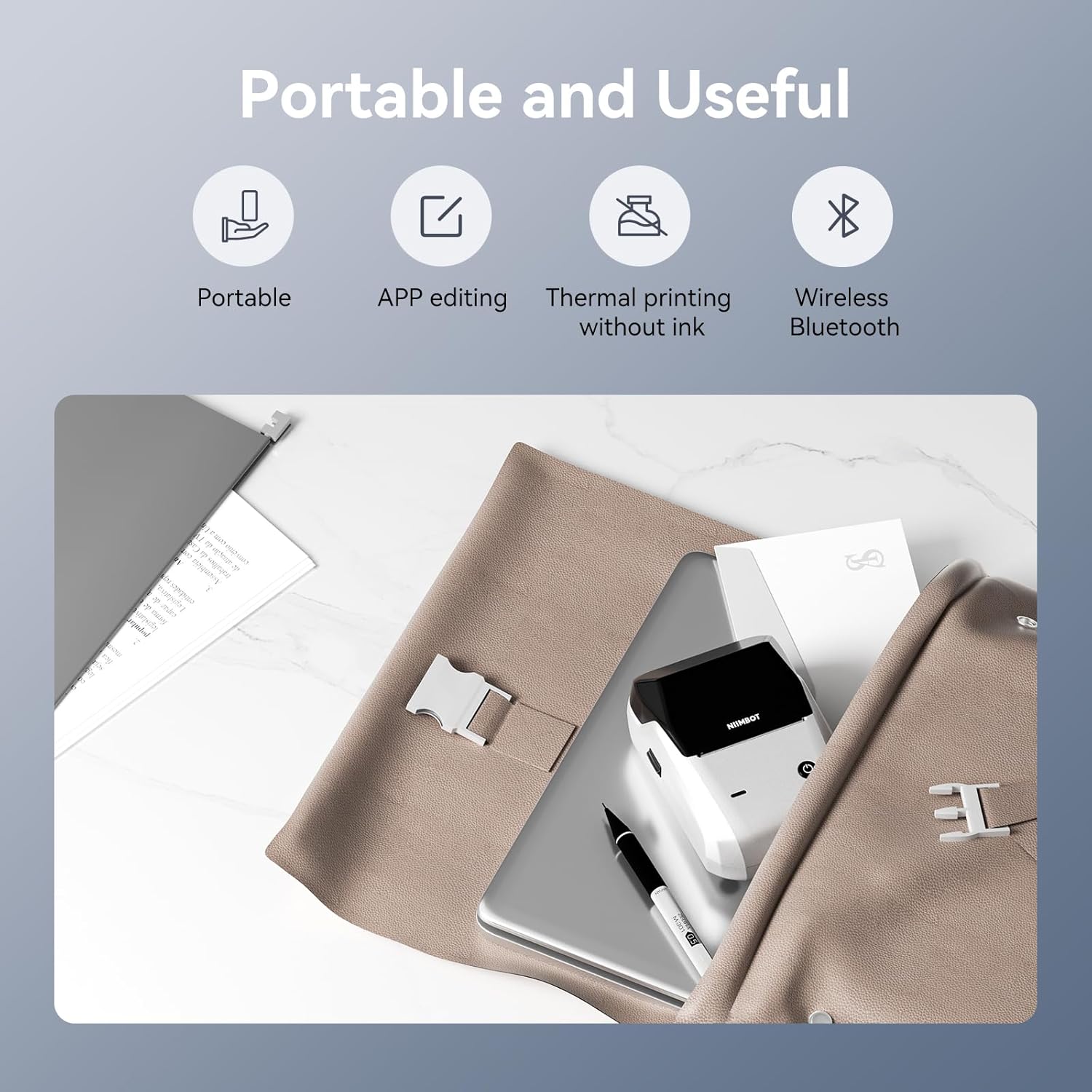
2.2 vaizdas: Baigtaview of the NIIMBOT B1's portable and useful features.
3. Sąranka
3.1 Etikečių juostos įdėjimas
- Rotate the side latch to open the tape slot.
- Load the label tape into the slot, ensuring the label side faces upwards.
- Adjust the guide plate to fit the label roll snugly.
- Close the tape slot, leaving a small portion of the label tape extending for smooth feeding.

Image 3.1: Proper installation of label tape in the NIIMBOT B1.
3.2 Programėlės diegimas ir prijungimas
The NIIMBOT B1 requires the NIIMBOT app for smartphone operation.
- Download the NIIMBOT app from the App Store (iOS) or Google Play Store (Android). Ieškokite "NIIMBOT".
- Įsitikinkite, kad jūsų telefone įjungtas „Bluetooth“ ryšys.
- Open the NIIMBOT app and click "Connect" to search for nearby devices.
- Select your B1 printer from the list (e.g., B1-XXXXXX) to pair. If prompted for a pairing code, enter 0000 or 1234.
- Once connected, the app will automatically identify the label tape in the printer.

Image 3.2: NIIMBOT App download and connection process.
3.3 PC Connection (Windows)
For PC connectivity, you will need to download the driver from the official NIIMBOT websvetainę.
- Apsilankykite oficialiame NIIMBOT website and download the B1 printer driver for Windows 7/10.
- Install the driver on your PC.
- Connect the NIIMBOT B1 printer to your PC using the provided USB Type-C cable.
- Open the NIIMBOT desktop software to begin printing.

Image 3.3: Connecting the NIIMBOT B1 to a PC via USB.
3.4 Quick Start Video Guide
Watch this video for a quick visual guide on setting up and using your B1 Label Maker.
Video 3.4: A quick start guide demonstrating the initial setup and basic operation of the NIIMBOT B1 Label Maker.
4. Naudojimo instrukcijos
4.1 Etikečių kūrimas ir redagavimas
- In the NIIMBOT app, select a template or create a new label.
- Use the various editing tools to add text, images, icons, barcodes, QR codes, and other elements.
- Customize font styles, sizes, alignment, and other layout options.
- The app supports features like OCR (Optical Character Recognition) for converting images to text.

Image 4.1: The NIIMBOT App interface for creating and editing labels.
4.2 Etikečių spausdinimas
- After designing your label, click the "Print" button in the app.
- Adjust the number of copies and print density as needed.
- Confirm the print settings and initiate printing.
- The printer will automatically feed and print the labels. Gently tear off the printed labels.

Image 4.2: Smartphone printing process with the NIIMBOT B1.
4.3 Indikatoriaus lemputės reikšmės
Understand the status of your printer through its indicator light:
- Blykstė mėlyna: Vyksta programinės aparatinės įrangos atnaujinimas.
- Pastoviai mėlyna: Printer is in standby mode.
- Žalios blykstės: Printer is actively printing.
- Nuolatinė žalia: Bluetooth is successfully connected.
- Raudona blykstė: Printer is charging.
- Nuolatinė raudona: Cover is open, out of paper, or low battery.

Image 4.3: Guide to the NIIMBOT B1 indicator light statuses.
4.4 Naudojimas Pvzamples
The NIIMBOT B1 is versatile for various labeling needs:
- Naudojimas namuose: Kitchen labels, gift labels, kids' item labels, trip item labels.
- Verslo reikmėms: Beauty & personal care, DIY item labels, mail labels, perfume labels, bakery food labels.

4.4 pav.: pvz.amples of NIIMBOT B1 usage for home organization.

4.5 pav.: pvz.amples of NIIMBOT B1 usage for small businesses.

4.6 pav.: pvz.amples of labels for bakery and food products.
Video 4.7: Demonstration of the NIIMBOT B1 Label Maker's ease of use for various labeling tasks.
4.8 vaizdo įrašas: demonstracijaasing the multipurpose capabilities of the NIIMBOT B1 Label Maker for different applications.
5. Priežiūra
5.1 Spausdinimo galvutės valymas
Regular cleaning of the print head ensures optimal print quality.
- Išjunkite spausdintuvą ir atjunkite maitinimo laidą.
- Atidarykite etiketės skyrių.
- Švelniai nuvalykite spausdinimo galvutę vatos tamponu, lengvai dampsu izopropilo alkoholiu.
- Allow the print head to dry completely before closing the compartment and turning on the printer.
5.2 Akumuliatoriaus priežiūra
- Reguliariai kraukite spausdintuvą, net jei juo nesinaudojate dažnai, kad palaikytumėte akumuliatoriaus veikimo laiką.
- Avoid exposing the printer to extreme temperatures.
- Įkrovimui naudokite tik pridedamą C tipo laidą.
6. Problemų sprendimas
6.1 Bendrosios problemos ir sprendimai
| problema | Galima priežastis | Sprendimas |
|---|---|---|
| Spausdintuvas neįsijungia | Išsikrovęs akumuliatorius; Maitinimo mygtukas nepakankamai ilgai nuspaustas | Įkraukite spausdintuvą; paspauskite ir 3 sekundes palaikykite nuspaudę maitinimo mygtuką. |
| Nepavyko prisijungti per Bluetooth | Bluetooth off on phone; Printer not in pairing mode; App permissions | Ensure Bluetooth is on; Restart printer; Check app permissions for nearby devices. |
| Prasta spausdinimo kokybė | Dirty print head; Incorrect print density; Low battery | Clean the print head (see 5.1); Adjust print density in the app; Charge the printer. |
| Etiketės netinkamai tiekiamos | Incorrect label installation; Guide plate not adjusted | Reinstall label tape correctly (see 3.1); Adjust the guide plate to fit the label roll. |
| Spausdintuvo neatpažįsta kompiuteris | Driver not installed; Faulty USB cable | Install the correct PC driver (see 3.3); Try a different USB cable. |
7. Specifikacijos
| Funkcija | Detalė |
|---|---|
| Modelio pavadinimas | B1 |
| Spausdinimo technologija | Šiluminis |
| Ryšys | Bluetooth, USB |
| Maksimali spausdinimo raiška | 203 dpi |
| Maksimalus spausdinimo greitis (vienspalvis) | 15 mm/s |
| Maksimalus laikmenos dydis | 2 colio (50 mm) |
| Suderinami įrenginiai | Smartphone (Android & iOS), PC (Windows 7/10) |
| Prekės svoris | 1.1 svaro (499 gramai) |
| Gaminio matmenys | 5.5 "D x 3.5" P x 2.5" A |
| Baterija | Reikalinga 1 A baterija (pridedama) |
| Specifiniai naudojimo būdai | Labeling for Small Business Product Price/Address, School and Office Files Classification, Home Supplies Organization, Personal Item Identification, Name Tags and Warehouse |
8. Garantija ir palaikymas
8.1 Informacija apie garantiją
The NIIMBOT B1 Label Printer comes with a 1-year warranty coverage. Please retain your proof of purchase for warranty claims.
8.2 Pagalba klientams
For further assistance, technical support, or warranty inquiries, please contact NIIMBOT customer service through their official websvetainėje arba kontaktinę informaciją, pateiktą ant jūsų produkto pakuotės.


